How to Check Search Indexing Status in Windows 11

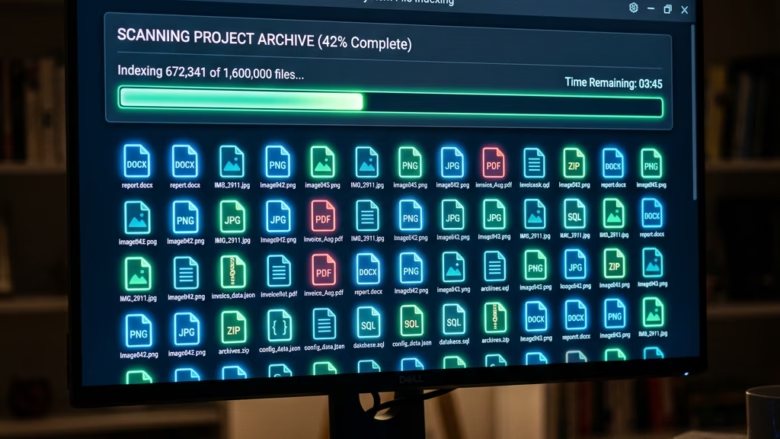
Windows Search Indexing is a built-in feature that builds a catalog of your files so you can find them instantly. It runs quietly in the background and works like the index at the back of a book, which speeds up searches across the operating system.
When this catalog falls behind or stops working, file searches get slow or miss items entirely. Checking the status shows you whether Windows 11 is still building the catalog or whether the background service is stuck. This guide covers three places to check, then how to rebuild the index if it is damaged.
You can check Windows 11 search indexing status in Settings under Privacy & security Searching. Alternatively, open Indexing Options from the Control Panel for more detail on indexed locations and file counts.
Performance Tuning and Impact
Indexing uses your computer’s resources, and how much it affects you depends on your drive. A fast Solid State Drive (SSD) needs less power and time for indexing, so it slows the system down less. A traditional Hard Disk Drive (HDD) takes longer, and you may notice the PC feeling sluggish while the index builds. This is most obvious right after a fresh install, a big file copy, or an index rebuild.
How to Check the Windows Search Service
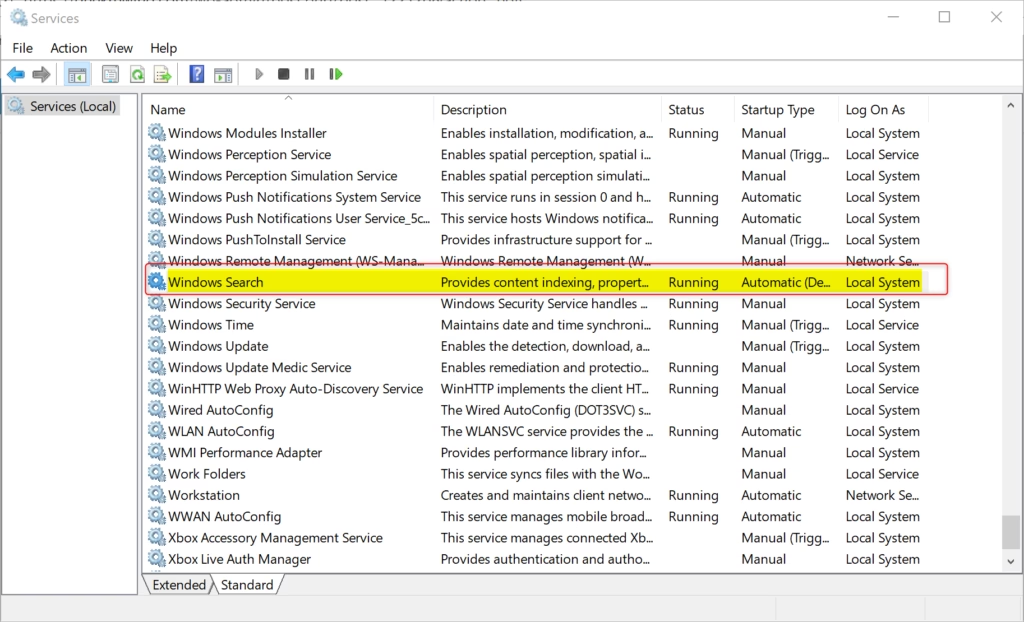
The first thing to check is the background program that runs indexing. It is a service called Windows Search, and you can see it in the Services app. It needs to stay active for your computer to find files quickly. If it stops, search results will not load properly.
- Press Win+R, type services.msc, and press Enter. The Services window opens with an alphabetical list.
- Scroll down to find Windows Search.
- Check the Status column. It should say Running.
- If the Status column is blank, right-click Windows Search and select Start. After a moment, the Status column should change to Running.
If the service is already running but search still misbehaves, right-click it and select Restart. This does not require a reboot of the PC. If Start is greyed out or you get an access denied message, you are not signed in with an administrator account. On a default install, the Startup type for this service is Automatic (Delayed Start), so it may take a minute or two to appear as running after you sign in.
Option 1Check Status in Settings
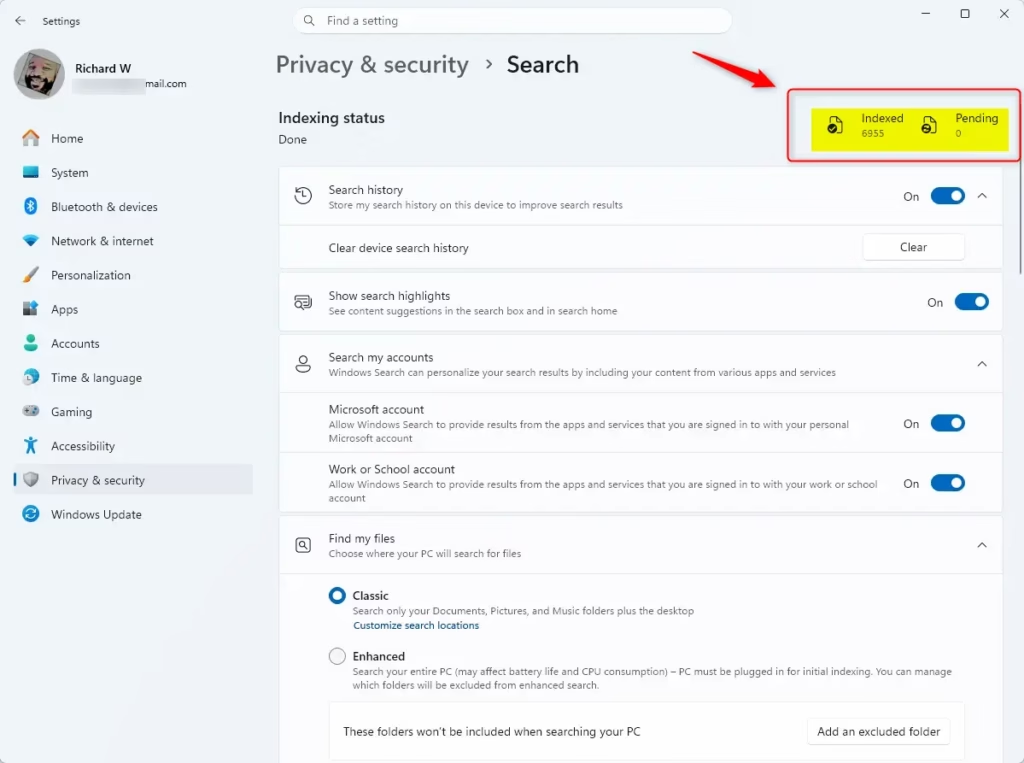
The Settings app shows how many items your computer has cataloged. It also tells you whether Windows is still building the search list or has finished indexing your files and folders. The exact layout of this page differs slightly between Windows 11 builds, so some labels may look a little different on your PC.
- Open Settings by pressing Windows key + I.
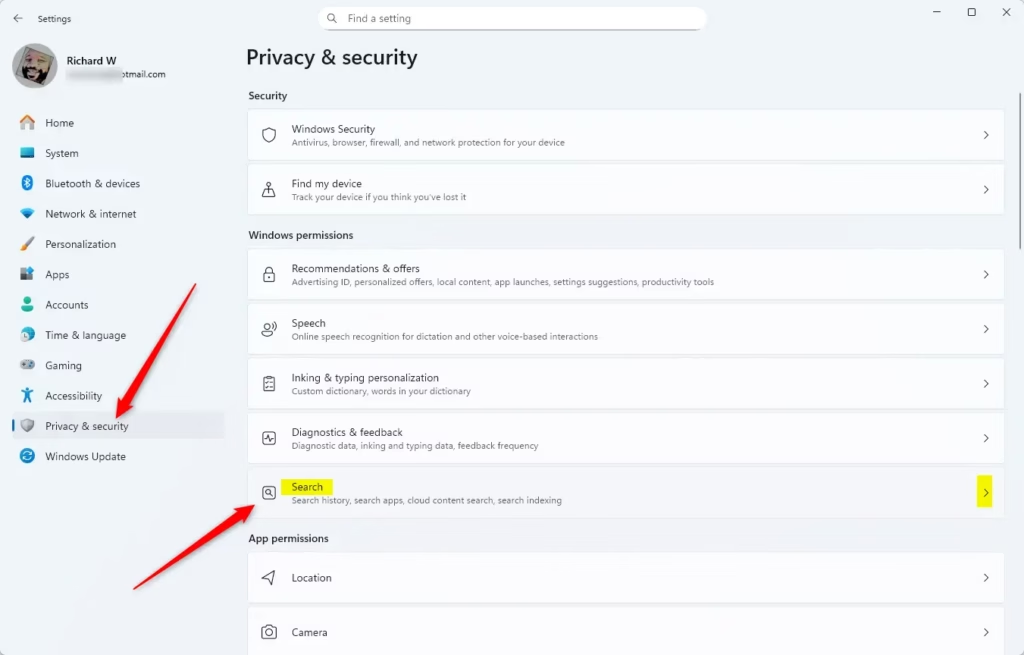
- Click Privacy & security on the left.
- Click Searching on the right. On most builds the full page title reads Searching Windows.
- Scroll down to the bottom of the page and click Advanced indexing options if you want the detailed view. On recent builds, the page itself may also show an indexing status line with a count of indexed items.
The page also lets you choose between Classic and Enhanced search modes under Find My Files. Classic searches only your Documents, Pictures, Music and Desktop folders. Enhanced searches the whole PC, which means more indexing work. Changing this setting is optional and not needed for checking the status.
The Indexing Options window opens, and the Windows 11 Search Indexing status appears at the top. It shows how many items are currently indexed and a short message such as Indexing complete. If indexing is still running, you may see a message that indexing is in progress or that speed is reduced because you are using the PC. The item count helps you understand the scope of your searchable files.
Option 2Using Indexing Options
You can also open the classic Indexing Options tool from the Control Panel. It gives you a detailed count of indexed files and lets you pick specific folders for indexing. This traditional window lists every folder your computer currently watches for quick searches.
- Open the Control Panel. The quickest way is to click Start, type Control Panel, and press Enter.
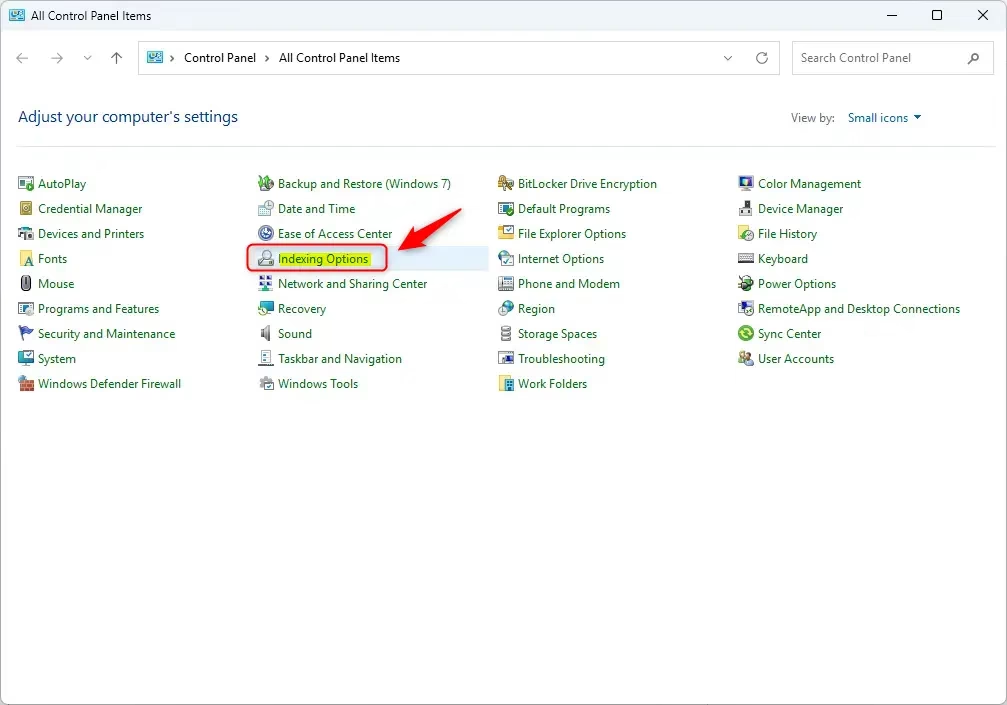
- Click Indexing Options. If you do not see it, change View by in the top-right corner from Category to Large icons or Small icons. You can also type Indexing Options into the Control Panel search box.
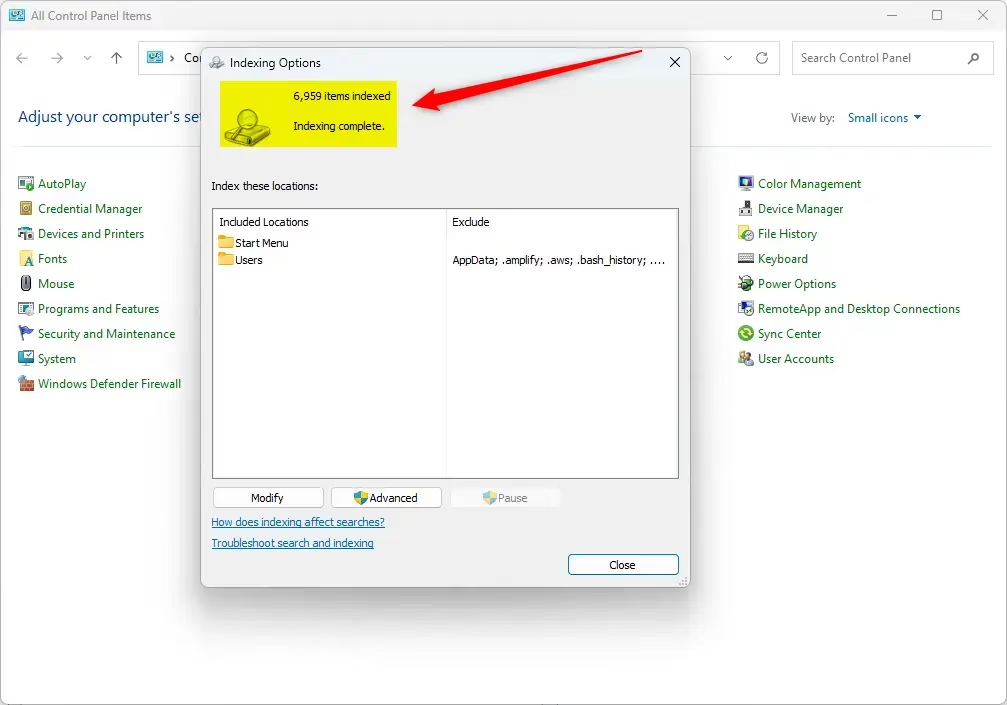
The Indexing Options window opens. If you want to add or remove a location, click Modify and tick or untick folders. Changing locations requires administrator rights.
The Windows 11 Search Indexing Status window lists the folders the search function actively monitors, along with the exact count of files in the search index database. This shows you which locations Windows 11 searches and how large the collection has grown. Over 50,000 files is common on a typical installation, so a large number is not a sign of a problem.
Advanced Troubleshooting
If search is still broken after you confirm the service is running, rebuild the index. This deletes the old database and starts fresh. Your own files are not touched, only the catalog that points to them. Note: This requires admin privileges.
- Open Indexing Options using the Control Panel steps above.
- Click the Advanced button. Approve the User Account Control prompt if one appears. The Advanced Options window opens on the Index Settings tab.
- Click Rebuild under the Troubleshooting section.
- Read the warning that appears and click OK to confirm. The Indexing Options window should now show that indexing is in progress and the item count starts again from a low number.
The rebuild can take anywhere from several minutes to a few hours, depending on how many files you have and whether you use an SSD or HDD. Search results may be incomplete until it finishes. Leave the PC on, and plug in a laptop. You do not need to restart Windows. There is no undo for a rebuild, but you do not lose any data, and the index fills back in by itself.
Summary
Windows search indexing is what makes file searches on your PC fast. Check the Windows Search service first, then the item count and status in Indexing Options, and rebuild the index only if search is still wrong.
Have a question about this guide?
Answered by AI from this guide. Good questions may be added to this page — please don't include personal details.
Did this guide fix your problem?

About the Author
Richard
Tech Writer, IT Professional
Richard is a writer at Geek Rewind who turns complex IT tasks into clear, step-by-step guides. He draws on years of hands-on experience in system administration and enterprise IT operations, focusing on Windows, Linux and WordPress: the problems people actually run into, and the fixes that work. His server and WordPress guides come from systems he runs himself. Richard builds and maintains the platform behind Geek Rewind, from its Ubuntu servers and Nginx configuration to its custom WordPress plugins. Many new tutorials start with readers' questions, and he's always glad to answer them in the comments.
No comments yet — be the first to share your thoughts!