How to Add or Remove Index Locations in Windows 11

Adding or removing index locations in Windows 11 changes where your PC looks for files and apps when you type in the search bar. The Windows search index is a built-in catalog of file names, properties and some file contents. Search reads the catalog instead of scanning the whole drive, so results show up in seconds.
By default, Windows 11 only tracks files in your user profile folders and desktop. You can add new folders or remove old ones in the Indexing Options window, so search covers the drives and folders you actually use. This guide covers adding and removing locations, choosing how much to index, and rebuilding the index when results look wrong.
To add or remove index locations in Windows 11, open Settings , navigate to Privacy & security, click Searching Windows, then Advanced indexing options. Click Modify to add or remove checked folders.
What happens when done?
When you add a folder to your Windows 11 index, the system scans its contents in the background and keeps the catalog up to date as files change. It is designed to hold off while you are working, so you should not notice a slowdown.
A folder with a lot of files can take a while to finish. Until it does, search may show only some of the files in it. Laptops on battery power may also delay indexing until the PC is plugged in. This is normal and needs no action from you.
How to add folder locations
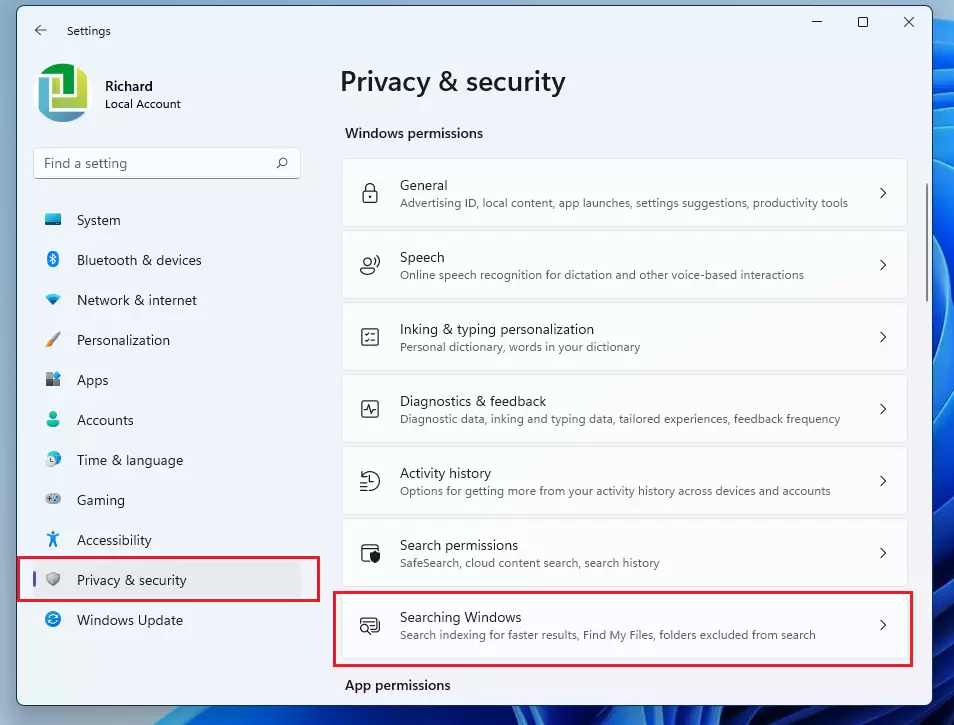
Adding new Windows 11 index locations lets you search custom folders, so you can find your documents and pictures much faster. You can include any folder on your computer. Open the Settings app , go to Privacy & security, and choose Searching Windows. From there you reach the screen where you pick the folders you want Windows to track.
Adding a location works the same way on Windows 11 Home and Pro. You can add a folder on another internal drive. Folders on a drive that is not always connected, such as a USB drive, may not be offered or may drop out of search when the drive is removed.
- Open the Settings app by pressing Win+I, or by clicking Start and then Settings. The Settings window opens with a list of categories on the left.

windows 11 start settings - Click Privacy & security on the left side. The privacy options appear on the right.
- Select the Searching Windows tile on the right. The page that opens shows your search permissions and the Find My Files setting.
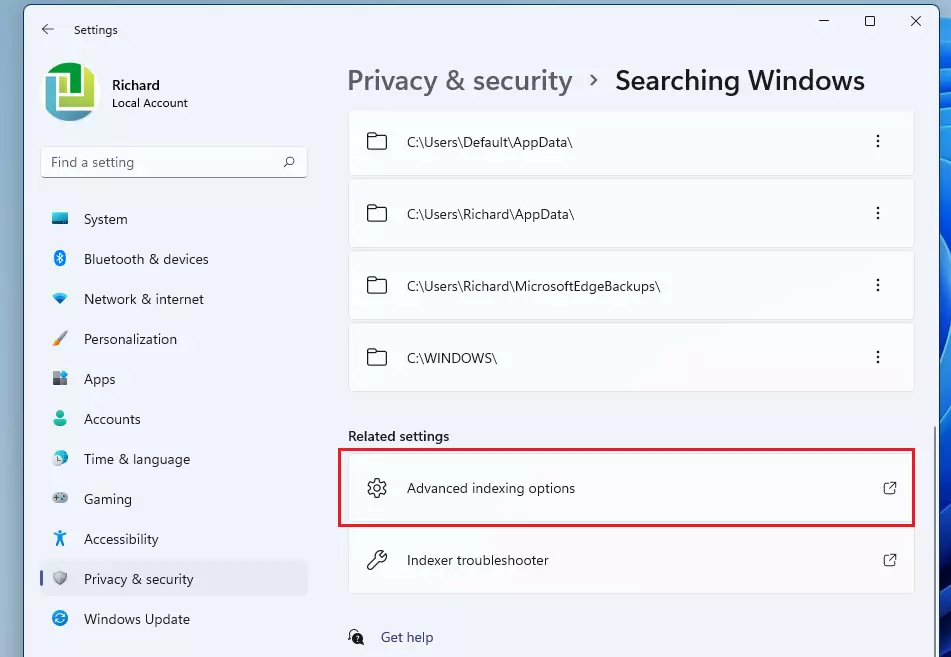
windows 11 searching windows - Scroll down and click Advanced indexing options. The classic Indexing Options window opens. It lists the locations currently included in the index.
windows 11 searching advanced indexing options - In the window that appears, click the Modify button. A second window opens showing a tree of your drives and folders, with checkboxes next to them.
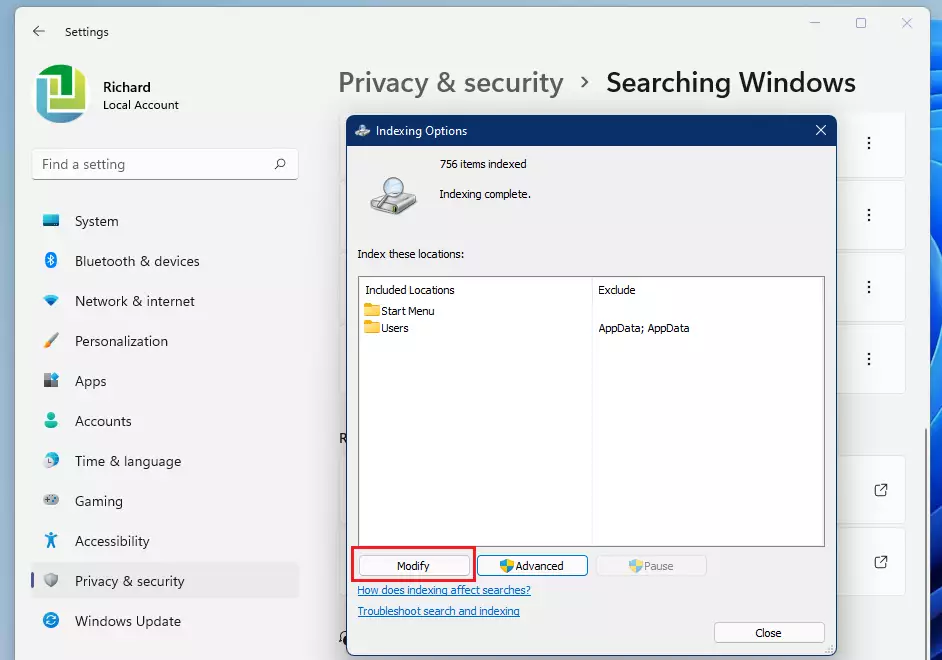
windows 11 indexing options modify - Check the boxes next to the folders you want Windows to search. To remove a location, clear its checkbox instead. Click OK when you are finished. The new folders show up in the Indexing Options list, and Windows starts indexing them in the background.
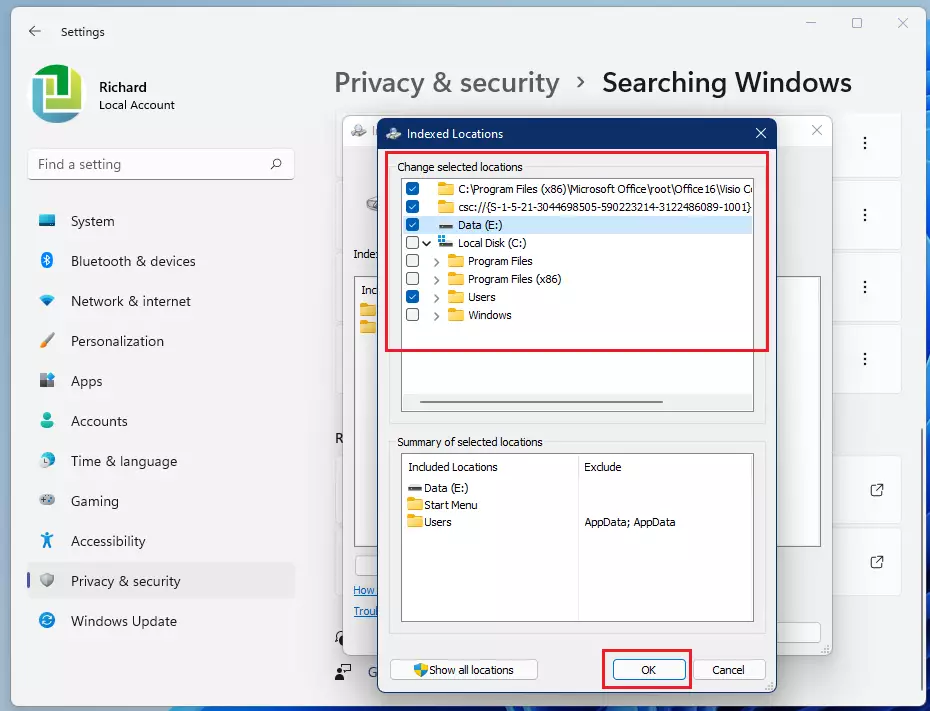
windows 11 indexed locations changes
To undo a change, open the same window again and tick or clear the same boxes. No restart is needed. Removing a location stops Windows from tracking new changes there, and its files drop out of search results . The files themselves are not deleted.
Understanding Indexing Modes
When you configure locations, you can choose how deep the index goes. A deeper index finds more, but it takes longer to build and uses more disk space. Use this table to decide your settings:
| Mode | Description |
|---|---|
| Properties Only | Indexes file names, dates, and sizes. Faster and uses less space. |
| Properties and File Contents | Indexes text inside documents. Slower and uses more disk space. |
How to Rebuild the Search Index
Rebuilding the Windows 11 search index can fix problems when your search results are missing items or seem incorrect. Try it if a file you know exists never shows up, or if search keeps returning old results after you add or remove locations.
A rebuild throws away the current catalog and starts over. Search results may be incomplete until it finishes, so pick a time when you do not need search right away.
- Open Advanced indexing options as shown above (Settings Privacy & security Searching Windows). The Indexing Options window opens.
- Click the Advanced button. The Advanced Options window opens. Windows may ask for administrator permission, so approve the prompt if you see it.
- Under the Troubleshooting section, click Rebuild. %%PRE0%%
- Click OK to confirm the warning that the rebuild can take a long time. This may take time depending on your file count. You can keep using the PC while it works, and the Indexing Options window shows how many items have been indexed so far.
You cannot cancel a rebuild once it starts, but it does no harm to let it run. If search is still wrong after it completes, check that the folder you expect is ticked in the Modify window.
Summary
Customizing your Windows 11 index locations helps you find files faster. Add the folders you work in, remove the ones you never search, and rebuild the index if results look wrong. Changes take effect without a restart, and you can reverse any of them from the same window.
Have a question about this guide?
Answered by AI from this guide. Good questions may be added to this page — please don't include personal details.
Did this guide fix your problem?

About the Author
Richard
Tech Writer, IT Professional
Richard is a writer at Geek Rewind who turns complex IT tasks into clear, step-by-step guides. He draws on years of hands-on experience in system administration and enterprise IT operations, focusing on Windows, Linux and WordPress: the problems people actually run into, and the fixes that work. His server and WordPress guides come from systems he runs himself. Richard builds and maintains the platform behind Geek Rewind, from its Ubuntu servers and Nginx configuration to its custom WordPress plugins. Many new tutorials start with readers' questions, and he's always glad to answer them in the comments.
No comments yet — be the first to share your thoughts!