Adjust the Search Box Settings in Windows 11

Search box settings in Windows 11 control how the search box appears on the taskbar and which places it searches when you type. To change them, open Settings Personalization Taskbar Search for the appearance, then Settings Privacy & security Search permissions for what it searches.
Windows 11 splits these options across three Settings pages. Taskbar holds the display choices, Search permissions holds filtering and history, and Searching Windows holds file indexing. The steps follow the order most people need them. The last section covers options that are missing or greyed out.
To change the search box settings in Windows 11, open Settings , select Personalization, then Taskbar, and choose a display option from the Search drop-down under Taskbar items. To control what search covers, open Settings Privacy & security Search permissions for filtering and search history, and Searching Windows for file indexing.
Adjust the Search Box Settings in 🪟 Windows 11: Step by Step
The steps below change how the search box looks, what it shows, and which files it covers. Do the ones you need and skip the rest. Changes apply as soon as you make them, and you do not need to restart.
- Open Settings . Press Win+I, or right-click Start and choose Settings.

- Select Personalization in the left pane. The page lists options such as Background, Colors and Themes.
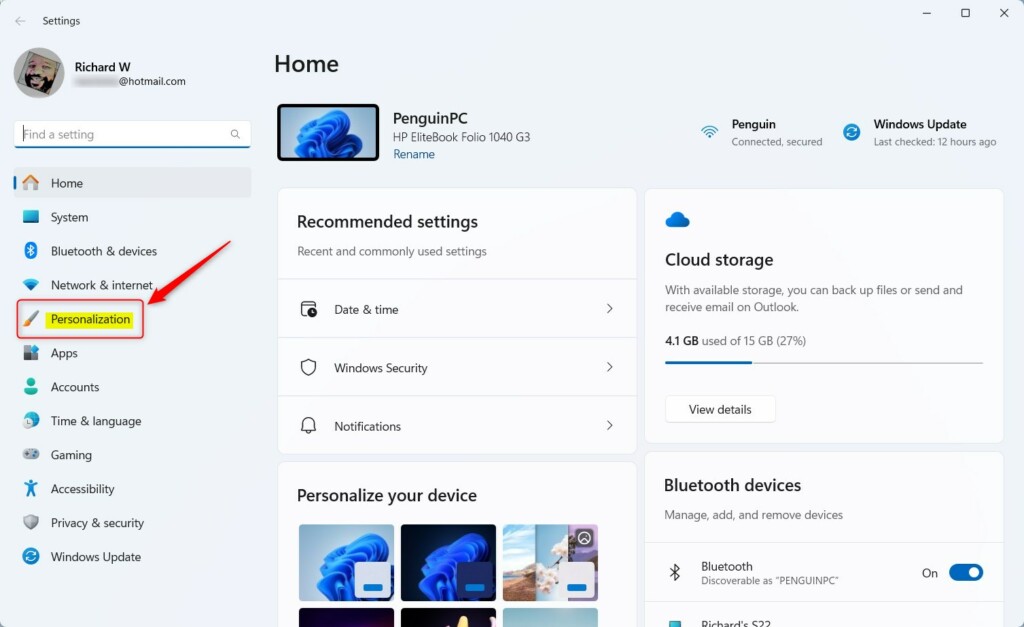
Windows 11 Settings menu with Personalization highlighted. - Select Taskbar. The first group on the page is called Taskbar items.
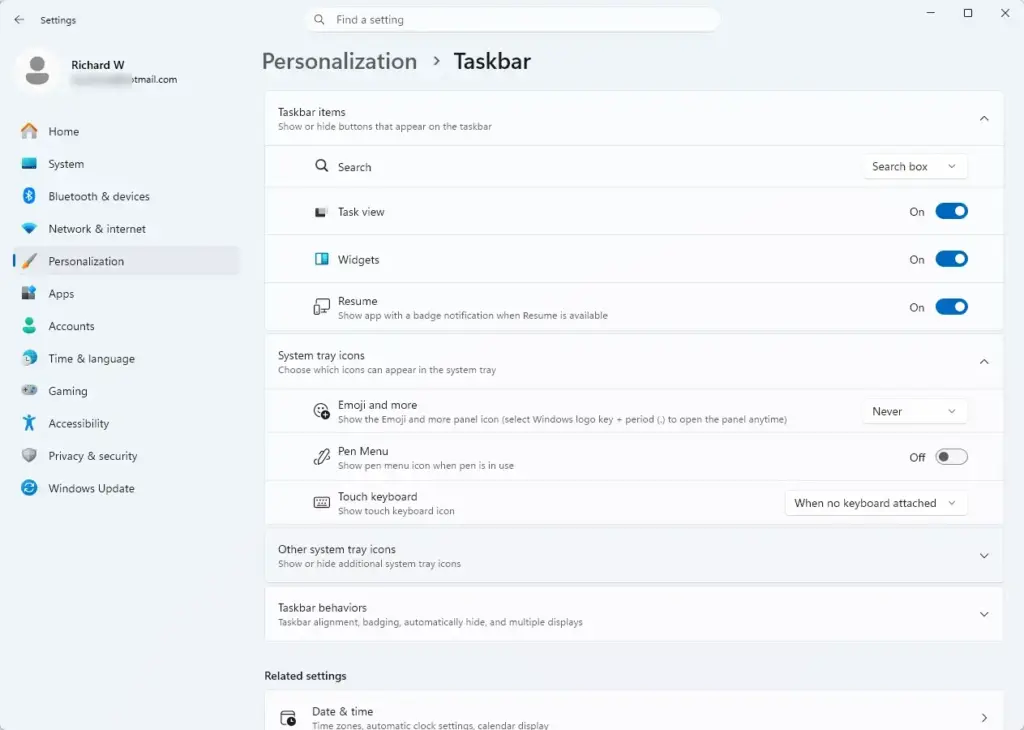
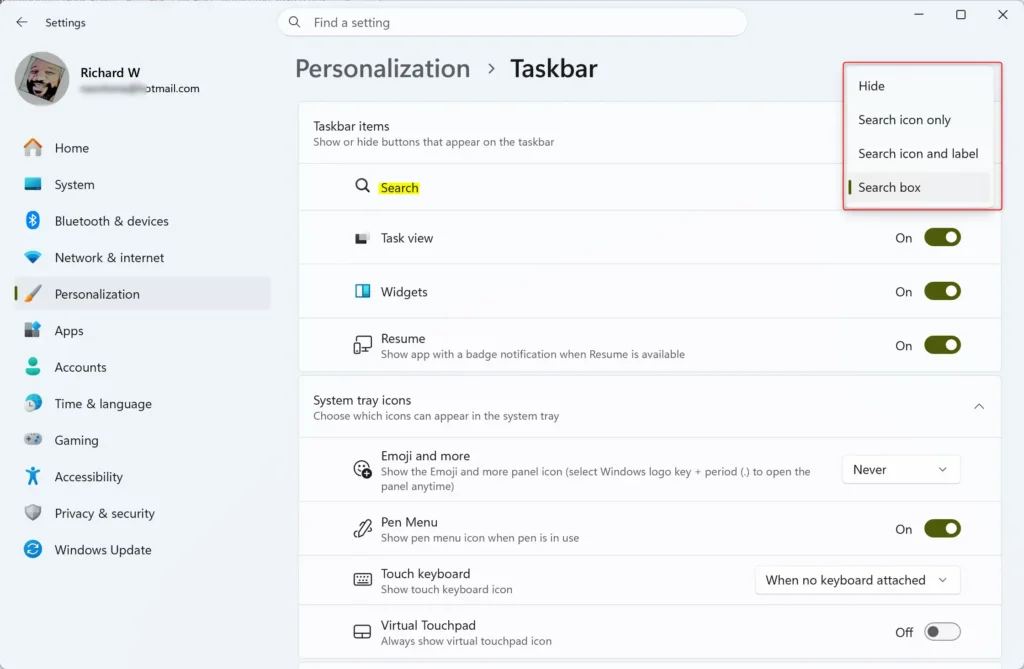
Windows 11 settings menu for managing optional diagnostic data sharing - Open the Search drop-down under Taskbar items. It shows four choices.
- Choose Search box . A wide box with the text “Search” appears on the taskbar straight away. The other choices are Hide, Search icon only and Search icon and label.
- Go back to the Settings home page and select Privacy & security. You do not need to change anything on the Personalization page again.

- Select Search permissions. This page controls filtering, cloud results and search history.
- Set the two switches under Cloud content search. One is for your Microsoft account and one for your Work or school account. Turn a switch off to stop search showing results from that account.
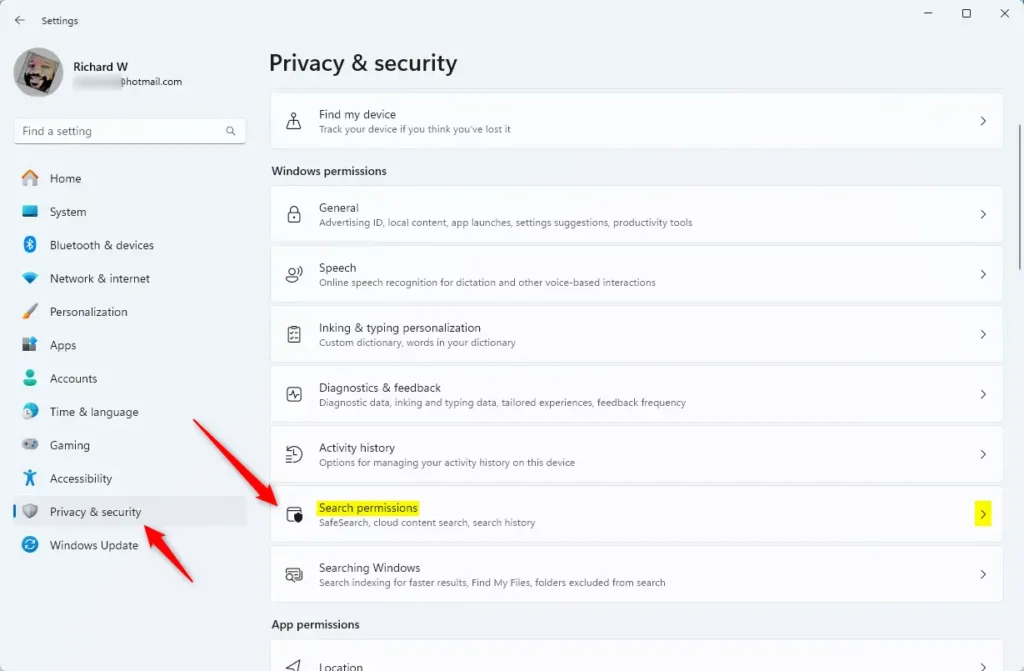
- Switch Search history on this device on or off. When it is off, Windows stops saving the terms you type into the search box.
- Select Clear search history on this device if you want to wipe past searches. This cannot be undone, so skip it if you want the history kept.
- Expand More settings and switch Show search highlights on or off. With it off, the search box and search pane stop showing daily illustrations and trending items.
- Go back to Privacy & security and select Searching Windows. This page controls which files the search box can find.
- Choose Classic or Enhanced under Find my files. Classic covers your Documents, Pictures, Music and Desktop folders. Enhanced covers the whole PC.
- Select Add an excluded folder if you want search to skip a folder. This option sits under Exclude folders from enhanced search. Pick the folder in the window that opens and confirm.
- Check the Indexing status text on the same page. It shows how many items are indexed and whether Windows is still working.
Choose How the Search Box Looks on the Taskbar
The Search setting under Taskbar items has four options. Which one suits you depends mostly on how much taskbar space you can spare.
The four display options
Search box puts a wide field on the taskbar . You can click it and type straight away. It takes the most space, but it is the quickest to spot on a large monitor.
Search icon and label shows a magnifying glass with the word “Search” beside it. Search icon only shows the magnifying glass on its own. Hide removes search from the taskbar entirely.
Press Windows + S or open the Start menu and start typing, and Windows still searches.
Change the setting from the taskbar itself
This opens the same Personalization Taskbar page without going through Settings first.
Older 🪟 Windows 11 builds
The four-way choice appeared in later updates to Windows 11. On the original release (version 21H2), the Search entry under Taskbar items is an on/off switch, and there is no wide box option. If you see only a switch, run Windows Update to get the newer layout.
Open the search settings from the search window
You can also reach these options from the search window. Press Windows + S, select the three-dot More button near the top right, and choose Search settings. This opens Privacy & security Search permissions The exact layout of the search window changes between Windows updates, so use the Settings route above if you do not see the three dots.
Control What the Search Box Searches and Remembers
The Search permissions page does not change how the box looks. It changes the results you get and the data Windows keeps about your searches.
SafeSearch
SafeSearch is a filter that hides explicit web content from search results. Strict filters text, images and video. Moderate filters explicit images and video but allows explicit text. Off applies no filter, and Moderate is the default on most PCs.
Cloud content search
Cloud content search (results stored online, not on this PC) lets the search box include results from your online accounts, such as files and email tied to your Microsoft account or your work account. If you share a PC or prefer local-only results, turn both switches off. Local files and installed apps still appear.
The work or school switch may be locked on a company laptop. See the section on greyed-out options below.
Search history on this device
This history is a list of your recent search terms, stored on the PC. It helps Windows suggest what you might want to type. Turning the switch off stops new entries. It does not delete entries already saved.
Clearing search history cannot be undone, so decide before you press Clear search history on this device. This separate button is the only way to delete the entries already saved.
Search highlights
Search highlights are the small pictures and daily topics that appear in the search box and the search pane. They are decoration, not part of your results. Turn Show search highlights off if you want a plain box. Turn it on again and the highlights return after a short wait.
Decide Which Files the Search Box Can Find
Windows finds files quickly because it keeps an index. An index is a background catalogue of file names and file contents, so Windows does not have to scan the disk each time you type. The Searching Windows page controls what goes into that catalogue.
Classic or Enhanced
Choose Classic if you keep your files in the standard user folders. It indexes less, so it uses fewer resources. Choose Enhanced if you store files on other drives or in folders outside your user profile. Enhanced indexes the entire PC, and it can use more processor power and battery while it builds the index for the first time.
On a laptop, expect extra fan noise or a short drop in battery life after you switch to Enhanced. This settles once the index is complete. Check Indexing status to see when it has finished.
Exclude folders you do not want searched
Use Add an excluded folder for folders full of build files, backups or private material. Excluded folders no longer appear in search results. To bring one back, select it in the excluded list and choose Remove.
Under Classic, the equivalent option is Customize search locations, which lets you add folders to the index rather than exclude them.
If an Option Is Missing or Greyed Out
Most problems with search box settings come down to four causes. Check them in this order.
The Search option shows only a switch
You are on an early build of Windows 11 that does not offer the wide search box. Open Settings Windows Update, select Check for updates, and install what it finds. The four-option drop-down appears after the update.
The setting says your organization manages it
On a work or school PC, an administrator can lock the search options. A message such as "Some of these settings are managed by your organization" appears at the top of the page. You cannot override this from Settings. Ask your IT team to change the setting for you, or use a personal device for the setting you need.
Search results are slow, empty or wrong
The index may be damaged or still building. Run the built-in troubleshooter first. It fixes common faults and leaves your settings as they are. [Verification Required: location of the troubleshooter should be confirmed]
- Open Settings and select System.
- Select Troubleshoot, then Other troubleshooters.
- Select Run beside Search and Indexing.
- Tick the problems that match what you see, then select Next. Follow the prompts and apply any fix it offers.
The troubleshooter did not fix it
Rebuild the index only if the troubleshooter fails. This needs administrator rights and can take from several minutes to hours on a large drive. Search results stay incomplete until it finishes.
- Open Settings Privacy & security Searching Windows
- Select Advanced indexing options. The Indexing Options window opens.
- Select Advanced. This step needs administrator rights. Approve the User Account Control prompt, or enter an administrator password if asked.
- Select Rebuild under Troubleshooting, then select OK to confirm the warning.
- Leave the PC on and plugged in until the status in Indexing Options reads Indexing complete.
Undo the Changes
Every setting in this article can be reversed from the same page where you changed it. For the taskbar, go back to Settings Personalization Taskbar and set Search to the option you want. The change shows at once.
For privacy options, flip the switch back or reselect the previous SafeSearch level. For indexing, switch Find my files back to Classic, and remove any folders you added to the exclusion list. The one exception is search history, which the search history section above covers.
What to do next
If the search box still returns nothing after a rebuild, check that the Windows Search service is running in the Services app. A service is a background program that Windows runs for you. Look for Windows Search in the list and confirm its status is Running. Once search behaves, the next task many people do is tidying the Start menu and taskbar so they match your search setup, which is also done from Settings Personalization
Frequently asked questions
How to adjust power and sleep settings in 🪟 Windows 11?
Open Settings, select System, then Power & battery. Under Screen and sleep, choose how long Windows waits before it turns off the screen and before the PC goes to sleep. Use the drop-down menus next to each option. Changes take effect right away, and you do not need to restart.
How to adjust display settings in 🪟 Windows 11?
Open Settings, select System, then Display. This page controls screen resolution, scale for text and apps, screen orientation, and brightness. Night light and HDR options are on the same page. If you change the resolution, Windows asks you to keep or revert the new setting, so check the preview before you confirm.
Which selection will hide/disable the search box?
Right-click an empty part of the taskbar and select Taskbar settings. Expand Search and choose Hidden to remove the search box completely. To keep only the magnifying glass icon, pick Icon only instead. Changes apply right away, so you can switch back at any time.
How to backup system settings in 🪟 Windows 11?
Open Settings, select Accounts, then Windows backup. Turn on Remember my preferences and Remember my apps to store these settings in your Microsoft account. For a full copy of your files, use the Windows Backup app or the Backup and Restore tool. Make a backup before any major system change.
Still have a question?
Answered by AI from this guide. Good questions may be added to this page — please don't include personal details.
Did this guide fix your problem?

About the Author
Richard
Tech Writer, IT Professional
Richard is a writer at Geek Rewind who turns complex IT tasks into clear, step-by-step guides. He draws on years of hands-on experience in system administration and enterprise IT operations, focusing on Windows, Linux and WordPress: the problems people actually run into, and the fixes that work. His server and WordPress guides come from systems he runs himself. Richard builds and maintains the platform behind Geek Rewind, from its Ubuntu servers and Nginx configuration to its custom WordPress plugins. Many new tutorials start with readers' questions, and he's always glad to answer them in the comments.
No comments yet — be the first to share your thoughts!