How to Turn On or off Enhanced Search Mode in Windows 11


- 11 steps
- Needs administrator rights
- Includes a restart or sign-out
Enhanced Search Mode in Windows 11 indexes every folder and drive on your computer so you can find files instantly, rather than limiting searches to just Documents, Pictures, and Desktop. Standard Windows search only checks a few common folders by default, while the enhanced setting builds a complete map of your entire storage system.
Turning on this feature lets Windows search all hard drives at once. Building the initial index uses extra battery power and CPU on laptops, mostly during the first few hours. On a large drive or a slow disk it can take longer. Searching still works while the index is being built, but results may be incomplete until it finishes.
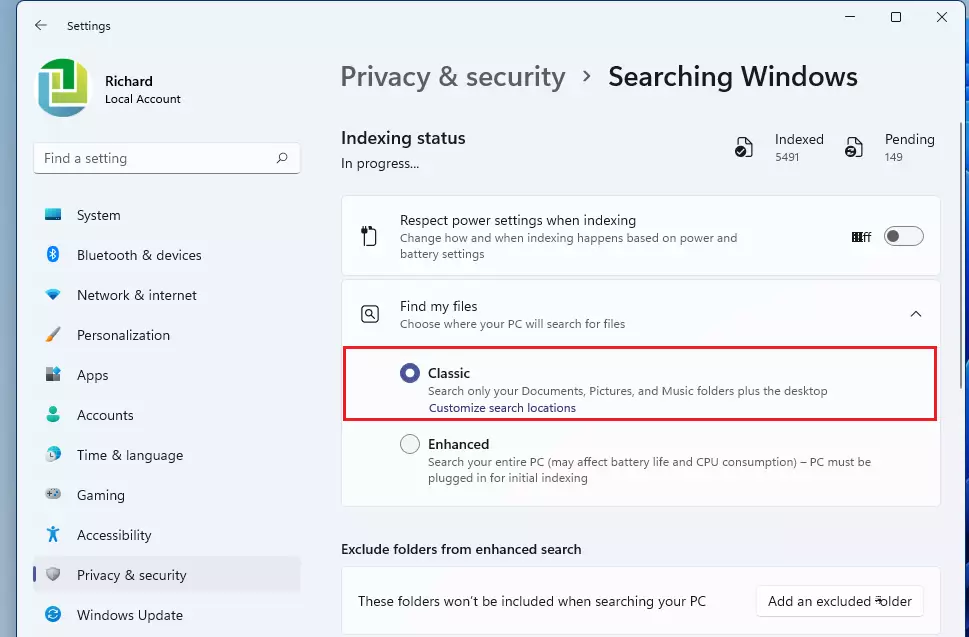
Open Settings Privacy & security Search, then under Find my files select Enhanced. The setting takes effect immediately with no restart needed. Windows then indexes your entire PC, which may take several hours on first run and use extra battery power until complete.
What is Search Indexing?
Search indexing acts as a background catalog for your computer. It logs file names, properties and some file contents ahead of time, so when you type in the search box Windows reads the catalog instead of scanning the disk. That is why indexed search feels instant.
Learn more about indexing here.
The setting is the same on Windows 11 Home and Pro, and you do not need to sign in with a Microsoft account to use it.
Classic Mode vs. Enhanced Mode
- Classic ModeSearches only your Documents, Pictures, and Music folders, plus the Desktop. This is the default. It is light on resources, but a file saved anywhere else, such as a second drive or a folder under 📁C:\
, will be slower to find or may not show up in results. - Enhanced ModeSearches your entire PC, including all folders and drives. This can use more battery and CPU, so it’s best to keep your PC plugged in when turning it on. After the first pass, the index only has to catch changes, so the load drops back down.
If you choose Enhanced but don’t want certain locations indexed, such as a folder of backups or virtual machines, you can exclude them on the same Settings page. Look for the excluded folders option below the Find my files choice.
How to Turn On or Off Enhanced Search Mode via Settings
- Press Win+I to open Settings.
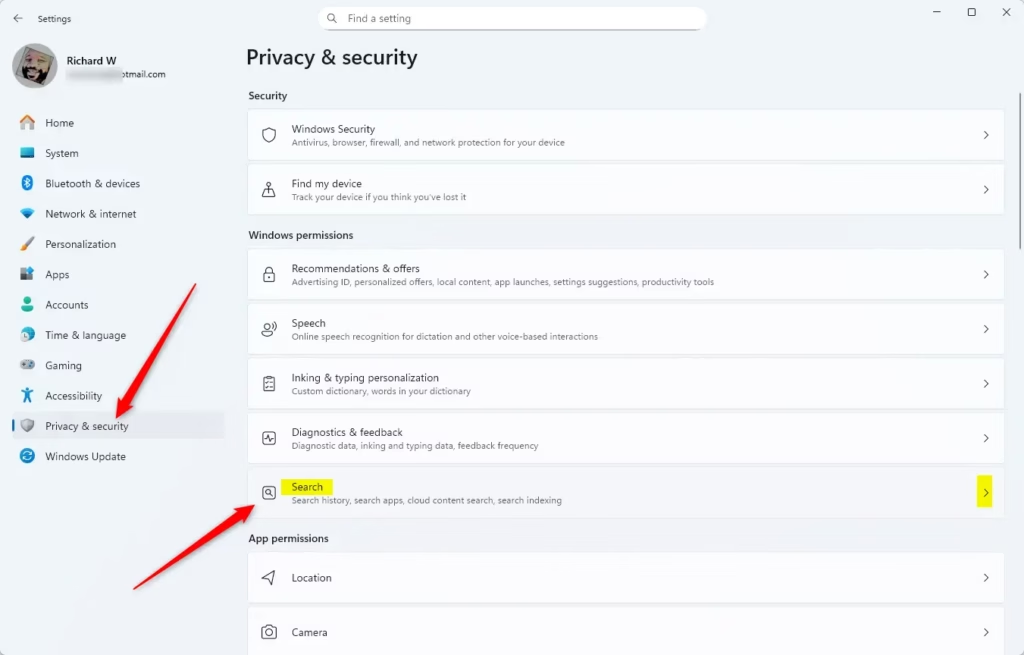
- Click Privacy & security on the left side. The privacy options now appear on the right.
- Click Search on the right side. On current builds of Windows 11 this page may be labeled Searching Windows. Or you can click this link to open it directly: Open Search Settings. You should now see the Find my files section.
- Under Find my files, choose either Classic or Enhanced. The selection takes effect immediately, and no restart is needed.
- If you chose Enhanced, scroll down to the indexing status on the same page. It shows whether Windows is still indexing and how many items it has processed. Leave the PC plugged in until it finishes.
- Close Settings when done.
To undo the change, repeat the steps and select Classic again. If you can’t find the option, make sure Windows is fully updated. Older Windows 11 builds may not show the same layout. On a work or school PC, the choice may be locked by your organization’s policy.
How to Turn On or Off Enhanced Search Mode Using a Registry File
Use Classic Mode (Default)
reg add "HKEY_LOCAL_MACHINE\SOFTWARE\Microsoft\Windows Search\UX\Configuration" /v EnableFindMyFiles /t REG_DWORD /d 0 /fUse Enhanced Mode
reg add "HKEY_LOCAL_MACHINE\SOFTWARE\Microsoft\Windows Search\UX\Configuration" /v EnableFindMyFiles /t REG_DWORD /d 1 /fTo apply these, follow these steps:
- Copy the text of the code block you want into Notepad.
- Click File, then Save as. Set Save as type to All files so Notepad doesn’t add .txt to the name.
- Give the file a name ending in the
.regextension and save it somewhere easy to find, such as the Desktop. - Double-click the file and allow it to make changes to your PC when prompted. Confirm the warning about adding information to the registry.
- Sign out and back in, or restart the PC, if the setting doesn’t show up in Settings. Then check the Find my files option to confirm the change.
To reverse the change, apply the opposite block the same way, or switch the option back in Settings.
What’s New in 🪟 Windows 11 Search?
Windows 11 enhanced search mode brings smarter natural language understanding and cloud photo integration to your computer. These updates let you type everyday phrases to find settings and search through both local files and OneDrive at the same time. On certain newer hardware, these helpful search features even work completely offline.- Smarter SearchesWindows 11 now understands natural language better. You can type things like “change my theme” and it will find the right setting.
- Search Cloud PhotosIf you use OneDrive, your cloud photos can now appear in search results alongside local files.
- Works OfflineOn special PCs called Copilot+ PCs, these smart search features work even without internet.
Summary
Windows 11 enhanced search mode gives you control over how thoroughly your computer looks for files by scanning your entire hard drive instead of just common folders. You can switch back to Classic mode if you want to save battery power, though you will need administrator rights on your PC to change this setting.
- Classic ModeFaster, searches common folders only.
- Enhanced ModeSearches everywhere on your PC, but may use more power.
- Improved SearchNew Windows 11 updates make searching easier with natural language and cloud integration.
- Admin Rights NeededOnly administrators can change these settings.
These tools help you find what you need on your PC rapidly.
More Info
Want to learn more about search indexing? Check out the official Microsoft support page: Search Indexing in Windows – Microsoft Support
Have a question about this guide?
Answered by AI from this guide. Good questions may be added to this page — please don't include personal details.
Did this guide fix your problem?

About the Author
Richard
Tech Writer, IT Professional
Richard is a writer at Geek Rewind who turns complex IT tasks into clear, step-by-step guides. He draws on years of hands-on experience in system administration and enterprise IT operations, focusing on Windows, Linux and WordPress: the problems people actually run into, and the fixes that work. His server and WordPress guides come from systems he runs himself. Richard builds and maintains the platform behind Geek Rewind, from its Ubuntu servers and Nginx configuration to its custom WordPress plugins. Many new tutorials start with readers' questions, and he's always glad to answer them in the comments.
No comments yet — be the first to share your thoughts!