How to Change the Theme in Windows 11

A Windows 11 theme changes your desktop background, window colors, mouse cursor, and sounds all at once with a single click. Windows includes six built-in options, and Microsoft offers thousands of free downloads in the Microsoft Store, so you can refresh how your PC looks in a few seconds.
Open Settings to apply a ready-made theme, or mix your own colors and pictures to fit your style. The steps below cover three ways to do it.
Press Win+I to open Settings , click Personalization, then click the theme you want from the list. Your desktop background, colors, and sounds change immediately without restarting your PC.
What Is a Theme?
A Windows 11 theme packages your desktop background, accent colors, system sounds, and mouse pointer into one preset. When you apply a theme, the whole look and feel changes at once, so you don’t have to adjust each display setting by hand. You can use a built-in theme, download one, or build your own.
A theme can change these things:
- Desktop background (the picture on your screen)
- Lock screen background (the image you see when you start your PC)
- Colors used in windows and menus
- Sounds like notifications and alerts
- Mouse pointers (the arrow or cursor)
Types of Themes
Windows 11 themes come in three main kinds: built-in Windows default designs, custom themes that you create or download, and high contrast themes built for readability. Whichever kind you pick, the desktop colors and background graphics change together.
‘Windows Default Themes’ are pre-installed with Windows. They are the quickest way to change your PC’s style, and they need no download.
Custom themes are the ones you save yourself or get from Microsoft. Once saved or installed, they show up in your theme list, and in the Control Panel method below you will find yours under My Themes.
High Contrast Themes are designed for users with vision impairments. They use strong color contrast to make text and controls easier to see. If you are not looking for accessibility features, stick with the default or custom themes.
New: Windows Spotlight Themes
Spotlight cycles photography through your desktop background automatically. You can build custom Spotlight themes from these rotating images.
If you don't see Spotlight as an option, your PC probably doesn't have one of those updates yet. Run Windows Update, install what it offers, and check again.
Before You Start
On an unactivated copy, Windows restricts these visual changes, and the personalization options are blocked or greyed out. To check your status, go to Settings System Activation. Once Windows is activated, the options work normally.
Where to Get More Themes
Download extra themes from Microsoft here:
Themes you install from the Microsoft Store show up in the theme list on the Themes page in Settings, next to the built-in ones. Themes are free to download.
How to Change Your Theme
Option 1Using Personalization Settings
- Press
Win + Ion your keyboard to open Settings. - Click Personalization in the left menu. The Personalization page opens on the right.
- At the top of the page, click the theme you want to use. The background, colors, and other elements change right away.
- Close the Settings window when you're done.
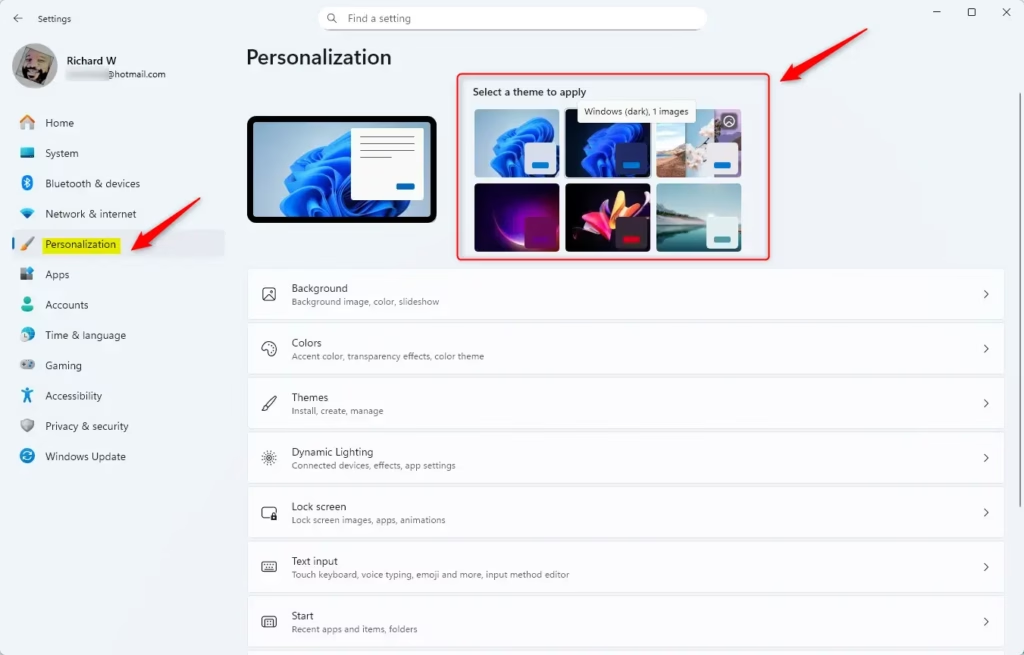
The change takes effect immediately and you don't need to restart. To go back, open the same page and click your previous theme.
Option 2Using Themes Settings
- Open Settings by pressing
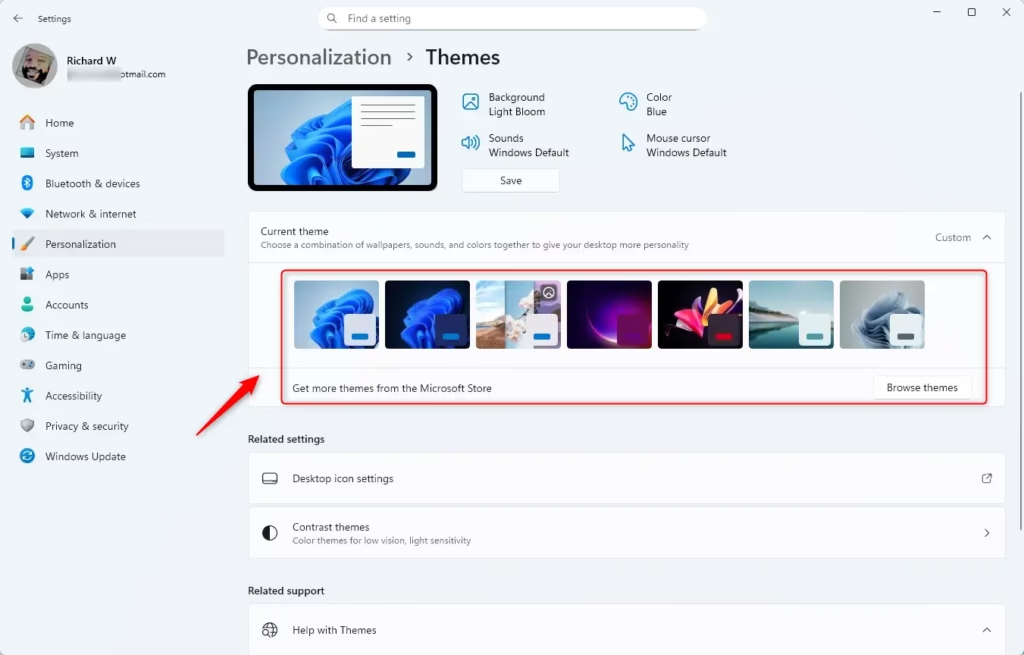
Win + I. - In the left menu, click Personalization, then click Themes on the right. The Themes page shows your current theme and the list of available themes.
- Click any theme in the list to apply it. The desktop updates as soon as you click.
- Close Settings when finished.
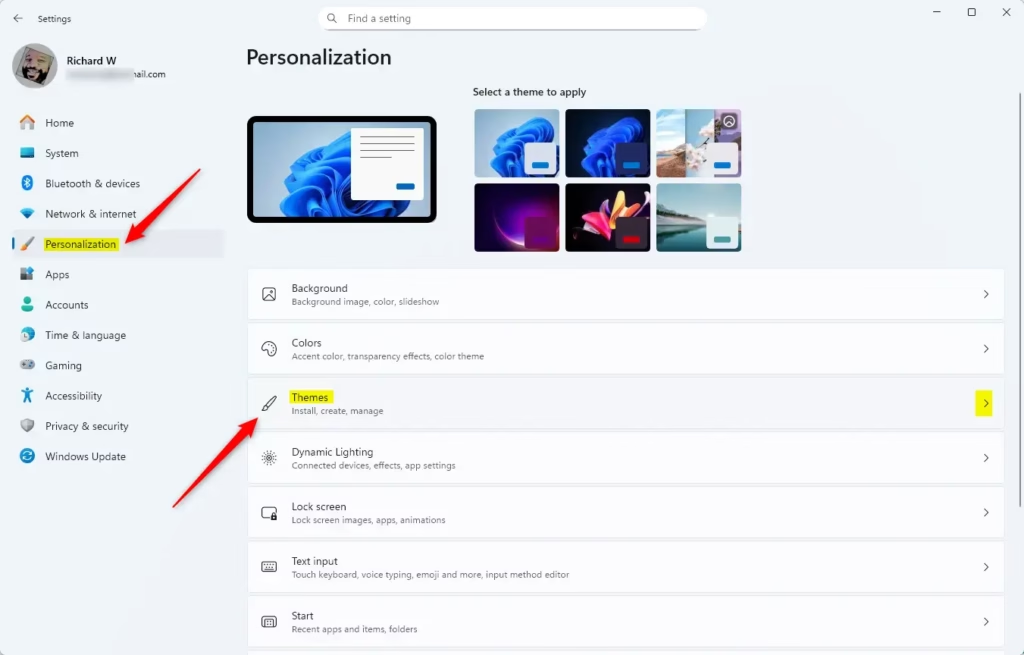
This works the same in Windows 11 Home and Pro. If you change your mind, click another theme in the list to switch again.
Option 3Using Control Panel
- Press
Win + Rto open the Run box. - Copy and paste this command into the box and press Enter:
shell:::{ED834ED6-4B5A-4bfe-8F11-A626DCB6A921}. The old Personalization window opens in Control Panel. - Click a theme under My Themes, Windows Default Themes, or High Contrast Themes to apply it. The desktop changes right away.
- Close Control Panel when done.
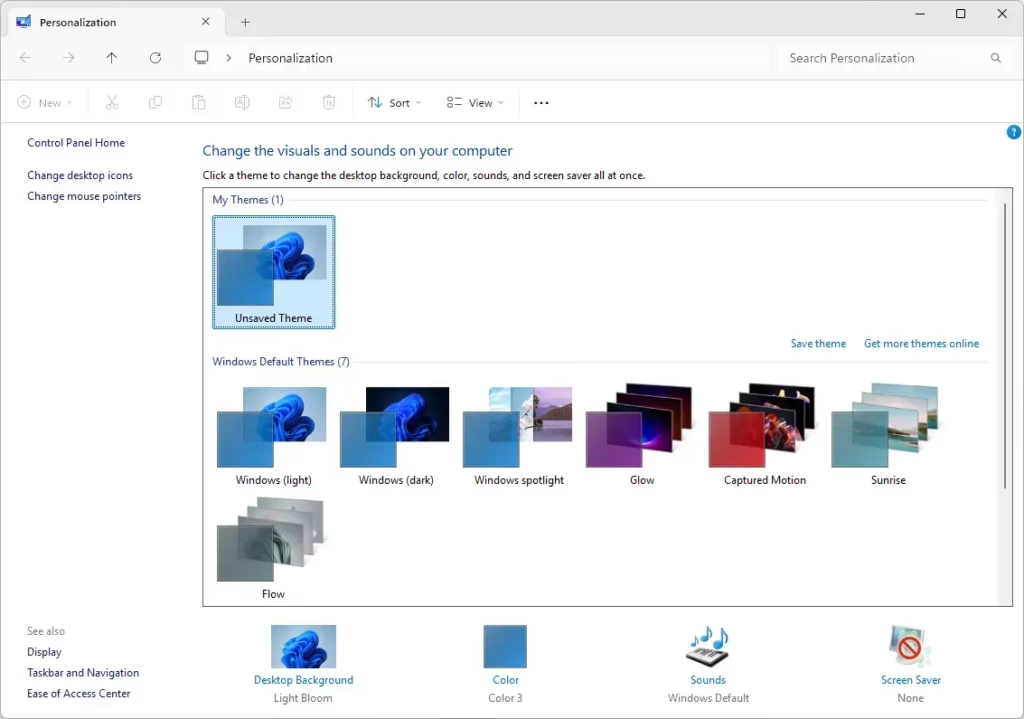
Control Panel is an alternative way to change Windows 11 themes if you prefer the classic settings window. Open it with the Run box and the command above, then click any theme to apply it to your desktop. If you ever want to switch back, open the window again and click your previous theme.
Summary
Windows 11 themes let you change your desktop background, colors, and sounds in one simple step. You can use pre-installed designs, accessibility options, or your own saved layouts through either the modern Settings app or Control Panel to personalise your computer.- Themes let you customize how your PC looks and sounds.
- There are three main types of themes: your own, Windows default, and high contrast for easier viewing.
- You can change themes through the Settings app or Control Panel.
- Make sure your Windows 11 is activated before changing themes.
- Explore more themes online from official Microsoft websites.
Want to Learn More?
Microsoft publishes official documentation detailing Education Themes setup procedures for Windows 11. That manual provides concrete instructions and visual examples for deploying classroom-focused configurations. Access the page online for step-by-step installation guidelines.
Have a question about this guide?
Answered by AI from this guide. Good questions may be added to this page — please don't include personal details.
Did this guide fix your problem?

About the Author
Richard
Tech Writer, IT Professional
Richard is a writer at Geek Rewind who turns complex IT tasks into clear, step-by-step guides. He draws on years of hands-on experience in system administration and enterprise IT operations, focusing on Windows, Linux and WordPress: the problems people actually run into, and the fixes that work. His server and WordPress guides come from systems he runs himself. Richard builds and maintains the platform behind Geek Rewind, from its Ubuntu servers and Nginx configuration to its custom WordPress plugins. Many new tutorials start with readers' questions, and he's always glad to answer them in the comments.
No comments yet — be the first to share your thoughts!