How to Control Desktop Background Changes in Windows 11


- 2 ways to do it
- Needs administrator rights
- Group Policy needs Windows 11 Pro, Enterprise or Education
- Includes a restart or sign-out
Locking the desktop background in Windows 11 stops anyone from changing your wallpaper from Settings. With the lock on, the background options under Personalization are greyed out, so your chosen picture stays in place across your PC.
You can set this up with the Local Group Policy Editor or with the Registry Editor (a built-in database that stores low-level system settings). The Group Policy method is easier, but it only exists on Windows 11 Pro, Enterprise and Education. On Windows 11 Home, use the registry method. To check your edition, go to Settings System About and look under Windows specifications.
Lock your desktop background in Windows 11 Pro by opening Local Group Policy Editor (Win+R, type gpedit.msc), navigating to User Configuration Administrative Templates Control Panel Personalization, and setting Prevent changing desktop background to Enabled. On Home edition, use Registry Editor to add NoChangingWallpaper value 1 at 🗝️HKEY_CURRENT_USER\
Before You Begin: System Restore
- Click the Start button and type Create a restore point.
- Click the matching result. The System Properties window opens on the System Protection tab.
- Click Create, type a name such as “Before wallpaper lock”, and click Create again.
If the Create button is greyed out, System Protection is turned off for your drive. Select the drive, click Configure, choose Turn on system protection, and try again.
Method 1Using the Local Group Policy Editor
The Local Group Policy Editor lets you lock your current picture with one policy setting. Once it is on, Settings no longer lets anyone change the wallpaper, whether that is another user or a theme you apply by accident.
You need an administrator account, and this editor is not available on Windows 11 Home. If you run Home, skip to the registry method further down.
To start, open the Local Group Policy Editor. Press Win+R, type gpedit.msc, and hit Enter. The Local Group Policy Editor window opens. If Windows says it cannot find the file, you are on Home edition.
Then, navigate through the folder tree on the left. Click the small arrow next to each folder to expand it:
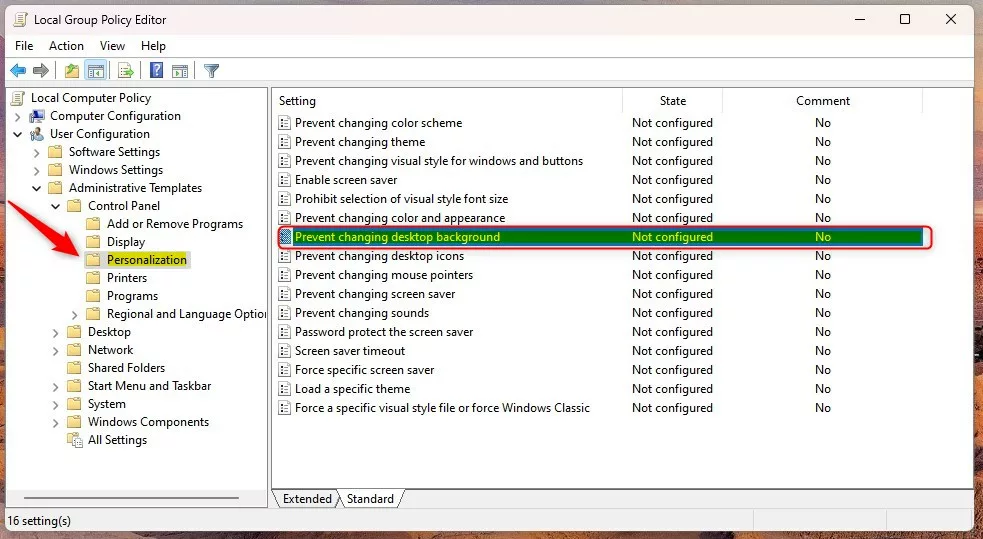
User Configuration Administrative Templates Control Panel Personalization
With the Personalization folder selected, the right pane lists its policies. Double-click the setting labeled Prevent changing desktop background. If the list is long, click the Setting column header to sort it by name. A settings window opens for that policy.
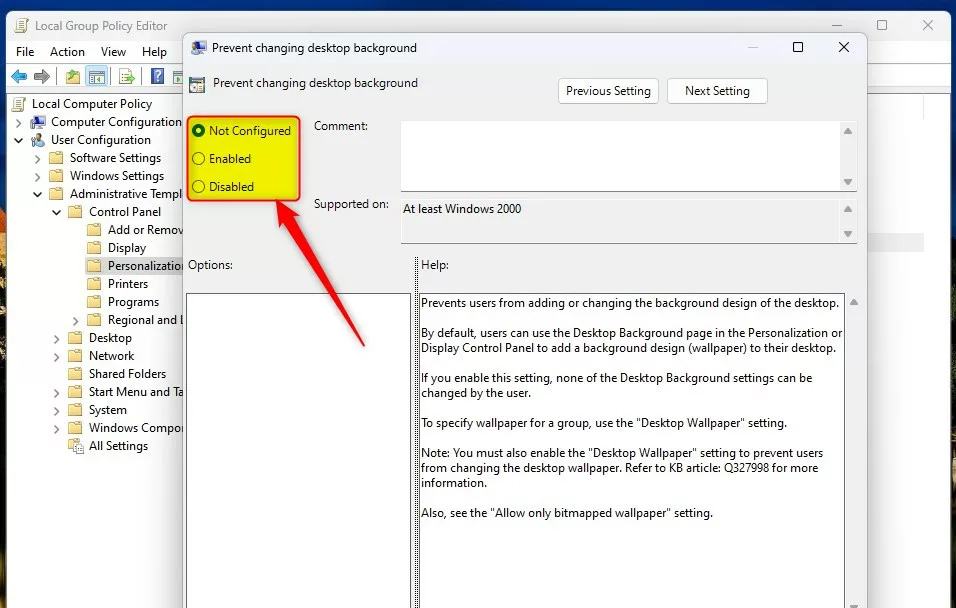
- Select Enabled to lock the background.
- Click OK to save the change.
The policy now shows as Enabled in the list. Sign out and back in, or restart the PC, if the change does not apply right away. After that, the background options in Settings Personalization Background should be greyed out. To undo the lock later, open the same setting, choose Not Configured (or Disabled), and click OK.
For more details, check out Microsoft’s official documentation on GPO settings.
Method 2Using the Registry Editor
For an extra backup, you can export a branch before you edit it. Right-click the key in the left pane, choose Export, and save the .reg file somewhere safe. Double-clicking that file later restores the saved keys and values.
Open the Windows Registry Editor by typing regedit in the Start menu search bar and pressing Enter. Click Yes if User Account Control asks for permission. The Registry Editor window opens.
Navigate to these two locations. You can paste a path into the address bar at the top of the Registry Editor. The first applies to your own user account. The second is the machine-wide location, so use it too if you want the lock to cover other accounts on the PC.
🗝️HKEY_CURRENT_USER\
🗝️HKEY_LOCAL_MACHINE\
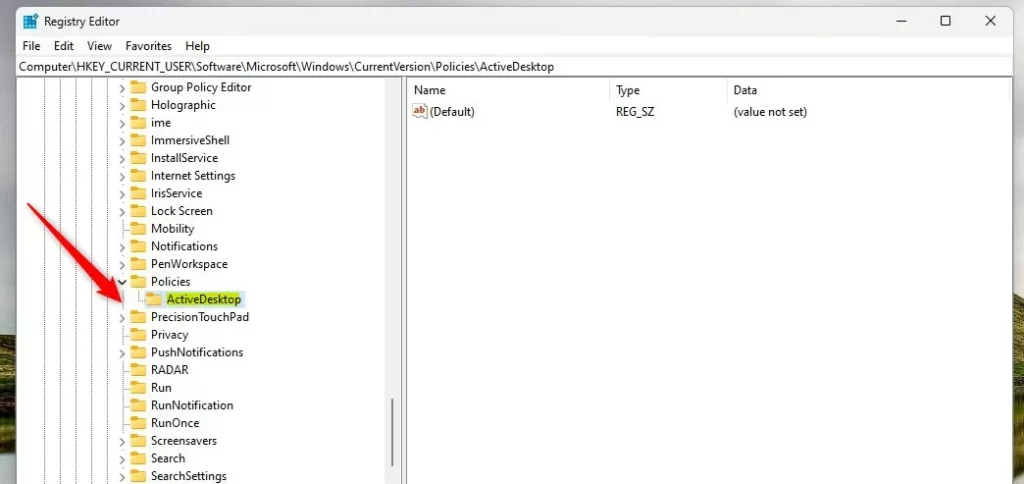
The ActiveDesktop key may not exist yet. That is normal, so you can create it.
- Right-click the Policies key in the left pane.
- Select New Key.
- Name the new key ActiveDesktop and press Enter.
The new ActiveDesktop key now appears under Policies. Click it to select it before the next step.
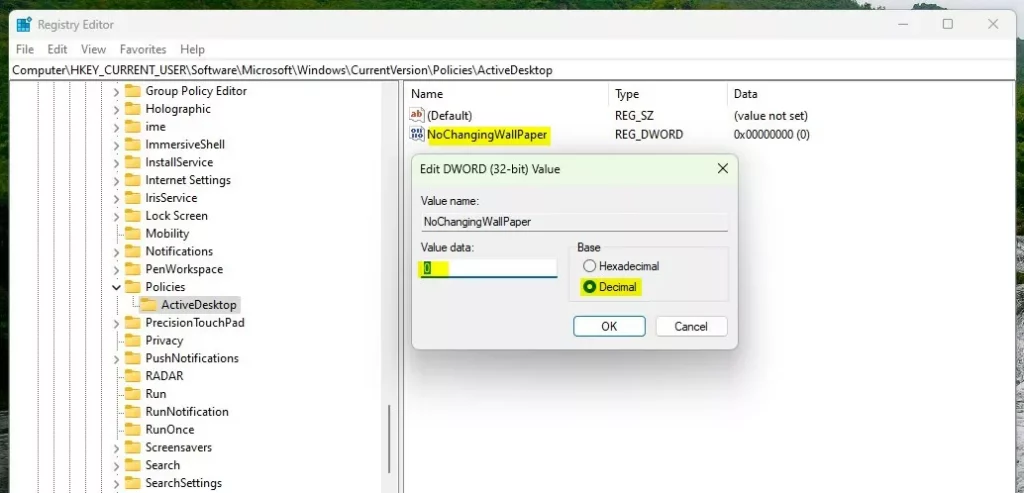
- Right-click any empty space in the right pane.
- Select New DWORD (32-bit) Value.
- Name the value
NoChangingWallPaperand press Enter. - Double-click the new value and set Value data to 1 to block changes.
- Click OK, then repeat for the second location if you want both set.
- Restart the computer to apply the wallpaper lock.
After the restart, the background options in Settings should be greyed out. To undo the lock, set the value data back to 0 or delete the value, then restart again.
Troubleshooting Background Issues
Sometimes the wallpaper changes even though nobody touched it. In most cases an automated feature is replacing it: Windows Spotlight, settings sync, or a third-party app. Check these options first, before you set up a lock, because the lock will not stop a program that applies its own wallpaper.
- Windows Spotlight: If you use Spotlight, Windows will automatically update your background daily. Go to Settings Personalization Background, open the Personalize your background list, and switch to Picture or Solid color to stop this.
- Sync Settings: If you sign into multiple PCs with the same Microsoft account, Windows might sync your theme and change your wallpaper. Go to Settings Accounts Windows backup and turn off Remember my preferences. Local accounts do not sync, so this only affects Microsoft account sign-ins.
- Third-party software: Some apps like Wallpaper Engine can override system settings. Disable these apps, or turn off their wallpaper-changing feature, if you want to lock your background manually.
Summary
Blocking desktop background changes in Windows 11 relies on the Local Group Policy Editor (Pro, Enterprise and Education) or the Registry Editor (all editions, including Home). Both methods keep your wallpaper locked and stop unauthorized updates. Create a restore point before you make system changes so you can roll back, and remember that each lock can be undone by setting the policy to Not Configured or by removing the registry value.
Have a question about this guide?
Answered by AI from this guide. Good questions may be added to this page — please don't include personal details.
Did this guide fix your problem?

About the Author
Richard
Tech Writer, IT Professional
Richard is a writer at Geek Rewind who turns complex IT tasks into clear, step-by-step guides. He draws on years of hands-on experience in system administration and enterprise IT operations, focusing on Windows, Linux and WordPress: the problems people actually run into, and the fixes that work. His server and WordPress guides come from systems he runs himself. Richard builds and maintains the platform behind Geek Rewind, from its Ubuntu servers and Nginx configuration to its custom WordPress plugins. Many new tutorials start with readers' questions, and he's always glad to answer them in the comments.
No comments yet — be the first to share your thoughts!