How to Toggle ‘Remember My Preferences’ in Windows Backup


The “Remember My Preferences” setting in Windows Backup saves your custom backup choices so you do not have to pick them again on Windows 10 or 11. It controls whether options like your specific folder selections stick automatically when you run a backup.
Windows keeps these choices saved by default to save time during setup. You can check or change this setting directly inside the backup app whenever you want more control over how your files get saved.
Open Settings , go to Accounts, then select Windows Backup. Find the ‘Remember my preferences’ toggle and click it to turn it On or Off. This immediately saves or stops saving your chosen backup settings.
What is Windows Backup?
Windows Backup preserves crucial files, folders, and system configurations in the cloud.
Why Toggle ‘Remember My Preferences’?
Windows backup preferences let your saved choices stick around when you switch computers so you do not have to set up everything again. Turning on this option saves you time by keeping your personal settings locked in across all your devices without needing you to redo the manual configuration every single time.
How to Toggle ‘Remember My Preferences’
Some steps require administrator privileges to complete.
Step 1Open the Settings App
Click the Start menu and select Settings, or press Win+I.
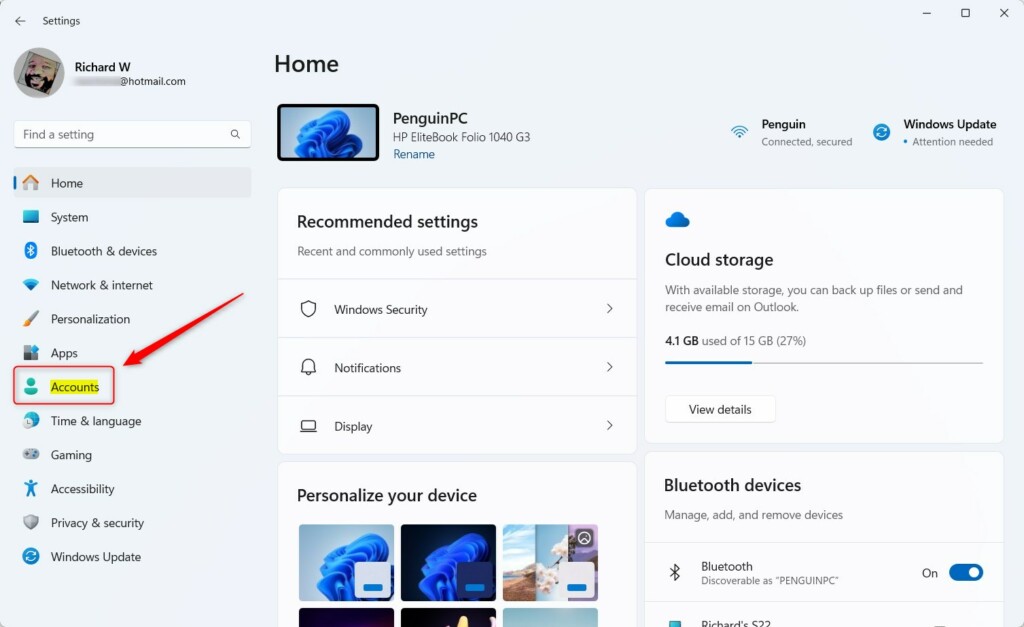
Step 2Go to Accounts
Within the Settings menu, locate and click the 'Accounts' tab found on the left-hand sidebar.
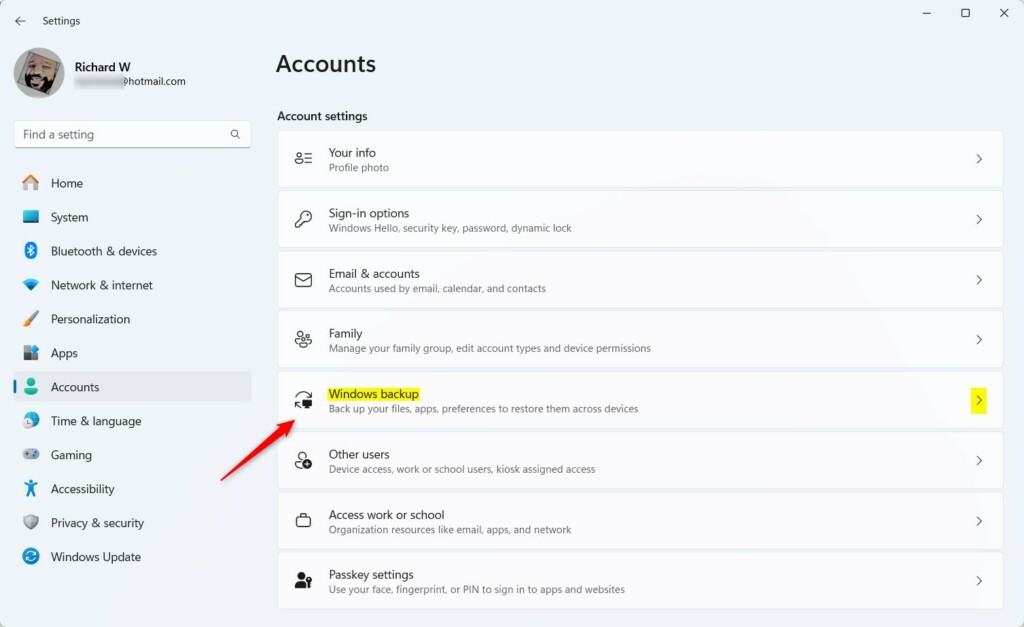
Step 3Select Windows Backup
Select "Windows Backup" to open the cloud synchronization settings menu. This menu lets Windows Backup save files securely, ensuring data accessibility across multiple devices.
Step 4Find 'Remember My Preferences'
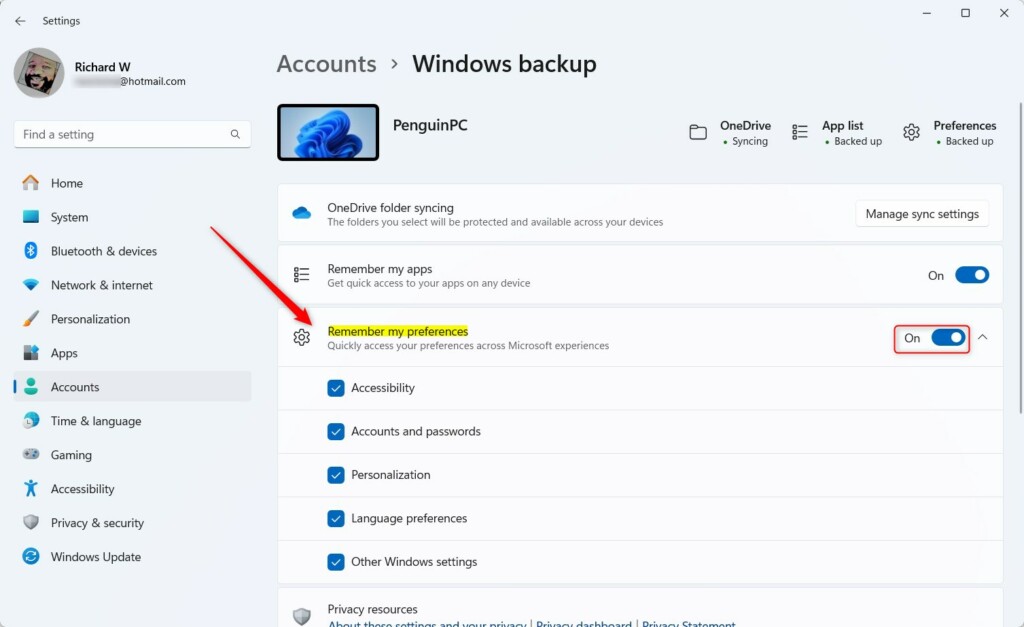
Inside the Windows backup menu, look for the toggle labeled 'Remember my preferences'.
Step 5Toggle the Switch
Click the switch to turn it On or Off. Changes take effect immediately.
What Gets Backed Up?
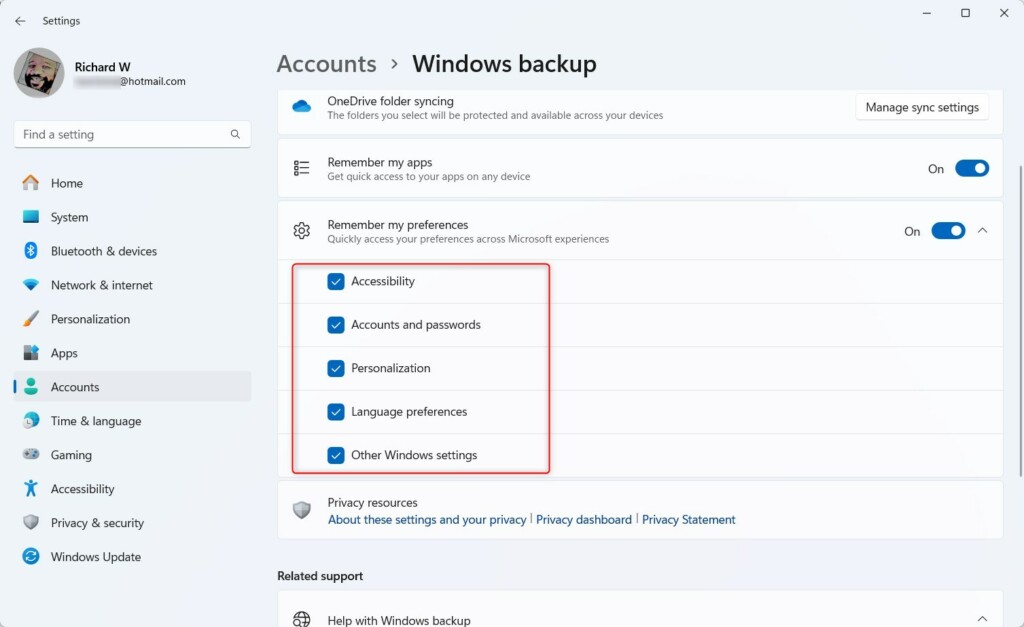
Enabling 'Remember My Preferences' forces Windows to sync these settings:
- Accessibility settings
- Accounts and passwords
- Personalization options (wallpaper, colors)
- Language preferences
- Other Windows settings
Restoration and Troubleshooting
New PCs apply these backed-up preferences automatically during setup, skipping the need for manual reconfiguration.
Summary
The 'Remember My Preferences' feature in Windows Backup maintains consistent settings across any computer you use.
Was this guide helpful?

About the Author
Richard
Tech Writer, IT Professional
Richard is a writer at Geek Rewind who turns complex IT tasks into clear, step-by-step guides. He draws on years of hands-on experience in system administration and enterprise IT operations, focusing on Windows, Linux and WordPress: the problems people actually run into, and the fixes that work. His server and WordPress guides come from systems he runs himself. Richard builds and maintains the platform behind Geek Rewind, from its Ubuntu servers and Nginx configuration to its custom WordPress plugins. Many new tutorials start with readers' questions, and he's always glad to answer them in the comments.




[…] “Remember my apps” and “Remember my preferences” in Windows refer to the feature that allows users to sync their settings, preferences, and […]
[…] backup also backs up preferences, including accessibility passwords, language, and other Windows settings. If OneDrive is […]