How to Use Microsoft Family Safety to Block Copilot

- 14 steps
- Includes a restart or sign-out
Microsoft Family Safety is a free parental control app for Windows 11 and Xbox. It lets you manage screen time, block apps, and stop Microsoft Copilot from running on your child’s PC. Blocking the Copilot app keeps your child away from age-inappropriate AI content and chat features on their Windows device.
Family Safety works the same on Home and Pro editions of a currently supported Windows 11 version (24H2 or 25H2). It relies on your child signing in to Windows with their own Microsoft account, which must already belong to your family group. If they use a local account, the app block will not apply.
Sign in to account.microsoft.com/family as the family organizer, select your child’s profile, then open the Windows tab, find Copilot under Apps and games, and choose Block app. The block syncs to your child’s PC within a few minutes, provided they sign in to Windows with their own Microsoft account and the PC is online.
Method 1Blocking Copilot Using the Website
You can block Copilot from the Microsoft Family Safety website. Sign in as the family organizer, then change the app and web settings on your child’s profile. The settings are stored online, so you can make the change from any computer or phone, and it applies to the child’s Windows devices.
Check three requirements before you start. The child’s Microsoft account must have accepted the family invitation, so it shows as a member of your family group. The child must sign in to Windows with that account. The PC must also be online and running a currently supported Windows 11 version, or the block cannot sync to it.
One more point matters here. The steps below block the Copilot app on Windows. They do not remove Copilot inside Microsoft Edge or Copilot on the web, which step 5 covers.
- Sign in to Your Microsoft Account
- Open your web browser and go to account.microsoft.com/family.
- Sign in with the Microsoft account of the family organizer.
The Family Safety page should now open and show your family group. Only the organizer, or an adult the organizer has added, can change a child’s restrictions.
💡TipMake sure you are using the right account. If you have more than one Microsoft account, check which one is set as the organizer for your family group. If your child is not listed, you are probably signed in with the wrong account, or the child has not yet accepted the family invitation. - Select the Family Member
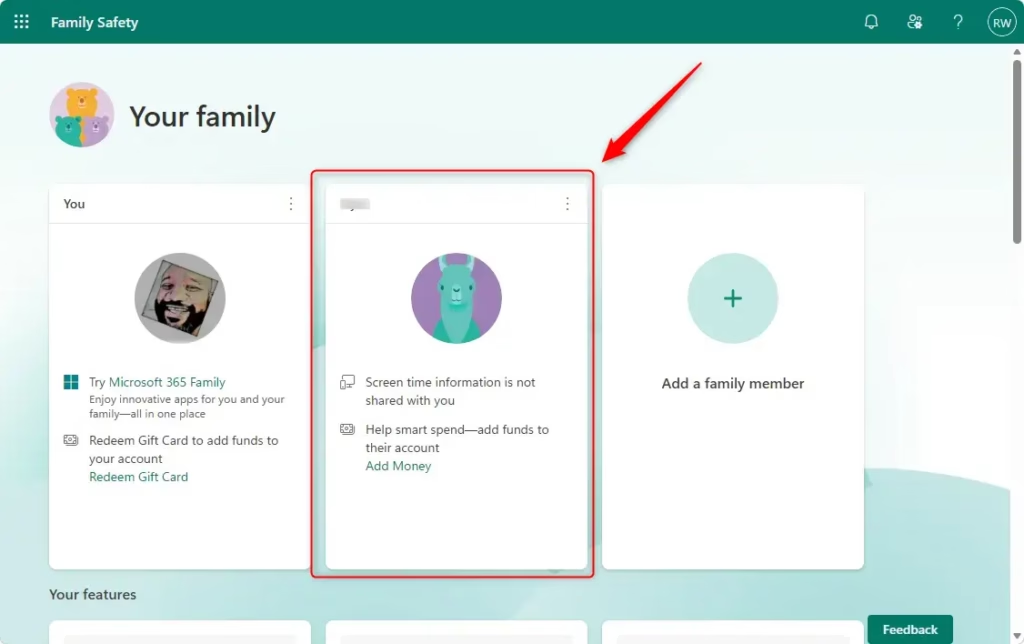
- Find the box for the family member whose apps you want to manage.
- Click their profile.
Their personal settings page opens. Everything you change there applies to that person only.
- Go to Windows App Settings
- Look under the family member’s name for tabs such as Overview, Content filters and App and game limits.
- Click the Windows tab.
This section manages apps and games on Windows computers. Tab names and layout change from time to time as Microsoft updates the site. If a label looks slightly different from the one here, look for the section that covers apps on Windows.
- Find and Block Copilot
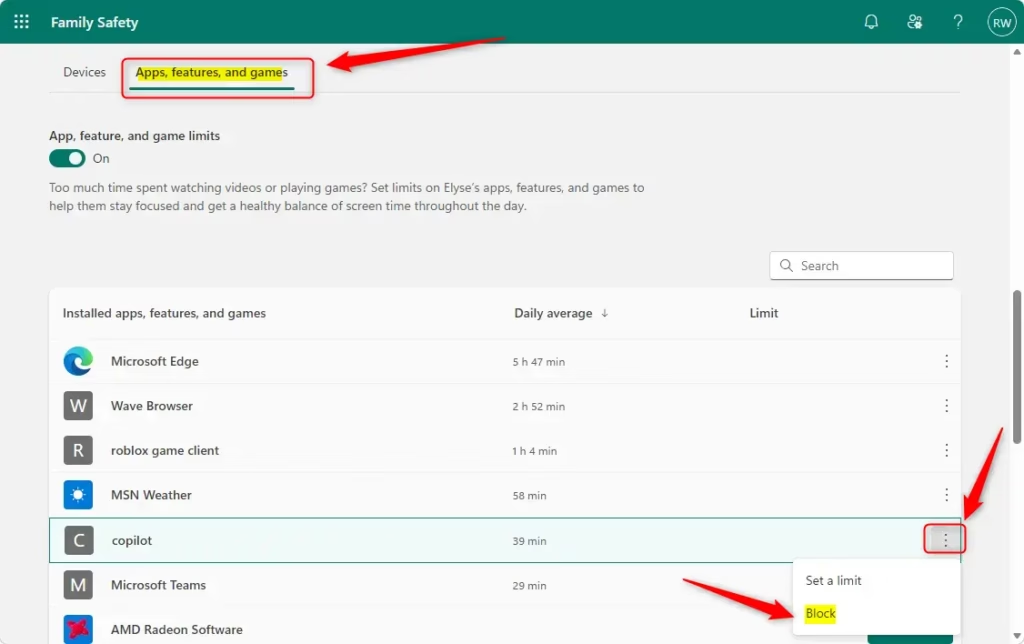
The Apps and games section lists the apps used on the member’s Windows computers. Follow these steps:
- Look for Copilot in the app list.
- If it is not visible, select See all apps to expand the list.
- Choose the Block app option, usually a switch or button beside the app name.
The switch should now show Copilot as blocked. Apps appear in this list only after the child’s device has reported them. If Copilot is missing, make sure the child has signed in to the PC with their own account and that the PC is online, then check again later.
Blocking Copilot stops the Copilot program from running in Windows. This may affect other Microsoft services your child uses, so test those services after the block. The change can take a few minutes to reach the PC. A restart is not normally required, but if Copilot still opens, sign out and back in on the child’s PC.
This block covers the Copilot app only. It does not remove Copilot inside Edge or Copilot on the web. The website block in the next step and Edge filtering cover those.
To undo the block, return to the same list and turn the block off for Copilot.
- Block Other AI or Websites (Optional but Recommended)
Copilot also runs as an online service, and other AI chat tools are available through a browser. Blocking specific websites closes that gap.
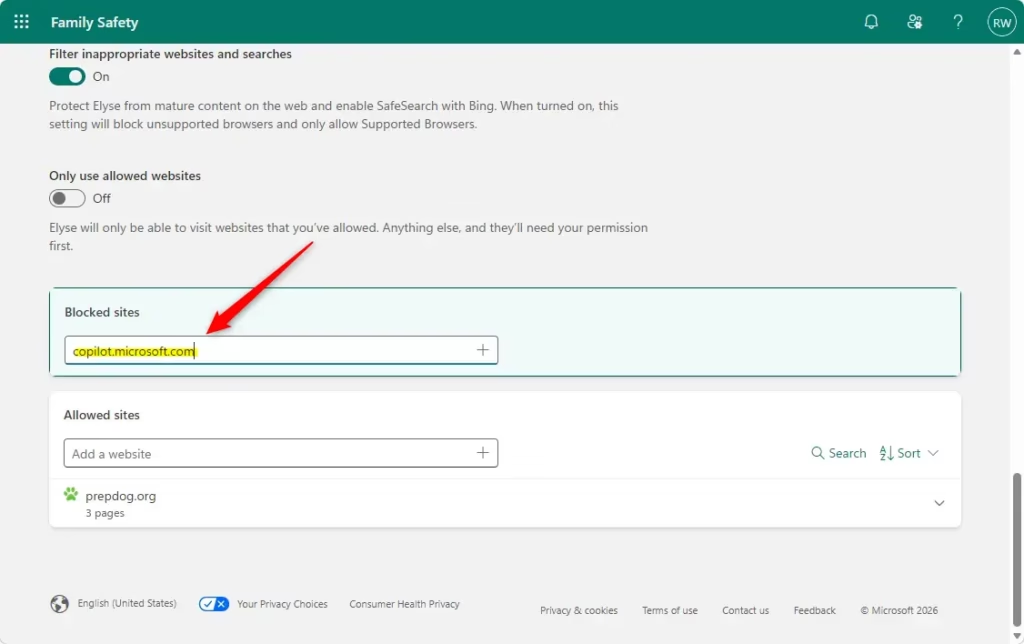
- While still in the family member’s settings, click the Edge tab (or the browser they use most).
- Go to the Blocked sites section.
- Add the web address for Copilot, which is
copilot.microsoft.com. - Add any other AI chat sites you want to block more completely.
⚠️WarningEach address you add should appear in the blocked list. Family Safety web filtering only applies in Microsoft Edge. If your child uses another browser, the filter will not apply there, so keep them on Edge if you want the block to hold.Here are some examples of other AI chat sites to consider:
chatgpt.comclaude.aigemini.google.comhuggingface.co/chatotter.aiwww.perplexity.ai
To remove a site later, delete it from the Blocked sites list.
That’s it. The Copilot app is now blocked on your child’s Windows devices, and the sites you listed are blocked in Edge.
What Happens When Done?
With these restrictions enabled, Family Safety stops your child from opening the Copilot app on their Windows devices. To confirm it worked, have your child try to open Copilot on their PC. A message should say the app is blocked, or the app should not launch at all.
Then have them try the blocked websites in Edge. Those should show a blocked page.
Reference:
https://support.microsoft.com/en-us/family-safety/block-or-unblock-apps-with-microsoft-family-safety
Summary
Managing app settings online through Microsoft Family Safety blocks Copilot for family members on Windows. Check the settings now and then, especially after major Windows updates, to make sure the block still applies.
Have a question about this guide?
Answered by AI from this guide. Good questions may be added to this page — please don't include personal details.
Did this guide fix your problem?

About the Author
Richard
Tech Writer, IT Professional
Richard is a writer at Geek Rewind who turns complex IT tasks into clear, step-by-step guides. He draws on years of hands-on experience in system administration and enterprise IT operations, focusing on Windows, Linux and WordPress: the problems people actually run into, and the fixes that work. His server and WordPress guides come from systems he runs himself. Richard builds and maintains the platform behind Geek Rewind, from its Ubuntu servers and Nginx configuration to its custom WordPress plugins. Many new tutorials start with readers' questions, and he's always glad to answer them in the comments.
No comments yet — be the first to share your thoughts!