How to Set Screen Time Limits on Windows 11 with Microsoft Family Safety


Microsoft Family Safety is a free parental control tool that works with Windows 11. It lets you restrict screen time and manage how long a child spends on the computer each day. You can set daily time allowances, such as a strict two-hour limit on weekdays, and block access during bedtime or school hours.
Changes you make sync automatically across all Windows 11 PCs, Xbox consoles, and Android devices linked to your family group. Before you start, check three things:
- The child is a member of your family group and signs in with their own Microsoft account. Limits do not apply to a local account or to someone else’s account on the same PC.
- You are signed in as the family organizer, or as an adult with permission to manage the group.
- The child’s PC is online. Settings reach the device through the internet, so an offline PC may keep using the old rules until it reconnects.
Open Microsoft Family Safety, select Screen time for the child’s device, choose a day of the week, set a daily time allowance in hours, optionally add quiet times to block access during homework or bedtime, then click Done to save. The limits sync across all Windows 11 PCs and Xbox consoles in your family group.
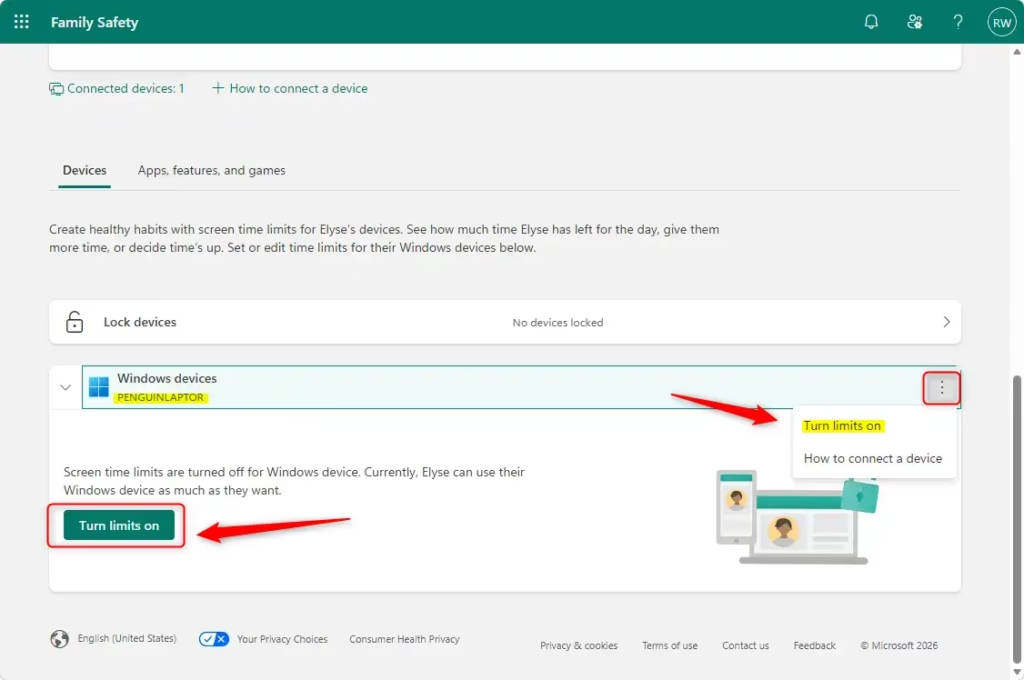
Find Screen Time Settings
- Open the main menu in Microsoft Family Safety.
- Select the Screen time option for the Windows PC or Xbox console you want to manage.
You should now see the screen time controls for that device. If the device is not listed, it has probably not been used with the child’s account yet. Have the child sign in on it once while it is online, then check again.
Choose a Day
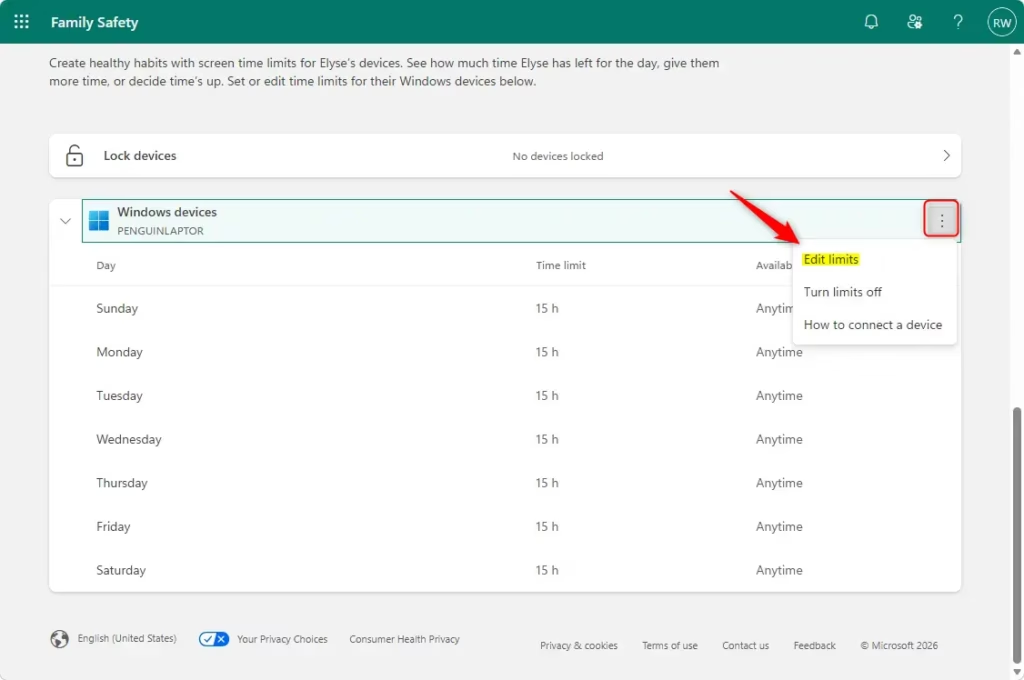
Selecting a day of the week lets you set up your baseline schedule for Windows 11 screen time. You can choose different daily allowances for school days and weekends. You can also block access completely during homework or bedtime hours with quiet times.
- Select a day of the week from the list.
- Set the total daily allowance for that day.
- Add a time window if you want to control when the allowance can be used, not just how much.
- Repeat for each day that needs different rules.
School days might permit two hours of computer access, while weekends allow four. Specific quiet times block device access completely during homework or bedtime hours. A child can have time left in their daily allowance and still be locked out during a quiet time.
Apply Limits to Other Days
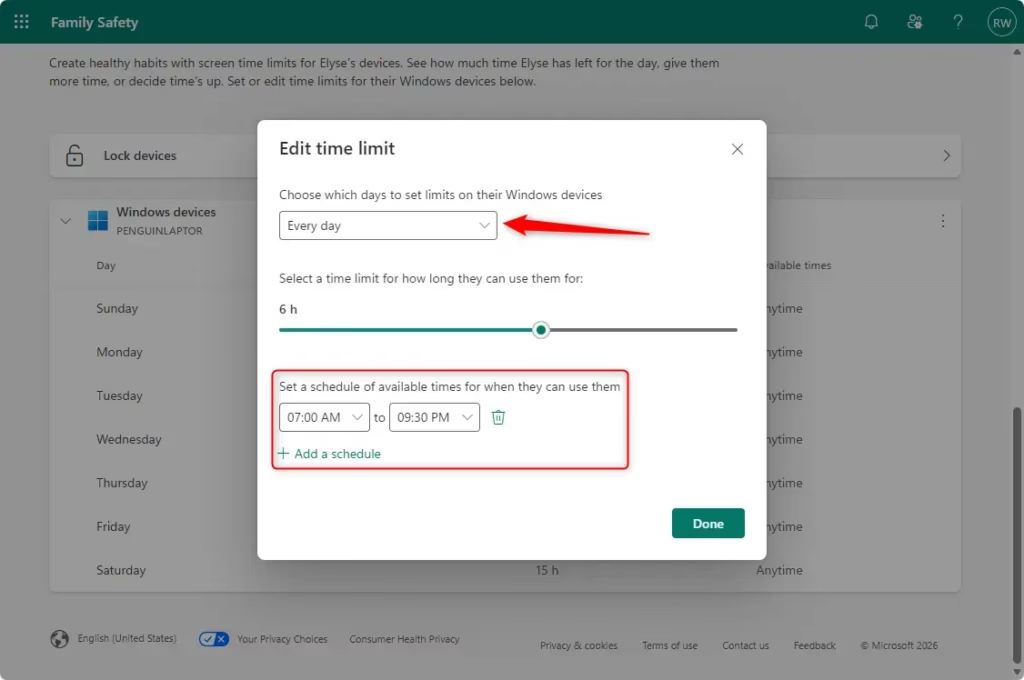
Copying your Windows 11 screen time schedule across multiple days saves you from setting up each day individually. You can apply one daily limit to all seven days of the week at once. This handles both weekday and weekend restrictions together.
- Set up one day the way you want it.
- Use the option to apply that schedule to other days, and select all seven days if you want one rule for the whole week.
- Check the result for each day.
This daily limit applies seven days a week, so a weekend that should be more relaxed needs its own edit afterward. You can change any single day later without touching the others.
Save Your Settings
- Click the Done or Save button after configuring the schedule. The label can differ slightly depending on the screen.
- If the restrictions are not being enforced, turn on the limits toggle (Turn limits on) and save again.
To undo a schedule, turn the limits toggle off. This pauses the rules without deleting the times you entered, so you can switch them back on later.
Managing Screen Time Online
Managing restrictions through a web browser is a good alternative when you do not have the desktop app, or when you prefer a larger display. It also works from any computer, including one that is not part of your family group.
Go to the Family Safety Website
- Go to the Microsoft Family Safety website.
- Sign in with the family organizer's Microsoft account credentials.
account.microsoft.com/family
After you sign in, you should see your family group dashboard. If you do not see your family, check that you signed in with the organizer account and not a personal one.
Pick Your Family Member
Member profiles appear on the dashboard in a layout similar to the mobile application. Select a family member to open their individual controls. Only profiles linked to the family group appear here. If a child is missing, send them an invitation to join the group first and make sure they accept it.
Choose the Device Type
Device categories include Windows, Xbox, and Mobile. Select the target device to reveal its specific controls. Mobile restrictions apply primarily to Android hardware.
Set Your Schedule
Building a Windows 11 screen time schedule means picking a day, then adding specific time blocks and a total daily limit.
- Pick a day to edit.
- Add the time block or blocks during which the device may be used.
- Set the total daily limit for that day.
- Check that the target computer has an active internet connection, so the Family Safety settings can sync and enforce your rules.
Good tip: Mobile restrictions require an active internet connection and a running Family Safety background process on the target device to synchronize successfully. If a phone ignores the schedule, open the Family Safety app on it, confirm it is signed in with the child's account, and check that nothing is stopping the app from running in the background.
Save Your Changes
- Review the schedule once it looks correct.
- Click Finished, or the equivalent save button on your screen.
- If restrictions still fail to apply, activate the Turn limits on toggle and save again.
Changes can take a few minutes to reach the child's device. Signing the child out and back in, or restarting the PC, can help it pick up the new rules sooner.
Reference:
https://support.microsoft.com/en-us/family-safety/set-screen-time-limits-across-devices
Summary
Windows 11 screen time limits in Microsoft Family Safety work through custom daily schedules and quiet hours. Set a baseline for each day, copy it across the week where it fits, and save your changes. The rules then follow the child's account to every linked device. You can review or adjust them from the app or the website whenever your family's routine changes.
Was this guide helpful?

About the Author
Richard
Tech Writer, IT Professional
Richard is a writer at Geek Rewind who turns complex IT tasks into clear, step-by-step guides. He draws on years of hands-on experience in system administration and enterprise IT operations, focusing on Windows, Linux and WordPress: the problems people actually run into, and the fixes that work. His server and WordPress guides come from systems he runs himself. Richard builds and maintains the platform behind Geek Rewind, from its Ubuntu servers and Nginx configuration to its custom WordPress plugins. Many new tutorials start with readers' questions, and he's always glad to answer them in the comments.




No comments yet — be the first to share your thoughts!