How to Add Your Child’s Microsoft Account to Windows 11

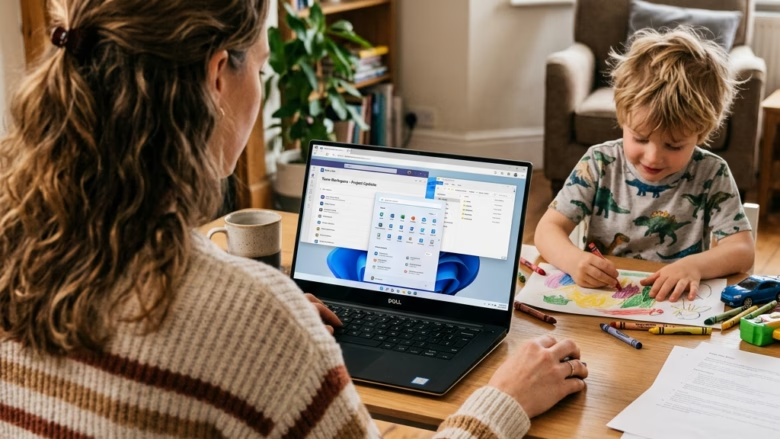
Adding your child’s Microsoft account to Windows 11 lets you manage screen time limits, block adult websites, and monitor app downloads across devices. Microsoft Family Safety handles this setup, so you can control what your child sees and does on the computer.
You need administrator rights on your PC to complete this process. You also need a Microsoft account for yourself, because it organizes the family group. If your child has no Microsoft account yet, you can create one for them during setup. Setting up a standard user account for your child first makes the steps go much faster.
Open Settings , click Accounts, select Family, then click Add family member and enter your child’s Microsoft account email address. Windows creates a standard user account with parental controls linked to your family group.
Add Your Child’s Microsoft Account to 🪟 Windows 11
To add your child’s Microsoft account to Windows 11, open the Settings app, go to Accounts, and select Family. From there you add a family member by entering their email address. That links their profile to your computer and sets up parental controls. The exact button wording can differ slightly between Windows 11 versions, so go by the section name if a label looks a little different.
- Open Settings and click Accounts on the left. The account options appear on the right.
- Click Family. You should now see the family settings page.
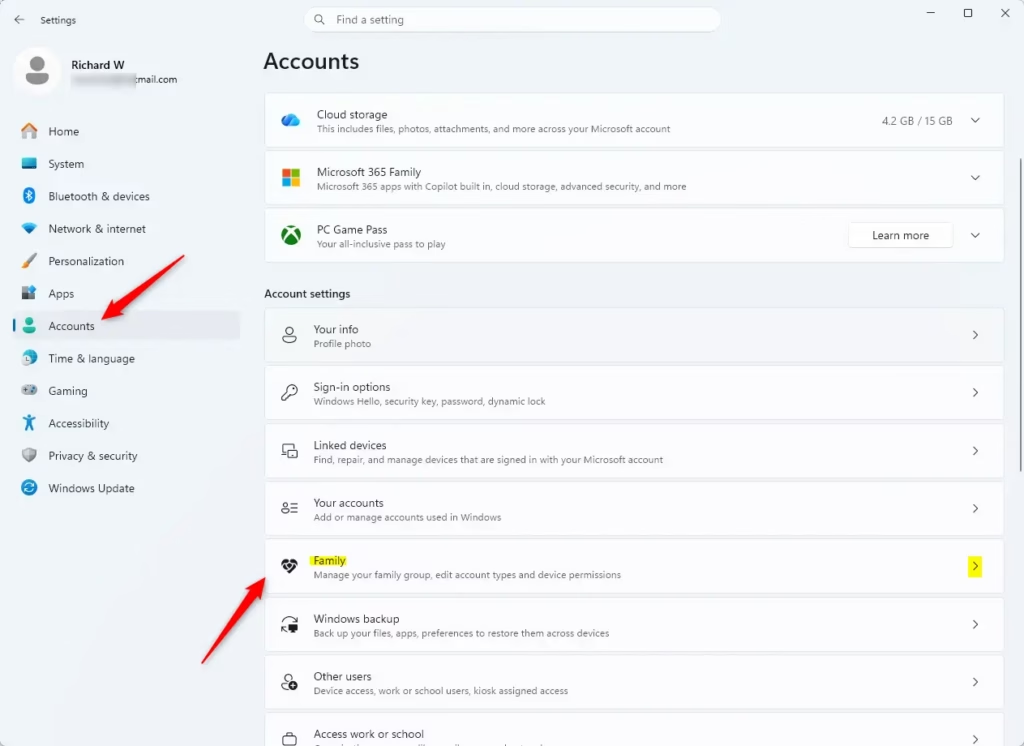
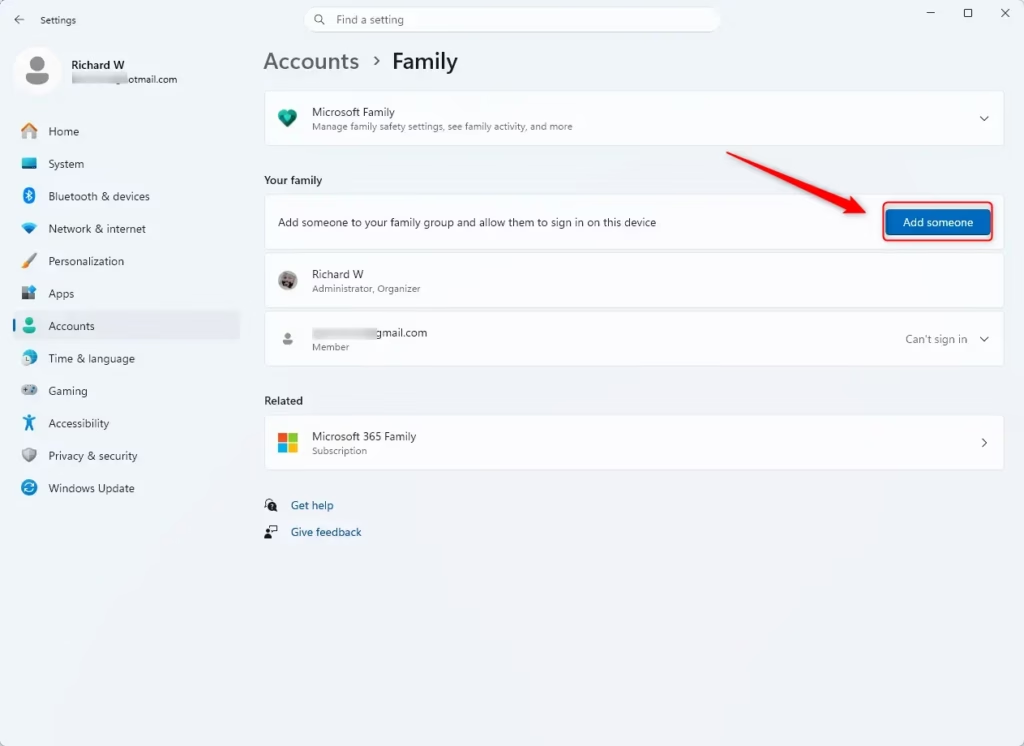
- Under “Your family,” click Add family member. A setup window opens.
- Type the child’s Microsoft account email address, then click Next. Windows 11 uses this address to set up a child profile with parental controls and online safety protections.
- When Windows asks for their role, choose Child and click Confirm.
Microsoft usually sends an invitation to that email address. The child (or you, signed in as the child) may need to accept it before the account shows up in your family group. If the child’s account does not appear straight away, check the inbox for the invitation first.
Windows 11 normally creates a standard user account when you link a child’s Microsoft account. If a local account for your child already exists on the PC, Family settings can verify it. Check the account type afterward. If it shows “Administrator,” change it to “Standard user.” You can do this in Settings under Accounts, in the Other users section. You need to be signed in as an administrator to change it.
Warning: Never set a child's account as an administrator if you want to use Microsoft Family Safety. Parental controls do not hold on admin accounts, so a child could bypass the restrictions.
Have Your Child Sign In to the PC
Signing in with the child Microsoft account links their profile to the computer and tells Microsoft's servers which user is active. This first sign-in is required. Without it, parental controls, screen time limits, and web filters do not work on the device.
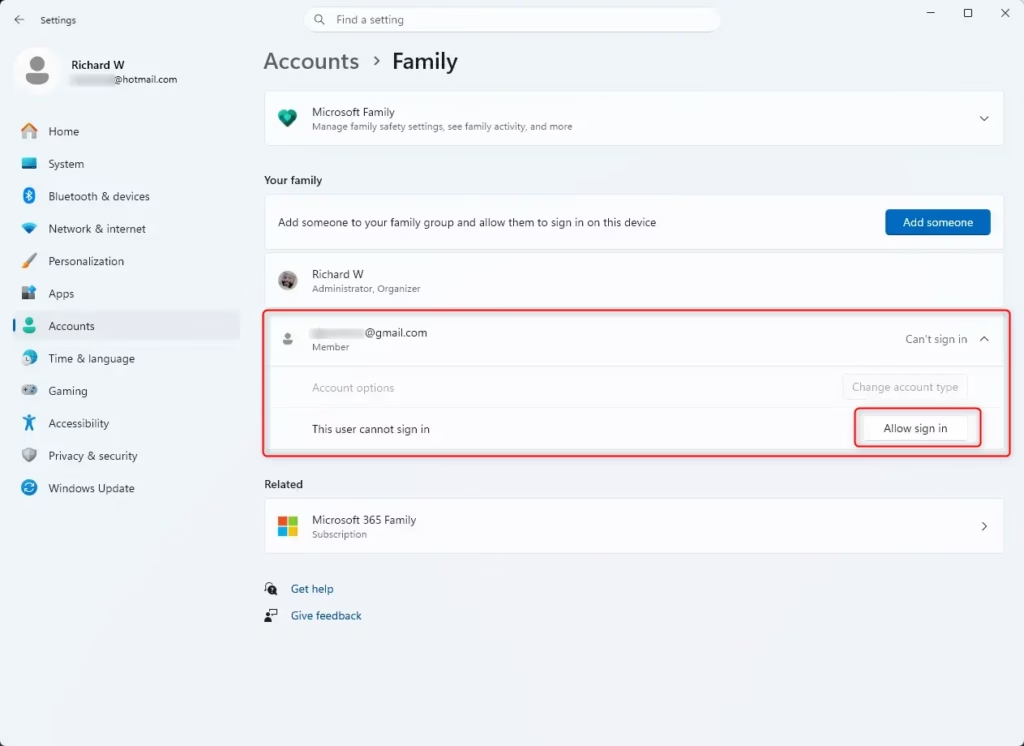
Why This Sign-In is Important
The first sign-in registers the PC with Microsoft's servers. If you skip it, the computer stays off the connected devices list and none of the safety features apply to it.
Action: Sign In to 🪟 Windows 11
- On the Windows 11 PC, click the Start button.
- Click your current user profile picture or name at the bottom left of the Start menu. A small menu opens.
- Select Sign out. Windows closes your session and shows the lock screen.
- On the lock screen, select your child's user account. It should be listed now. If it is missing, go back to the Family settings and confirm the invitation was accepted.
- Enter their Microsoft account password and press Enter. Windows starts building their profile.
The device links to the Microsoft account once your child logs in. After the desktop appears, sign out and switch back to your own account. Check your connected devices list within 24 hours to verify the PC appears.
Windows sets up a profile the first time any user signs in with a Microsoft account on a PC. It downloads preferences and settings, which takes a few minutes. Let it run until the desktop is fully displayed. Signing out early can interrupt the setup.
Verify the Device is Connected
The online Microsoft Family Safety page is the best place to confirm your child's account is linked to the computer. If the PC is listed there, your safety rules, content restrictions, and activity reports can apply to it.
How to Confirm the Connection
Every device linked to a family member appears in that dashboard, so it is more reliable than checking on the PC itself.
Action: Check Your Family Management Page
- Go to the Microsoft Family Safety website: account.microsoft.com/family/home.
- Sign in with your Microsoft account. This is the account that organizes the family group.
- On your family dashboard, find the list of family members and click your child's name.
- Look for a section that lists their Devices or Connected Devices. The label can vary as Microsoft updates the site.
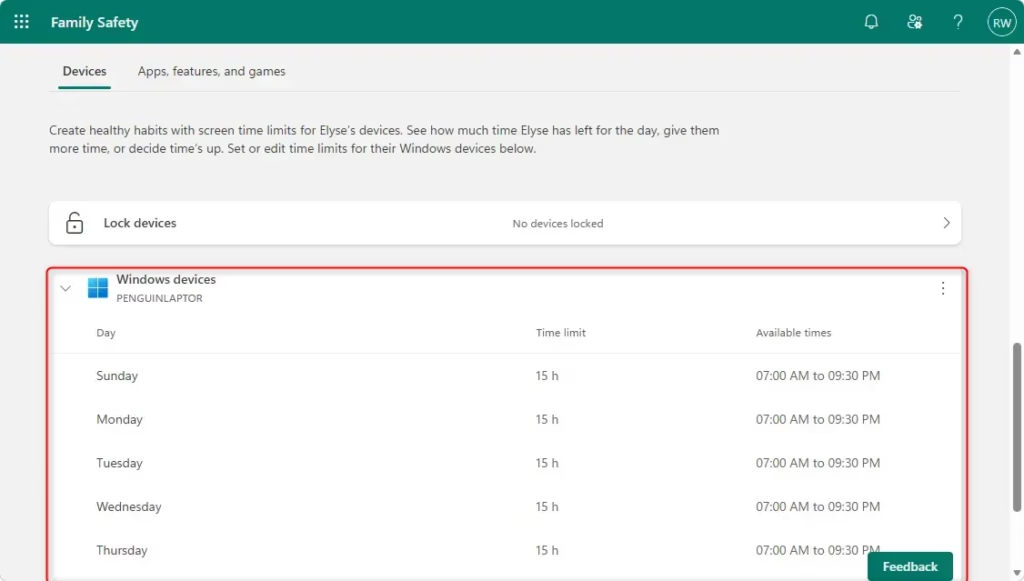
The Windows 11 PC should appear in this list, usually under its computer name. If the name is hard to recognize, you can rename the device in Windows settings. If the PC is still missing after 24 hours, sign in to the child account on the PC again and make sure it is connected to the internet.
Reference:
https://support.microsoft.com/en-us/family-safety/how-to-connect-a-device-to-a-microsoft-account
Summary
Adding your child's Microsoft account gives you Family Safety tools for managing their computer use. You can set screen time limits and content filters, which helps keep their time online safer.
Was this guide helpful?

About the Author
Richard
Tech Writer, IT Professional
Richard is a writer at Geek Rewind who turns complex IT tasks into clear, step-by-step guides. He draws on years of hands-on experience in system administration and enterprise IT operations, focusing on Windows, Linux and WordPress: the problems people actually run into, and the fixes that work. His server and WordPress guides come from systems he runs himself. Richard builds and maintains the platform behind Geek Rewind, from its Ubuntu servers and Nginx configuration to its custom WordPress plugins. Many new tutorials start with readers' questions, and he's always glad to answer them in the comments.



No comments yet — be the first to share your thoughts!