How to Set App and Game Limits on Windows 11 Using Microsoft Family Safety

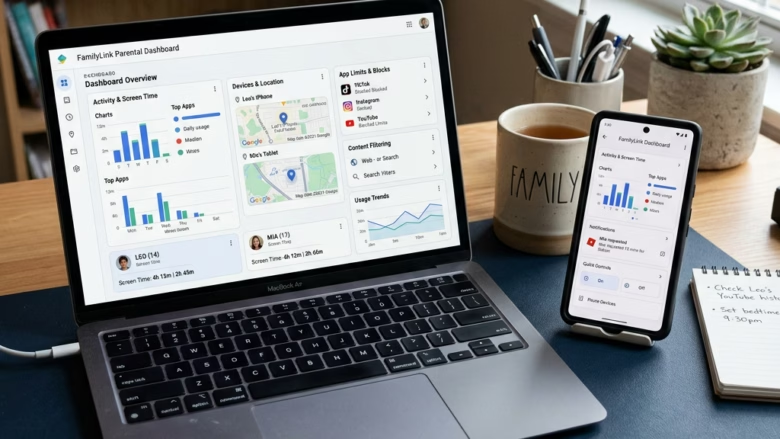
Microsoft Family Safety is a free tool from Microsoft that lets you set daily time limits on specific apps and games on a child’s Windows 11 PC. These limits stop kids from spending too many hours on games like Minecraft or streaming apps like YouTube.
You can manage the limits from the online family dashboard or from the Microsoft Family Safety mobile app on your phone. They apply to Windows 11 PCs and Xbox consoles that are signed in with your child’s Microsoft account.
Before you start, check three things. First, your child must be in your Microsoft family group. Second, your child must sign in to the Windows 11 PC with their own Microsoft account, not a local account or a shared one. Third, you must be the adult organizer, or an adult in the group with permission to manage it. If any of these is missing, the app list will stay empty or the limits will not apply.
Open the Microsoft Family Safety app or go to family.microsoft.com, select your child’s profile, choose the Windows/Xbox device, then open Apps and games and switch on App and game limits. Your child’s Windows 11 PC is then limited to the daily time you set for each app or game.
Option A: Use the Family Safety App
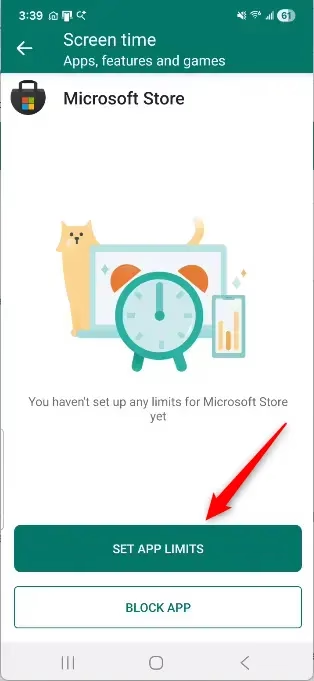
The Family Safety app lets you set limits straight from your phone. You pick the family member’s profile and then choose their Windows 11 device.
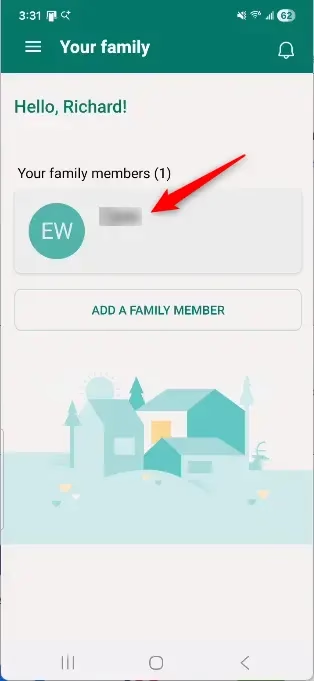
- Open the Microsoft Family Safety app on your phone and sign in with your adult account if asked. You should see a list of your family members.
- Tap the name of the person you want to set limits for. Their profile page opens.
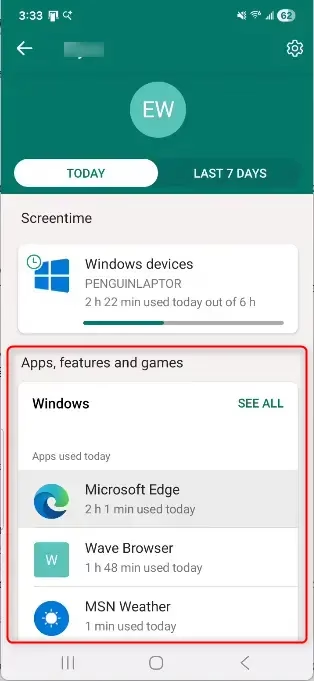
- Look for the device options on the profile page. Choose the one for the device you want to manage, usually Windows/Xbox. Choose Mobile only if you are managing a phone or tablet.
If your child’s name is missing from the list, they have not joined the family group yet. See the note below.
Option B: Use a Web Browser
- Open a web browser such as Edge, Chrome or Firefox.
- Go to the Microsoft Family Safety website: family.microsoft.com
- Sign in with the adult organizer’s Microsoft account for your family group. You should now see your family dashboard with everyone in the group listed.
- Click the name of the family member you want to set app and game limits for.
- Select the device type you want to manage, just as you would in the app. Look for Windows/Xbox or Mobile.
Warning: You must sign in with the primary adult account. If you sign in with a child’s account, you cannot change settings for other profiles, and the options will be missing or greyed out.
Step 2Find the Apps and Games Settings
The Apps and games section holds the controls for per-app limits. It shows every program your family member has used, so you can set a restriction for each one.
- On the family member’s profile page for the chosen device, click or tap the Apps and games tab or section.
- Look at the list of apps and games the family member has used or installed on their devices. You will also see how much time they have spent on each one.
The list only fills in after the child has used the device while signed in with their Microsoft account. On a new setup, give it some time and check back. Menu layouts in the app and on the website change now and then, so a label may differ slightly from the one named here.
Step 3Turn On App and Game Limits
The next step is to turn on the switch that makes Windows start tracking app and game use. Without it, no limits can apply.
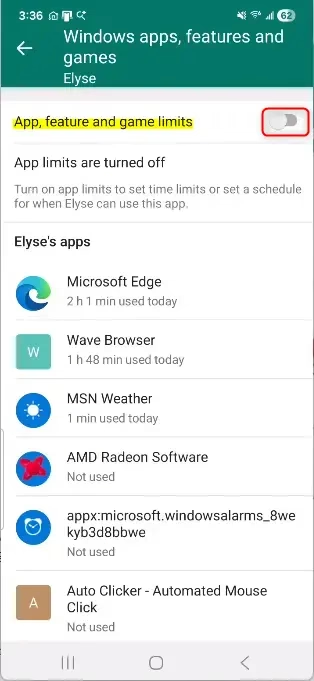
- Look for a switch labeled App and game limits or Set limits.
- Click or tap the switch to turn it On. The app list and the limit options should now become available.
If the switch is greyed out or you cannot find it, check that activity reporting is turned on for that family member. App limits depend on Family Safety being able to collect usage data. To undo this later, turn the switch Off and the limits stop applying.
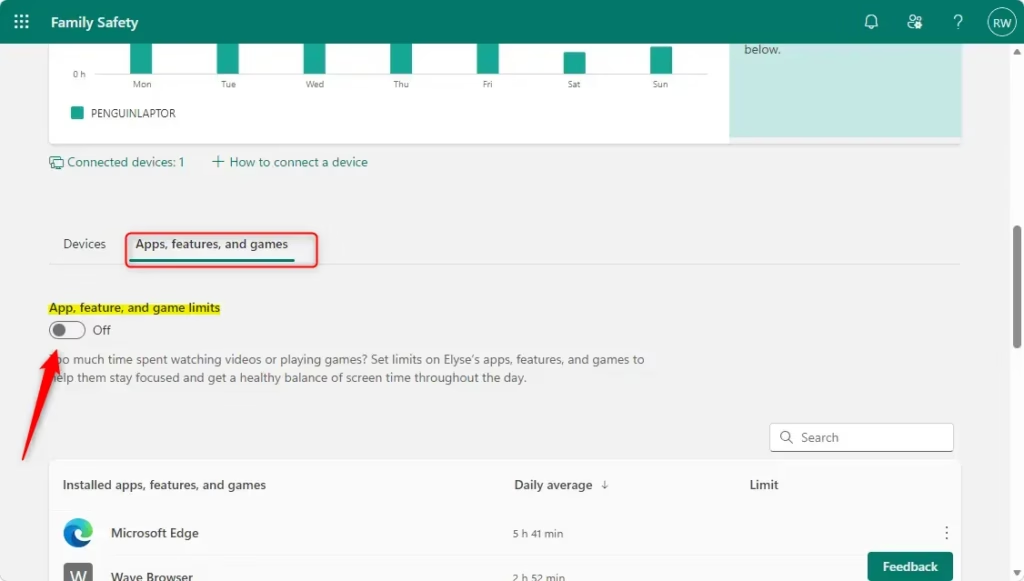
Turning this on lets Windows track how much time is spent on apps and games on that device. You may see notices about data collection. That is normal behavior and not a sign that anything is wrong.
Step 4Choose an App or Game to Limit
Now pick the app or game you want to restrict. The list shows the programs used so far, so you can choose the exact title.
- In the App and game limits section, find the list of apps and games.
- Click or tap the specific app or game you want to set a time limit for. Its limit options open.
You might see the same app listed twice if it is installed on more than one device. Each listing needs its own limit for now, so repeat the steps for every entry. Microsoft may streamline this in a future update.
Step 5Set the Time Limits
With the app selected, you can set how long your family member may use it each day and when they may use it.
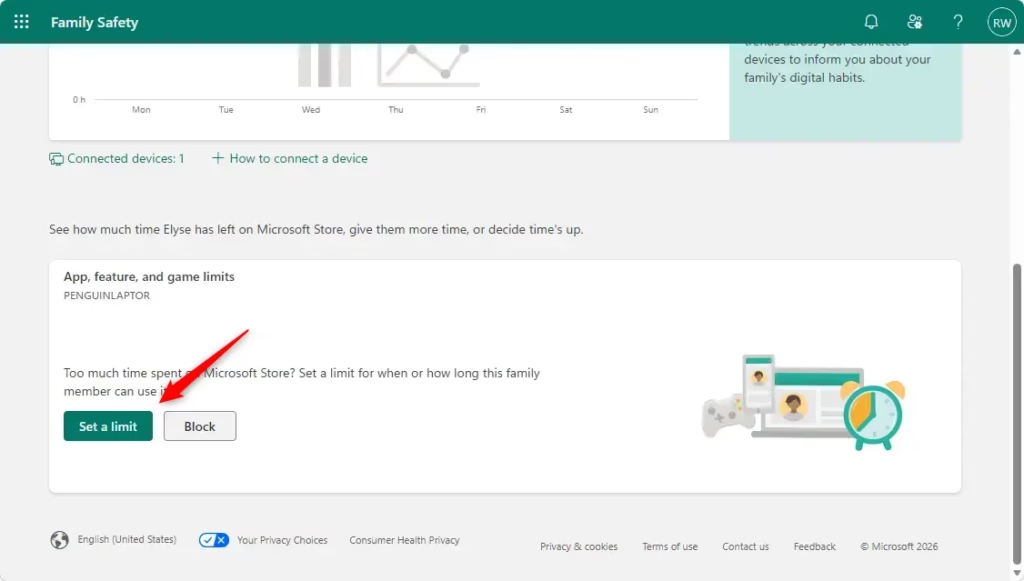
- After you select an app or game, look for the options to set time limits.
- Choose the amount of time the family member can use that app or game each day, such as 1 hour or 2 hours.
- Set a schedule for when that time can be used. You can apply the same limit to every day of the week, or build a different schedule for each day. For example, you might allow more game time on weekends than on weekdays.
- Save or confirm your choices if the screen asks you to.
Changes can take a few minutes to reach the child’s PC, and the PC must be online to receive them. When the time runs out, the app is blocked. Your child can usually send you a request for more time, which you can approve or ignore. To remove a limit, open the same app entry and turn off or clear its time limit.
Reference:
https://support.microsoft.com/en-us/family-safety/set-app-and-game-limits
Summary
In short, you can set daily time limits and schedules for apps and games on Windows 11 through Microsoft Family Safety. You can do it from the mobile app or from the web dashboard, and both control the same settings.
Frequently asked questions
When limits are changed for apps n Microsoft family control do they happen immediately or is a restart needed?
Yes, most app limit changes take effect quickly. The child's Windows 11 PC usually picks up the new limit within a few minutes, and you do not need to restart it. If the PC is offline, the change applies once it reconnects to the internet. Your child may need to sign in again for some changes to show.
How to make screen time limit infinity in Microsoft family safety settings for all apps?
You cannot set an unlimited screen time for all apps at once in Microsoft Family Safety. Instead, open the child's profile, select the Windows 11 device, and remove each limit you no longer want. Removing a limit lets the child use that app without a daily cap. Changes apply once the device is connected to the internet.
How to set app limits on your own computer?
Windows 11 has no built-in app time limit for your own account. Microsoft Family Safety manages only child accounts in your family group, so it cannot limit an adult's PC use. To cap your own app use, install a third-party screen time or focus tool, or set a personal schedule and stick to it.
How to set app or website limit on self Windows?
Windows 11 does not include a built-in way to set app or website limits on your own account. Family Safety works only on child accounts. For website limits, you can use a browser extension or your router's parental controls. For app limits, a third-party timer app is the practical option.
Can you limit apps on Microsoft family?
Yes. Microsoft Family Safety lets you set daily time limits on specific apps and games for a child's Windows 11 PC. Open the Family Safety app or the online family dashboard, pick the child, choose the device, and add a limit for each app. The child must be in your family group and signed in with their Microsoft account.
When limits are changed for apps n Microsoft fasmily control do tehy happen immedaitekly or is a restart needed?
Yes, most app limit changes take effect quickly. The child's Windows 11 PC usually picks up the new limit within a few minutes, and you do not need to restart it. If the PC is offline, the change applies once it reconnects to the internet. Your child may need to sign in again for some changes to show.
Still have a question?
Answered by AI from this guide. Good questions may be added to this page — please don't include personal details.
Did this guide fix your problem?

About the Author
Richard
Tech Writer, IT Professional
Richard is a writer at Geek Rewind who turns complex IT tasks into clear, step-by-step guides. He draws on years of hands-on experience in system administration and enterprise IT operations, focusing on Windows, Linux and WordPress: the problems people actually run into, and the fixes that work. His server and WordPress guides come from systems he runs himself. Richard builds and maintains the platform behind Geek Rewind, from its Ubuntu servers and Nginx configuration to its custom WordPress plugins. Many new tutorials start with readers' questions, and he's always glad to answer them in the comments.
No comments yet — be the first to share your thoughts!