How to Leave a Microsoft Family Group

Leaving a Microsoft family group ends your sharing of Microsoft 365 subscriptions, screen time limits and safety settings with the other household members. Anyone aged 18 or older can remove themselves from a group at any time. Members under 18 need an organizer to remove them.
You can do all of this in a few minutes in any web browser on a PC or phone. Once you leave, your personal Microsoft account stays active. You lose the shared family features, such as parental controls and shared subscription benefits. Nothing here needs a restart.
Go to account.microsoft.com/family and sign in with your Microsoft account. Find your name in the member list, click Leave family group next to it, then confirm. You lose access to shared Microsoft 365 subscriptions and parental controls immediately. If no Leave option appears, you are under 18 and an organizer must remove you.
Removing Yourself From a Microsoft Family Group
Everyone in a family group has one of two roles: organizer or member. The role decides what you can do. Organizers manage the group and can remove other people. Adult members can remove only themselves. Under-18 members cannot remove themselves and need an organizer to do it.
Both routes, leaving as a member and removing someone as an organizer, go through the Microsoft Family Safety website. Work out which role you hold before you start, because it decides which section below applies to you.
Head to the Family Safety Website
To leave a family group, open the Microsoft Family Safety website at account.microsoft.com/family. Then follow these steps.
- Open your browser and go to account.microsoft.com/family.
- Click Sign in if you are not already signed in.
- Sign in with the Microsoft account you want to remove from the group.
- Check the name or email shown at the top right of the page. If it is the wrong account, sign out and sign in again with the right one.
You should now see the family page with your group’s member list. This page is the central hub for family subscriptions, screen time controls for up to six members, and purchase approvals.
Practical Tip: Make sure you are signed in with the correct Microsoft account. Many people use more than one email address, and the wrong one will not show the family group you want to leave. If the group seems to be missing, a wrong sign-in is the most likely cause. Try a private or InPrivate browser window if your browser keeps signing you into the wrong profile.
Locate Your Name and the "Leave" Option
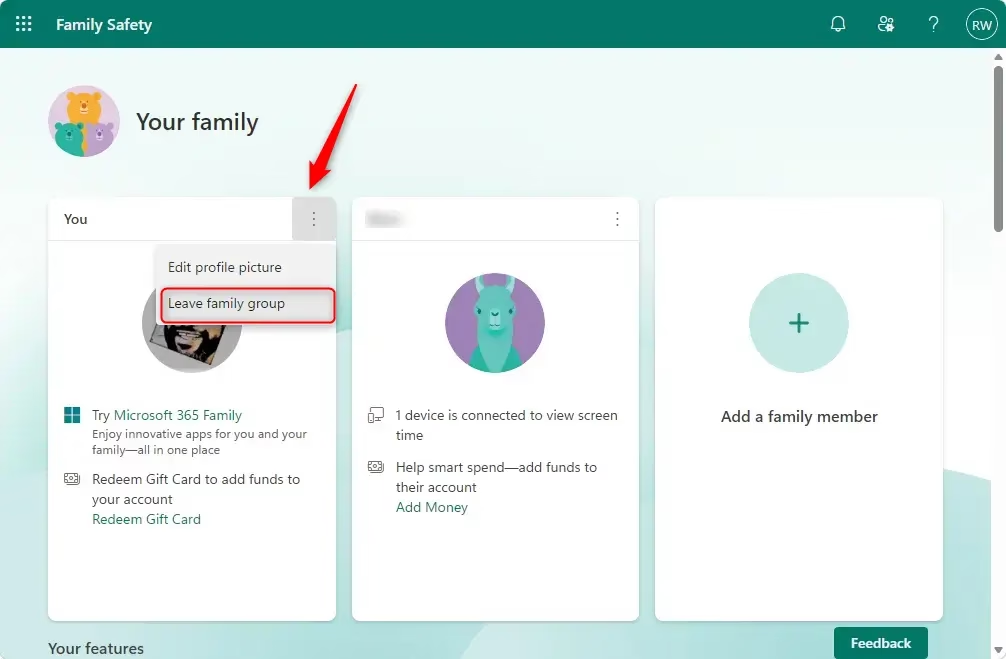
- On the main Family Safety page, find your own name in the member list.
- Click Leave family group next to your name.
- Read the confirmation prompt, then confirm that you want to leave.
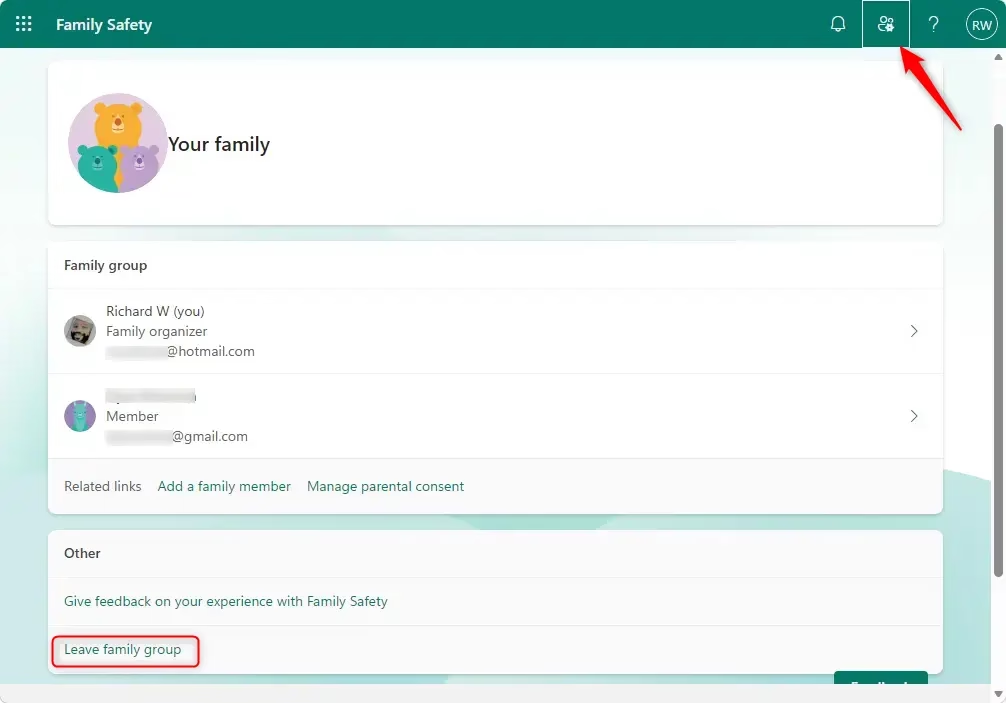
If you cannot see Leave family group, you are not allowed to remove yourself. This usually means you are under 18, so an organizer has to remove you instead. The organizer steps are further down this page.
Ask an organizer to do it for you.
Confirm Your Decision
When you click the final confirmation button, you lose access to the shared perks straight away. If another member was sharing a Microsoft 365 Family subscription with you, you lose that access. Check that you will not need those shared benefits before you confirm. If you do, you will need your own subscription or a new invitation from the group later.
Important Note: Leaving a family group forfeits shared benefits, such as a Microsoft 365 Family subscription shared by another member. Weigh what you would lose before you confirm.
When You Need an Organizer to Remove You
If you cannot find Leave family group next to your name, you do not have permission to remove yourself. Ask an organizer of the Microsoft family group to remove you. The organizer steps below show them how to do it, so you can send them this page.
How an Organizer Removes a Member
An organizer can remove someone from the group at account.microsoft.com/family by signing in with the organizer account. After sign-in, the page gives you the tools to manage the member list and take people out of the group.
Sign In as an Organizer
As before, go to:account.microsoft.com/family
This time you must sign in with the Microsoft account that is the family group organizer. A member account will not show the removal options, so if they are missing, check which account you are signed in with.
Select the Member to Remove
- On the family group page, look through the member list.
- Find the name of the person you want to remove.
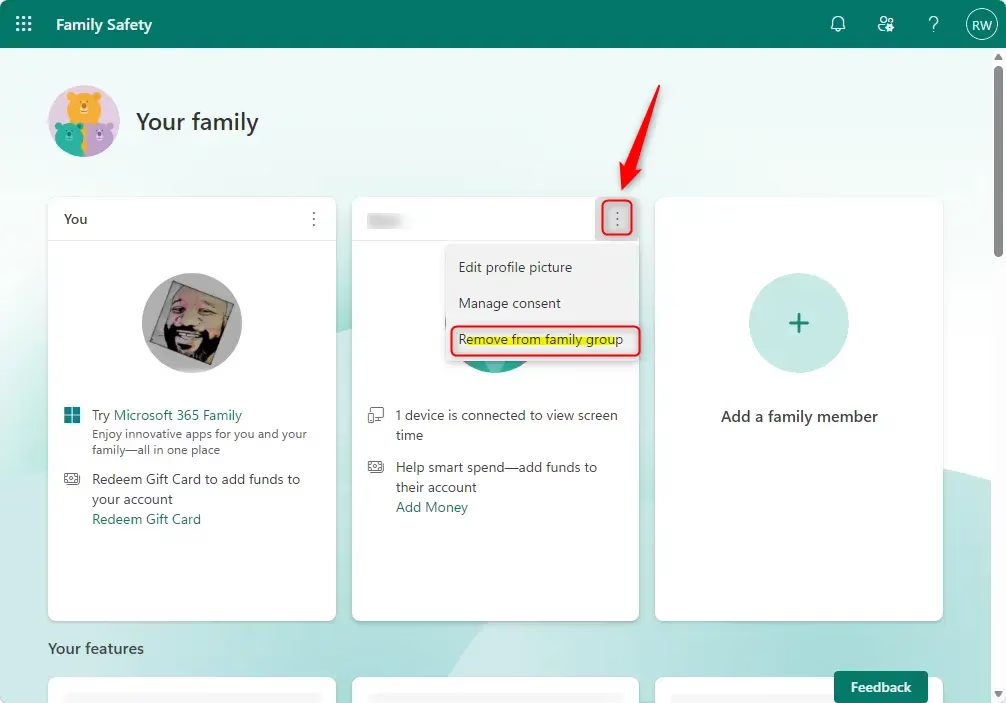
- Click the three dots (the "..." icon) next to their name.
A short menu of options for that person should appear.
Child accounts need one extra step. Before you can remove a child, you must first revoke consent for the account. Look for a prompt such as Remove consent for this child's account and complete it before you try to take the child out of the group.
Choose "Remove from family group"
- In the options menu next to the member's name, click Remove from family group.
This starts the removal. The person is not out of the group until you confirm in the next step.
Confirm the Removal
- Read the confirmation prompt about removing this person.
- Click Remove to finish.
The person should disappear from the member list. They no longer belong to the family group.
That includes a shared Microsoft 365 Family subscription. Tell the person before you remove them so it does not come as a surprise.
Deleting the Entire Family Group
To dissolve a family group completely, you must remove every other member first. Use the organizer steps above for each person, one at a time. There is no single button that clears the whole list.
Remove All Other Members
The main organizer cannot leave until every other person has been removed. Follow these steps.
- Go to account.microsoft.com/family and sign in as the organizer.
- Find the first other member in the list.
- Click the options (three dots) next to their name.
- Click Remove from family group.
- Click Remove to confirm.
- Repeat for each remaining member, but not for yourself.
Microsoft asks you to confirm every removal separately. Before you begin, write a quick checklist of everyone in the group so you do not miss anyone, especially if the group has several children.
Remove Yourself
Once every other member is gone, the organizer can remove themselves. Click the leave option next to your own name and confirm. Your access to all shared group benefits stops straight away.
Tell people before you remove them that they will lose shared perks. This matters most when you remove several people at once, or when a child turns 18 and moves to a standard Microsoft account.
Summary
Who can add or remove members depends on the role each person holds. The Microsoft Family Safety website is the tool for all of it, whether you are leaving as a member, leaving as an organizer, or removing someone else. If an option is missing, check your role and the account you signed in with first.
Was this guide helpful?
0% of readers found this helpful (1 votes)

About the Author
Richard
Tech Writer, IT Professional
Richard is a writer at Geek Rewind who turns complex IT tasks into clear, step-by-step guides. He draws on years of hands-on experience in system administration and enterprise IT operations, focusing on Windows, Linux and WordPress: the problems people actually run into, and the fixes that work. His server and WordPress guides come from systems he runs himself. Richard builds and maintains the platform behind Geek Rewind, from its Ubuntu servers and Nginx configuration to its custom WordPress plugins. Many new tutorials start with readers' questions, and he's always glad to answer them in the comments.



No comments yet — be the first to share your thoughts!