How to Create a Microsoft Account in Windows 11


A Microsoft account is a free login that works across Windows 11, Office, OneDrive and other Microsoft services, using one email address and one password. Setting it up takes less than 5 minutes, and you can use any email address you already own, such as Gmail or Yahoo. You do not need a new mailbox.
When you sign in to Windows 11 with the account, your settings, files and apps follow you to your other devices. You also stop juggling a different password for every Microsoft service. Windows 11 Home needs an internet connection and a Microsoft account during first-time setup, so you will want one ready either way.
Go to Microsoft’s official registration page at signup.live.com in your browser, or start from Microsoft’s website, and enter an email address you can open right now. Create a password of at least 8 characters, enter your real date of birth and country, then type in the verification code Microsoft emails you. The account is ready for Windows 11, Outlook and OneDrive.
How to set up a Microsoft account
You create the account on Microsoft’s official registration page. You only need a web browser and an email address you can open right now, because Microsoft will send a code to it. The same login then works for Windows 11, Outlook, OneDrive and other Microsoft services.
- Click the link below to open the registration page. Check that the address bar shows a Microsoft site before you type anything.
Microsoft | Create your account
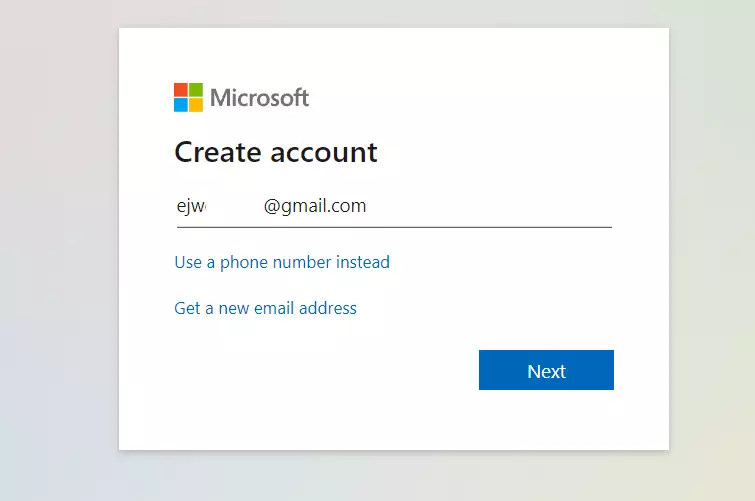
- Type the email address you want to use as your username. You should now see a field asking for your email address.
If you would rather not use an existing address, the page also offers to create a new Outlook email address for you. That new address becomes your username.
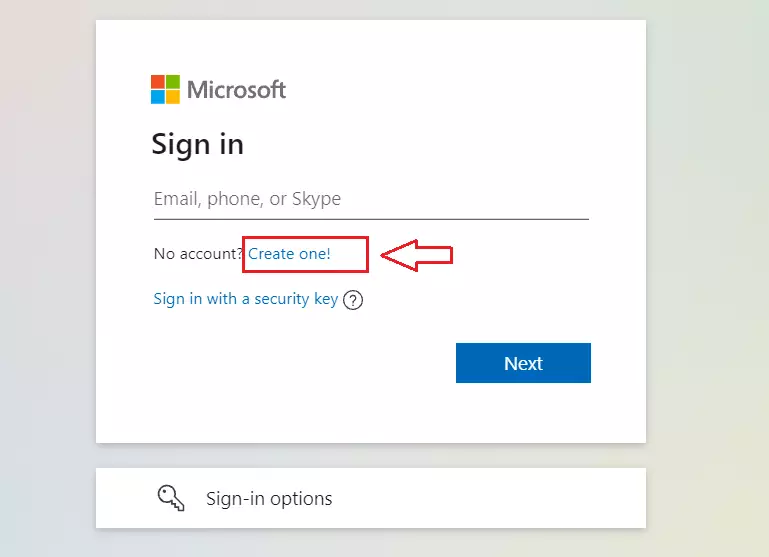
- Enter the email address you want for your account, then continue to the next screen.
A typo here means the verification code goes to the wrong place, and you will have to start over.
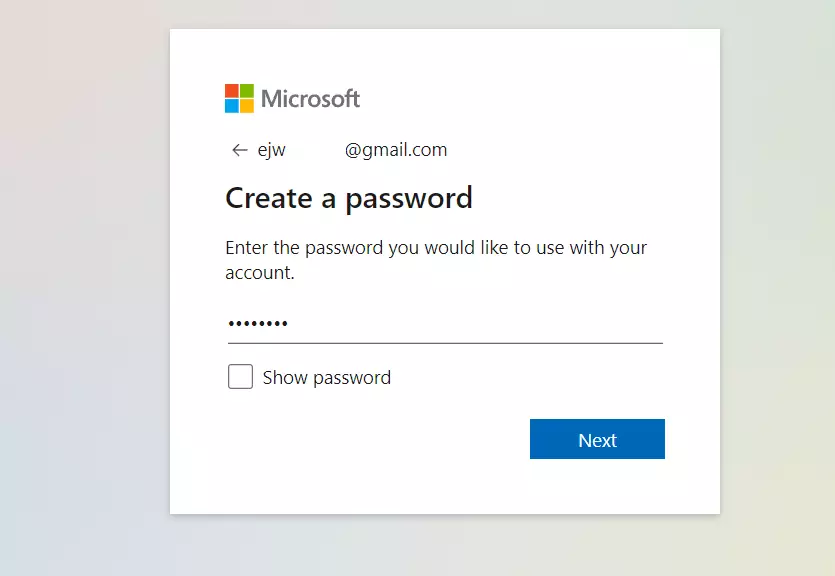
- Create a password. Make it long and unique, not one you use anywhere else. Microsoft requires at least 8 characters, and passwords are case-sensitive.
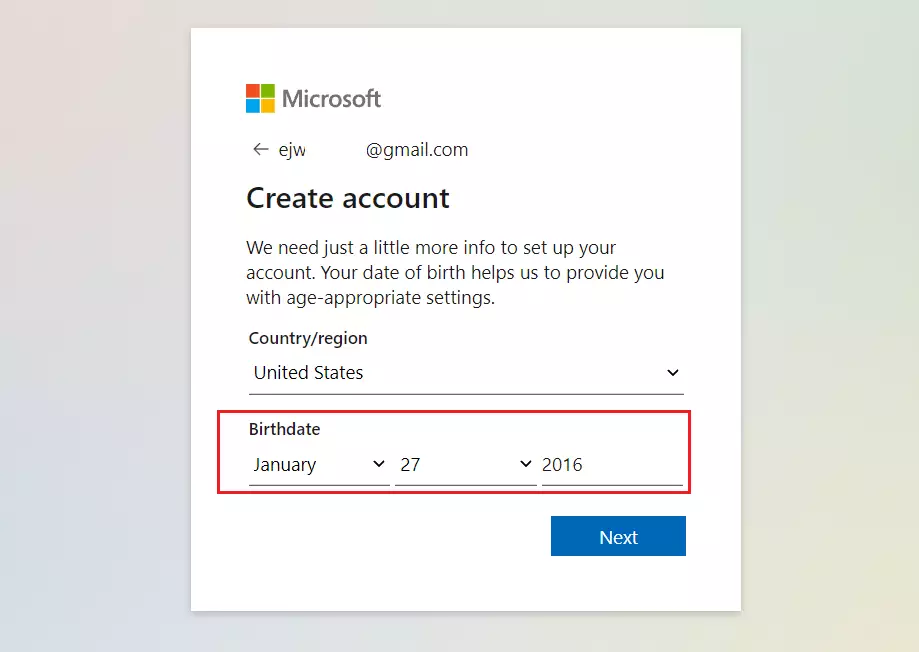
- Enter your date of birth.
- Select your country or region from the list.
Microsoft uses it to decide whether the account needs parental consent, and it can be hard to change later.
Depending on how the page is laid out, the country and birth date may appear on their own screen. If so, select your country and confirm your birth date, then continue.
- Open the mailbox for the address you entered. Microsoft sends a one-time verification code there.
- Copy or note the code, return to the registration page and type it in to confirm that the address is yours.
If nothing arrives after a minute or two, check your spam or junk folder. You can also go back and ask for a new code. Codes expire, so use the newest one.
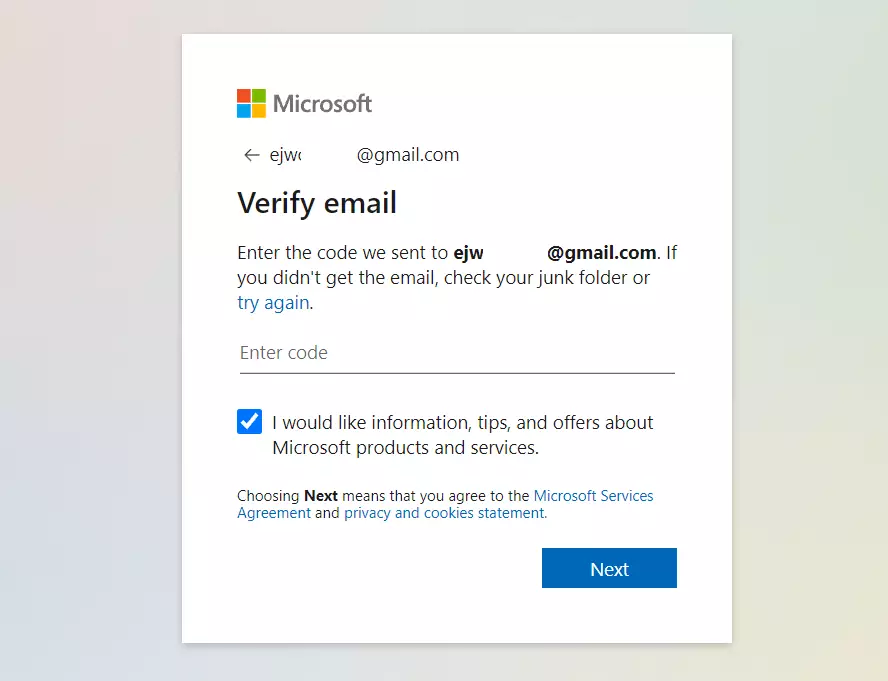
Microsoft may also ask you to solve a short puzzle to prove you are not a bot. Completing the confirmation finishes the registration. Your new account is ready, and you can use it to sign in to Windows 11, Outlook or OneDrive.
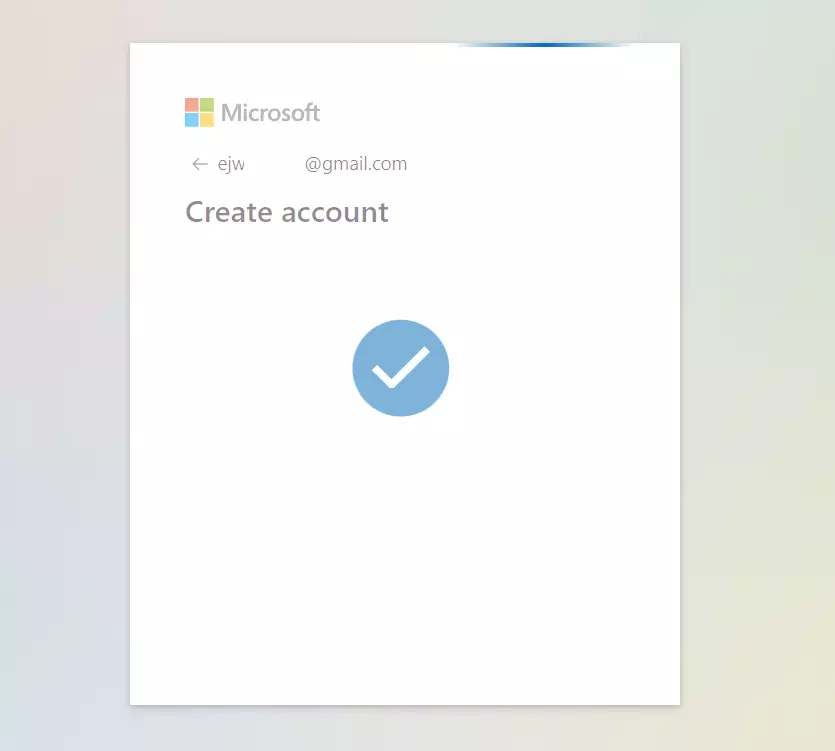
Children under 13 need a parent or guardian to help with the setup. The age limit can differ by country, so Microsoft applies the rule for the region you selected.
Adult accounts skip this extra step. For a child account, follow the options below to continue.
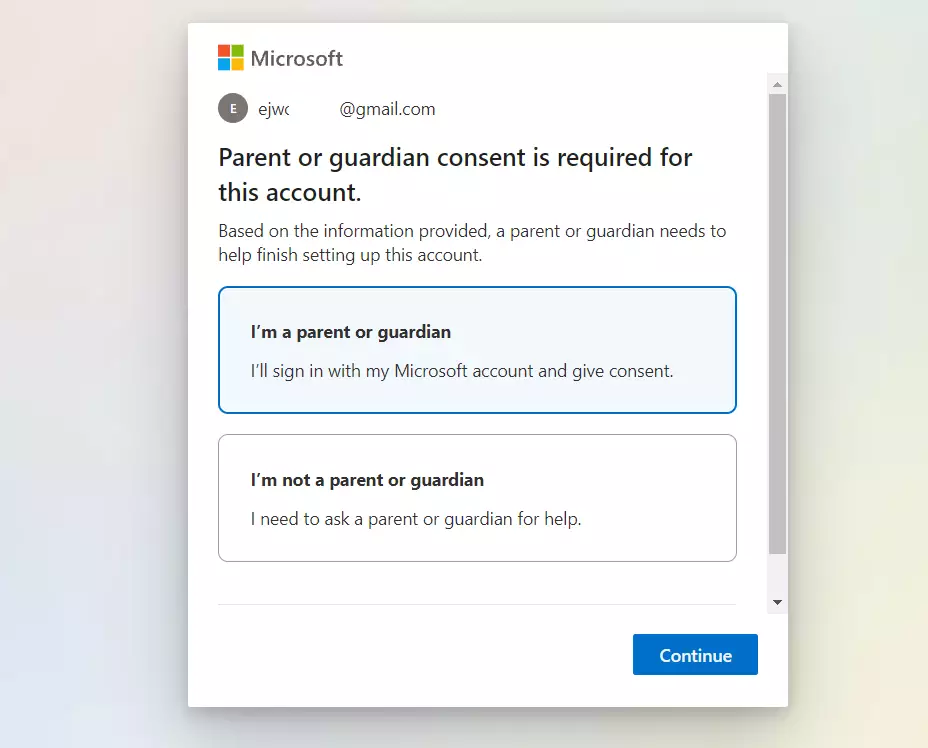
The parent or guardian needs a Microsoft account of their own before the child's account can be completed. If they do not have one yet, create it first using the steps above.
- On the sign-in page, type in the parent's Microsoft account.
- Enter the parent's password and approve any security prompt. You should see the parent account confirmed on the page.
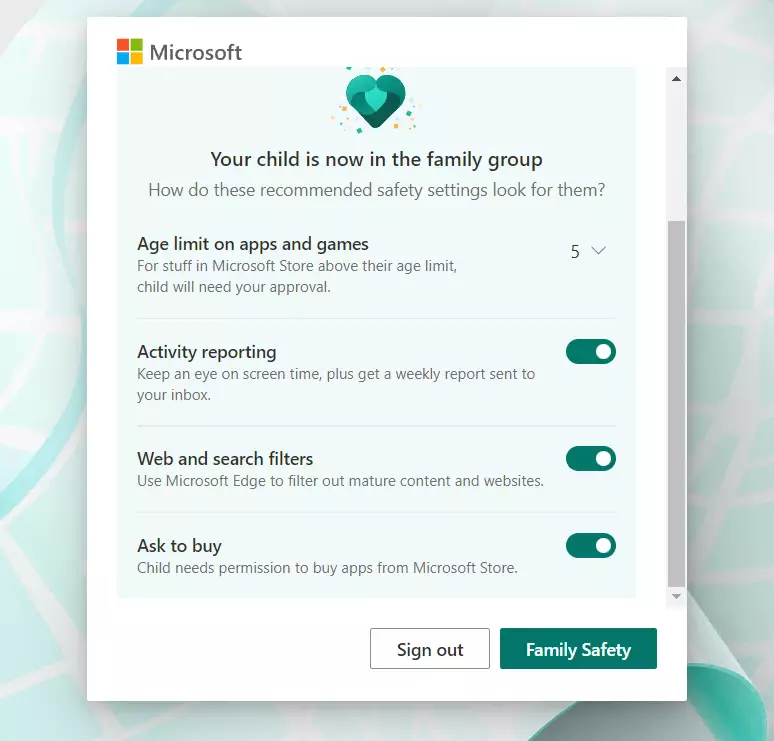
Confirming the parent account gives that adult access to Family Safety tools. They can use these to manage screen time and set content filters for the child.
You can manage the account at any time from Microsoft's online account dashboard. Sign in there to change your password, review security settings and see which devices are linked to the account. If you ever suspect someone else has your password, change it there first.
Conclusion:
- One Microsoft account gives you access to Windows 11, Office, Outlook.com, OneDrive and Teams.
- You can manage the account from the online dashboard, including password changes and security updates.
- A linked account lets you locate and manage a lost or stolen device.
- Any email address you already own can be your username.
- For a child account, parental supervision and management options are available through Family Safety.
- Following the steps above gets the account created in a few minutes.
Have a question about this guide?
Answered by AI from this guide. Good questions may be added to this page — please don't include personal details.
Did this guide fix your problem?

About the Author
Richard
Tech Writer, IT Professional
Richard is a writer at Geek Rewind who turns complex IT tasks into clear, step-by-step guides. He draws on years of hands-on experience in system administration and enterprise IT operations, focusing on Windows, Linux and WordPress: the problems people actually run into, and the fixes that work. His server and WordPress guides come from systems he runs himself. Richard builds and maintains the platform behind Geek Rewind, from its Ubuntu servers and Nginx configuration to its custom WordPress plugins. Many new tutorials start with readers' questions, and he's always glad to answer them in the comments.
No comments yet — be the first to share your thoughts!