How to Reset OneDrive Sync On Windows 11


Resetting OneDrive sync clears stuck files and repairs broken connections between your PC and Microsoft’s cloud storage. OneDrive is the built-in app that backs up your desktop and documents, keeping them safe online and available across all your devices.
A reset takes less than two minutes. It fixes problems like a red X on the taskbar icon or files that stop updating to the web. It clears out broken app data and restarts the sync service without deleting any of your actual files.
Press Win+R, paste 📂%localappdata%\
What happens when you reset?
Resetting OneDrive sync won’t delete your files. It does start a fresh scan that compares what’s on your computer with what’s in the cloud, so expect some activity after the reset.
How long the scan takes depends on how many files you have and how fast your connection is. With a large library, the icon may show “Processing changes” for a while. That’s normal, so leave the PC on and let it finish.
Check them once sync is running again.
Resetting on Windows
Method 1Reset using the Run command
You can reset OneDrive sync on Windows 11 with the Run command, and you don’t need administrator rights. The command clears corrupted settings and restarts the background sync engine, which fixes files that are stuck or won’t upload. The keyboard shortcut opens the Run box, and you paste the reset command into it.
- Press Windows key + R on your keyboard to open the Run box. A small window appears at the bottom-left of the screen with a text field.

- Copy the command shown below, paste it into the Open field, and click OK.
%localappdata%\Microsoft\OneDrive\onedrive.exe /reset
The OneDrive icon in the taskbar notification area will disappear for a few minutes, then reappear and start syncing your files again. Give it at least two or three minutes before you decide anything is wrong.
If the icon doesn't come back, open the Start menu, search for OneDrive, and open the app to start it manually. If Windows says it can't find the file when you run the command, your copy of OneDrive may be installed in a different folder than the command expects. In that case, use the Settings method below.
Method 2Reset the OneDrive Store app
For the Microsoft Store version of OneDrive, you can reset the app through its settings. This doesn't require admin privileges.
- Click the Start button.
- Search for OneDrive.
- Right-click the app in the results and select App settings. The app's settings page opens.

- In the window that opens, scroll down and click the Reset button. If a Repair button is shown next to it, try that first, because it fixes the app without clearing its data.
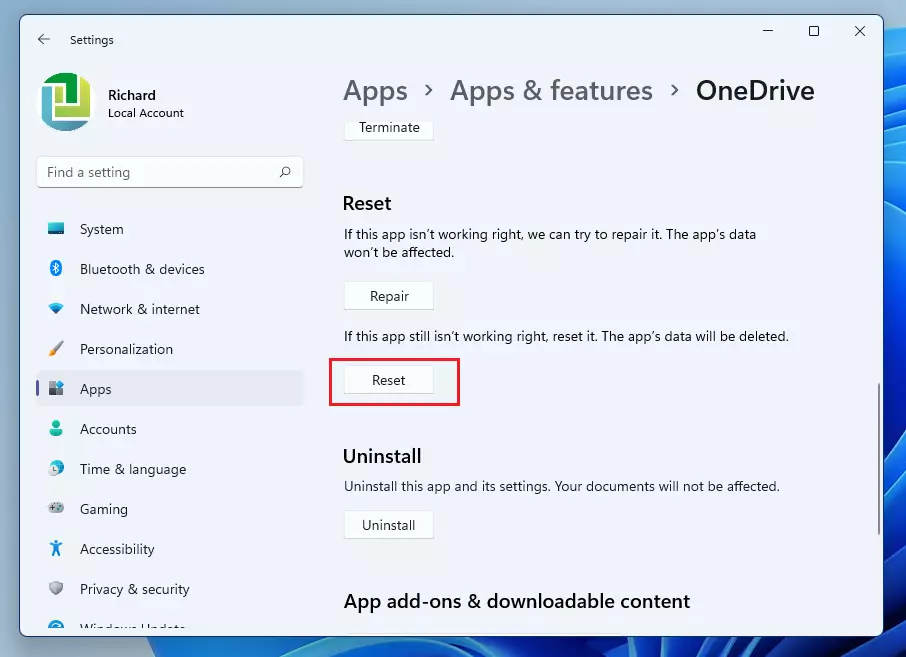
Windows may ask you to confirm the reset. Once it finishes, start OneDrive again from the Start menu. You may need to sign in again, and the app will rescan your files as described above.
Resetting on macOS
You can reset OneDrive sync on macOS by quitting the app and running the reset script that ships inside the application. The reset forces OneDrive to reconfigure its connection and rebuild the local file index. That fixes syncing errors and stuck folders on your Mac. You don't need to use Terminal for this.
- Quit OneDrive by clicking the cloud icon in the top menu bar and selecting Quit OneDrive. The cloud icon disappears from the menu bar.
- Open your Applications folder.
- Find the OneDrive app, right-click it (or Control-click), and select Show Package Contents. A new Finder window opens showing the app's internal folders.
- Navigate to Contents Resources
- Double-click the ResetOneDriveApp.command file. A Terminal window may open briefly while the script runs.
When the script finishes, OneDrive should start again by itself. If it doesn't, open it from the Applications folder and sign in if prompted. Your files stay where they are, and OneDrive rescans them against the cloud.
Resetting on Android and iOS
On Android and iOS, you can reset OneDrive by clearing the app's cache or by reinstalling the app. Both clear out bad login tokens and corrupted local files, so the app downloads a fresh copy of your cloud file list. Your files in the cloud aren't affected.
- Open your device Settings.
- Go to Apps or Application Manager. The name varies by phone maker and Android version.
- Find OneDrive in the list.
- Select Storage and tap Clear Cache or Clear Data. Clear Cache is the gentler option. Clear Data also signs you out, so you'll have to log in again.
- If the issue persists, uninstall and reinstall the app from the App Store or Google Play Store.
These menu names apply mainly to Android. iOS has no option to clear an app's cache, so on an iPhone or iPad, reinstalling the app is the way to reset it. Sign in again afterward.
Common OneDrive Error Codes
Knowing which kind of problem you have helps you pick the right fix before you reset anything.
Work through these checks in order:
- Check that your internet connection works and that other sites and apps load.
- Sign out of OneDrive and sign back in with the account that owns the files.
- Make sure the account you're signed in with has permission to access the folder or file that fails to sync.
- If the error remains, reset OneDrive using the steps above.
Summary
Resetting OneDrive sync fixes file update problems by starting a new connection to the cloud. It doesn't delete your saved files, and you can run it again if the problem returns.
If a reset doesn't help, the next step is to unlink the PC from your account in the OneDrive settings and sign in again.
Have a question about this guide?
Answered by AI from this guide. Good questions may be added to this page — please don't include personal details.
Did this guide fix your problem?

About the Author
Richard
Tech Writer, IT Professional
Richard is a writer at Geek Rewind who turns complex IT tasks into clear, step-by-step guides. He draws on years of hands-on experience in system administration and enterprise IT operations, focusing on Windows, Linux and WordPress: the problems people actually run into, and the fixes that work. His server and WordPress guides come from systems he runs himself. Richard builds and maintains the platform behind Geek Rewind, from its Ubuntu servers and Nginx configuration to its custom WordPress plugins. Many new tutorials start with readers' questions, and he's always glad to answer them in the comments.
I copied this line in %localappdata%\Microsoft\OneDrive\onedrive.exe /reset to reset my onedrive. Nothing happened. It still says it is trying to sync and never disappeared like the instructions said it would. It just continues (after days) of letting it run to say it is trying to sync but does not make any progress. I did get an email on my phone that says onedrive was finished backing up files but that is not what I see when I open onedrive. It still says it is trying to sync.
yeah solution does not work
I had to dig a bit to get the correct path for my puter. The principle is the same though. The command I used is:
C:\Program Files (x86)\Microsoft OneDrive\onedrive.exe /reset
I’m on Win11.
[…] If you encounter a problem using the OneDrive app, you can reset it allowing you to clear settings and resync all your files. […]
[…] you install OneDrive on Windows 11, it automatically adds its icon to the taskbar. You can right-click the OneDrive app icon in the […]