How to Set Up a Passkey for Microsoft Account on Android


A passkey for a Microsoft account on Android replaces your password with a sign-in that uses your phone’s fingerprint reader, face scanner, or screen lock. The passkey is a cryptographic code stored on your phone, so there is no password for a hacker to steal or trick you into typing.
You can set one up on Android 9 or newer in a few minutes, using Google Password Manager or your device settings. Before you start, make sure your phone has a screen lock (PIN, pattern, or password) and ideally a fingerprint or face unlock enrolled. The passkey depends on that lock to confirm it’s you.
Sign in to your Microsoft account, go to Advanced Security Options, and select “Add a new way to sign in or verify.” Choose “Face, fingerprint, PIN, or security key,” select your Android phone, and follow the on-screen prompts to save and create your passkey.
Latest Update
A Microsoft account passkey on Android currently works only for personal accounts, not work or school accounts. If you sign in with a work or school address, you may not see the passkey option at all. In that case, your organization’s administrator controls which sign-in methods are allowed.
Passkeys are digital credentials tied to your phone. They use biometrics such as a fingerprint instead of a password, so they can’t be captured by a fake phishing website.
A passkey is tied to your physical device. It relies on biometrics or your screen lock rather than a string of characters sent over the internet. A phishing site has nothing to intercept, and you have nothing to remember or reuse.
Once it’s set up, a passkey gives you access to Microsoft services such as Microsoft 365 and Copilot on your mobile hardware. At a Microsoft sign-in screen, select Sign-in options. You’ll see choices such as face, fingerprint, PIN, or security key. Pick one to start the passkey sign-in.
Set up a passkey for your Microsoft account on your Android phone
Android uses built-in hardware security to protect your credentials. It routes them through Google Password Manager or the Microsoft Authenticator app, depending on where you choose to save the passkey. The steps below use Google Password Manager.
The private part of the passkey stays on your phone. Microsoft only keeps the matching public part, which is useless to an attacker on its own.
Latest Update
Grab your phone and follow these steps to get configured.
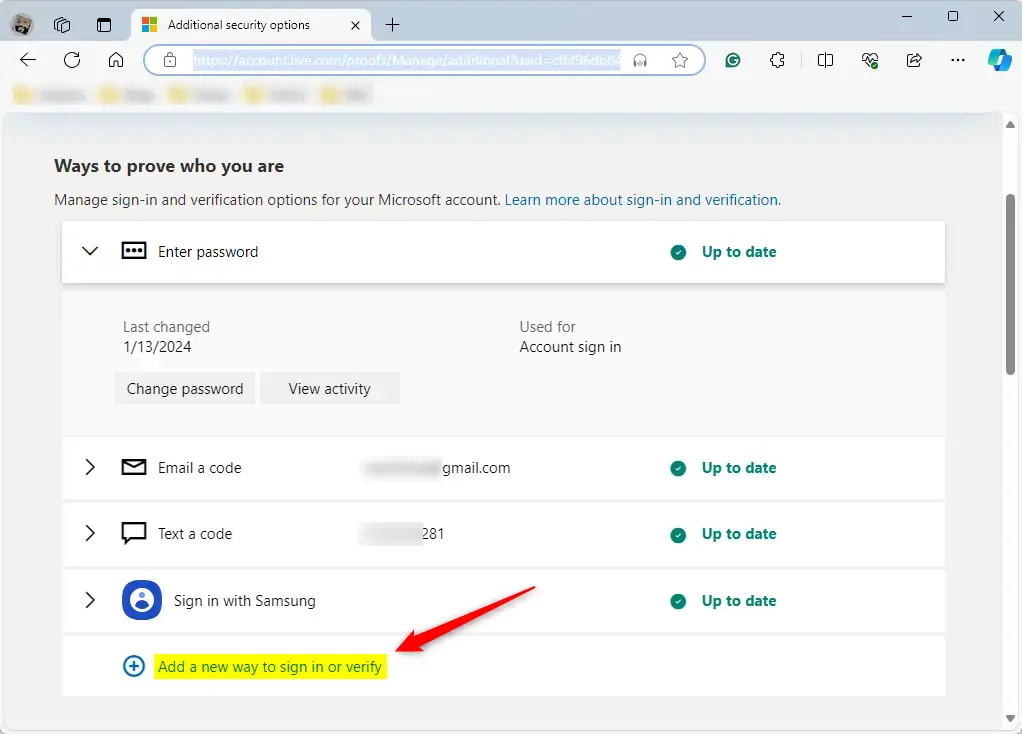
- Sign in to your personal Microsoft account and open the Advanced Security Options page.
- Click Add a new way to sign in or verify.
A list of available sign-in and verification methods should appear. If Microsoft asks you to verify your identity first, complete that prompt and then continue.
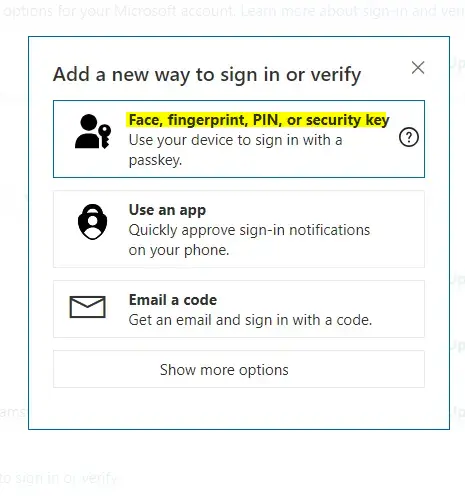
- Select Face, fingerprint, PIN, or security key.
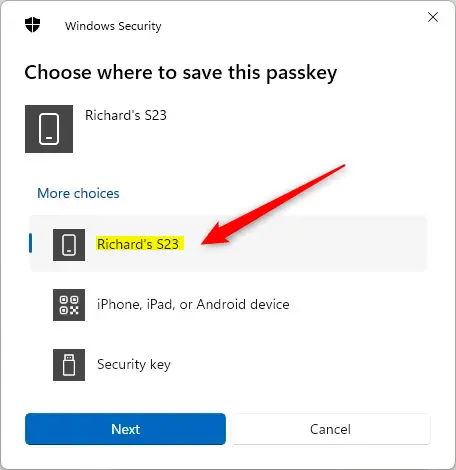
- Choose your Android phone from the options shown.
- Click Next.
If you don't see your phone or the passkey option, check that you're signed in with a personal account and that your phone's screen lock is set up.
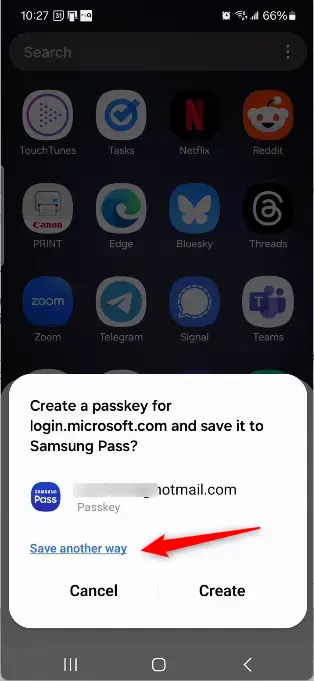
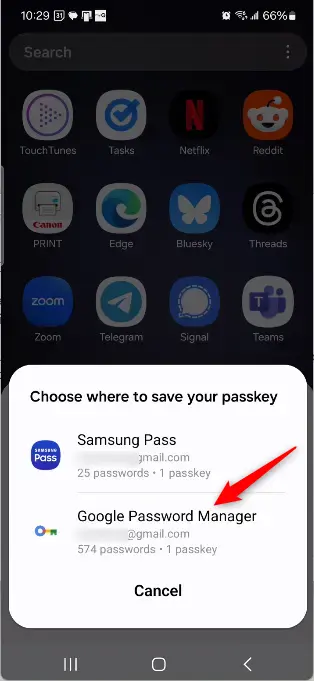
- When prompted, select Save another way.
- Choose Google Password Manager to store the passkey.
This tells Android to save the passkey in your Google account's password manager rather than somewhere else. Make sure you're signed in to a Google account on the phone.
- Click Use once when prompted.
- Click Create.
The setup now moves on to your phone, where you finish the process.
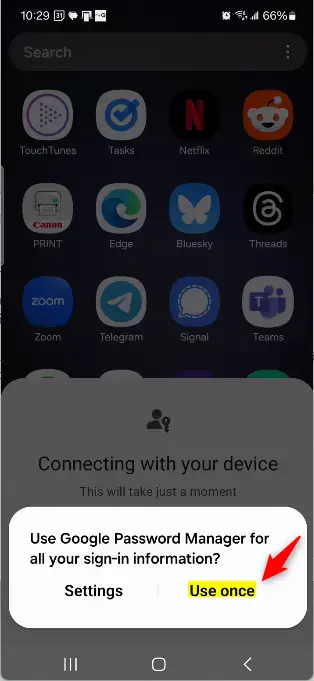
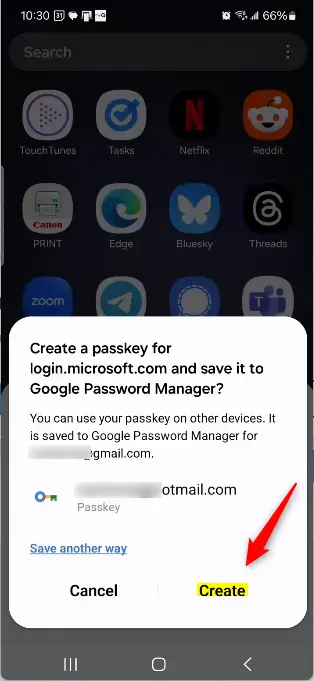
- Continue on your device to finalize the setup.
Your phone will ask you to confirm it's you with your fingerprint, face, or screen lock. Follow the on-screen prompts. This confirmation is what actually creates and saves the passkey.
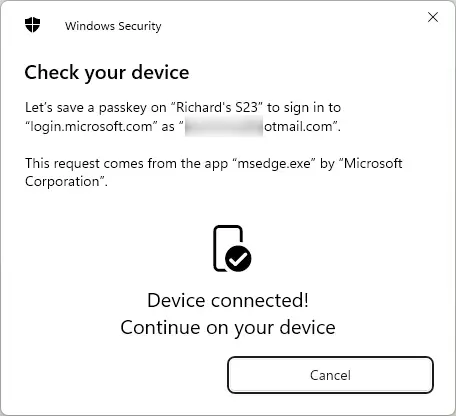
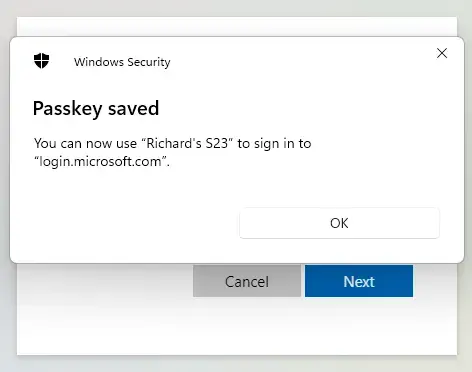
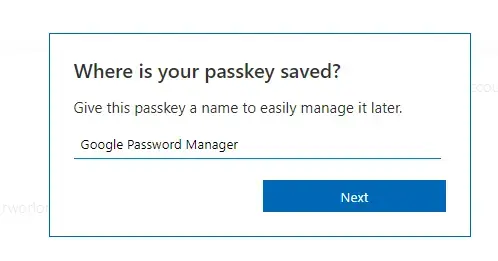
- Enter a name for the credential.
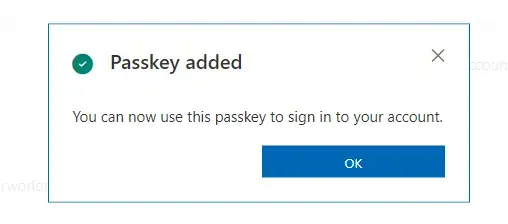
- Click OK to finish.
Pick a name you'll recognize later, such as the phone's model. If you add passkeys on several devices, a clear name makes it easier to tell them apart.
Managing Your Passkeys
You manage a Microsoft account passkey on Android through Google Password Manager or the Microsoft Authenticator app. To undo the setup, delete or remove saved credentials at any time on the Advanced Security Options page of your account website.
If you replace your phone or no longer use a saved passkey, remove it there so it can't be used to sign in.
Are passkeys safer than traditional passwords? Yes. They can't be guessed, reused, or stolen through phishing attacks, because your phone's secure hardware generates a unique cryptographic key for every login.
Keep your recovery options up to date in your Microsoft account settings. If you lose or reset your phone, current recovery info is how you get back into your account and set up a new passkey.
Conclusion:
- Setting up a passkey for your Microsoft account on your Android phone is a crucial security measure to protect your personal information.
- It adds a layer of security to ensure that only you can access your account.
- By following the steps outlined in this article, you can confidently secure your Microsoft account on your Android device.
- If you run into any issues or have further insights, feel free to use the comments section below.

No comments yet — be the first to share your thoughts!