How to Create a Passkey for a Website in Windows 11


Passkeys let you sign in to websites in Windows 11 without typing a password. You use your face scan, fingerprint, or PIN instead. A passkey is a digital credential built on a pair of cryptographic keys. The private key stays on your device, and the website only ever holds the matching public key.
Windows 11 prompts you to save a new passkey the first time you create an account or sign in to a supported website. You can store the passkey on your PC through Windows Hello. You can also keep it on your phone or on a hardware security key, which lets you use it across several devices.
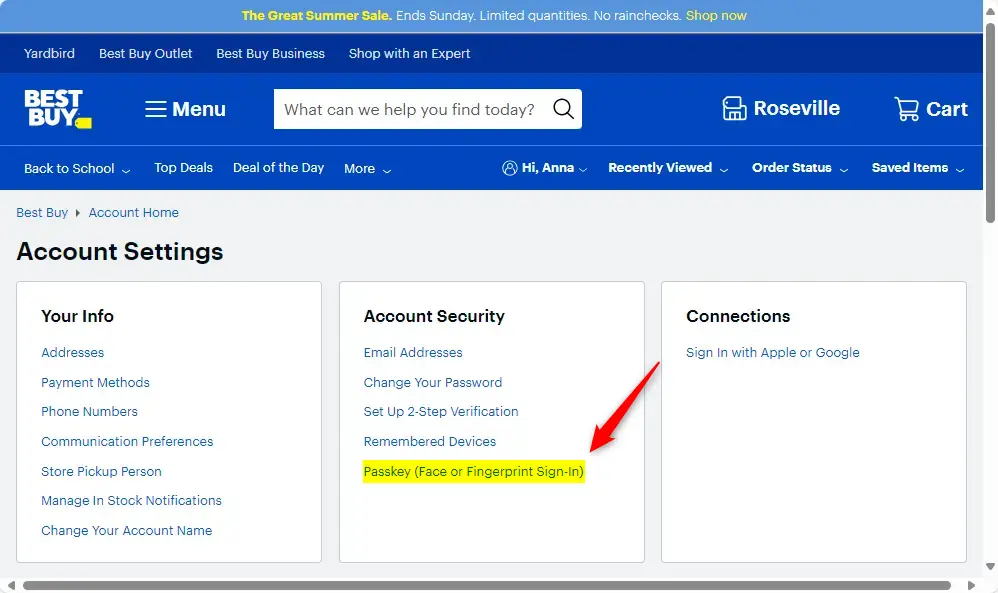
To create a passkey for a website in Windows 11, sign in to the site, open its account security or sign-in settings, and select the option to add a passkey. When your browser asks where to save it, choose Windows Hello and confirm with your PIN, fingerprint, or face. Windows Hello must already be set up under Settings Accounts Sign-in options
Why use a passkey?
Passkeys are stronger than standard passwords because attackers cannot guess them, reuse them from a data breach, or trick you into typing them on a fake site. A passkey only works on the real website it was created for. It is unlocked by your device’s built-in security, such as your fingerprint or PIN, and that check happens on your PC. Nothing you could be phished for is sent over the internet.
What happens when you are done?
When you finish these steps, you no longer need to remember a complex password for that website. You sign in with your Windows Hello PIN, fingerprint, or face instead. The steps work the same on Windows 11 Home and Pro, and you don’t need to restart your PC.
How to create a passkey
Creating a passkey in Windows 11 lets you sign in to supported websites using your face, fingerprint, or PIN instead of a password. The short version:
- Sign in to the website and open its account security page.
- Select the option to add a passkey.
- When your browser asks how you want to save it, choose Windows Hello.
If you can’t find the option, the site probably doesn’t offer it. Check the security or sign-in settings of your account.
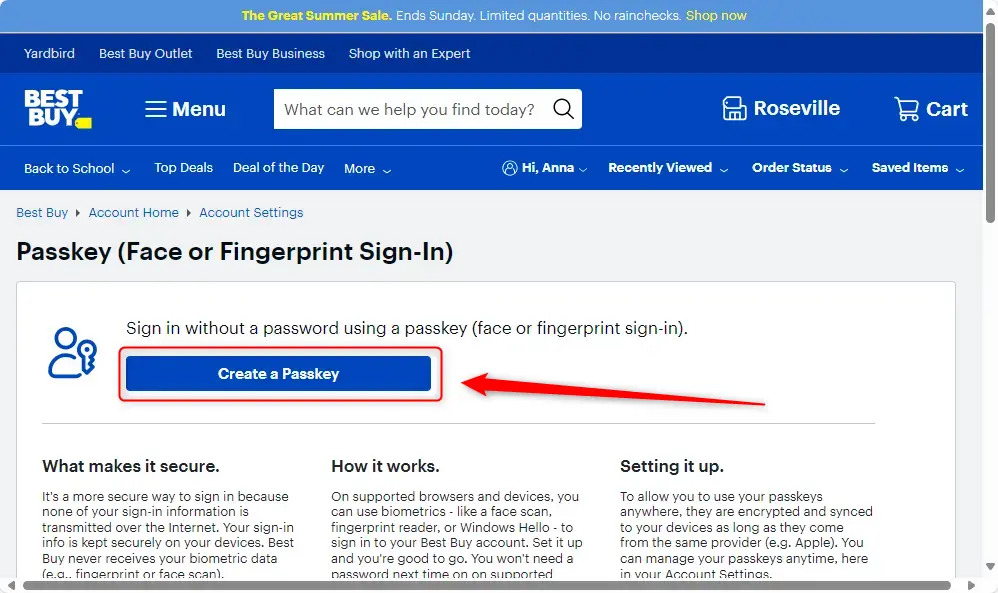
- Click the Create a Passkey button. The exact label varies by site. You may see wording like "Add a passkey" or "Set up passkey".
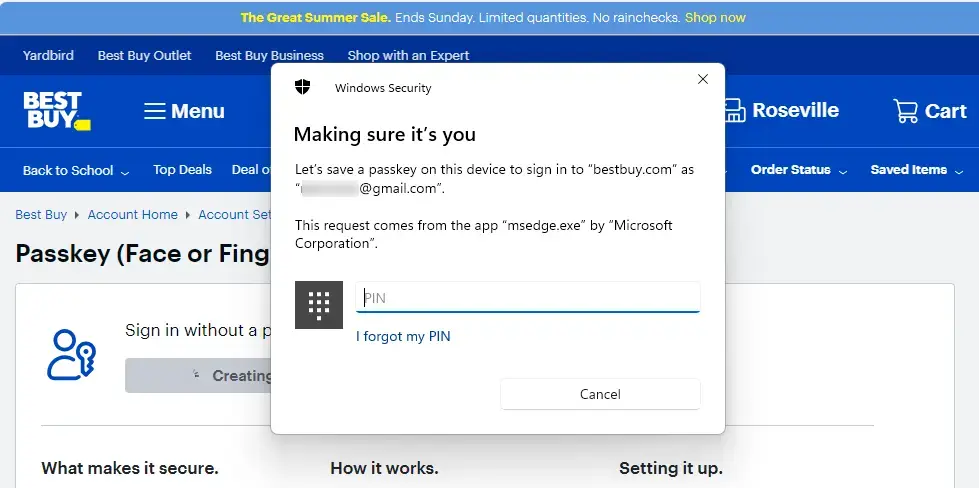
- Wait for your browser to open a Windows security prompt. This is where you choose where to save the passkey.
Windows Hello must be set up on your computer beforehand. If the prompt never offers Windows Hello, or it doesn't work, check that a PIN, fingerprint, or face sign-in is configured under Settings Accounts Sign-in options A PIN alone is enough.
If your PC has a fingerprint reader or a compatible camera, Windows may ask for that instead. Look for a link such as More choices if you'd rather use your PIN.
- Click the OK button to finish the setup.
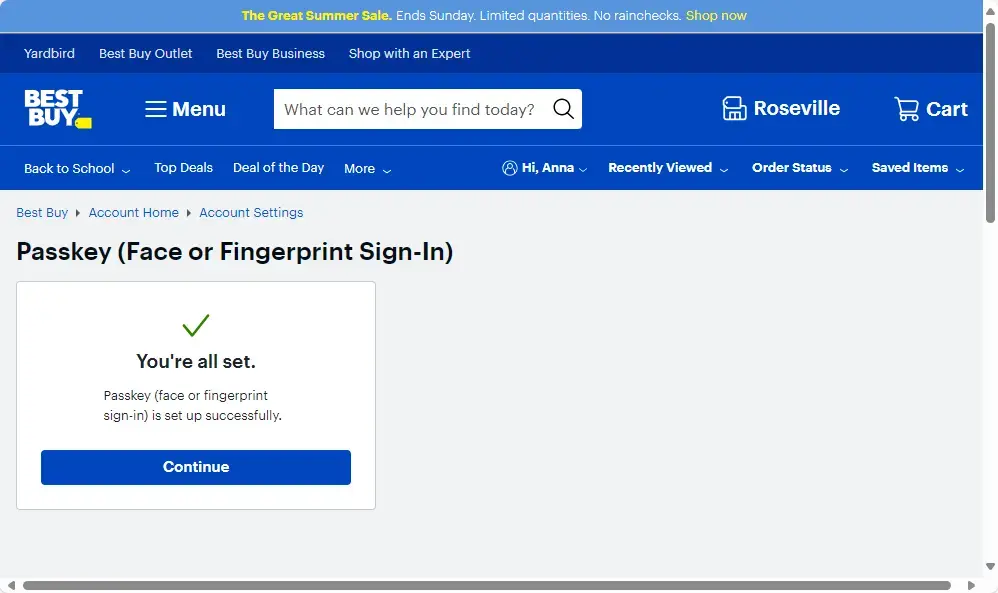
- Check that the website now lists the new passkey in your account's security settings. Some sites show a confirmation message instead.
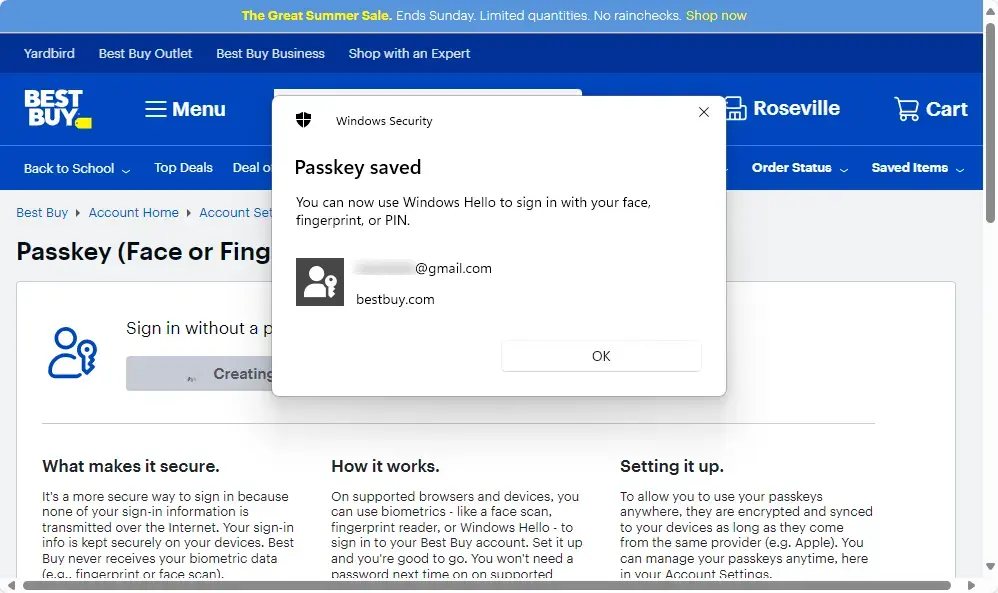
You can now use the passkey to sign in to the website, replacing the need for a traditional password. The next time you sign in, pick the passkey option on the site's sign-in page. Then confirm with Windows Hello when the prompt appears. The passkey only works on the device where you saved it. To sign in on another computer, either create a passkey there too or save it to your phone or a security key.
To undo this, open the website's security settings and delete the passkey. Your existing password keeps working unless you remove it.
For more information, see this reference: Microsoft.com
Summary
Passkeys give you a secure login by using your device's built-in protection. By following these steps, you swap vulnerable passwords for a quick sign-in with your biometrics or PIN. Before you start, check your account settings to see whether the website supports passkeys. Keep a backup sign-in method, such as your password or account recovery options, until you're sure the passkey works on every device you use.
Was this guide helpful?

About the Author
Richard
Tech Writer, IT Professional
Richard is a writer at Geek Rewind who turns complex IT tasks into clear, step-by-step guides. He draws on years of hands-on experience in system administration and enterprise IT operations, focusing on Windows, Linux and WordPress: the problems people actually run into, and the fixes that work. His server and WordPress guides come from systems he runs himself. Richard builds and maintains the platform behind Geek Rewind, from its Ubuntu servers and Nginx configuration to its custom WordPress plugins. Many new tutorials start with readers' questions, and he's always glad to answer them in the comments.
No comments yet — be the first to share your thoughts!