Set Up Picture Password in Windows 11


To set up a picture password in Windows 11, go to Settings Accounts Sign-in options Picture password, then click Add and choose a photo. You then draw three gestures on that photo, and Windows uses them as your unlock code in place of a long typed password.
This sign-in option works on Windows 11 version 22H2 and newer. You draw with taps, circles and straight lines on any picture you pick. You need a mouse, touchpad or touchscreen to draw the shape. The feature works with both local accounts and Microsoft accounts. Your normal account password stays in place, so you can always fall back on it.
To set up a picture password in Windows 11, go to Settings Accounts Sign-in options Picture password Add. Choose your picture, then draw three specific gestures on it. Confirm your gestures to complete the setup and use them to sign in.
How to setup picture password in 🪟 Windows 11
Here is the whole job in short. The sections below go through each step with what you should see on screen.
- Open Settings and go to Accounts Sign-in options
- Expand Picture password and click Add.
- Confirm your current account password.
- Click Choose a picture and select your photo.
- Click Use this picture.
- Draw three gestures on the photo, then draw them again to confirm.
- Click Finish.
No restart is needed. The picture password is available the next time you lock the PC or sign in.
- Press the Win+I.
The Settings app opens. You can also click Start and then Settings. This is the screen where you manage most of your Windows 11 setup, including how you sign in.

If you prefer the search route, do this instead:
- Click the search box on the taskbar.
- Type Settings.
- Select Settings in the results to open it.
Your Windows Settings should look similar to the image below. You are going to the sign-in settings for your account.
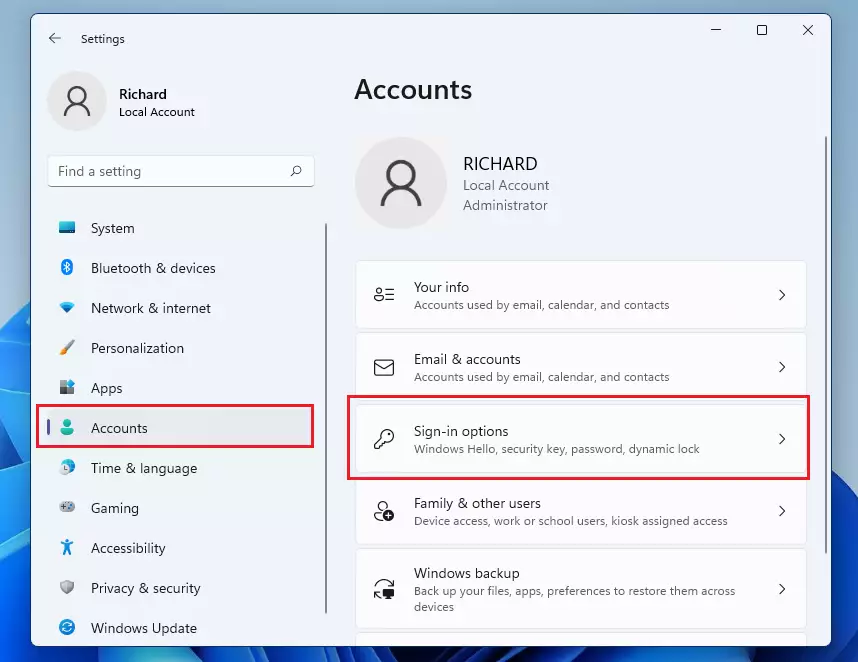
- In Windows Settings, click Accounts in the left pane.
- On the right side of the screen, select Sign-in options, as shown in the image below.
You should now see the list of ways you can sign in to this PC, such as PIN, password and picture password. The exact list depends on your hardware. Face or fingerprint options only appear if your device supports them.
- Click Picture password to expand it.
- Click Add, as highlighted below.
If you can't find Picture password, check the setting near the top of Sign-in options that only allows Windows Hello sign-in for Microsoft accounts on this device. When that setting is on, it can hide the other sign-in methods. Turn it off, then reopen the page.
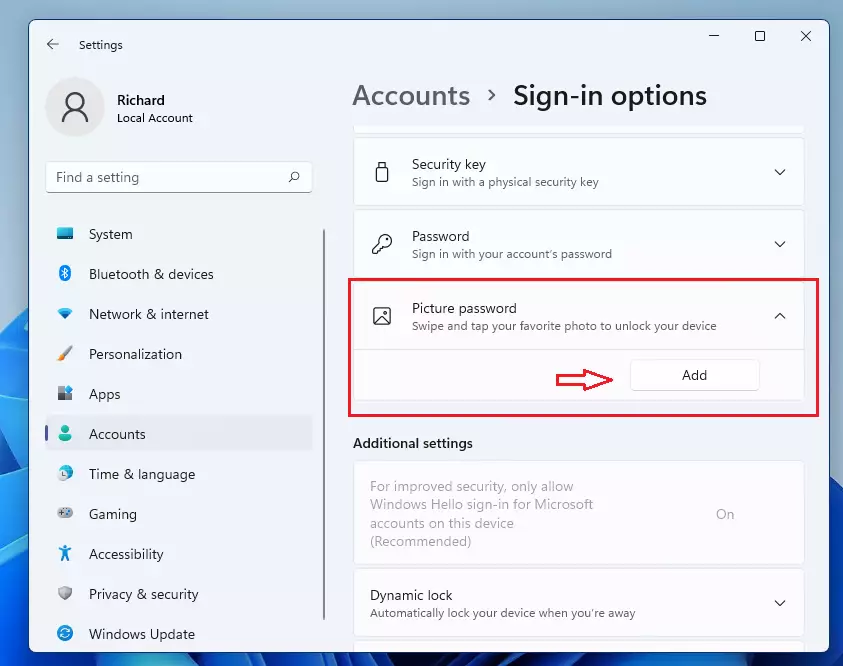
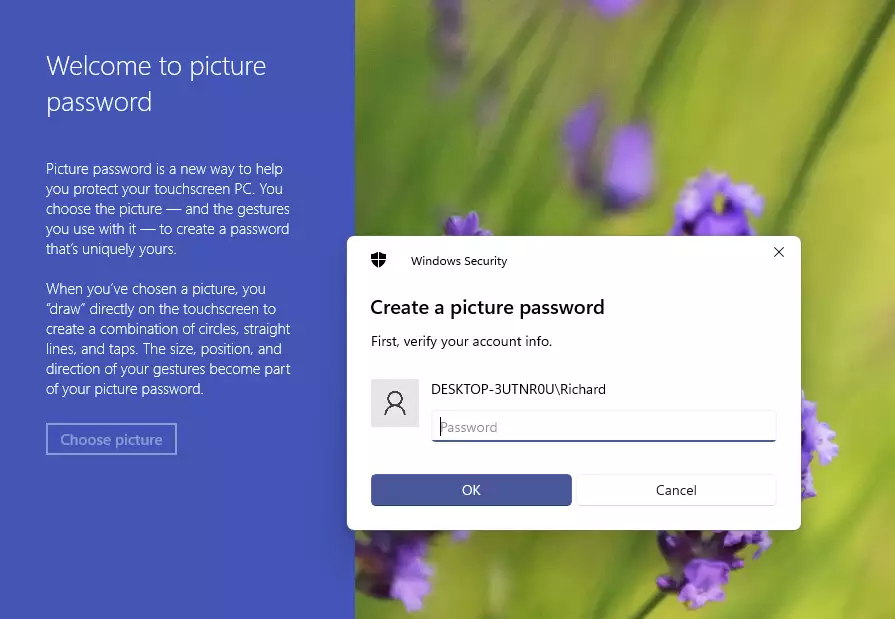
When you click Add, Windows asks you to confirm your password. This proves it is really you before it changes how you sign in.
- Type your current account password. For a Microsoft account, this is your Microsoft account password.
- Click OK.
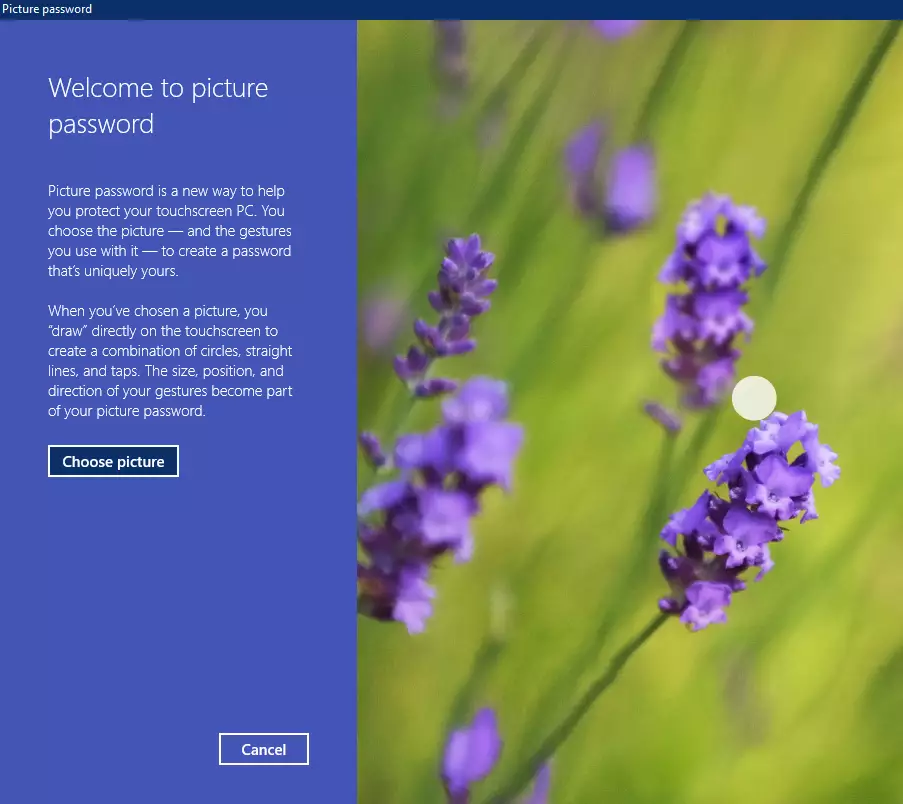
The picture password wizard opens.
- Click the link on the left that reads Choose a picture.
A file picker opens so you can browse your folders. Pick a photo with clear features, such as faces, windows or objects. They give you obvious points to tap, circle or draw lines between.
- Browse to the picture you want and select it.
- Click the Use this picture link at the top right, as highlighted below.
Your photo now appears in the wizard, ready for you to draw on.

Now you draw three gestures on the picture. You can use any mix of circles, straight lines and taps.
- Draw your first gesture on the picture.
- Draw the second gesture.
- Draw the third gesture.
Windows checks each gesture as you go. You need to remember the size, position and direction of every gesture, and the order you drew them in. A circle drawn clockwise is not the same as one drawn counterclockwise. Keep the gestures simple and place them on parts of the photo that are easy to find again.
Windows then asks you to draw the same three gestures again to confirm them. If they match, Windows accepts them as your password. If they don't match, it tells you and lets you start over, so there is no harm in a bad first try. For this post, I drew three circles over both eyes and the nose.

- Click Finish to complete the setup.
The wizard closes and your picture password is now active on this account.
The next time you sign in to Windows, you'll need to repeat the correct gestures on your picture. To test it right away, press the Windows key + L to lock the PC and sign back in. If the picture doesn't appear on the sign-in screen, click Sign-in options there and choose the picture password icon. If you forget your gestures, you can still sign in with your account password.
To go back to typing, open Settings Accounts Sign-in options, expand Picture password and use the Change or Remove button. Changing lets you pick a new photo or new gestures. Removing returns you to your other sign-in methods.

That should do it!
Picture passwords offer a quick alternative to standard typing, especially on touchscreen devices. Here is a quick recap of what to keep in mind.
- Using a picture password in Windows 11 provides a convenient way to sign in to your device. You find it under Settings Accounts Sign-in options
- The process involves selecting a personal image and creating three unique gestures (circles, straight lines or taps) that are easy for you to remember.
- Once set up, picture passwords remove the need to type a long password at sign-in, and your account password still works as a fallback.
- This feature is available for both local and Microsoft accounts on Windows 11 version 22H2 and newer.
- Choose an image and gestures that are meaningful to you, so they are easy to recall at sign-in.
Have a question about this guide?
Answered by AI from this guide. Good questions may be added to this page — please don't include personal details.
Did this guide fix your problem?

About the Author
Richard
Tech Writer, IT Professional
Richard is a writer at Geek Rewind who turns complex IT tasks into clear, step-by-step guides. He draws on years of hands-on experience in system administration and enterprise IT operations, focusing on Windows, Linux and WordPress: the problems people actually run into, and the fixes that work. His server and WordPress guides come from systems he runs himself. Richard builds and maintains the platform behind Geek Rewind, from its Ubuntu servers and Nginx configuration to its custom WordPress plugins. Many new tutorials start with readers' questions, and he's always glad to answer them in the comments.
My Laptop doesn’t have this picture password option although it’s Windows 11. What should I do to activate and have it?
me too
[…] Windows Hello, one can use a PIN, facial recognition, picture, or fingerprint to sign into their Windows devices. In addition, the Windows Hello […]
[…] PIN is part of the Windows Hello security feature that enables other sign-in options. One can use a picture password, PIN, fingerprint, and face to sign into Windows. Hello, the PIN is secure because it is tied to […]
[…] it only works on your device, making it more secure. Windows 11 also lets you sign in using a picture password, fingerprint, or face […]
[…] 11 also lets you sign in using other methods like a picture password, fingerprint, or face […]