How to Turn On or off PIN Expiration in Windows 11


PIN expiration in Windows 11 forces you to change your sign-in PIN after a set number of days. Out of the box, Windows does not expire PINs, so nothing happens unless you or an administrator turn the rule on.
You can set a schedule from 1 to 730 days, or make sure the PIN never expires. The easiest way is the Local Group Policy Editor (a built-in tool that lets you manage advanced system settings). It is only included in Windows 11 Pro, Enterprise, and Education. On Windows 11 Home, you can make the same change in the Registry Editor, which is covered further down.
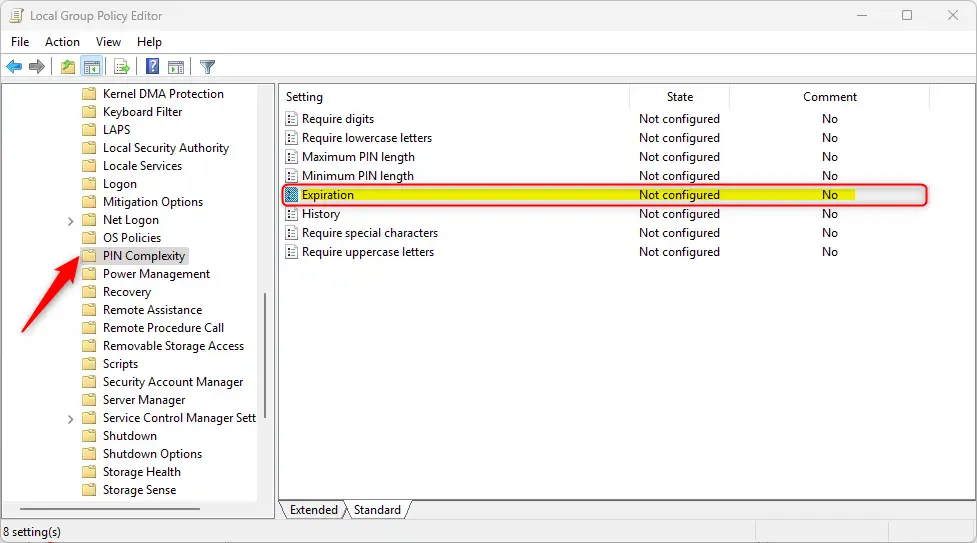
Open the Local Group Policy Editor and navigate to Computer Configuration Administrative Templates System PIN Complexity. Double-click “Expiration” and select Enabled to set a duration or Disabled to turn it off.
What is a 🪟 Windows 11 PIN?
A Windows 11 PIN is a short numerical code that replaces your account password for quick and secure sign-ins on your computer. The PIN is tied to the device you set it up on, so it is only useful on that one PC. It works alongside options like fingerprint or face recognition. Windows 11 PIN expiration is turned off by default, meaning your security code does not have to be changed on a regular schedule unless you choose to turn that rule on.
Windows 11 also allows you to sign in using a picture password, fingerprint, or face recognition. Those methods are separate from the PIN, and the expiration rule in this guide only applies to the PIN.
Windows 11 PIN expiration sits turned off by default, meaning your PIN does not expire. Administrators can set the PIN to expire after a specific duration, ranging from 1 day to 730 days (2 years). When a PIN reaches that age, Windows asks the user to choose a new one, so the code gets updated on a regular schedule. Alternatively, you can set the system for permanent PIN retention, which means the PIN never expires.
Both methods below control the same setting. If you manage several PCs, pick one method and stick with it so you always know where the rule is set.
How to Turn PIN Expiration On or Off Using Group Policy Editor
Windows 11 PIN expiration can be turned on or off using the Local Group Policy Editor if you use Windows 11 Pro, Enterprise, or Education. This tool controls how many days pass before Windows forces you to change your sign-in code. Open the tool from the Start menu to adjust the expiration schedule for your security credentials.
If you search for it and nothing comes up, you are most likely on Windows 11 Home, which does not include this tool. Skip to the Registry Editor method instead. You need to be signed in with an administrator account for the change to save.
- Click the Start button and type
Edit group policy. Click the app that appears. The Local Group Policy Editor window opens. - In the window that opens, go to this folder path in the left pane. Click the small arrow next to each folder to expand it:
Computer Configuration > Administrative Templates > System > PIN Complexity - With the last folder selected, look at the right pane. Find the setting called
Expirationand double-click it. Its settings window opens. - Choose one of the options at the top left of the window:
- Not Configured – This is the default. It works the same as Disabled.
- Enabled – Turn on PIN expiration. You can then set how many days until the PIN expires (between 1 and 730 days). Enter 0 if you want the PIN to never expire.
- Disabled – Turn off PIN expiration.
- After choosing your option, click OK to save. The window closes and the policy now shows your new state. If the change does not seem to take effect, restart the PC and check again. To undo it later, open the same setting and switch it back to Not Configured.
How to Turn PIN Expiration On or Off Using the Registry Editor
Windows 11 PIN expiration settings can be managed through the Registry Editor (a database for low-level system settings) if your version of Windows does not include the Group Policy Editor. This is the method to use on Windows 11 Home. This method lets you set a specific number of days before your sign-in code expires or turn expiration off completely by editing system keys directly.
The registry stores critical Windows settings , and changing them incorrectly can cause issues. Before you start, create a restore point or export the key you are about to change. In the Registry Editor, you can do the export from File Export. Make sure you are signed in as an administrator.
Open the Registry Editor and add the value like this:
- Press Win+R to open the Run box.
- Type
regeditand press Enter. If a User Account Control prompt appears, click Yes. The Registry Editor opens. - In the left pane, navigate to this folder path:
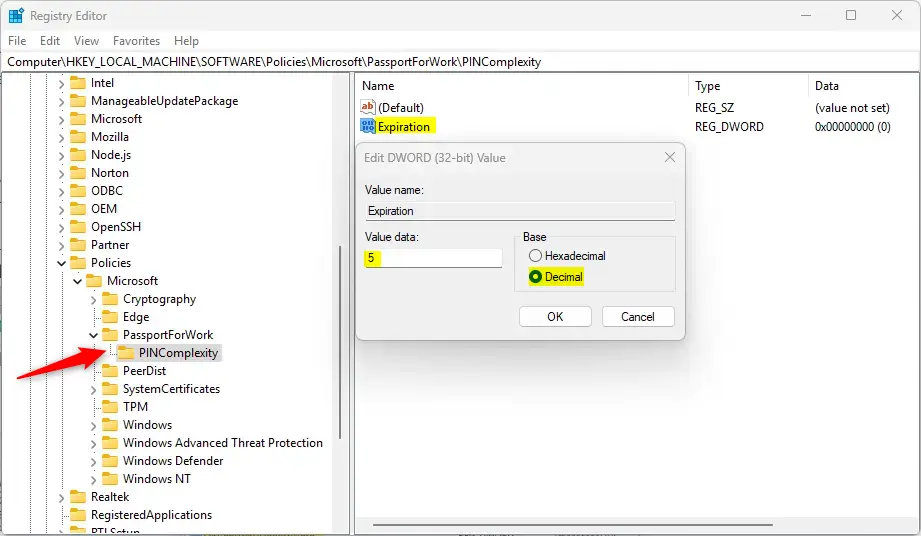
HKEY_LOCAL_MACHINE\SOFTWARE\Policies\Microsoft\PassportForWork\PINComplexity - If you don’t see
PassportForWorkorPINComplexity, right-click on the previous folder. - Choose
New > Keyto create them. Repeat this for each missing folder until the full path exists. - Right-click on
PINComplexity. - Select
New > DWORD (32-bit) Value. - Name the new entry
Expiration. The name must match exactly. - Double-click the new
Expirationentry. In the window that opens, select Decimal under Base. Then enter this in the Value data box:- A number between 1 and 730 to set the PIN expiration days.
- Or 0 to never expire.
- Click OK, then close the Registry Editor. You should see the value listed with the number you entered.
- Restart your computer to apply the changes.
Reverting to default behavior and stopping PIN expiration requires deleting the Expiration value you created. To do that, open the Registry Editor again and go back to the same folder. Right-click the value, choose Delete, and click Yes to confirm. Then restart the PC. If you would rather keep the value in place, you can instead set its data to 0 so the PIN never expires.
Summary
- Windows 11 lets you make your PIN expire after a set number of days, from 1 to 730. Or it can never expire.
- By default, PINs do not expire.
- You can change expiration settings using either the Group Policy Editor (for Pro and higher) or the Registry Editor (the option for Home).
- Always back up your data before making system changes, especially registry edits.
- Regularly reviewing your PIN settings helps keep your PC secure.
Windows 11 PIN expiration is turned off by default, but you can change it to make your security code expire after a set number of days. You can update this rule using either the Group Policy Editor on Pro versions or the Registry Editor on Home editions. To undo your change, set the policy back to Not Configured or delete the registry value. Reviewing these settings helps keep your computer secure over time.
More Info from Microsoft: Official Microsoft PIN Expiration Settings
Have a question about this guide?
Answered by AI from this guide. Good questions may be added to this page — please don't include personal details.
Did this guide fix your problem?

About the Author
Richard
Tech Writer, IT Professional
Richard is a writer at Geek Rewind who turns complex IT tasks into clear, step-by-step guides. He draws on years of hands-on experience in system administration and enterprise IT operations, focusing on Windows, Linux and WordPress: the problems people actually run into, and the fixes that work. His server and WordPress guides come from systems he runs himself. Richard builds and maintains the platform behind Geek Rewind, from its Ubuntu servers and Nginx configuration to its custom WordPress plugins. Many new tutorials start with readers' questions, and he's always glad to answer them in the comments.
No comments yet — be the first to share your thoughts!