How to Enable or Disable Sign-in to Microsoft Edge Using non-Microsoft Accounts in Windows 11

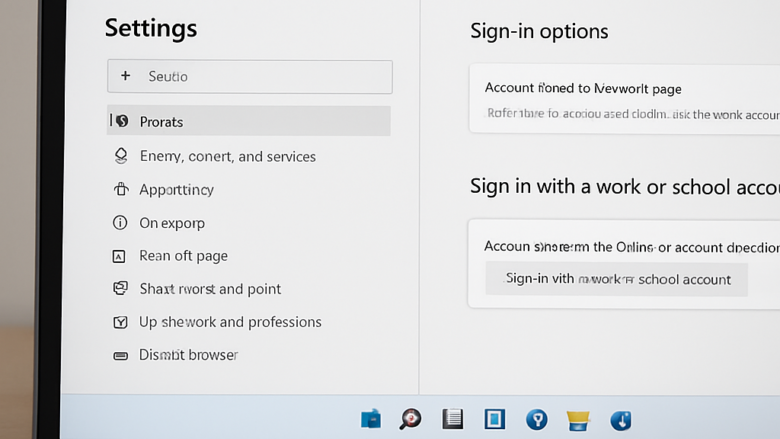
This setting controls whether third-party sign-in options, such as Google or Apple, are offered when someone signs in to Microsoft Edge. It applies starting with Microsoft Edge version 150. It decides whether people can link accounts from outside Microsoft to their browser profiles.
When you block it, the external sign-in options are hidden. Browser profiles can then only be tied to standard Microsoft accounts. Turn the setting on or off depending on which kinds of accounts you want Edge to accept. The steps below use the Registry Editor, so they work on both Windows 11 Home and Pro.
Open Registry Editor, navigate to 🗝️HKEY_LOCAL_MACHINE\
Here’s How:
Disable Sign-in to Microsoft Edge using non-Microsoft accounts for All Users
The change applies to every user profile on the machine at once. You need an administrator account for this.
- Click the Start button.
- Type regedit and press Enter. The Registry Editor opens. If a User Account Control prompt appears, click Yes. (Requires Admin Privileges)
- In the Registry Editor, go to the following location. You can paste it into the address bar at the top of the window:
HKEY_LOCAL_MACHINE\SOFTWARE\Policies\Microsoft\Edge
The Edge key may not exist yet, especially on a PC where no Edge policies have been set. If it is missing, create it:
- Right-click the Microsoft key in the path.
- Select New Key
- Name the new key Edge. It now appears under Microsoft in the left pane.
Now create the value inside the Edge key:
- Right-click the Edge key.
- Select New DWORD (32-bit) Value. A new entry appears in the right pane with its name highlighted.
- Name the new value
NonMicrosoftAccountSignInEnabled - Double-click
NonMicrosoftAccountSignInEnabled. The Edit DWORD (32-bit) Value window opens. - In the Value data box, type
0and click OK. The entry now shows this number in the Data column.
With this value in place, the external sign-in options are removed from Edge. Standard Microsoft account sign-in still works for all local Windows 11 users. Close and reopen Edge so it picks up the policy. If Edge was open when you made the change, make sure every Edge window is closed first. If the change does not appear, sign out of Windows and back in, or restart the PC.
If someone is already signed in with a non-Microsoft account, expect to check that profile separately. This policy changes what the sign-in screen offers.
Enable Sign-in to Microsoft Edge using non-Microsoft accounts for All Users
To restore third-party profile sign-in, change the same policy value back. This also needs an administrator account.
- Click the Start button.
- Type regedit and press Enter. The Registry Editor opens. If a User Account Control prompt appears, click Yes. (Requires Admin Privileges)
- In the Registry Editor, go to the following location:
HKEY_LOCAL_MACHINE\SOFTWARE\Policies\Microsoft\Edge
If the Edge key is missing, create it first:
- Right-click the Microsoft key in the path.
- Select New Key
- Name the new key Edge.
If you followed the disable steps earlier, the Edge key and the value already exist. You can open the existing value and change its data instead of creating a new one. If you are starting from scratch, create it like this:
- Right-click the Edge key.
- Select New DWORD (32-bit) Value.
- Name the new value
NonMicrosoftAccountSignInEnabled - Double-click
NonMicrosoftAccountSignInEnabled. The Edit DWORD (32-bit) Value window opens. - In the Value data box, type
1and click OK.
Close all Edge windows and open the browser again so the change takes effect. If it still does not apply, restart the PC.
What happens when done? People will regain the ability to sign in to Microsoft Edge with non-Microsoft accounts like Google or Apple.
Reference:
Summary
Without admin rights, Windows will refuse to save the key or value. Edit only the entries described here, because a wrong change in the registry can cause other problems. If you want a safety net, export the Edge key before you edit it: right-click it and choose Export.
Have a question about this guide?
Answered by AI from this guide. Good questions may be added to this page — please don't include personal details.
Did this guide fix your problem?

About the Author
Richard
Tech Writer, IT Professional
Richard is a writer at Geek Rewind who turns complex IT tasks into clear, step-by-step guides. He draws on years of hands-on experience in system administration and enterprise IT operations, focusing on Windows, Linux and WordPress: the problems people actually run into, and the fixes that work. His server and WordPress guides come from systems he runs himself. Richard builds and maintains the platform behind Geek Rewind, from its Ubuntu servers and Nginx configuration to its custom WordPress plugins. Many new tutorials start with readers' questions, and he's always glad to answer them in the comments.
No comments yet — be the first to share your thoughts!