How to Turn Use AI to Improve Autofill Suggestions on or off in Microsoft Edge


AI-powered autofill suggestions in Microsoft Edge version 120 and newer are smart predictions that fill out online forms faster. Edge matches the boxes on a webpage with your saved names, addresses, and other personal info. The built-in AI is meant to make fewer mistakes when you shop or sign up for accounts online.
You can turn this feature on or off at any time in the browser settings, depending on how much help you want. Turning it off does not delete anything you have saved. It only changes how Edge matches your saved info to form fields.
Go to Edge Settings, then select Passwords and autofill, and finally Personal info. Toggle the “AI-powered autofill suggestions” option to enable or disable the feature.
Taking Control: Enabling and Disabling AI Autofill
You can turn these predictive features on or off at any time. The change takes effect straight away. You do not need to restart Edge or Windows, although you may need to reload a page that is already open before you see the difference in its form. The steps below are for the current Edge on Windows 11. Edge updates often, so a label may differ slightly on an older or newer build.
Step-by-Step: Managing AI Autofill Suggestions
- Open Microsoft Edge. Launch the browser on your computer.
- Click the three horizontal dots (Settings and more) in the top-right corner of the browser window. You should see a dropdown menu. Select Settings. A Settings tab opens with a list of categories on the left.
- In the left-hand list, click Passwords and autofill. This section holds everything Edge uses to fill in forms for you.
- Click Personal info. You should now see your saved personal details and the related autofill options.
- Find the AI autofill toggle. It appears as AI-powered autofill suggestions, and on some builds it is worded Use AI to improve autofill suggestions. If it is on, Edge gives you these smart suggestions. To stop them, click the toggle so it switches off. Click it again to turn the feature back on.
If you cannot find the toggle, check that Edge is up to date. The option is tied to version 120 and newer. Go to Settings About Microsoft Edge, which also checks for and installs updates. If the toggle is greyed out, or Edge says some settings are managed by your organization, a policy on a work or school PC is controlling it. You will need to ask your administrator to change it.

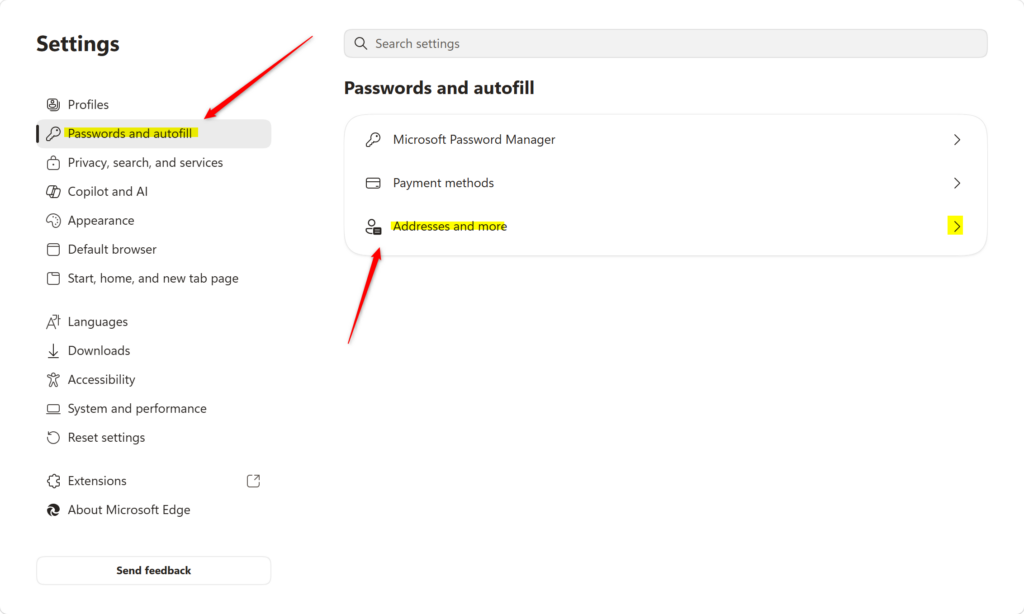
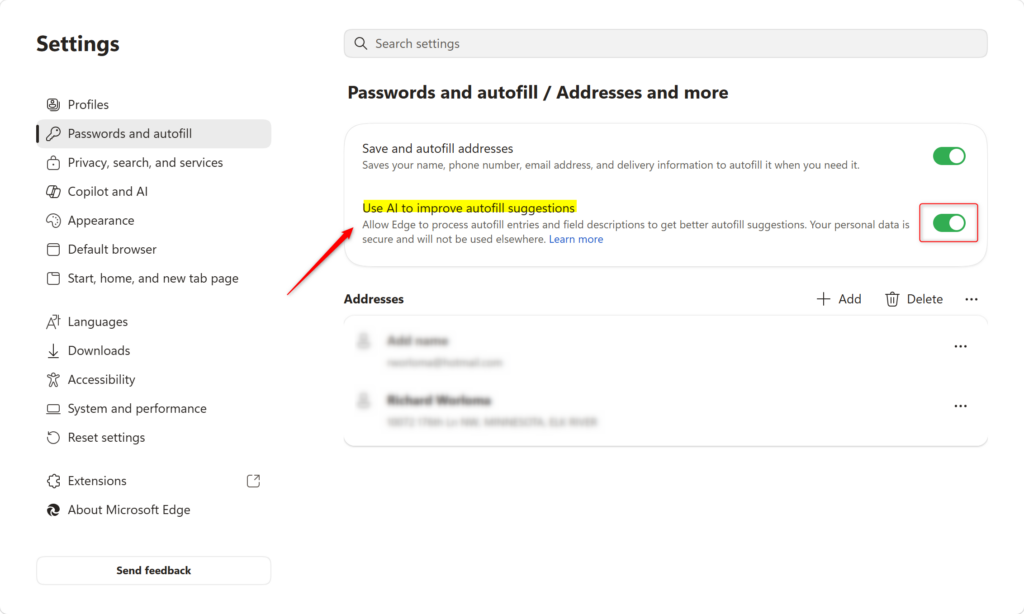
Managing Edge AI autofill takes just a few clicks through the main browser menu. You can turn the feature on or off to control how artificial intelligence helps fill out your forms online. Open your browser settings, go to the autofill section, and set the toggle the way you want it.
https://learn.microsoft.com/en-us/legal/microsoft-edge/privacy#autofill
Practical tip: If you see wrong predictions or odd text going into form fields, switch the feature off and see whether things improve. If you fill in forms often and the suggestions are mostly right, leaving it on saves time. Test a form you use regularly after any change, so you can tell whether the setting makes a real difference for you.
Privacy-minded users can turn off AI-driven features in Microsoft Edge to limit how much browser data is processed. Turning off AI autofill suggestions stops that analysis for this feature, and the rest of your browsing keeps working normally. Basic autofill with your saved info still works, so you can still pick an address or name from your saved list when you fill in a form.
Have a question about this guide?
Answered by AI from this guide. Good questions may be added to this page — please don't include personal details.
Did this guide fix your problem?

About the Author
Richard
Tech Writer, IT Professional
Richard is a writer at Geek Rewind who turns complex IT tasks into clear, step-by-step guides. He draws on years of hands-on experience in system administration and enterprise IT operations, focusing on Windows, Linux and WordPress: the problems people actually run into, and the fixes that work. His server and WordPress guides come from systems he runs himself. Richard builds and maintains the platform behind Geek Rewind, from its Ubuntu servers and Nginx configuration to its custom WordPress plugins. Many new tutorials start with readers' questions, and he's always glad to answer them in the comments.
No comments yet — be the first to share your thoughts!