How to Enable or Disable Autofill Passwords and Passkeys in Microsoft Edge on Windows 11

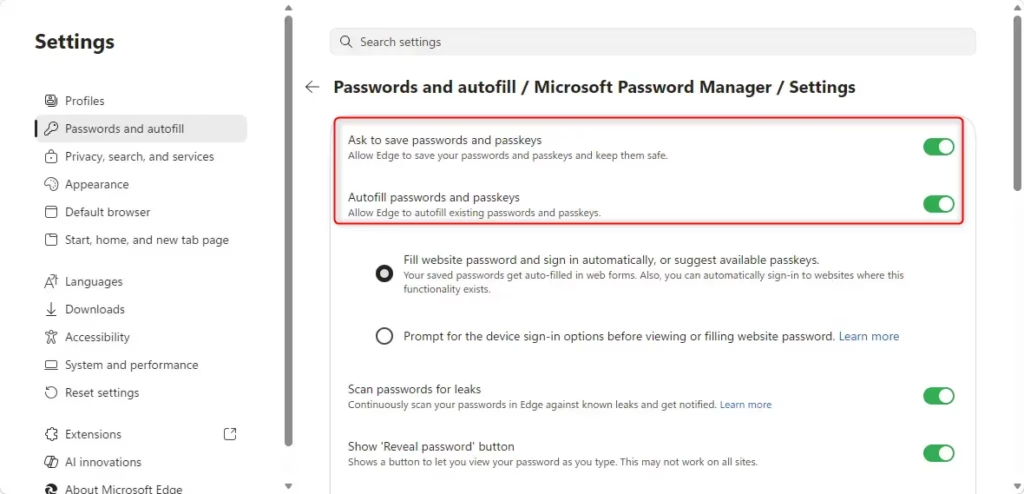
To turn on password autofill in Microsoft Edge on Windows 11, open Settings Passwords and autofill > Microsoft Password Manager More settings and switch on Autofill passwords and passkeys. Use the same toggle to turn it off. Autofill saves your login details so you do not have to type them on every website. Passkeys let you sign in with your fingerprint, face, or a security key instead of a password, which is safer because there is no password to steal or guess.
This guide covers the standard settings, the three security levels, and the system-wide options for administrators. Changes made in the browser apply to your own Edge profile. The administrator sections apply to every account on the PC.
To turn autofill on or off in Microsoft Edge, open Settings , then Passwords and autofill, then Microsoft Password Manager, then More settings, and switch on Autofill passwords and passkeys. Use the same toggle to turn it off. Edge fills in saved logins as soon as you open a recognised site, and the change applies immediately.
What You Should Know
Autofill in Edge helps you sign in quickly by saving your login details and typing them for you. Edge protects the data and can sync it across your devices when you are signed in with a Microsoft account. You can add credentials by hand, and you can change how the feature behaves at any time in the settings .
Manual credential entry stays available inside the password manager in Microsoft Edge, even if you turn autofill off.
Edge gives you three ways to protect stored passwords. Pick one based on how many people can reach your PC:
- Fill in passwords automatically (easiest, but least secure)
- Ask for your device password before filling passwords (medium security)
- Use a custom primary password (highest security)
Reference: Additional privacy for your saved passwords – Microsoft Support
Option 1For Your Account Only
Turn On or Off Autofill Passwords in Microsoft Edge
Every option below starts from the same page in Edge settings. These steps open the passwords and autofill settings, where the toggle and the security choices live.
- Open Microsoft Edge. Use the Start menu or the taskbar icon.
- Click the three dots menu (Settings and more) at the top right, then click Settings. Settings opens in a new tab.
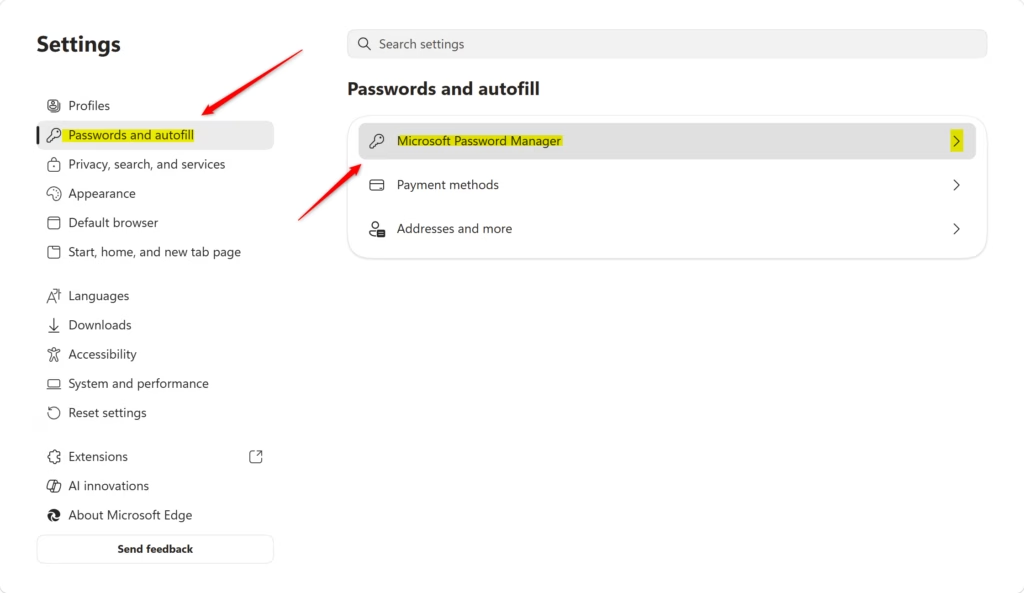
- Click Passwords and autofill in the left sidebar. The password and autofill options appear on the right.
- Click Microsoft Password Manager. This is the area where you control whether Edge saves and fills your login information.
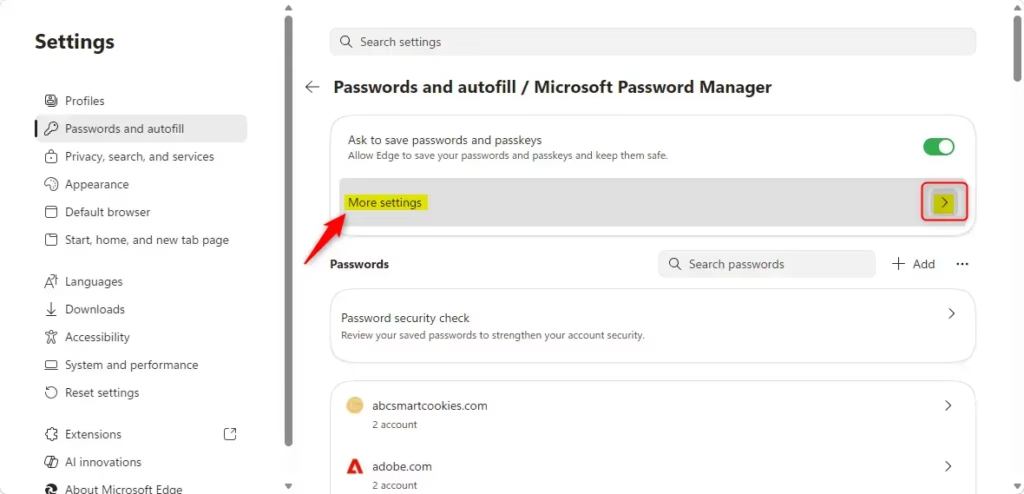
- Click More settings. The password manager options appear, including the autofill toggle and the three security choices described below.
If a setting is greyed out, a policy on your PC is probably controlling it. See the administrator sections near the end.

Option A: Fill Passwords Automatically (Default)
With this option, Edge fills in your login details and signs you in as soon as you open a website it recognizes. You do not need to do anything once your credentials are saved. It is the most convenient choice, but anyone who sits down at your unlocked PC can sign in to your saved accounts. Use it only on a PC that nobody else uses.
What happens? Edge populates usernames and passwords automatically upon landing on a recognized website.
Start from the More settings page described above. These steps set Edge to fill in your passwords and sign you in without asking.
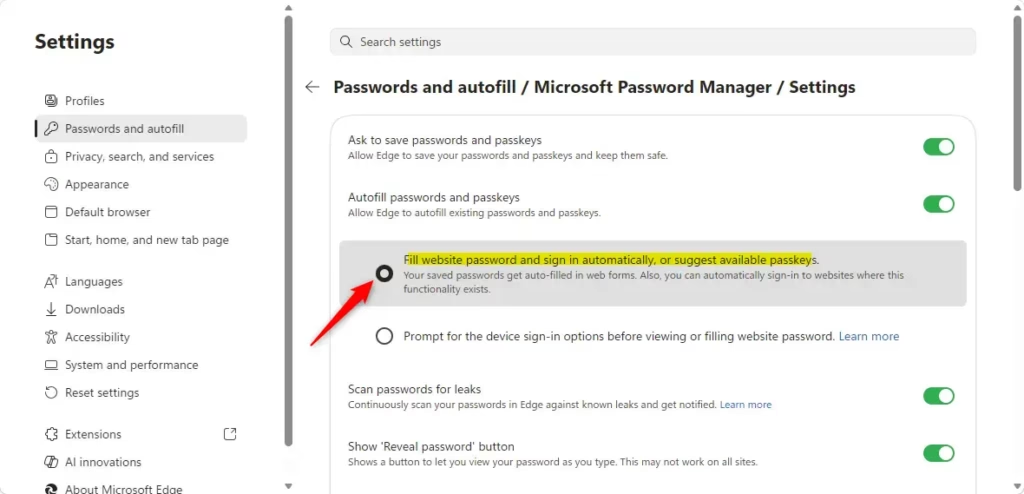
- Select Fill website password and sign in automatically, or suggest available passkeys. The option is now marked as selected.
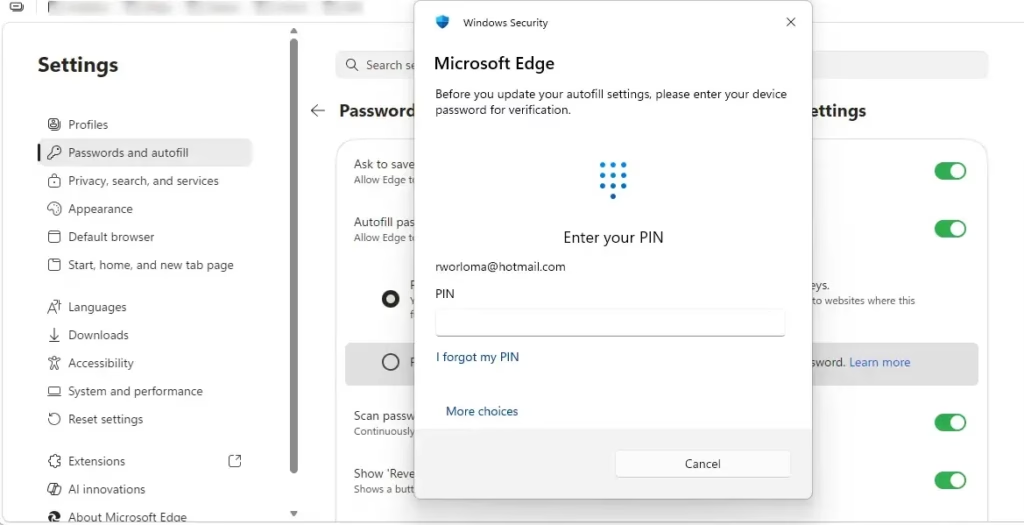
- Enter your device password if Windows Security asks for it. Edge asks you to confirm who you are before it lowers the protection level.
- Close the Settings tab. The change applies immediately, and you do not need to restart Edge or Windows. To undo it, return to this page and pick another option.
Option B: Ask for Device Sign-In Before Filling
With this option, Edge asks for your Windows password, PIN, or fingerprint scan before it fills in any login details. The extra check stops other people from reaching your accounts if they use your computer while you are signed in. Which sign-in methods appear depends on what you have set up in Windows Hello.
What happens? Edge pauses autofill until you provide a Windows password or fingerprint verification.
Start from the More settings page described above. These steps make Edge ask you to verify yourself before it fills in saved passwords.
- Select Prompt for the device sign-in options before viewing or filling website password. The option is now marked as selected.
- Enter your device password if Windows Security asks for it. Without this confirmation, the change is not saved.
- Choose a setting from the dropdown menu. It controls how often Edge asks you to verify:
- Always ask permission (asks every time)
- Ask permission once per browsing session (default — asks once per session)
- Close the Settings tab. The next time a site tries to autofill, Edge shows a Windows Security prompt first. You do not need to restart anything, and you can undo the change by picking another option on this page.
Option C: Use a Custom Primary Password
With this option, you protect autofill with a custom primary password that you must type before Edge fills in any login details. It gives the strongest protection for your saved accounts because the passwords stay locked behind a password only you know. This password is separate from your Windows sign-in. Choose one you will remember, because you will be asked for it whenever autofill needs to unlock.
What happens? Edge prompts for a custom primary password. Autofill stays blocked until you enter that password correctly.
Start from the More settings page described above. These steps lock autofill behind a primary password that only you know.
- Select Prompt for the custom primary password before viewing or filling website password. The option is now marked as selected.
- Enter your device password if Windows Security asks for it. This confirms it is really you changing the protection level.
- Type a new primary password and click Create. Edge saves the password and uses it from now on. Write it down somewhere safe, because you will need it every time autofill unlocks.
- Choose a setting from the dropdown menu. It controls how often Edge asks for the primary password:
- Always ask permission (asks every time)
- Ask permission once per browsing session (default — asks once per session)
- Close the Settings tab. Edge now asks for your primary password before it fills anything. To go back to a lower security level, return to this page and select another option.
Turn Off Autofill Passwords using Registry
If you do not want Edge to fill in credentials at all, you can turn autofill off completely. Edge then stops saving new credentials and halts all automated form completion. Use this when the standard security options are not enough, for example on a shared PC. The system-wide version of this setting, set through the Windows Registry, is covered in the administrator sections further down.
What happens? Edge stops saving new credentials and halts all automated form completion.
Start from the More settings page described above. These steps turn autofill off for your Edge profile.
- Turn off the toggle for Autofill passwords and passkeys. The switch moves to the off position.
- Close the Settings tab. To turn autofill back on, return to this page and switch the toggle on again. If the toggle is greyed out or Edge says it is managed by your organization, a policy is controlling it. See the administrator sections below.
Option 2For All Users on Your Computer
Admin privileges required.
This section requires administrator privileges because it changes policies that affect every account on the PC. Sign in with an administrator account before you start. Once a policy is set, Edge usually shows the related setting as greyed out and managed by your organization. Restart Edge after you apply a change so it reads the new policy.
Always Enable With Automatic Fill
This system-wide setting makes saved passwords fill web forms automatically and stops local users from turning the feature off. These commands edit the registry, so they work on both Windows 11 Home and Pro. Be careful to copy the command exactly.
First, open Windows Terminal as an administrator:
- Right-click the Start button. The Quick Link menu opens.
- Click Terminal (Admin). On some builds it reads Windows Terminal (Admin).
- Click Yes on the User Account Control prompt. A terminal window opens with administrator rights.
Then run this command:
With this policy, forced autofill stays active across all system accounts. The browser prompts users for device verification before it fills a form. Local users cannot disable the feature, though they can still change how often the prompt appears.
Enforcing a primary password means Edge requires the primary password on every profile on the machine before autofill works. Local accounts cannot bypass this restriction. To apply this setting, you need to download a specific registry file.
Click the Download button below to download the registry file, then follow the steps at step 7.
Disabling credential completion globally blocks password saving and automated filling for every Edge user on the PC. Local users cannot turn autofill back on. Administrators control this setting through enterprise deployment policies.
Open Windows Terminal as an administrator again:
- Right-click the Start button.
- Click Terminal (Admin).
- Click Yes on the User Account Control prompt.
Then run this command:
By default, Edge handles credentials through user-controlled preferences. Each Windows 11 profile manages its own saving routines. Enabling the feature speeds up sign-ins, while disabling it blocks credential saving entirely. To return to the default, remove the policy you set, then restart Edge so the settings become editable again.
reg delete "HKEY_LOCAL_MACHINE\SOFTWARE\Policies\Microsoft\Edge" /v PrimaryPasswordSetting /f
Summary
Microsoft Edge gives you three levels of credential management: automatic filling for speed, device verification for everyday security, and a custom primary password for maximum protection. For a PC you share, use the device sign-in prompt or the primary password. For a PC only you use, automatic fill is usually enough.
Have a question about this guide?
Answered by AI from this guide. Good questions may be added to this page — please don't include personal details.
Did this guide fix your problem?

About the Author
Richard
Tech Writer, IT Professional
Richard is a writer at Geek Rewind who turns complex IT tasks into clear, step-by-step guides. He draws on years of hands-on experience in system administration and enterprise IT operations, focusing on Windows, Linux and WordPress: the problems people actually run into, and the fixes that work. His server and WordPress guides come from systems he runs himself. Richard builds and maintains the platform behind Geek Rewind, from its Ubuntu servers and Nginx configuration to its custom WordPress plugins. Many new tutorials start with readers' questions, and he's always glad to answer them in the comments.
No comments yet — be the first to share your thoughts!