How to Turn Enhanced Security on or off with Microsoft Edge


Enhanced Security mode in Microsoft Edge is a built-in safety feature that adds extra protection against attacks on unfamiliar websites. It does this by applying strict security settings to code the browser doesn’t recognise. The mode has been described as having three levels: Basic, Balanced, and Strict. Balanced is the default on Windows 11. Current Edge builds show only Balanced and Strict in the dropdown, so use whichever options your version lists.
You can turn the feature on or off at any time in your privacy settings to match how you browse. Strict mode applies maximum protection to every site you visit, though some pages may need manual exceptions to load correctly. The setting works the same on Windows 11 Home and Pro. It lives inside Edge, so it needs no administrator rights and no restart. If your PC is managed by an employer or school, the option may be greyed out or locked by policy. In that case, ask your IT department.
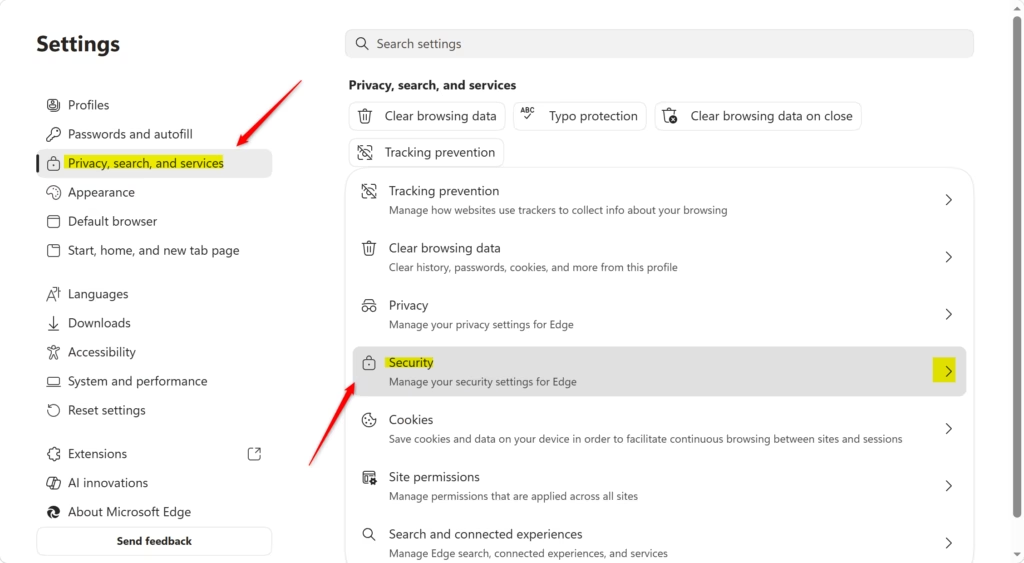
Open Microsoft Edge, click the three dots in the top-right corner, select Settings, then Privacy, search, and services. Scroll to Security, find Enhance your security on the web, and toggle it On or Off. Choose Balanced or Strict from the dropdown. Changes apply immediately.
Choose Your Protection Level: Balanced vs. Strict
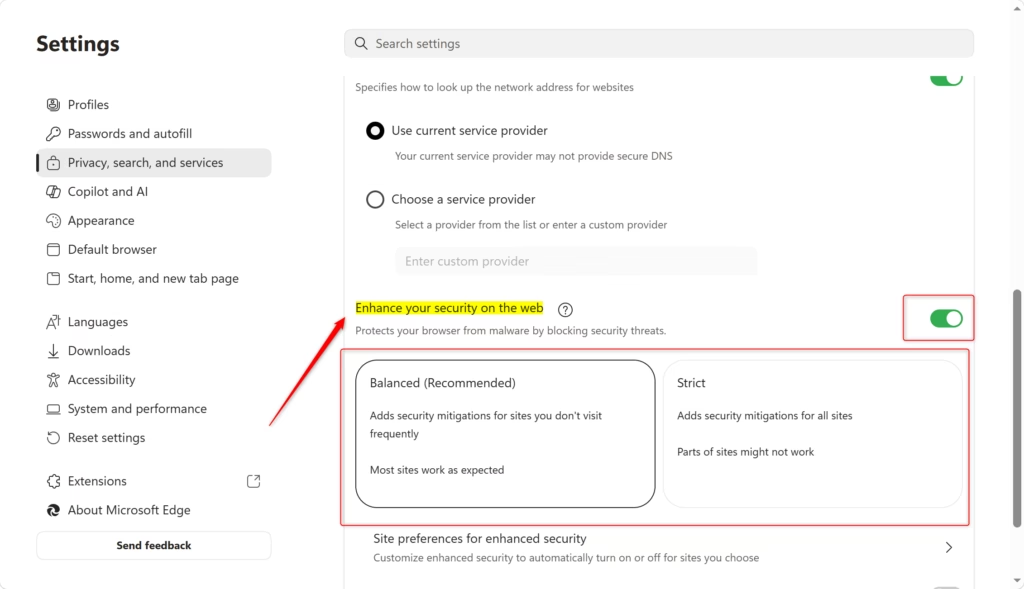
Enhanced Security has adjustable strength levels. When the feature is on, you choose how aggressively Edge protects you. The two modes you will actually use are Balanced and Strict, and the sections below cover each one.
Balanced Mode (Recommended)
Balanced mode is the best choice for everyday browsing. It adds extra protection on sites you don’t normally visit and keeps your regular pages working as usual. Edge uses it as the default, so it gives you a reliable mix of strong safety and usability without getting in your way.
In practice, most pages keep working normally under Balanced, while new or unfamiliar websites get the extra scrutiny. When the mode is actively protecting a specific site, a small shield or “Secure” sign appears near the address bar. You can use that sign to confirm the protection is working on the page you are viewing.
You can raise the protection later if you decide you want it.
Strict Mode
That gives you the strongest defense against online threats. The trade-off is that some complex web pages or site features may stop working correctly until you add those sites to an exception list.
Expect broken page elements or missing functions on complex sites such as web apps, banking portals, or pages with heavy scripting. The stricter settings interfere with how those sites normally operate. If something looks wrong on a site you trust, Strict mode is the first thing to suspect.
Strict mode is not recommended for typical web browsing. It needs frequent adjustments or site exceptions, and that quickly becomes an inconvenience. If you prefer a hands-off approach, Balanced mode is the less intrusive option. Use Strict only if you handle sensitive work or want the tightest settings and don't mind managing exceptions.
How to Turn Enhanced Security On or Off
You can turn Enhanced Security on or off from the Edge settings page whenever you want to change your protection level. Open the main settings, go to the privacy and security area, and use the toggle. Changes apply right away, so you do not need to restart Windows or Edge. Reload any tab that was already open to see the new behaviour.
- Open Microsoft Edge.
- Click the three dots (...) in the top-right corner. This is the Settings and more menu, and it opens a list of options.
- Choose Settings from the list. The Settings page opens in a new tab.
- On the left side, click Privacy, search, and services. The privacy options appear on the right.
- Scroll down to the Security section.
- Find Enhance your security on the web. Set the switch next to it to On to enable the feature, or to Off to disable it. If the switch is greyed out, a policy on your device is probably controlling it.
- With the switch on, the mode options appear below it. Click the dropdown menu and pick Balanced or Strict.
To undo the change later, return to the same page and set the switch back to Off, or choose Balanced again.

Enhanced Security lets you add specific websites to an exception list. This keeps important sites working properly while Enhanced Security stays active for the rest of your browsing. It is usually a better fix than turning the whole feature off.
Making Exceptions: When a Site Needs Special Treatment
Exception lists give you fine-grained control. You can give a site permanent extra protection, or exempt it from Enhanced Security entirely.
Edge accepts two kinds of instruction for a specific site: always use enhanced security for it, or never use it for that site. Use "never" for a trusted site that breaks under the stricter settings. Use "always" for a site you want protected even when you run in a less strict mode.
How to Add a Site to an Exception List:
- Follow steps 1-5 from the section above to get to the Security settings page.
- Make sure Enhance your security on the web is On. The site lists are not available while the feature is off.
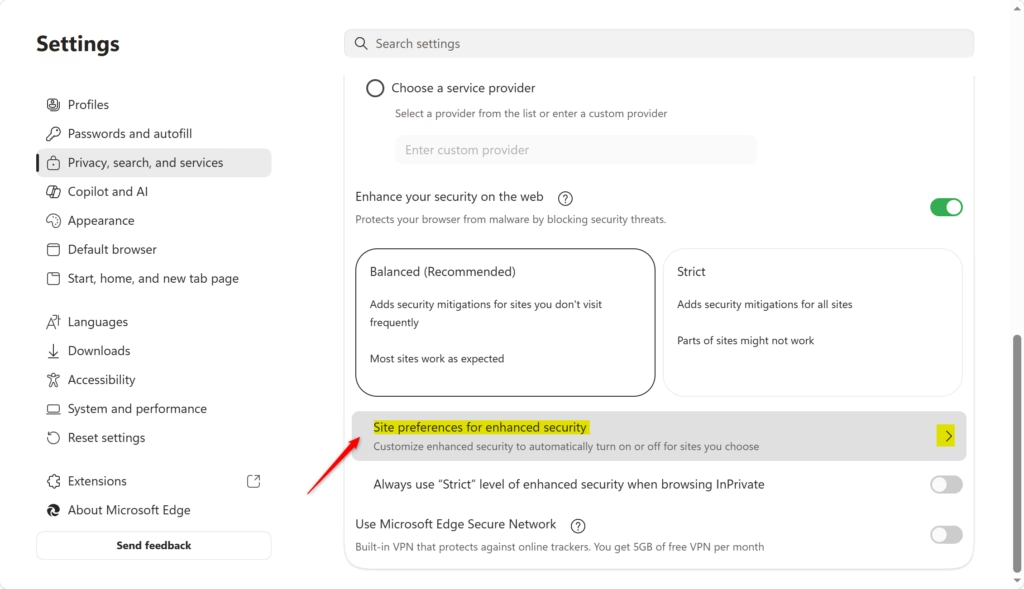
- Below where you choose the mode, click Site preferences for enhanced security. The list page opens.
- You will see two lists: Never use enhanced security for these sites and Always use enhanced security for these sites.
- To add a site to a list, click the Add site button next to the list you want. A box appears for the address.
- Type the full website address (URL) in the box. For example:
https://www.example.com - Click Add. The site now appears in the list you chose.
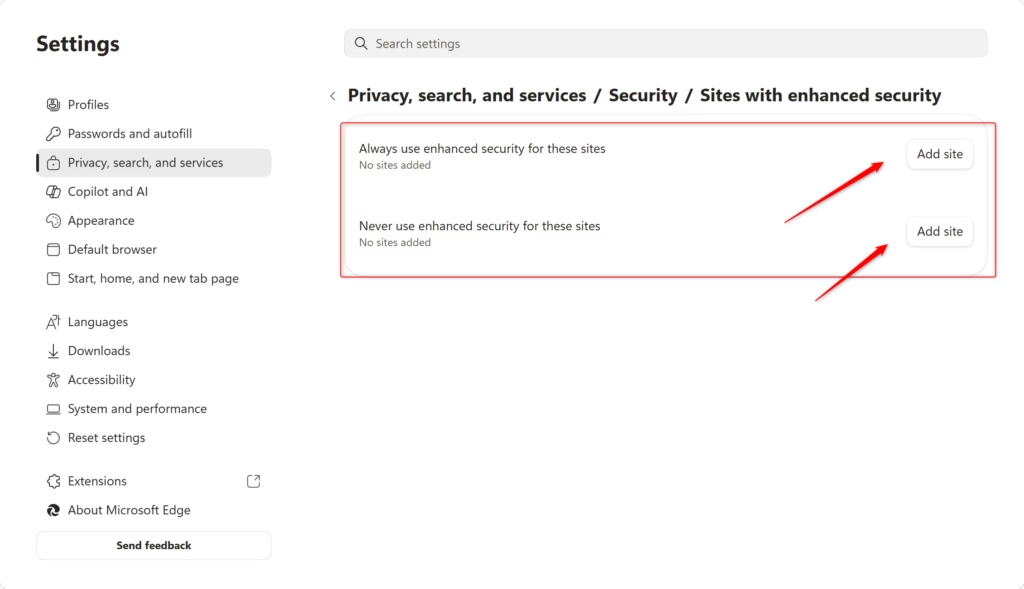
By adding a trusted site to the "never use" list, you bypass the extra protections for that page only. The site loads properly, and the main protection stays on for the rest of the web. Only exempt sites you trust, because those sites lose the added protection.
Editing or Removing Sites from Exception Lists:
You can update or clear your exception lists at any time if your preferences change. Go back into the Edge security settings, find your saved lists, and edit or delete the addresses you added earlier.
- Go back to the Site preferences for enhanced security page in Edge's settings.
- Find the website you want to manage in either the Never use or Always use list.
- Next to the website's address, click the More actions icon. It usually looks like three dots.
- Choose Edit to change the address, or Remove to take the site off the list. Once removed, the site follows your general Enhanced Security mode again.
There is also a quick fix for a page that is misbehaving right now. In Microsoft Edge version 98, clicking the "Added security" icon in the address bar turns off the extra security for that particular site. Edge adds the site's address to the exclusion list. Later versions may label or place this icon differently. If you can't find it, use the settings steps above instead.
Reference:
https://support.microsoft.com/en-us/edge/enhance-your-security-on-the-web-with-microsoft-edge
Summary
Enhanced Security gives you better online protection through Balanced mode for most sites and Strict mode for maximum defense. Exception management lets you fix individual sites that break without weakening everything else. Start with Balanced, add exceptions only for sites you trust, and move to Strict only if you need it.
Have a question about this guide?
Answered by AI from this guide. Good questions may be added to this page — please don't include personal details.
Did this guide fix your problem?

About the Author
Richard
Tech Writer, IT Professional
Richard is a writer at Geek Rewind who turns complex IT tasks into clear, step-by-step guides. He draws on years of hands-on experience in system administration and enterprise IT operations, focusing on Windows, Linux and WordPress: the problems people actually run into, and the fixes that work. His server and WordPress guides come from systems he runs himself. Richard builds and maintains the platform behind Geek Rewind, from its Ubuntu servers and Nginx configuration to its custom WordPress plugins. Many new tutorials start with readers' questions, and he's always glad to answer them in the comments.
No comments yet — be the first to share your thoughts!