How to Enable Advanced Graphics in Defender Application Guard


To turn on advanced graphics for Application Guard, open Windows Security, go to App & browser control, click Change Application Guard settings under Isolated browsing, and move the Advanced graphics switch to On. Restart your PC afterwards. Windows 11 Home does not include Application Guard.
Method 1Using Windows Security Settings
Switching on this feature gives you better visual performance on heavy sites without weakening your system security. It applies to Windows 10 and to Windows 11 Pro, Enterprise and Education. Home does not include Application Guard. This guide covers two ways to set it up: the Windows Security app, and the Registry Editor if you prefer not to use the settings menu.
On the newest Windows 11 builds the feature or its settings page may be missing, and nothing in this guide will fix that.
The Windows Security method needs no system file editing. Open Windows Security, go to App & browser control, and find the Isolated browsing area to switch on advanced graphics. Sign in with an administrator account before you start.
Before you change anything, make sure Microsoft Defender Application Guard is installed and enabled for the Microsoft Edge browser. Without it, the Application Guard settings link in Windows Security does not appear. If you haven’t done this yet, follow this guide: How to install and enable Microsoft Defender Application Guard for Edge browser.
If the feature is turned on but the settings are still missing, check that you are on a supported edition. You can find your edition under Settings System About
The advanced graphics option lives in the Windows Security app. This app manages the security features of your PC, such as virus protection, the firewall and browser isolation.
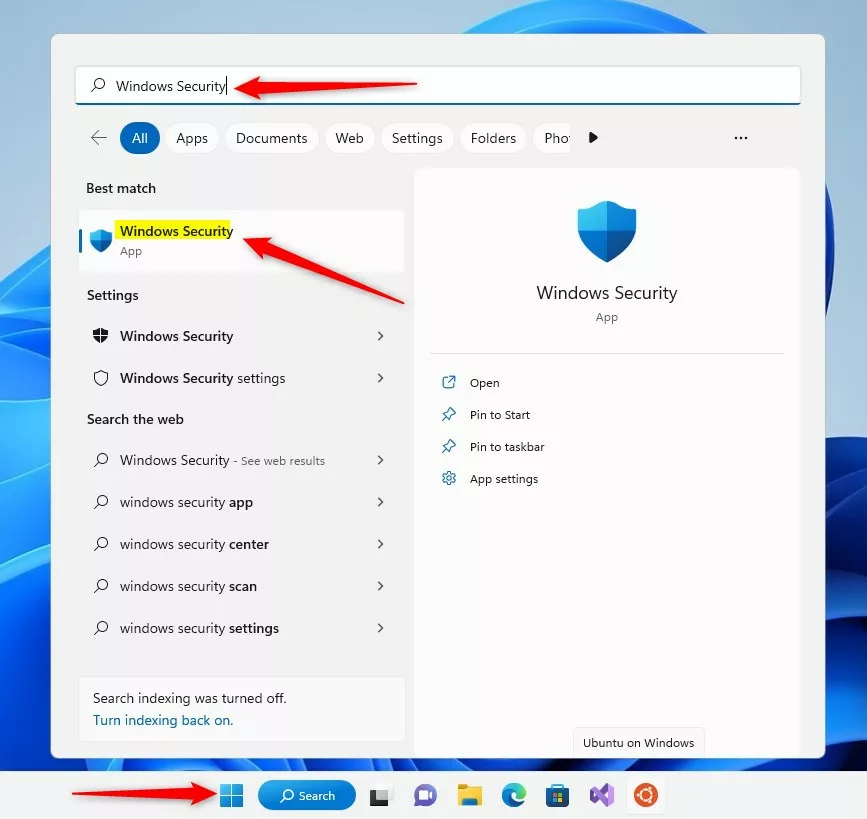
- Click the Start button and type Windows Security.
- Click the Windows Security result. The Windows Security home page opens, with tiles for each protection area.
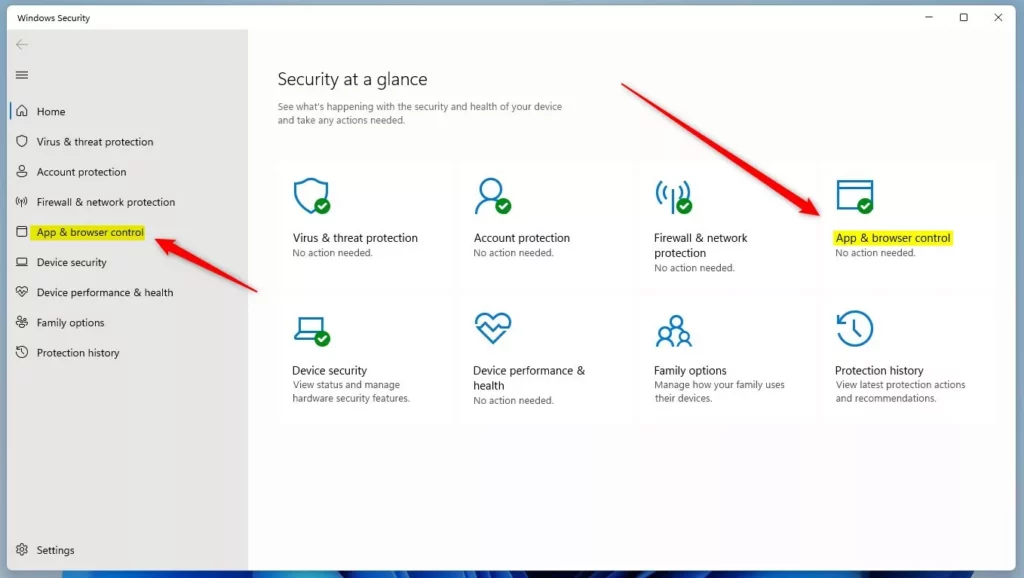
- In the left pane, click App & browser control. The page shows SmartScreen and isolated browsing options.
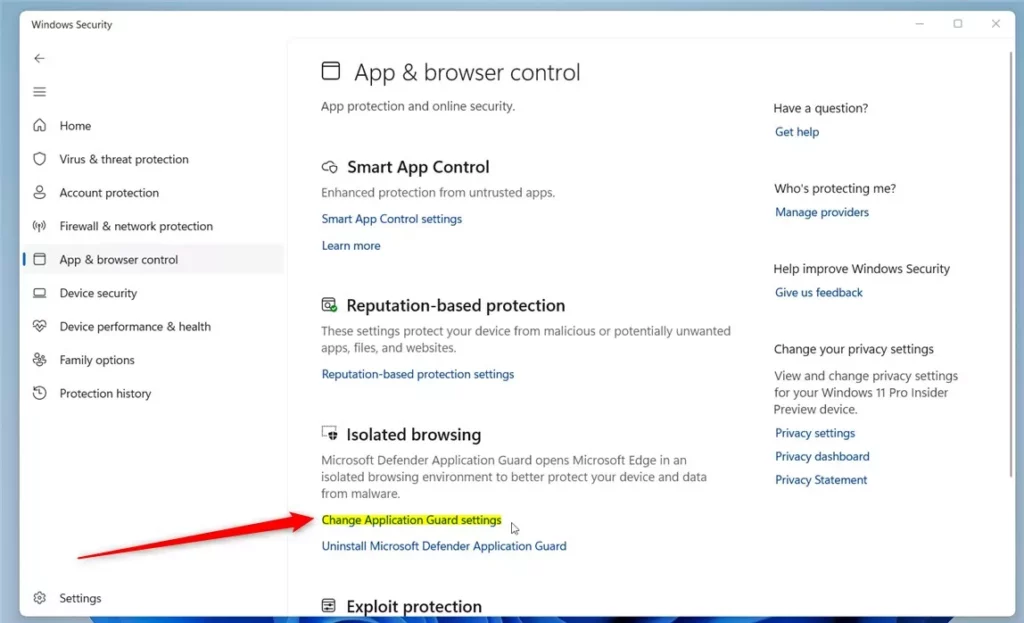
- Under the Isolated browsing area, click the link that says Change Application Guard settings. The Application Guard settings page opens. If Windows asks for permission, click Yes.
If you don't see the Isolated browsing area, Application Guard is not installed on this PC, or your edition does not support it. Go back to the prerequisite step above.
The Advanced graphics section controls how Application Guard displays visual elements in the protected browser session. Turning it on can improve the clarity and smoothness of graphics there.
- Find Advanced graphics and move its switch to On. The switch shows as on once it is enabled.
To undo the change later, come back to this page and move the switch to Off.

- Restart your computer so the setting can take effect. Save your open work first.
Method 2Using the Registry Editor
This method adds a DWORD value to the registry. The exact key path is shown in the code block below. Mistakes in the registry can cause serious system problems, so follow these steps carefully. You need an administrator account.
In Registry Editor, click File Export, choose a location, and save the file. You can double-click that file later to restore the old values.
If you prefer not to use the settings menu, you can use the Windows Registry. Open the Windows Registry and go to the following path:
HKEY_LOCAL_MACHINE\SOFTWARE\Microsoft\Hvsi
The last folder in that path may not exist yet. If you can't see the Hvsi folder, create it:
- Right-click the Microsoft folder.
- Select New, then Key.
- Name the new key
Hvsi. It appears under Microsoft in the left pane.
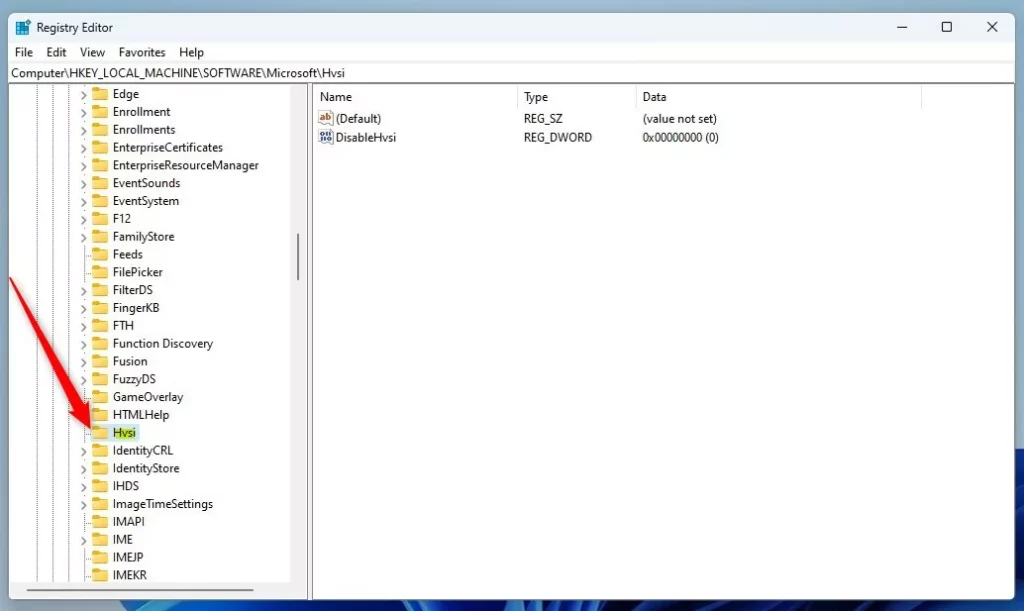
Now select the Hvsi key and create the value inside it.
- Right-click in the empty space on the right side of the Hvsi folder.
- Select New, then choose DWORD (32-bit) Value. A new value appears in the right pane with its name ready to edit.
- Name this new value
AllowAeroGlass, then press Enter.
- Double-click
AllowAeroGlass. In the Value data box, enter1to turn Advanced graphics on, or0to turn them off. Click OK.
To undo the change later, set the value data to the off value or delete the value.
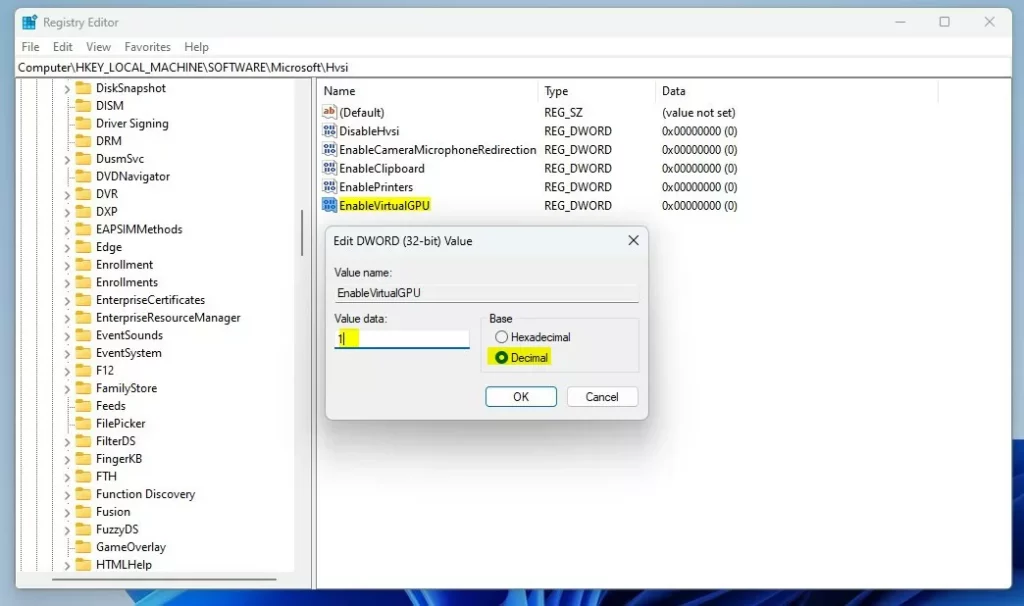
- Close Registry Editor and restart your computer for the setting to take effect.
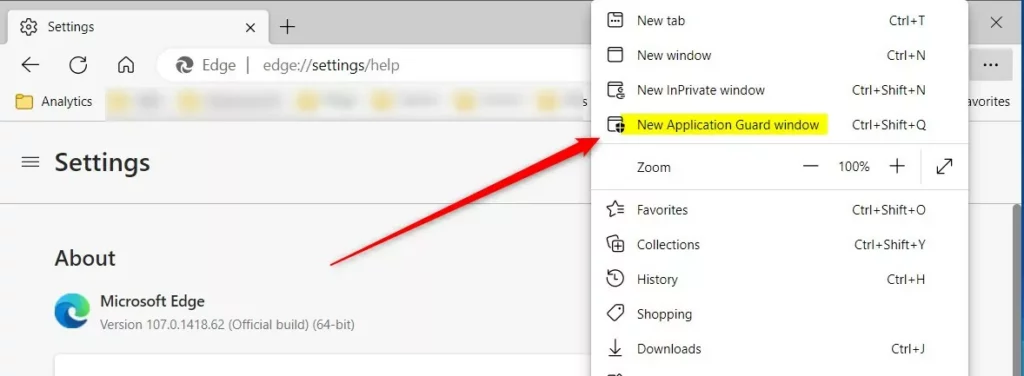
Once you're back on the desktop, you can test the result by opening an isolated browser window. Press CTRL + SHIFT + Q in Edge, or select New Application Guard window from the Edge menu. The first launch can take a little longer while the container starts.
For more details, visit this reference: Microsoft.com
Summary
Advanced graphics make your isolated browsing faster and visually smoother. You can turn the feature on through the Windows Security app, or through the Registry Editor if the settings page is not available to you. Always restart your computer after changing the setting so it takes effect. If you see no change, or the option is missing, check that your edition supports Application Guard and that it is enabled for Edge.
Have a question about this guide?
Answered by AI from this guide. Good questions may be added to this page — please don't include personal details.
Did this guide fix your problem?

About the Author
Richard
Tech Writer, IT Professional
Richard is a writer at Geek Rewind who turns complex IT tasks into clear, step-by-step guides. He draws on years of hands-on experience in system administration and enterprise IT operations, focusing on Windows, Linux and WordPress: the problems people actually run into, and the fixes that work. His server and WordPress guides come from systems he runs himself. Richard builds and maintains the platform behind Geek Rewind, from its Ubuntu servers and Nginx configuration to its custom WordPress plugins. Many new tutorials start with readers' questions, and he's always glad to answer them in the comments.
No comments yet — be the first to share your thoughts!