
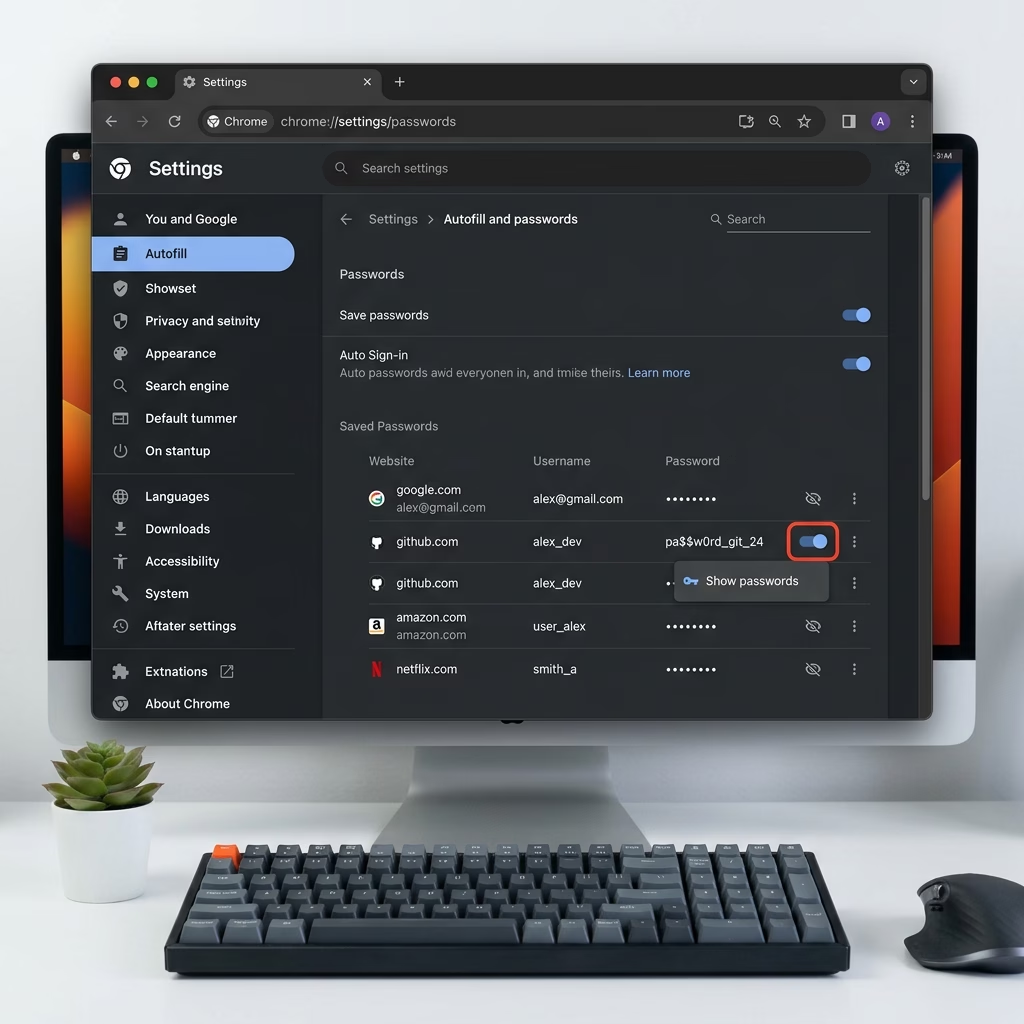
Saving passwords in Microsoft Edge on Windows 11 stores your login details inside the browser, so you do not have to type them every time you visit a site. Edge does this through a built-in password manager. When you sign in to a site, it asks whether to keep your username and password.
You can turn this prompt on or off in less than 30 seconds. Turning off password saving stops Edge from storing your private details, which helps protect your accounts if other people use your PC.
To enable or disable password saving, open Edge settings, navigate to Passwords and autofill, then toggle “Ask to save passwords and passkeys” on or off. For all users, use Windows Terminal with administrator privileges to modify the `PasswordManagerEnabled` registry key.
What Happens When You Enable Password Saving
When password saving is on, Edge asks whether to store your login details each time you sign in to a new site. If you accept, the browser remembers them and fills them in on your next visit. If you decline, nothing is stored for that site.
What Happens When You Disable Password Saving
When password saving is off, Edge stops asking to save new logins. You can still type your details in manually. Passwords you saved earlier are not deleted and keep working. To remove them, you have to delete them yourself in the Edge password list.
Option 1Turn Password Saving On or Off for Your Account
You can turn the ‘Ask to save passwords’ feature on or off in Microsoft Edge settings for your personal account.Option 2Enable or Disable Password Saving for All Users on the Computer
⚠️ Admin Privileges Required — You need to sign in as an administrator, or approve the User Account Control prompt with an admin account, to use this method.
This method uses a Windows policy named PasswordManagerEnabled. Policies apply to every user on the PC, not just you. They work on both Windows 11 Home and Pro, because the setting is a registry value that the command writes for you.
To Always Allow Password Saving
Use this option to force password saving on for every user profile on the computer. It suits shared devices where you want the feature kept on.
- Right-click the Windows Terminal app and select Run as administrator.
- Click Yes if the User Account Control prompt appears. An elevated Windows Terminal window opens.
- Run the command shown for this option to enable password saving for all users.
- Close all Edge windows and open Edge again so it picks up the policy.
The "Ask to save passwords" setting is now on for everyone. Users cannot turn it off in their own Edge settings. The toggle is greyed out, and Edge may show a "Managed by your organization" notice. If you want people to be able to switch it off, use the reset steps further down instead.
To Always Disable Password Saving
Use this option to stop Edge from saving passwords for every user on the PC.
- Right-click the Windows Terminal app and select Run as administrator.
- Click Yes if the User Account Control prompt appears.
- Run this command to disable password saving for all users:
reg add "HKEY_LOCAL_MACHINE\SOFTWARE\Policies\Microsoft\Edge" /v "PasswordManagerEnabled" /t REG_DWORD /d 0 /f - Close all Edge windows and open Edge again.
This turns off "Ask to save passwords" for everyone, and the setting is locked in Edge. Edge will no longer offer to store new logins. Passwords that were already saved are not deleted.
To Reset to Default Settings
Use this option to remove the policy and give users control again. It works whether you previously forced the setting on or off.
- Right-click the Windows Terminal app and select Run as administrator.
- Click Yes if the User Account Control prompt appears.
- Run the command shown for this option to return to the default settings. It clears the policy value, so no administrator rule is left in place.
- Close all Edge windows and open Edge again.
Edge no longer forces password saving on or off. Each user can now turn it on or off in the browser's settings, and the toggle is no longer greyed out. Each person decides how their own logins are stored. If the toggle is still locked, a policy from another source may still apply, such as one set by your workplace.
Additional Resources
View or edit your passwords in Microsoft Password Manager - Microsoft Support
This guide covers how to view, edit and remove the credentials already stored in Microsoft Edge.
Summary
Which method you pick depends on whether you want a personal setting or a rule for a shared computer. Individual users can change the setting from their own Edge profile. Administrators can use Windows Terminal commands to lock the feature on or off for the whole system.
- Option One turns password saving on or off for your account only. It is the easiest method for most people.
- Option Two lets an administrator control password saving for all users on the computer. It needs admin access and uses Windows Terminal.
When password saving is on, Edge shows a prompt each time you sign in to a site. When it is off, the prompt never appears. Passwords you saved earlier are not affected by the setting. Choose based on how much you value convenience compared with keeping your logins out of the browser.
Have a question about this guide?
Answered by AI from this guide. Good questions may be added to this page — please don't include personal details.
Did this guide fix your problem?

About the Author
Richard
Tech Writer, IT Professional
Richard is a writer at Geek Rewind who turns complex IT tasks into clear, step-by-step guides. He draws on years of hands-on experience in system administration and enterprise IT operations, focusing on Windows, Linux and WordPress: the problems people actually run into, and the fixes that work. His server and WordPress guides come from systems he runs himself. Richard builds and maintains the platform behind Geek Rewind, from its Ubuntu servers and Nginx configuration to its custom WordPress plugins. Many new tutorials start with readers' questions, and he's always glad to answer them in the comments.
No comments yet — be the first to share your thoughts!