Enable or Disable Password Export in Microsoft Edge

Password export in Microsoft Edge lets you save all your saved website logins into a comma-separated values (CSV) file on your computer. The CSV file is plain text, so anyone who opens it can read every username and password. Turning off this feature removes the download button from edge://settings/passwords. That stops anyone else who uses your PC from grabbing your username and password list.
You can block or allow password export in Edge version 95 and later by changing a toggle in your browser settings or by editing the Windows registry at 🗝️HKEY_LOCAL_MACHINE\
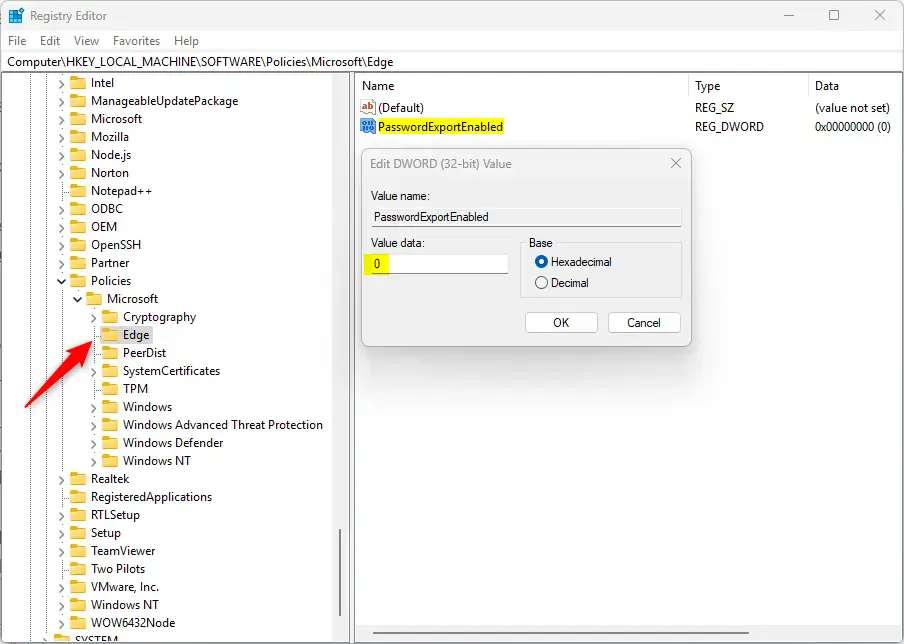
Disable password export by setting the DWORD value PasswordExportEnabled to 0 in the Windows Registry under 🗝️HKEY_LOCAL_MACHINE\
Disable password export from Edge
To disable password export, Edge users can change one value in the Windows Registry. This blocks anyone from saving your usernames and passwords to a file, which keeps your online accounts safe when other people use your computer. The registry method works on both Windows 11 Home and Pro. The Group Policy method further down needs Pro, Enterprise or Education.
Using the Registry:
- Open the Windows Registry. Approve the User Account Control prompt if it appears.
- Back up the registry or create a System Restore point (a snapshot of your system files) before you change anything. If something goes wrong, you can roll back.
- Pick the scope you want and browse to that key:
- For all users (HKLM): Go to 🗝️HKEY_LOCAL_MACHINE\
SOFTWARE\ . This requires admin rights.Policies\ Microsoft\ Edge - For one user (HKCU): Go to 🗝️HKEY_CURRENT_USER\
SOFTWARE\ .Policies\ Microsoft\ Edge
- For all users (HKLM): Go to 🗝️HKEY_LOCAL_MACHINE\
- If the Edge key does not exist yet, right-click the Microsoft key, choose New Key, and name it Edge. The same goes for a missing Policies or Microsoft key.
- Right-click an empty area in the right-hand pane. Select New DWORD (32-bit) Value. The new value appears in the list with its name highlighted for editing.
- Name the value
PasswordExportEnabledand press Enter. - Double-click the new value and set the Value data to
0to stop exports. Click OK. - Close all Edge windows and open Edge again so it picks up the policy.
To undo the change, delete the value you created and restart Edge. Export then works again.
Using Group Policy (gpedit.msc):
The Local Group Policy Editor is not included in Windows 11 Home. Home users should use the registry method above. Edge does not install its own policy definitions, so you need the templates first.
- Download the latest Microsoft Edge ADMX templates from the official Microsoft website.
- Extract the download and copy the files to
C:\Windows\PolicyDefinitions. Copy the language file (.adml) into the matching language folder. - Open
gpedit.msc. The Local Group Policy Editor window opens. - Go to Computer Configuration Administrative Templates Microsoft Edge. If you don't see the policy right away, check the Password manager and protection subfolder.
- Find Enable password export and double-click it.
- Select Disabled to block the feature, then click Apply and OK.
- Restart Edge. Setting the policy back to Not Configured undoes the change.
Type edge://settings/passwords into the address bar to check the current status. Press Enter and look for the password export policy in the list. If it is missing or shows the wrong value, click Reload policies and check again. Then open edge://settings/passwords to confirm the export option is gone.
Conclusion
Disabling password export in Edge offers a practical way to safeguard accounts. Make sure to keep any exported comma-separated value (CSV) files secure. If you already exported your passwords, move the file to a safe place or delete it once you no longer need it, and empty the Recycle Bin.
Have a question about this guide?
Answered by AI from this guide. Good questions may be added to this page — please don't include personal details.
Did this guide fix your problem?

About the Author
Richard
Tech Writer, IT Professional
Richard is a writer at Geek Rewind who turns complex IT tasks into clear, step-by-step guides. He draws on years of hands-on experience in system administration and enterprise IT operations, focusing on Windows, Linux and WordPress: the problems people actually run into, and the fixes that work. His server and WordPress guides come from systems he runs himself. Richard builds and maintains the platform behind Geek Rewind, from its Ubuntu servers and Nginx configuration to its custom WordPress plugins. Many new tutorials start with readers' questions, and he's always glad to answer them in the comments.
No comments yet — be the first to share your thoughts!