How to Turn Automatically Upgrade to Passkeys on or off in Microsoft Edge

Automatically upgrading to passkeys in Microsoft Edge replaces your old text passwords with passkeys, which are digital keys that resist phishing scams. The feature has been available since Microsoft Edge version 121. When you sign in to a supported website with a saved password, Edge suggests or applies an upgrade of those saved login details to a passkey.
To turn automatic passkey upgrades on or off, go to Settings Passwords and autofill > Microsoft Password Manager More settings. Toggle the “Automatically upgrade to passkeys” option to your desired state.
The setting belongs to your Edge profile, so you can turn it on or off whenever you like. Each profile has its own preference, so if you use more than one, check each. Keeping it on helps protect you because a passkey can’t be typed into a fake site the way a password can.
Disabling this feature stops Edge from automatically upgrading passwords to passkeys, leaving the transition entirely under manual control.
Changing this preference takes about a minute. You don’t need to restart Edge or Windows, and the change takes effect straight away.
- Open Microsoft Edge. Make sure you are in the profile you want to change.
- Click the three dots icon (…) in the top right corner. This is the Settings and more menu. Then click Settings. The settings page opens in a new tab.
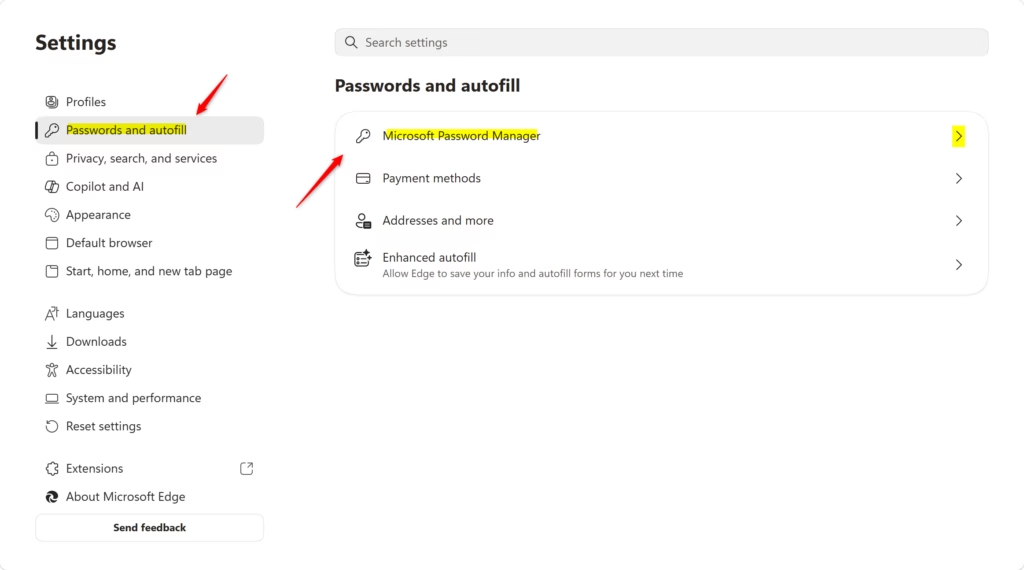
- In the left menu, click Passwords and autofill. On the right side, click Microsoft Password Manager.
If you don’t see a menu on the left, the window is probably too narrow. Click the three lines icon (☰) in the top left corner, or make the Edge window wider.
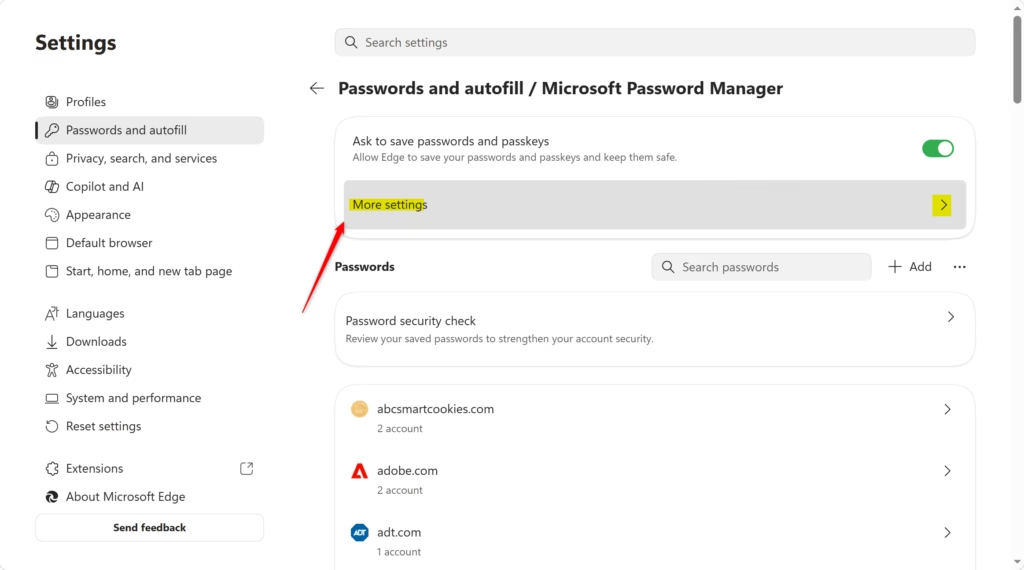
- Click More settings. You should now see a list of Password Manager options.
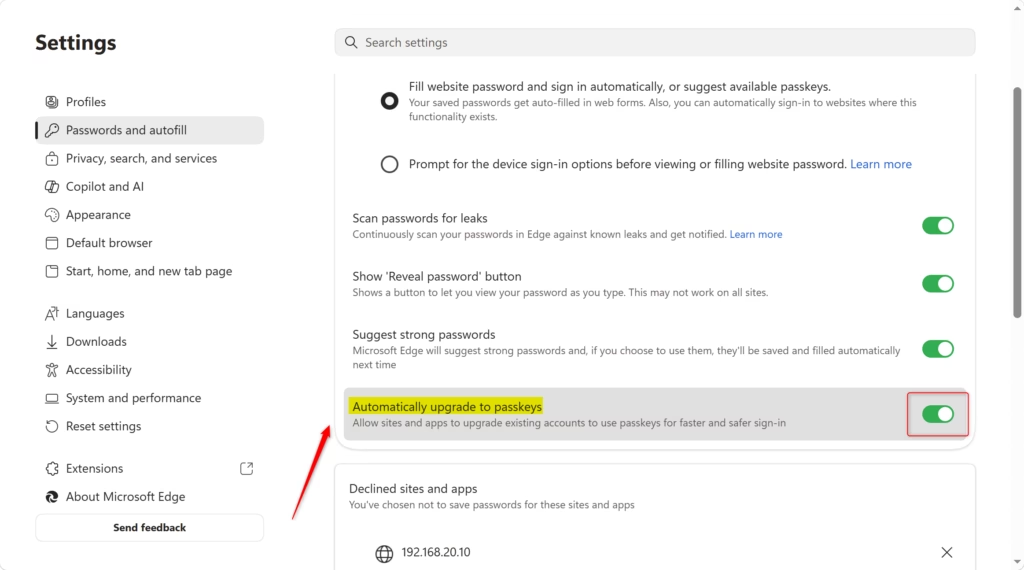
- Find Automatically upgrade to passkeys and switch it On or Off, depending on what you want.
Note: This setting only works if Ask to save passwords and passkeys is turned on. If Automatically upgrade to passkeys is greyed out or does nothing, check that option first.
If the option is missing altogether, update Edge, since the feature needs version 121 or later. On a work or school PC, an administrator may also control it, and you won't be able to change it yourself.
- Close the Settings tab. Edge saves the change automatically, so there is no Save button.
To undo the change, follow the same steps and flip the switch back.

Reference:
https://www.microsoft.com/en-us/edge/features/passkeys?form=MT0160
Summary
In short, the Microsoft Edge settings control whether the browser upgrades your saved passwords to passkeys automatically. Passkeys are a more secure way to sign in than traditional passwords. You can switch the option on or off for each profile at any time.
Was this guide helpful?

About the Author
Richard
Tech Writer, IT Professional
Richard is a writer at Geek Rewind who turns complex IT tasks into clear, step-by-step guides. He draws on years of hands-on experience in system administration and enterprise IT operations, focusing on Windows, Linux and WordPress: the problems people actually run into, and the fixes that work. His server and WordPress guides come from systems he runs himself. Richard builds and maintains the platform behind Geek Rewind, from its Ubuntu servers and Nginx configuration to its custom WordPress plugins. Many new tutorials start with readers' questions, and he's always glad to answer them in the comments.



No comments yet — be the first to share your thoughts!