How to Enable or Disable Auto Sign-In on Microsoft Edge

- 15 steps
- Needs administrator rights
- Includes a restart or sign-out
Auto sign-in in Microsoft Edge links your browser to your Microsoft account so Edge can sign in with the account you already use in Windows. You don’t have to enter your credentials in the browser itself. It also helps keep your bookmarks and other synced data the same across your devices.
Edge uses a policy called SeamlessWebToBrowserSignInEnabled to control this feature on Windows 10 and Windows 11. You can turn auto sign-in on or off in the browser settings, or you can force it for every user through the Registry. Both methods are covered below.
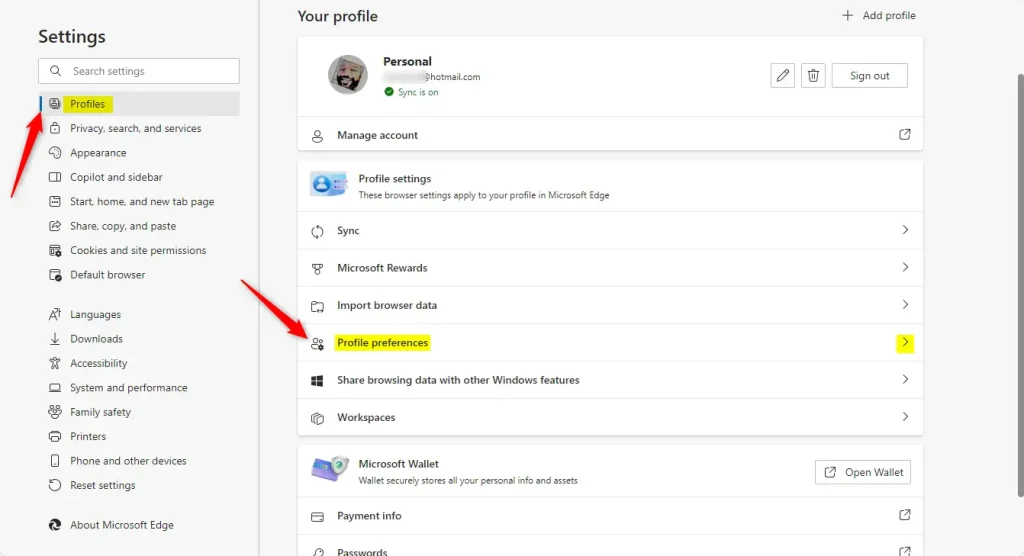
To turn auto sign-in on or off in Microsoft Edge, click the Settings and more button (the three dots) in the top right, select Settings, then choose Profiles and open Profile preferences. Flip the Automatic sign in on Microsoft Edge switch. The change saves immediately, with no Save button needed.
Turn on or off automatic sign in to Edge
With auto sign-in on, Edge signs you in to the browser with your Microsoft account details automatically. With it off, Edge asks you to sign in yourself, or leaves you signed out. This method changes the setting for the current Edge profile only, and it needs no administrator rights.
The steps below follow the current version of Edge. Menu names can differ slightly in older builds, so if you don’t see an item, look for the closest match under the same menu.
Here’s how to enable or disable it.
Step 1: Open Microsoft Edge.
Step 2: Open the Settings page.
- Click the Settings and more button (the three horizontal dots) in the top right corner of the window.
- Select Settings from the menu. Edge opens the Settings page in a new tab.

Step 3: Open the profile options.
- Select Profiles in the left pane of the Settings page. Some builds label it Profile.
- On the right, click Profile preferences to expand it. You should now see a list of options for the current profile.
Step 4: Change the auto sign-in setting.
- Find the Automatic sign in on Microsoft Edge option.
- Click the toggle switch to turn it on or off. A switch that is on and coloured means auto sign-in is enabled. A switch that is off and grey means it is disabled.
If the switch is greyed out, or Edge shows a “Managed by your organization” message, a policy is controlling the setting. That can be a work or school policy, or a Registry value set with the second method in this guide. Remove or change the policy first, then come back to this page. To undo your change, flip the switch back.

Step 5: Close the Edge settings tab when you’re done. The change is saved as soon as you flip the switch, so there is no Save button.
Enable or disable automatic sign in using the Windows Registry
The Windows Registry is a database that stores low-level settings for Windows and apps. You can use it to force Edge auto sign-in on or off for every user account on the computer at the same time. This suits administrators and anyone managing several local profiles on one PC, because you make one change instead of editing each profile.
You need an administrator account for this method. It works on Windows 10 and Windows 11, Home included. Once a value is set here, Edge treats it as a policy, and the matching switch in Edge settings may turn grey for every user.
Step 1: Open the Windows Registry on your computer.
- Search for Registry Editor from the Start menu , then choose Run as administrator.
- Click Yes if User Account Control asks for permission. The Registry Editor window opens.
In Registry Editor, go to File Export, set Export range to All, and save the .reg file somewhere safe. To restore it later, double-click the file. Creating a System Restore point first gives you extra protection against mistakes.
Step 2: Go to the key shown below. You can paste the path into the address bar at the top of Registry Editor, or click through the folders in the left pane.
If a key in the path is missing, right-click the key above it, choose New Key, and give it the missing name exactly.
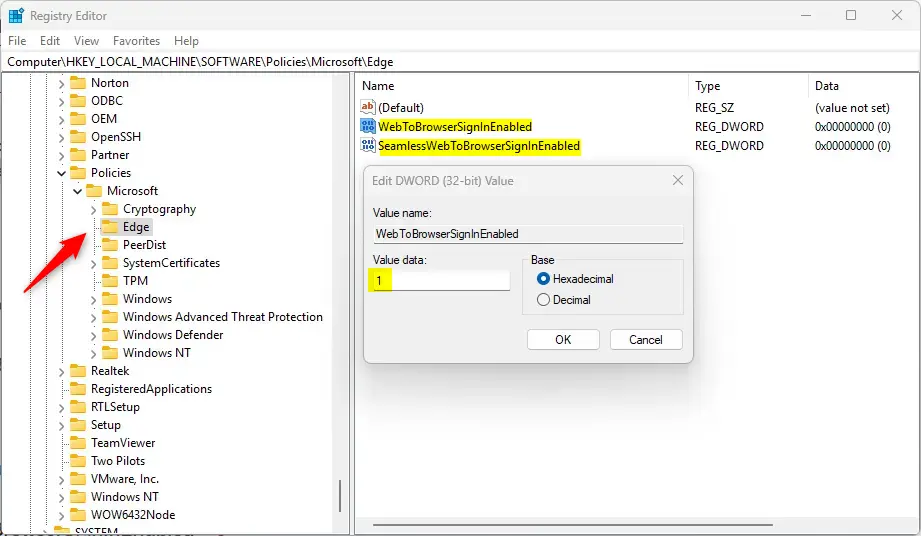
Step 3: Create the two values. Each one is a DWORD (32-bit) value, which is a setting that stores a number.
- Right-click an empty area in the right pane.
- Select New DWORD (32-bit) Value.
- Type the first name from the list below and press Enter.
- Repeat to create the second value with the other name.
Use exactly these two names. Spelling and capitalisation matter, or Edge ignores the value.
- WebToBrowserSignInEnabled
- SeamlessWebToBrowserSignInEnabled
Step 4: Double-click each item you created. Set Value data to 1 to turn on automatic sign-in for all users, then click OK. Do this for both values.
SeamlessWebToBrowserSignInEnabled = 1
Step 5: To turn off automatic sign-in for all users, double-click each item and set Value data to 0 instead. Click OK each time.
SeamlessWebToBrowserSignInEnabled = 0
Step 6: To restore the default behavior and let each user choose, delete both items you created.
- Right-click the first item in the right pane and select Delete.
- Click Yes to confirm.
- Repeat for the second item.
These are the two items to remove:
- WebToBrowserSignInEnabled
- SeamlessWebToBrowserSignInEnabled
If it still doesn't take effect, restart your computer. To check that Edge picked up the values, type edge://policy in the address bar and press Enter. If the policies are missing from the list, click Reload policies.
Summary
You can control Edge auto sign-in in two ways. The built-in browser settings change it for one user profile. The Windows Registry changes it for every user account on the computer at once. Use the browser settings if you only need to change your own browser. Use the Registry on a shared family or office PC where one setting should cover everyone.
- You have choicesYou can pick whether you want Edge to sign you in automatically or not.
- Two ways to do itYou can use Edge settings or the Windows Registry. Pick whichever is easier for you. Edge settings affect one profile, and the Registry affects all users.
- Syncing across devicesWhen you use a Microsoft account, your browsing information syncs across all your devices. This makes it easy to pick up where you left off.
- You're in controlThese settings let you customize your experience based on what you need. If a switch is greyed out, a policy is probably managing it.
- Always back up firstBefore changing the Windows Registry, create a backup to prevent problems. Delete the two values to undo the change.
Auto sign-in options in Microsoft Edge let you decide how the browser starts. You can sign in to your Microsoft account automatically every time you open Edge, or turn the feature off for more privacy. This is useful on a shared PC, where you may not want the browser tied to one account.
Have a question about this guide?
Answered by AI from this guide. Good questions may be added to this page — please don't include personal details.
Did this guide fix your problem?

About the Author
Richard
Tech Writer, IT Professional
Richard is a writer at Geek Rewind who turns complex IT tasks into clear, step-by-step guides. He draws on years of hands-on experience in system administration and enterprise IT operations, focusing on Windows, Linux and WordPress: the problems people actually run into, and the fixes that work. His server and WordPress guides come from systems he runs himself. Richard builds and maintains the platform behind Geek Rewind, from its Ubuntu servers and Nginx configuration to its custom WordPress plugins. Many new tutorials start with readers' questions, and he's always glad to answer them in the comments.
No comments yet — be the first to share your thoughts!