How to Turn On or off Automatic Touchpad Scrolling at Edge in Windows 11

- 11 steps
- Includes a restart or sign-out
| Feature | Precision Touchpad | Legacy Touchpad |
|---|---|---|
| Gestures | Supports advanced multi-finger | Limited support |
| Settings | Managed in Windows Settings | Managed by OEM software |
| Scrolling | Smooth, system-level | Often jerky or driver-dependent |
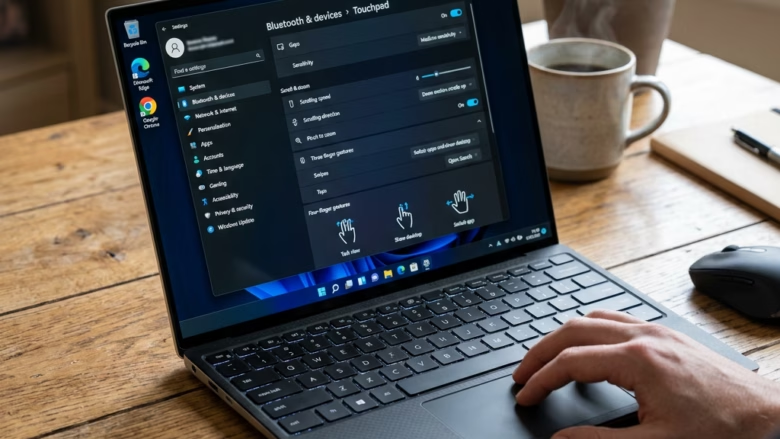
Automatic touchpad scrolling lets you scroll through long web pages and documents by holding your finger still against the right edge of your laptop trackpad. It saves you from swiping back and forth over and over while you read long articles or spreadsheets.
Your laptop must have a Precision Touchpad to use this feature. A Precision Touchpad is a standard trackpad type built into modern Windows laptops, and it runs on Microsoft drivers. You can turn automatic edge scrolling on or off in the Windows 11 Settings app whenever you want to change how your trackpad behaves. The steps are the same on Home and Pro.
Open Settings, go to Bluetooth & devices Touchpad, expand Scroll & zoom, then check or uncheck Automatic scrolling at edge. The change applies immediately without restarting your laptop.
How to Turn On or Off Automatic Scrolling at Edge in Settings
The touchpad settings let you turn automatic edge scrolling on or off so you can move through long documents and web pages without repeated dragging. You change it in the Settings app by opening the touchpad options and expanding the scroll menu.
- Press Win+I to open the Settings app.
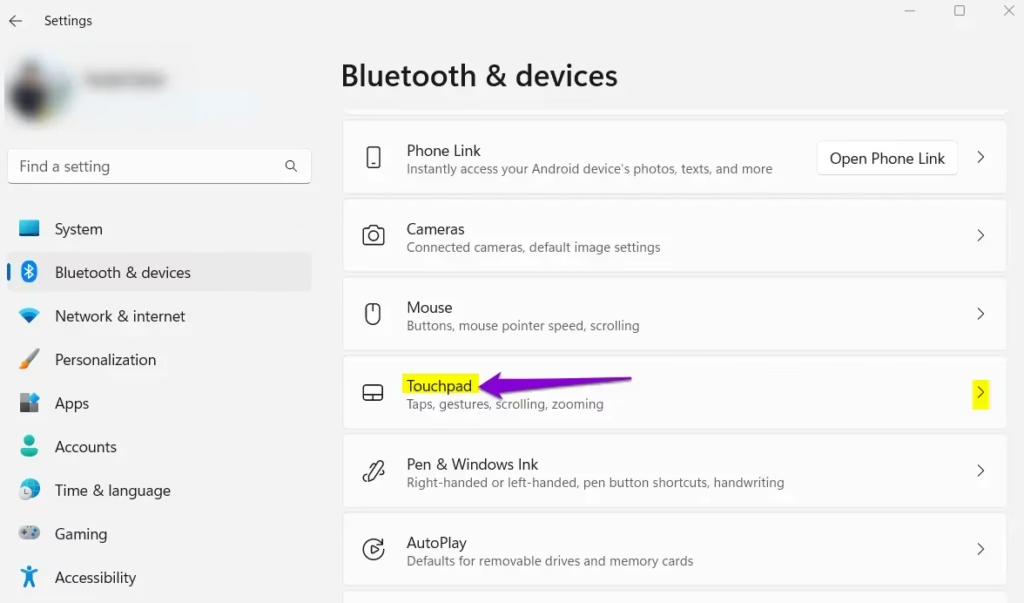
- Click Bluetooth & devices in the left sidebar.
- Select Touchpad. The touchpad options for your laptop should now be on screen.
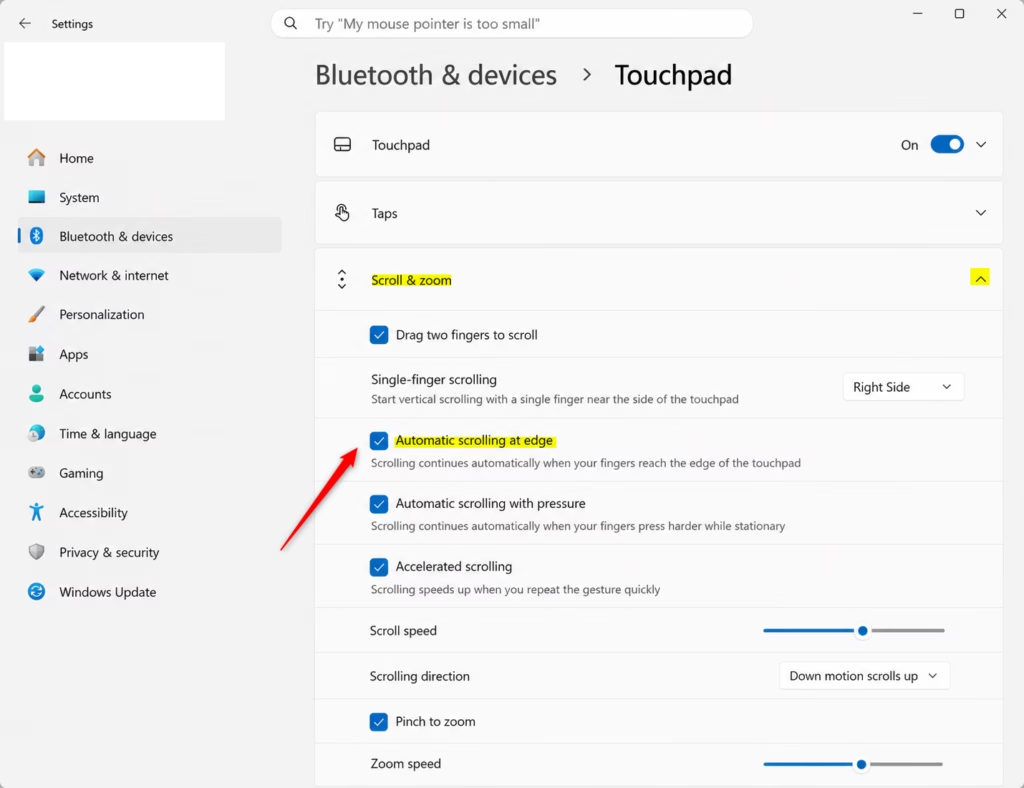
- Click the arrow next to Scroll & zoom to reveal more options. The list expands and shows the scrolling settings.
- Find Automatic scrolling at edge and set the box the way you want it. Check the box to turn the feature on, or uncheck it to turn it off.
The change applies straight away, so you don’t need to restart. To undo it, come back to this page and flip the box again.
- Close the Settings window when you are done.
If you can’t find Automatic scrolling at edge in the list, see the troubleshooting section below.
How to Configure via Registry (Advanced)
This method needs administrator access and careful editing of system keys, because a wrong change in the registry can cause problems. Consider exporting the key first (File Export in Registry Editor) so you have a copy to restore.
- Press Win+R, type regedit, and press Enter. If a User Account Control prompt appears, click Yes. Registry Editor opens.
- Navigate to:
HKEY_CURRENT_USER\Software\Microsoft\Windows\CurrentVersion\PrecisionTouchPad. You can paste the path into the address bar at the top of Registry Editor, or click through the folders in the left pane. - Find the value named EdgeAutoPanningEnabled in the right pane and double-click it.
- Type 1 in the Value data box to turn automatic scrolling on, or 0 to turn it off. Click OK.
- Close Registry Editor.
The EdgeAutoPanningEnabled value controls automatic scrolling at the edge of the touchpad. Setting it to 1 activates automatic scrolling. Setting it to 0 deactivates it, which prevents unintentional page movement.
To undo it, set the value back to its previous number, or import the key you exported.
Troubleshooting Scrolling Issues
If the automatic scrolling option is missing, your laptop most likely doesn't support Precision Touchpad drivers. In that case the Touchpad page in Settings shows fewer options, or none of the scroll settings at all.
- Run Windows Update and check that your touchpad driver is current.
- Check your laptop manufacturer's support page for an updated touchpad driver.
- If the hardware doesn't support Precision Touchpad drivers, the setting won't be available, and neither method above will add it.
Summary
Automatic edge scrolling makes it easier to move through long pages and documents. You turn it on or off in the main touchpad settings, under Bluetooth & devices Touchpad Scroll & zoom
Have a question about this guide?
Answered by AI from this guide. Good questions may be added to this page — please don't include personal details.
Did this guide fix your problem?

About the Author
Richard
Tech Writer, IT Professional
Richard is a writer at Geek Rewind who turns complex IT tasks into clear, step-by-step guides. He draws on years of hands-on experience in system administration and enterprise IT operations, focusing on Windows, Linux and WordPress: the problems people actually run into, and the fixes that work. His server and WordPress guides come from systems he runs himself. Richard builds and maintains the platform behind Geek Rewind, from its Ubuntu servers and Nginx configuration to its custom WordPress plugins. Many new tutorials start with readers' questions, and he's always glad to answer them in the comments.
No comments yet — be the first to share your thoughts!