How to Change Touchpad Zoom Speed In Windows 11

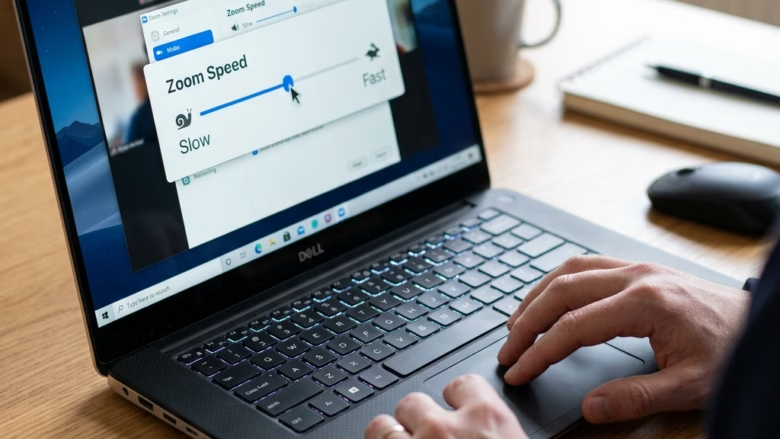
Touchpad zoom speed in Windows 11 controls how fast web pages, maps and photos get bigger or smaller when you pinch two fingers on your laptop trackpad. It works separately from your normal mouse pointer speed, so you can change how fast you zoom without making the cursor move too fast.
Most standard Windows 11 settings pages hide this option. Windows only offers a simple on/off choice for pinch to zoom, and a dedicated zoom speed control usually comes from the touchpad maker’s own software, such as Synaptics or Elan. If you can’t find the setting, the cause is usually a missing or generic driver, not a fault in Windows.
Adjust zoom speed in Settings under Bluetooth & devices Touchpad Scroll & zoom If the slider is missing, update drivers via Device Manager or check manufacturer software. Advanced users can modify the Registry.
Updating Drivers via Device Manager
Start with the driver. A missing or generic touchpad driver is the most common reason gesture settings are absent, and updating it often brings them back. To do it, right-click the Start button , select Device Manager, expand the Mice and other pointing devices section, right-click your touchpad, and choose Update driver. Then choose the option to search automatically, and Windows will look online for newer software.
The touchpad may be listed under a name like “HID-compliant mouse”, “Synaptics” or “ELAN”. If several entries appear, the touchpad is usually the one that isn’t a USB or Bluetooth mouse. If Windows reports that the best driver is already installed, check your laptop maker’s support page for a newer touchpad driver. Restart the laptop after any driver install, even if it doesn’t ask you to.
- Right-click the Start button and select Device Manager.
- Expand Mice and other pointing devices.
- Right-click your touchpad (often labeled as HID-compliant mouse or Precision Touchpad) and select Update driver.
- Choose Search automatically for drivers.
Change Touchpad Zoom Speed in Settings
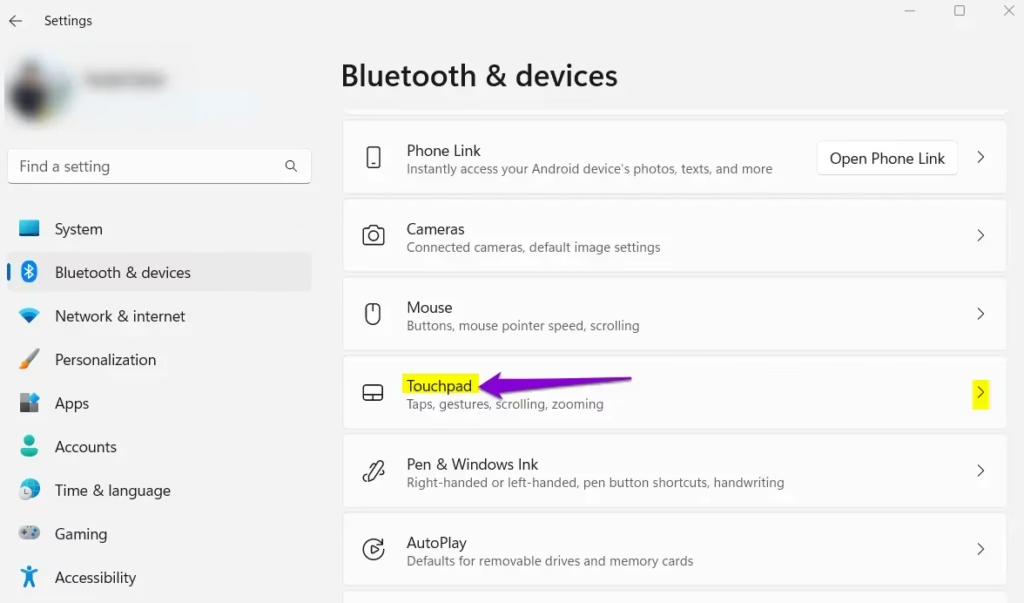
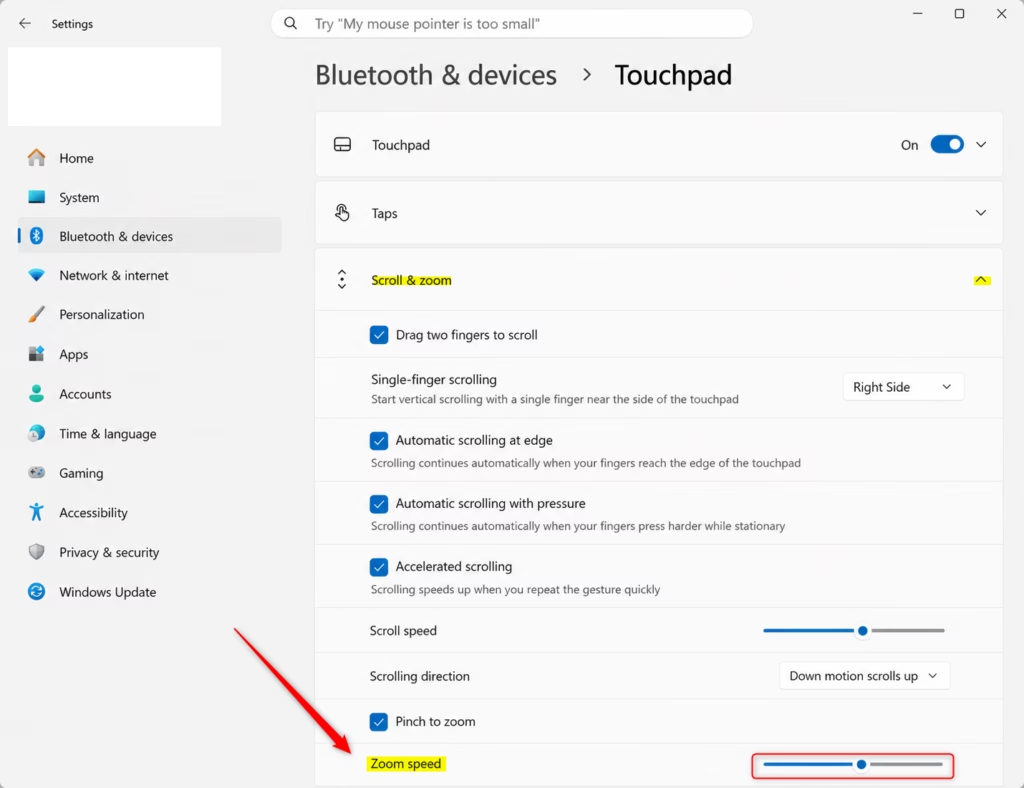
Supported hardware lets you adjust zoom behavior directly in the system menu, on Precision Touchpad models. On current Windows 11 these options sit under Settings Bluetooth & devices > Touchpad, in the Scroll & zoom section, where the Pinch to zoom checkbox lives. If the Touchpad page is missing entirely, your laptop is probably running an older, non-Precision driver. In that case, go back to the driver update above or use the manufacturer’s software described later.
Follow the steps below in order. Changes in this menu apply straight away and need no restart. To undo one, return to the same page and reverse the setting.
- Open Settings (Win+I).
- Click Bluetooth & devices, then select Touchpad.
- Click Scroll & zoom to expand the section.
- Move the Zoom speed slider to your preferred level.
Change Touchpad Zoom Speed in Registry Editor
If the main menu shows no slider, you can make the change manually in the Registry Editor (a database for core system settings). Use this method only after the driver and Settings options have failed. You need an administrator account, and this works on both Home and Pro editions.
Before you edit anything, back up the registry. In Registry Editor, choose File Export and save a copy somewhere you can find it. If a change causes trouble, double-click that saved file to restore the old values. Sign out and back in, or restart, after saving a change, because Windows often reads these values only at sign-in.
- Press Win+R, type regedit, and press Enter.
- Navigate to:
HKEY_CURRENT_USER\Software\Microsoft\Windows\CurrentVersion\PrecisionTouchPad - Double-click ZoomSensitivity.
- Set the value to a number between 0 and 100.
Third-Party Utilities and Manufacturer Software
Specialized software from laptop manufacturers such as Dell or HP fills the gap when default Windows settings lack fine control over touchpad scaling. These tools often add their own gesture pages with sliders that Windows itself doesn't offer.
Look for the touchpad or mouse settings in the app, or on your manufacturer's support page under your exact model number. Install only the touchpad package from the maker's site. Settings changed in this software may override what you set in Windows, so if the two seem to disagree, adjust it there first.
Summary
Precision Touchpad drivers govern touchpad zoom speed behavior in Windows 11. If your laptop uses one, Windows controls the gestures. If it doesn't, the manufacturer's driver and software do. Keeping the driver current is the single most useful step for getting the zoom speed you want.
Have a question about this guide?
Answered by AI from this guide. Good questions may be added to this page — please don't include personal details.
Did this guide fix your problem?

About the Author
Richard
Tech Writer, IT Professional
Richard is a writer at Geek Rewind who turns complex IT tasks into clear, step-by-step guides. He draws on years of hands-on experience in system administration and enterprise IT operations, focusing on Windows, Linux and WordPress: the problems people actually run into, and the fixes that work. His server and WordPress guides come from systems he runs himself. Richard builds and maintains the platform behind Geek Rewind, from its Ubuntu servers and Nginx configuration to its custom WordPress plugins. Many new tutorials start with readers' questions, and he's always glad to answer them in the comments.
No comments yet — be the first to share your thoughts!