How to Use Windows 11 Touchpad Gestures & Settings

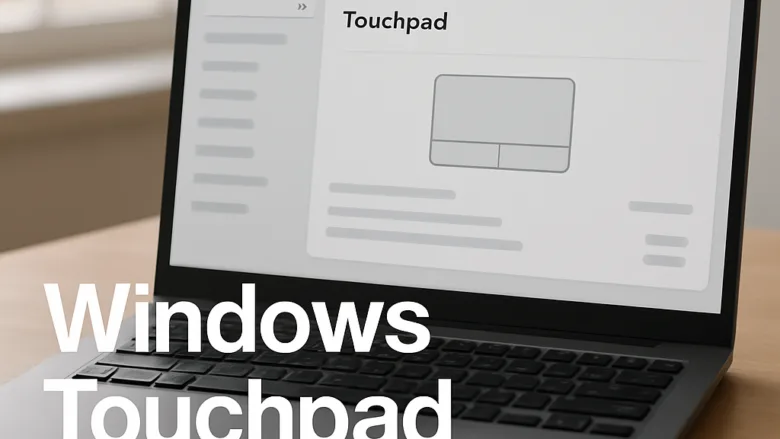
Windows 11 touchpad gestures let you control your laptop with two-, three-, or four-finger taps and swipes instead of a physical mouse. They let you switch between open apps, show the desktop, or open the notification center (the panel older guides call Action Center) in a second or two.
You can turn gestures on or off and change what each one does in the Settings app. Changes apply immediately and no restart is needed. Everything below lives under Settings Bluetooth & devices Touchpad. If that page is missing, your laptop probably isn’t using a Windows Precision Touchpad driver. Install the latest touchpad or chipset driver from the laptop maker’s support site and check again.
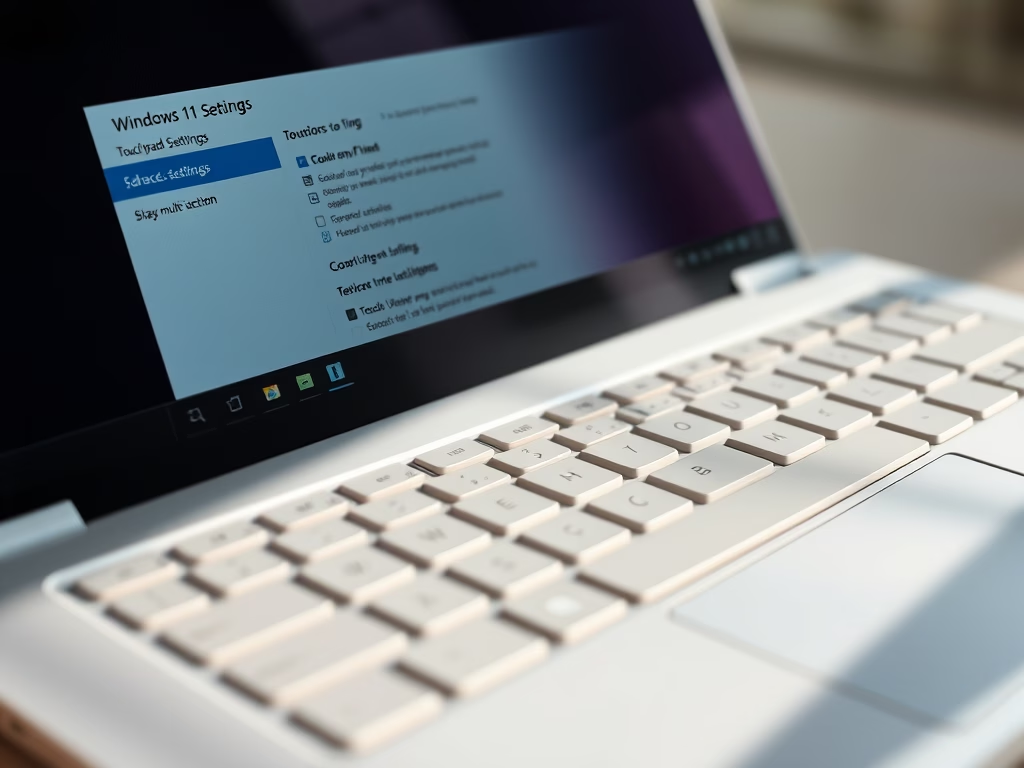
Windows 11 touchpad gestures are customized in Settings Bluetooth & devices Touchpad. Use the toggles to turn gestures on or off, adjust Cursor speed with the slider, and configure Three-finger gestures and Four-finger gestures in their respective dropdown menus. Changes take effect immediately without a restart.
Get Started with Basic Touchpad Actions
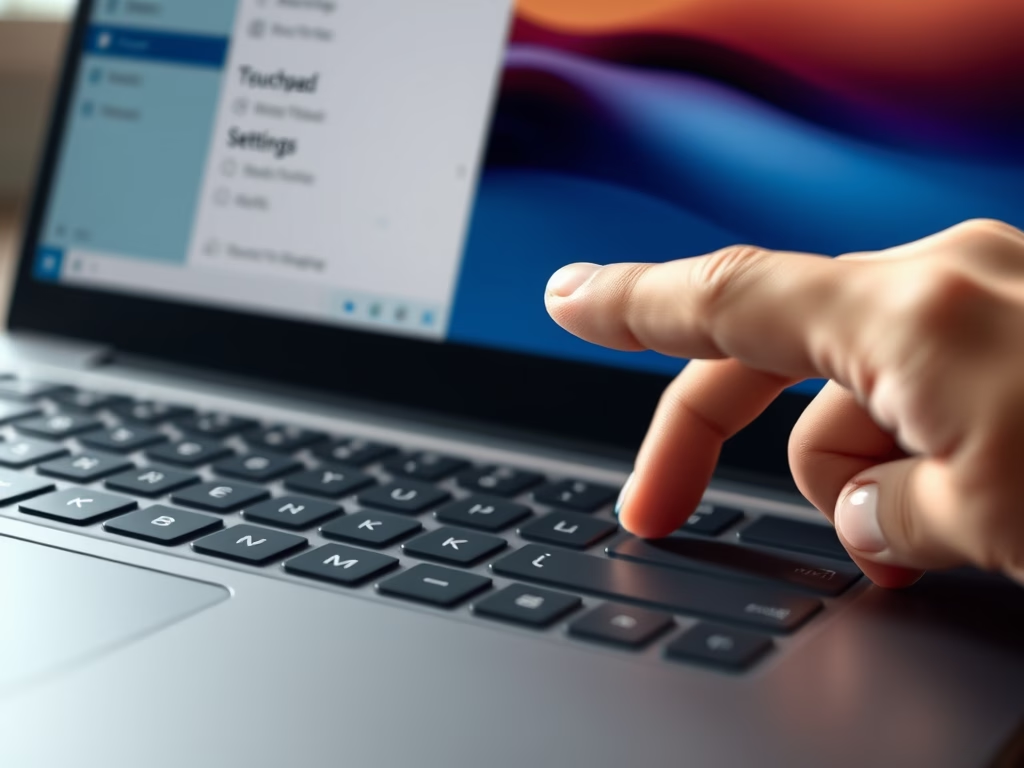
Start here to learn the basic touchpad controls: moving the cursor, clicking, and scrolling. A single-finger tap clicks, a two-finger drag scrolls, and a two-finger tap right-clicks. Each of these can be switched on or off in the Touchpad settings, so if one does nothing, check there first.
Customize Multi-Finger Gestures
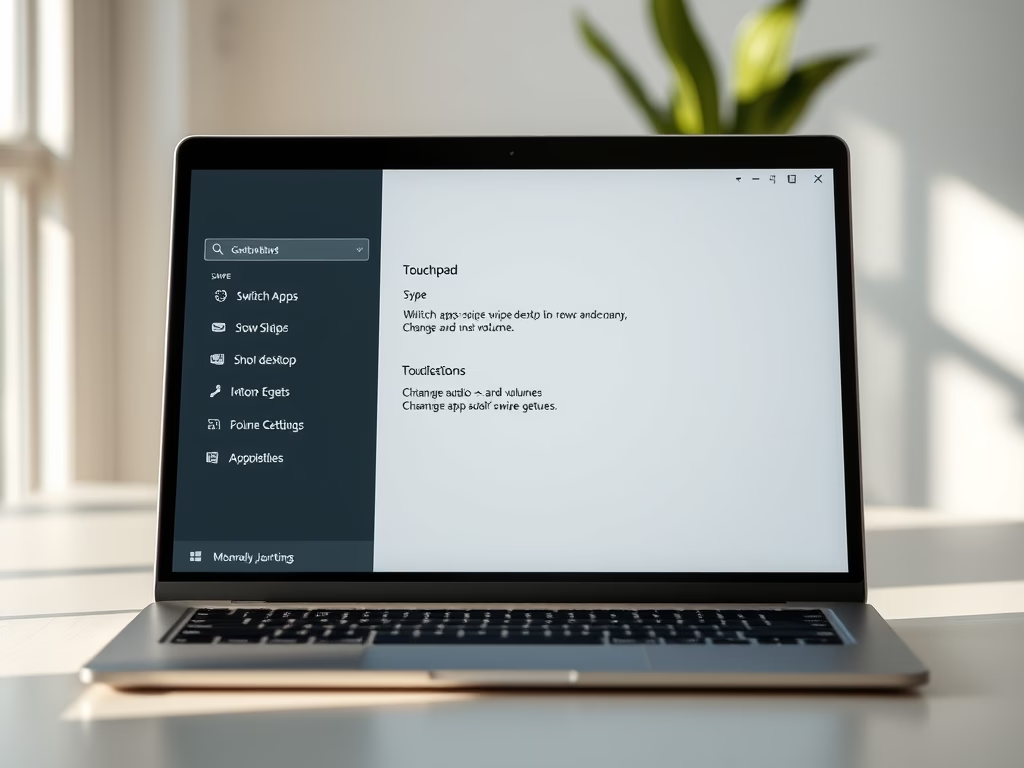
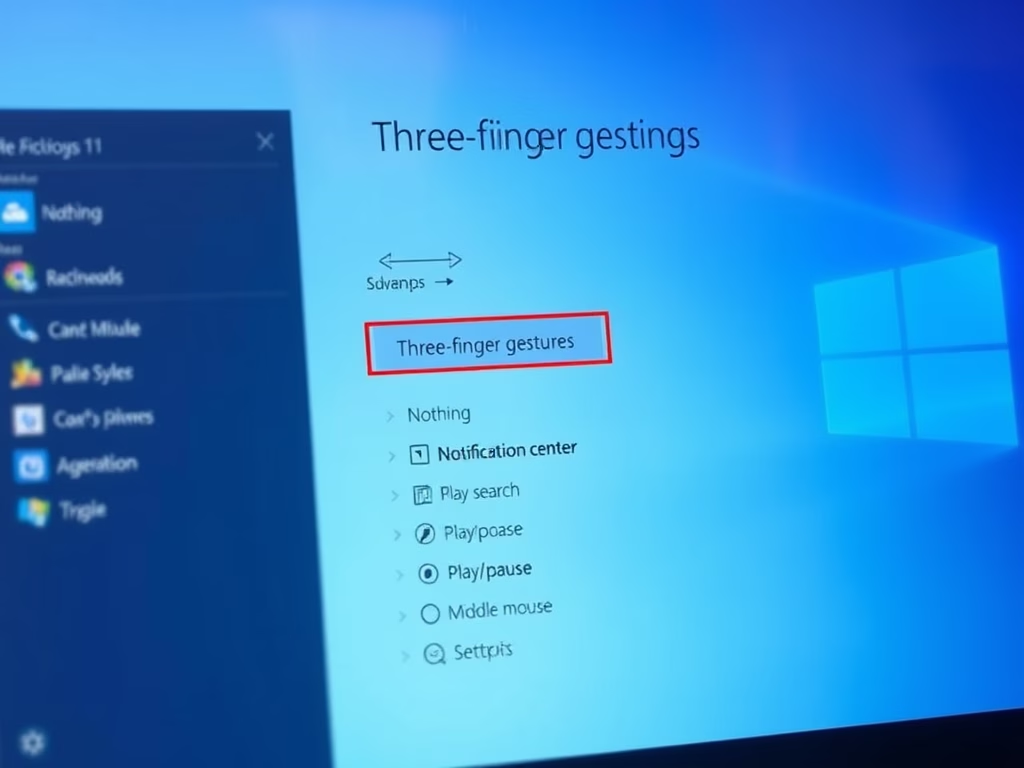
Once the basics feel natural, move on to the multi-finger gestures. These let you switch between apps, show the desktop, and move between virtual desktops without touching the keyboard.
You set them on the same Touchpad page, in the Three-finger gestures and Four-finger gestures sections. Each section has a Swipes dropdown and a Taps dropdown. Common choices for swipes are switching apps and showing the desktop, or switching desktops and showing the desktop. A tap can open search or the notification center, play or pause media, or act as a middle mouse click. Choose Nothing to turn a gesture off.

Advanced Touchpad Features
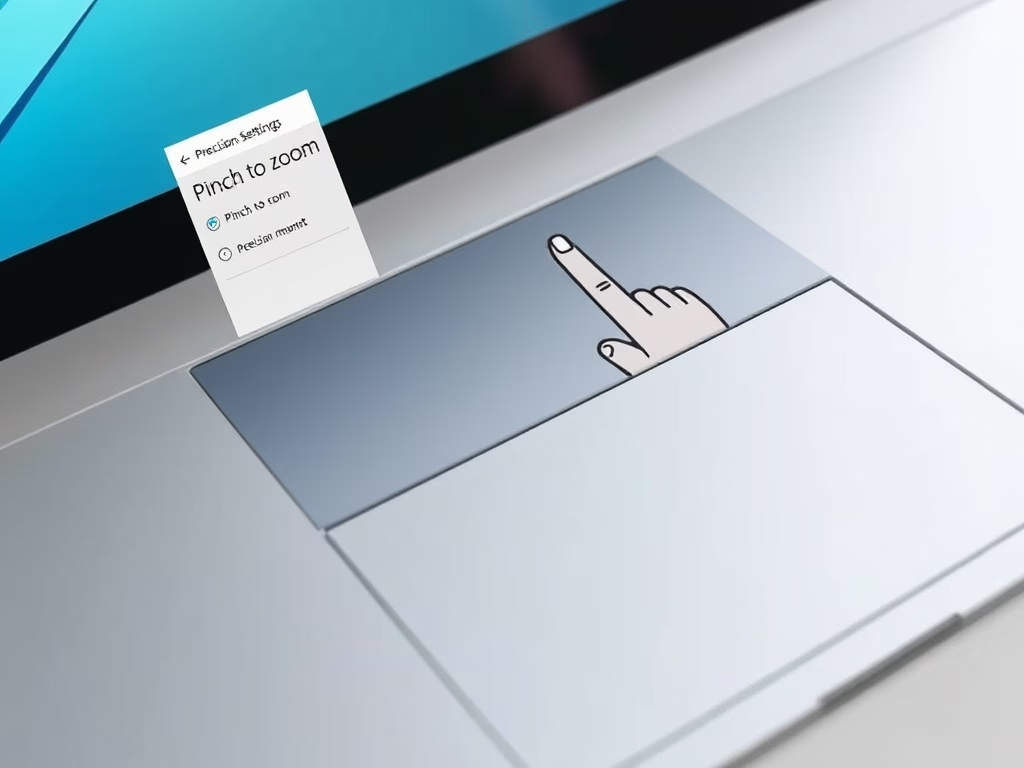
The more specialized settings give you finer control over how the touchpad responds. These cover tap and drag techniques for zooming, selecting several items at once, and tuning how sensitive the surface is to touch.
If the touchpad reacts to accidental brushes while you type, open the Touchpad sensitivity dropdown on the Touchpad page and pick a less sensitive level. If it feels sluggish, pick a more sensitive one.
Troubleshoot and Manage Your Touchpad
Most touchpad problems come down to a few quick checks: is the touchpad switched on, is a mouse connected, and are the settings what you expect? Know how to turn the touchpad on and off so you can rule these out fast.
If the touchpad is completely dead, also look for a function key on your keyboard with a touchpad icon. Many laptops use it to switch the touchpad off, and it is easy to press by accident. Restarting the laptop and updating the touchpad driver are the next things to try.
Common questions
How do I turn my touchpad on or off in 🪟 Windows 11?
Turning the touchpad on or off takes a few seconds in Settings. Follow these steps:
- Open the Settings app.
- Select Bluetooth & devices in the left pane.
- Click Touchpad. The touchpad options appear, with the main toggle at the top.
- Switch the Touchpad toggle on or off. The change takes effect straight away.
Clear it if you want the touchpad to turn itself off whenever you plug in or pair a mouse. Be careful when disabling the touchpad on a laptop with no mouse attached. If you do, you may need the keyboard (Tab, arrow keys, and Space) to turn it back on.
How do I change how fast my cursor moves?
You can speed up or slow down the pointer from the same page. To do it:
- Open Settings Bluetooth & devices Touchpad.
- Find the Cursor speed slider.
- Drag it to the right to make the pointer move faster, or to the left to slow it down.
- Move the cursor on screen to test it, and adjust until it feels right.
Small changes make a noticeable difference, so move the slider a little at a time.
How do I make scrolling work the other way?
To reverse which way the page moves when you scroll, follow these steps:
- Open Settings Bluetooth & devices Touchpad.
- Expand the Scroll & zoom section.
- Open the Scrolling direction dropdown.
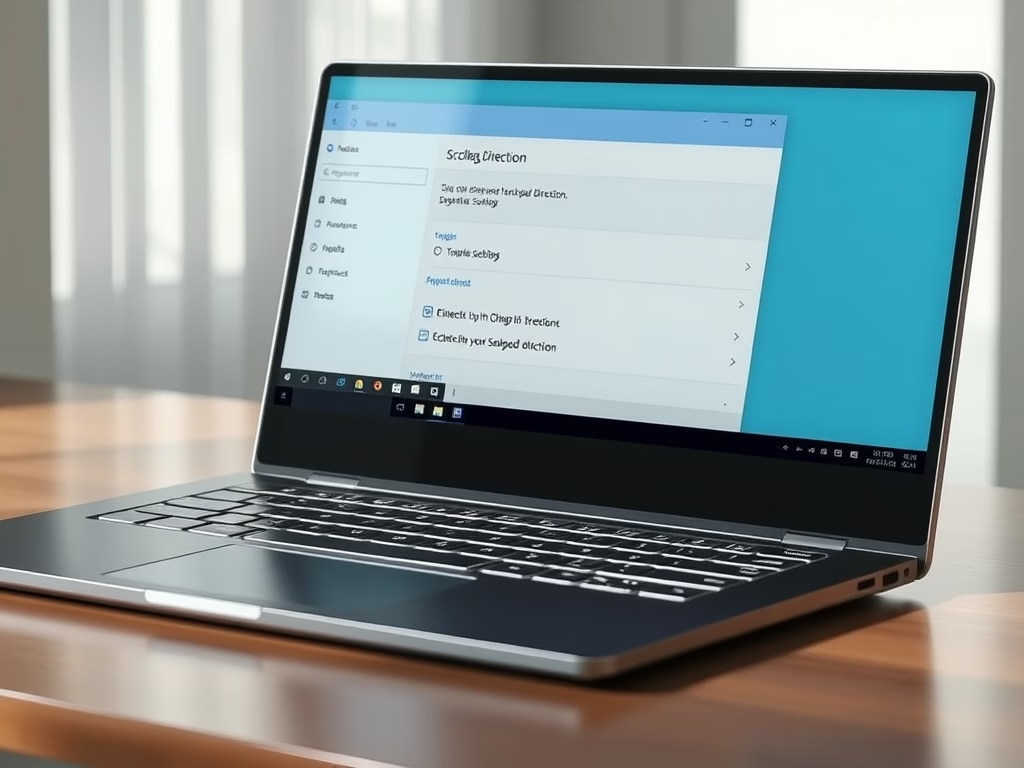
- Choose Down motion scrolls down or Down motion scrolls up. The second option gives the “natural” scrolling behavior used on phones and Macs.
How do I make pinch-to-zoom work on my touchpad?
Pinch-to-zoom is on by default, but you can check it in a few steps:
- Open Settings Bluetooth & devices Touchpad.
- Expand the Scroll & zoom section.
- Make sure Pinch to zoom is ticked.
- Open a photo, a web page, or a PDF and move two fingers together or apart to confirm it works.
Pinch-to-zoom only works in apps that support zooming. If it does nothing in one app but works in another, the setting is fine and the app is the limitation.
How do I right-click with my touchpad?
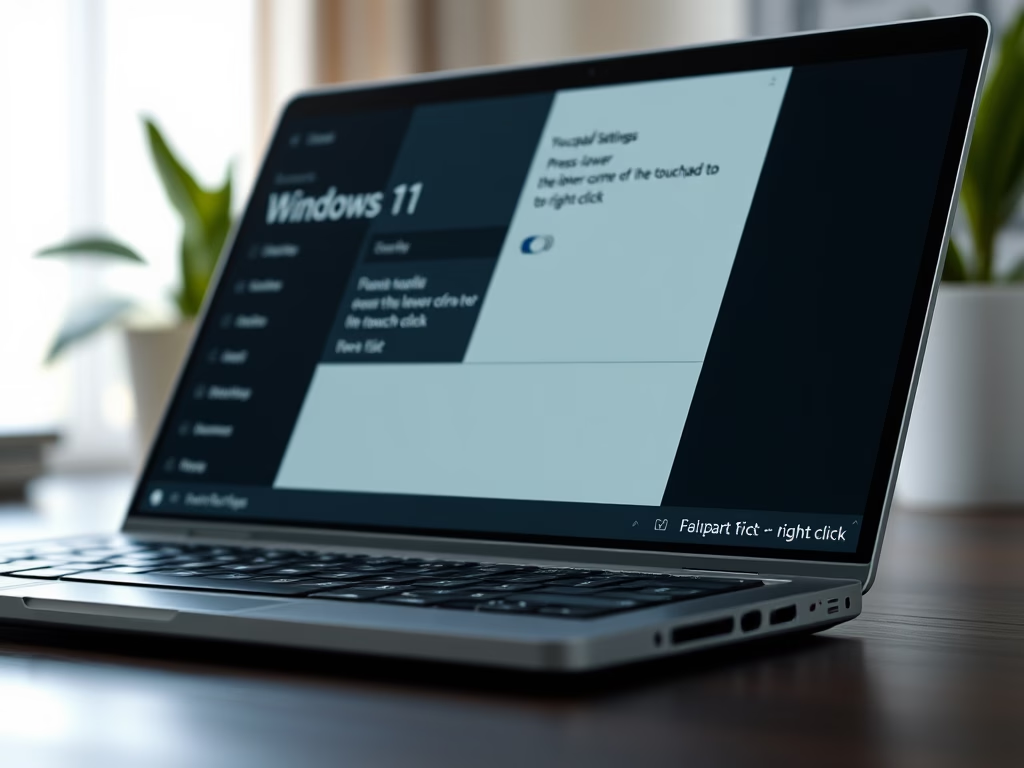
Windows gives you two ways to right-click on the touchpad, and you can use either or both. Pressing the lower-right corner of the surface opens the context menu, and so does tapping with two fingers at once. Both are controlled in the Touchpad settings.
- Open Settings Bluetooth & devices Touchpad.
- Expand the Taps section.
- Tick or clear Two-finger tap to right-click.
- Tick or clear Press the lower right corner of the touchpad to right-click.
- Right-click a file on the desktop to test it. A context menu should appear.
If right-clicking triggers by accident while you type, clear the option you use least. If a gesture works on one laptop but not another, the touchpad hardware may not support it.
Have a question about this guide?
Answered by AI from this guide. Good questions may be added to this page — please don't include personal details.
Did this guide fix your problem?

About the Author
Richard
Tech Writer, IT Professional
Richard is a writer at Geek Rewind who turns complex IT tasks into clear, step-by-step guides. He draws on years of hands-on experience in system administration and enterprise IT operations, focusing on Windows, Linux and WordPress: the problems people actually run into, and the fixes that work. His server and WordPress guides come from systems he runs himself. Richard builds and maintains the platform behind Geek Rewind, from its Ubuntu servers and Nginx configuration to its custom WordPress plugins. Many new tutorials start with readers' questions, and he's always glad to answer them in the comments.
No comments yet — be the first to share your thoughts!