How to Restore Touchpad Gestures to Default in Windows 11


Restoring touchpad gestures in Windows 11 clears out your custom taps and swipes and puts all multi-finger shortcuts back to factory settings. Touchpad gestures are the trackpad shortcuts that speed up daily tasks, such as three fingers to switch between open apps or four fingers to open Task View.
Windows 11 includes roughly 15 built-in gestures for scrolling, zooming, and switching screens. Resetting them fixes strange tracking glitches. It also gives you a clean slate when your custom trackpad settings stop working right. This guide covers three methods, from the mildest to the most thorough: the Settings app, a driver reinstall in Device Manager, and a registry cleanup.
Open Settings , go to Bluetooth & devices, select Touchpad, turn off the main toggle, click Reset, then turn the toggle back on. Your gestures return to factory defaults with no restart needed.
Why reset your touchpad gestures?
Multi-finger swipes often stop working when a driver glitches, and a reset clears out that bad data. Resetting also helps when gestures feel slow or broken. It removes old data that can cause errors, such as accidental setting changes.
Typical signs that a reset is worth trying are a three-finger swipe that does nothing, pinch-to-zoom that jumps around, scrolling that runs in the wrong direction, or taps that register as clicks. Start with the Settings method, because it is the quickest and the easiest to undo. Move on to the driver and registry methods only if the problem is still there.
What happens when you reset?
Your touchpad reverts to its factory state, much like when you first unboxed the laptop. Personal files remain completely untouched.
Expect to lose any changes you made to tap behavior, scrolling direction, pointer speed, and the three-finger and four-finger gesture assignments. Nothing is deleted from your account, and you can set your preferences again afterward on the same Touchpad page in Settings.
How to reset touchpad gestures in 🪟 Windows 11
You can reset touchpad gestures in Windows 11 to their original factory defaults through the Settings app. This fixes erratic scrolling, missing multi-finger taps, and swipe actions that stopped working properly. Open Settings, go to Bluetooth & devices, select Touchpad, and use the reset button to restore your default controls.
The steps below walk through it. No restart is needed for this method, and it works the same on Windows 11 Home and Pro.

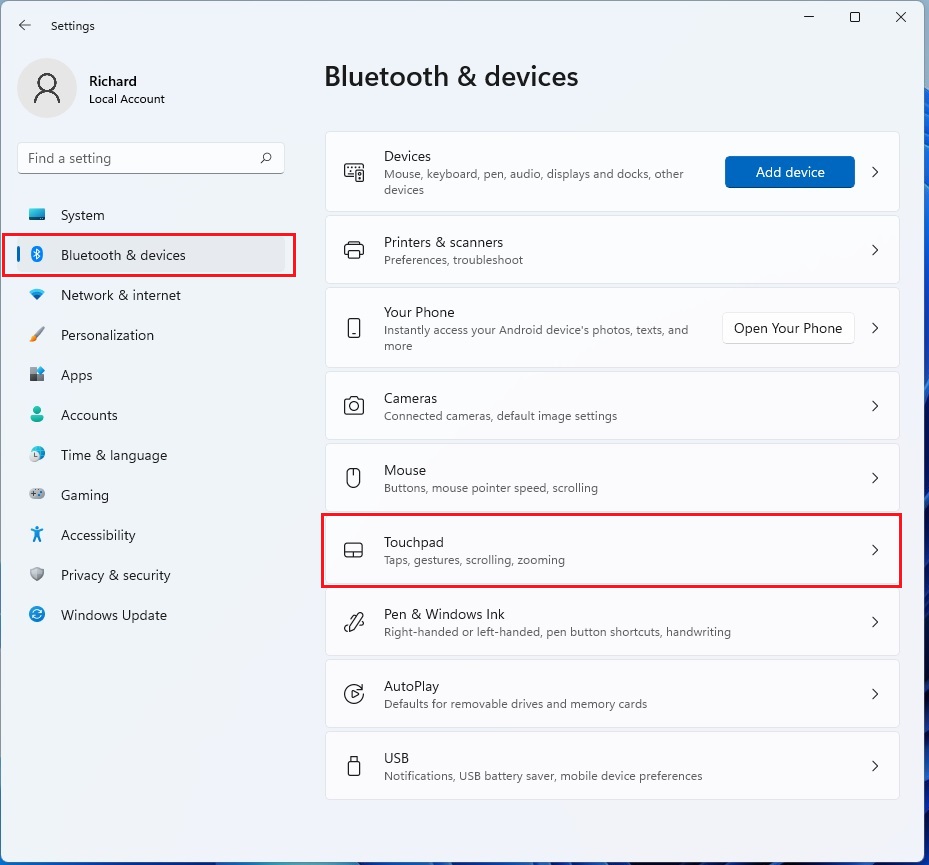
- Click Bluetooth & devices on the left. Open Settings first with Windows key + I if it is not already on screen. The path you are heading for is Settings Bluetooth & devices Touchpad
- Select the Touchpad tile. The touchpad settings page opens, with the main toggle at the top and the tap, scroll, and gesture options below it. If you don't see a Touchpad tile, Windows is not detecting a touchpad. This is common on desktop PCs, or when the touchpad is disabled in the BIOS.
If you are signed in with a standard account, Windows may ask for an administrator password, or the options may be greyed out.
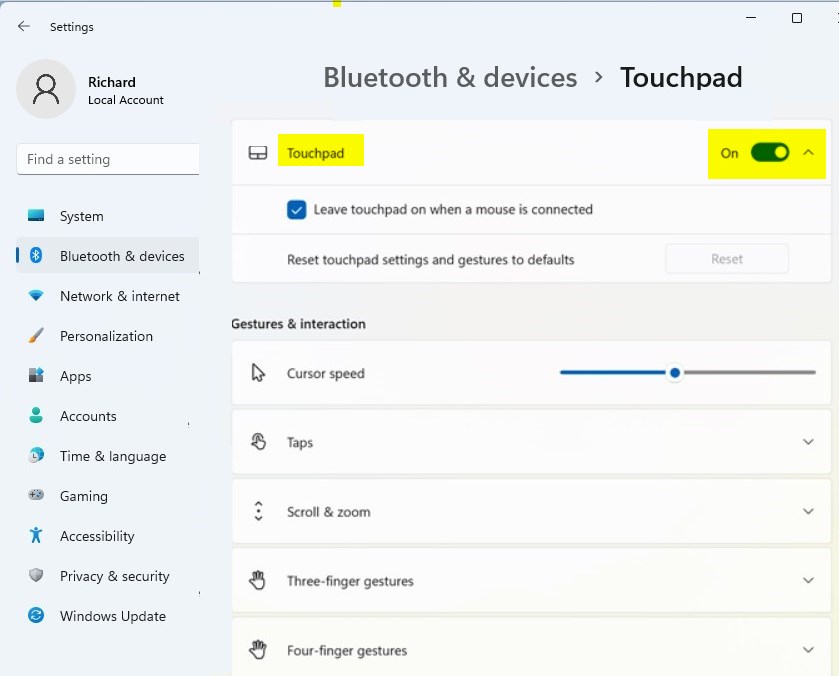
Find the main toggle at the top and turn it Off. A Reset button will then appear; click it to finish.
- Switch the main Touchpad toggle to Off. The touchpad stops responding, so keep a USB or Bluetooth mouse nearby, or use the keyboard and Tab key to move around.
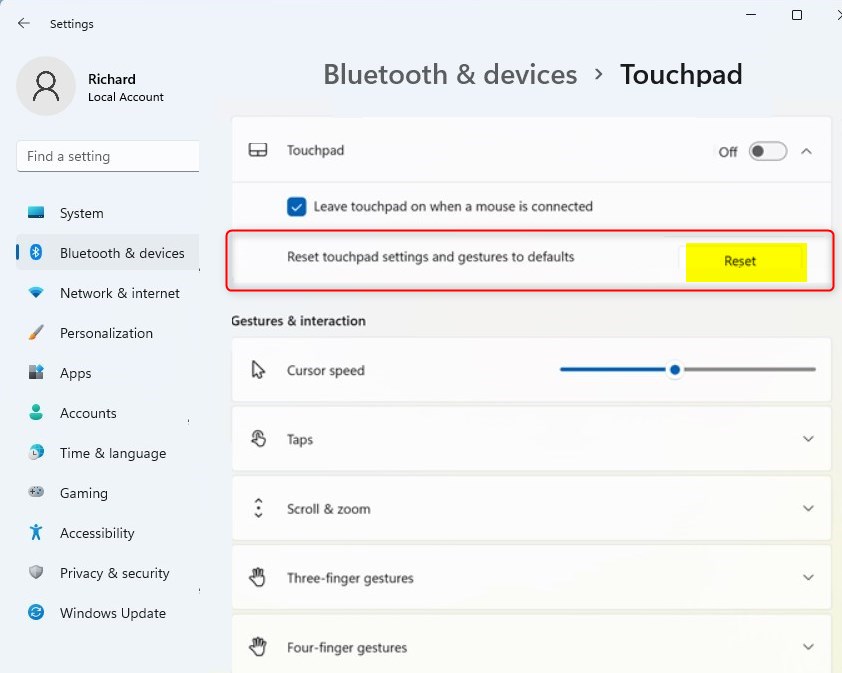
- Click the Reset button that appears. If you don't see it, expand the Touchpad section on the same page.
- Switch the main toggle back to On so the touchpad works again.
Your gestures should now be back at their defaults. If you want to undo the reset, there is no restore button. You re-enter your preferred settings by hand on the same page.
After the reset, test the gestures before you change anything. Try a two-finger scroll, a two-finger pinch, a three-finger swipe, and a four-finger swipe on an empty desktop. If they now behave, you can adjust individual options one at a time on the Touchpad page, so you can spot which change causes a problem.
If the Reset button is missing, greyed out, or the gestures still misbehave, the cause is probably the driver rather than the settings. In that case, move on to the Device Manager method below, which replaces the driver itself.
Advanced Troubleshooting: Device Manager
You can fix stubborn touchpad problems by using Device Manager to uninstall and reinstall your touchpad driver. Windows automatically detects the hardware and puts a fresh driver in place when you restart your computer. That clears out corrupted files that block your gestures from working.
This method needs an administrator account and a restart. Have a USB or Bluetooth mouse ready, because the touchpad may not respond until Windows has reinstalled the driver.
- Right-click the Start button and select Device Manager. The Device Manager window opens with a list of hardware categories.
- Expand Mice and other pointing devices. Your touchpad is listed here, often under a vendor name or as a generic HID device.
- Right-click your HID-compliant mouse or touchpad driver and select Uninstall device. Confirm the prompt that appears. If you also have a real mouse plugged in, check the entry's name or properties first so you remove the touchpad and not the mouse.
- Restart your computer. Windows will automatically reinstall the driver. When you sign back in, the touchpad should work again with default gesture settings. If it doesn't, run Windows Update or install the driver from your laptop maker's support page.
Registry Fix for Touchpad Issues
You can force a deep reset of your touchpad configuration by deleting specific saved values inside Registry Editor, a central database for system and app settings. This clears out corrupted gesture profiles that survive normal settings changes and driver reinstalls, giving your touchpad a clean slate.
Treat this as the last resort. A wrong deletion in the registry can cause other problems, so back up first. Registry Editor is available on both Home and Pro, and you need an administrator account.
Registry Editor handles this manual task. Press Windows key + R, type regedit, and press Enter. If a User Account Control prompt appears, click Yes. The Registry Editor window opens with a folder tree on the left.
Before you change anything, create a backup. Click File Export, choose Selected branch once you have the right folder selected, and save the file somewhere you can find it. To undo your changes later, double-click that file and confirm the merge.
HKEY_CURRENT_USER\Software\Microsoft\Windows\CurrentVersion\PrecisionTouchPad
Delete the keys inside this folder to force the reset. Select each key, press Delete, and confirm. Only remove what is inside the folder, not the folder itself. Restart the computer afterward so Windows rebuilds the default values the next time the touchpad loads.
Difference Between Precision and Standard Drivers
A Precision Touchpad is a special design from Microsoft that offers smooth, multi-finger gestures. Standard hardware often relies on separate vendor software; Synaptics is a common example. Precision drivers are built directly into Windows 11, which makes them more stable and manageable.
To tell which kind you have, open Settings Bluetooth & devices Touchpad If you see the full set of tap, scroll and zoom, three-finger and four-finger options, Windows controls your touchpad directly and the methods above apply. If the page shows few options, your laptop likely uses vendor software. In that case, look for its own settings window, usually in the Mouse properties or the system tray, and use its reset option as well.
Summary
Resetting a touchpad in Windows 11 clears out stubborn navigation problems. Start with the reset button in Settings, then reinstall the driver in Device Manager, and use the registry only if nothing else works. After each step, test your gestures before moving on to the next one.
Was this guide helpful?

About the Author
Richard
Tech Writer, IT Professional
Richard is a writer at Geek Rewind who turns complex IT tasks into clear, step-by-step guides. He draws on years of hands-on experience in system administration and enterprise IT operations, focusing on Windows, Linux and WordPress: the problems people actually run into, and the fixes that work. His server and WordPress guides come from systems he runs himself. Richard builds and maintains the platform behind Geek Rewind, from its Ubuntu servers and Nginx configuration to its custom WordPress plugins. Many new tutorials start with readers' questions, and he's always glad to answer them in the comments.



I tryed a new mouse a tech 1 gaming mouse , whenI scrolled up or down it would go straight to the top or bottom with nothing in between. I put my old one back and its doing it too.