How to Change Touchpad Three-Finger Swipe Gestures in Windows 11


Three-finger swipe gestures in Windows 11 let you switch between open apps, show your desktop, or change audio volume by sliding three fingers across your laptop touchpad. Most modern Windows 11 laptops support these shortcuts out of the box if they have a precision touchpad.
You can change what each swipe does to match how you work. Once the gestures are set up the way you like, you save a lot of trips to the mouse or the taskbar . The change works the same on Windows 11 Home and Pro.
Open Settings with Win+I, go to Bluetooth & devices, click Touchpad, expand Three-finger gestures, then choose your preferred action from the Swipes dropdown menu. The change takes effect immediately.
Option One
Change Touchpad Three-finger Swipe Gestures in Settings
The easiest way to change touchpad gestures is the built-in Settings app . In short, press Win+I to open Settings , go to Bluetooth & devices, and click Touchpad. Then expand the Three-finger gestures section, find Swipes, and pick the action you want from the dropdown menu.
The numbered steps below walk through each screen. After you pick an option, the change takes effect straight away. You do not need to restart or click a Save button, so you can test the new swipe right after choosing it.
Check for driver updates from Windows Update or your laptop maker. Desktop PCs with an external mouse and no touchpad will not show these settings at all.
- Open Settings by pressing
Win+I. - Click on Bluetooth & devices on the left side. Then click on Touchpad on the right side. Open Touchpad settings
- Click on Three-finger gestures to open it.
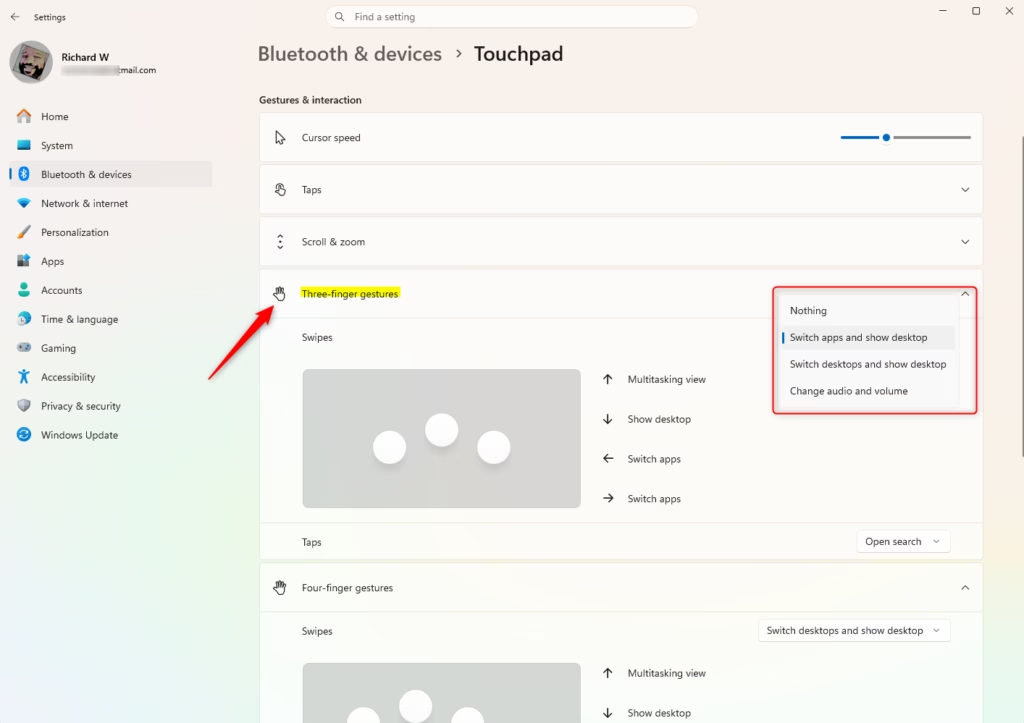
- Choose what you want from the Swipes dropdown menu. Your options are:
- Nothing
- Switch apps and show desktop (this is the default)
- Switch desktops and show desktop
- Change audio and volume
- You can now close Settings.
The Swipes dropdown offers four choices:
- Nothing: turns three-finger swipes off completely. Choose this if you keep triggering them by accident.
- Switch apps and show desktop: this is the default. Swipe left or right to move between open apps, swipe up for Task View, and swipe down to show the desktop.
- Switch desktops and show desktop: swipe left or right to move between your virtual desktops instead of apps. Swiping down still shows the desktop.
- Change audio and volume: swipe up or down to raise or lower the volume.
To undo any change, go back to the same dropdown and choose Switch apps and show desktop to return to the default.
Option Two
Change Touchpad Three-finger Swipe Gestures Using Registry
You can also change the three-finger swipe setting with Registry Editor. This is the advanced route. Use it if you cannot get to the Settings page, or if you want to apply the setting by editing the value directly. The registry value controls the same option as the Swipes dropdown, so the result looks the same in Settings afterwards.
Registry Editor will ask for administrator approval when it opens. Apply each entry exactly as written. A typo in a registry entry can cause errors or simply have no effect. If the swipe does not change right away, sign out and back in, or restart your PC, then test again.
Pick only one of the four options below. The last one you apply is the one Windows will use.
Change Touchpad Three-finger Swipe Gestures to "Nothing"
reg add "HKEY_CURRENT_USER\Software\Microsoft\Windows\CurrentVersion\PrecisionTouchPad" /v ThreeFingerSlideEnabled /t REG_DWORD /d 0 /f
Change Touchpad Three-finger Swipe Gestures to "Switch apps and show desktop"
This is the default setting. Use it to go back to Windows' standard behavior if you have changed it.
reg add "HKEY_CURRENT_USER\Software\Microsoft\Windows\CurrentVersion\PrecisionTouchPad" /v ThreeFingerSlideEnabled /t REG_DWORD /d 1 /f
Change Touchpad Three-finger Swipe Gestures to "Switch desktops and show desktop"
reg add "HKEY_CURRENT_USER\Software\Microsoft\Windows\CurrentVersion\PrecisionTouchPad" /v ThreeFingerSlideEnabled /t REG_DWORD /d 2 /f
Change Touchpad Three-finger Swipe Gestures to "Change audio and volume"
reg add "HKEY_CURRENT_USER\Software\Microsoft\Windows\CurrentVersion\PrecisionTouchPad" /v ThreeFingerSlideEnabled /t REG_DWORD /d 3 /f
Summary
To sum up, you can configure touchpad gestures in Windows 11 in two ways. The Settings app is the simplest and safest choice for most people, and it is the one to try first. Registry Editor gives you the same control through direct edits, but it takes more care and is best kept as a backup option.
Have a question about this guide?
Answered by AI from this guide. Good questions may be added to this page — please don't include personal details.
Did this guide fix your problem?

About the Author
Richard
Tech Writer, IT Professional
Richard is a writer at Geek Rewind who turns complex IT tasks into clear, step-by-step guides. He draws on years of hands-on experience in system administration and enterprise IT operations, focusing on Windows, Linux and WordPress: the problems people actually run into, and the fixes that work. His server and WordPress guides come from systems he runs himself. Richard builds and maintains the platform behind Geek Rewind, from its Ubuntu servers and Nginx configuration to its custom WordPress plugins. Many new tutorials start with readers' questions, and he's always glad to answer them in the comments.
No comments yet — be the first to share your thoughts!