How to Change Touchpad Three-Finger Tap Gesture in Windows 11


The three-finger tap gesture in Windows 11 runs an action when you tap three fingers on your laptop touchpad at once. By default it opens Search. You can change it to open the notification center, play or pause media, act as a middle mouse button click, or do nothing at all.
This works on any laptop with a precision touchpad, which covers almost all modern Windows 11 laptops. The Settings method is the same on Home and Pro. The registry method also works on both editions.
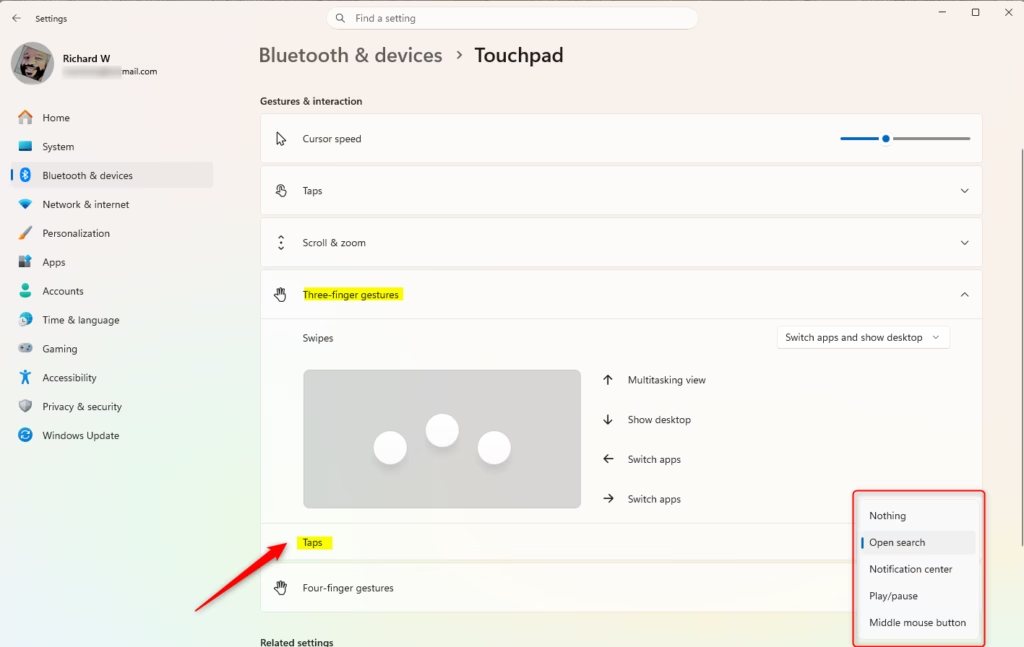
Navigate to Settings, then Bluetooth & devices, and click Touchpad. Expand Three-finger gestures and select your desired action from the Taps dropdown menu.
Change Touchpad Three-finger Tap Gesture in Settings
The Settings app is the simplest way to change the gesture. You do not need any extra software, and the change applies as soon as you pick an option.
- Press Win+I to open Settings.
- Click Bluetooth & devices in the left pane. The device list appears on the right.
- Click Touchpad. You should see the touchpad options, including sections for scrolling, zooming and gestures.
- Click Three-finger gestures to expand the section.
- Open the Taps drop-down menu and select one option:
- Nothing turns the tap off.
- Open search is the default.
- Notification center opens notifications and the calendar.
- Play/pause controls the media that is playing.
- Middle mouse button sends a middle click.
- Close Settings. No restart or sign-out is needed.
Test it by tapping three fingers on the touchpad. The action you chose should run. To undo the change, go back to the same menu and select Open search.
If you do not see Touchpad under Bluetooth & devices, Windows has not detected a touchpad. This is normal on a desktop PC with no touchpad. On a laptop, check that the touchpad is not disabled. If the Three-finger gestures section is missing, the touchpad is probably not a precision touchpad, or its driver is generic. Installing the latest touchpad driver from your laptop maker or Windows Update often fixes this.
Option Two
Change Touchpad Three-finger Tap Gesture using Registry
You can also set the gesture through the Registry Editor, the database where Windows stores low-level settings. This method suits you if you want to apply the same setting on several PCs or script the change. For a single PC, the Settings app is easier and safer.
Be careful here. A wrong edit in the registry can cause system problems. Before you change anything, create a restore point or export a backup of the registry. Use only the item listed under the option you want, and apply one option at a time. Sign out and back in, or restart the PC, if the gesture does not change right away.
Set Touchpad Three-finger Tap Gesture to "Nothing"
Use the item below to turn the three-finger tap off completely.
reg add "HKEY_CURRENT_USER\Software\Microsoft\Windows\CurrentVersion\PrecisionTouchPad" /v ThreeFingerTapEnabled /t REG_DWORD /d 0 /f
Set Touchpad Three-finger Tap Gesture to "Open search"
Use the item below to bring back the default behavior, where the tap opens Search. This is also how you undo any of the other options.
reg add "HKEY_CURRENT_USER\Software\Microsoft\Windows\CurrentVersion\PrecisionTouchPad" /v ThreeFingerTapEnabled /t REG_DWORD /d 1 /f
Set Touchpad Three-finger Tap Gesture to "Notification center"
Use the item below to make the tap open the notification center.
reg add "HKEY_CURRENT_USER\Software\Microsoft\Windows\CurrentVersion\PrecisionTouchPad" /v ThreeFingerTapEnabled /t REG_DWORD /d 2 /f
Set Touchpad Three-finger Tap Gesture to "Play/pause"
Use the item below to make the tap play or pause media.
reg add "HKEY_CURRENT_USER\Software\Microsoft\Windows\CurrentVersion\PrecisionTouchPad" /v ThreeFingerTapEnabled /t REG_DWORD /d 3 /f
Set Touchpad Three-finger Tap Gesture to "Middle mouse button"
Use the item below to make the tap act as a middle mouse button click.
reg add "HKEY_CURRENT_USER\Software\Microsoft\Windows\CurrentVersion\PrecisionTouchPad" /v ThreeFingerTapEnabled /t REG_DWORD /d 4 /f
Summary
In short, you can change touchpad behavior in two ways. The Settings app is the quickest and safest. Direct registry changes give you more control, but they need more care. After either method, tap with three fingers to confirm the gesture does what you expect.
Have a question about this guide?
Answered by AI from this guide. Good questions may be added to this page — please don't include personal details.
Did this guide fix your problem?

About the Author
Richard
Tech Writer, IT Professional
Richard is a writer at Geek Rewind who turns complex IT tasks into clear, step-by-step guides. He draws on years of hands-on experience in system administration and enterprise IT operations, focusing on Windows, Linux and WordPress: the problems people actually run into, and the fixes that work. His server and WordPress guides come from systems he runs himself. Richard builds and maintains the platform behind Geek Rewind, from its Ubuntu servers and Nginx configuration to its custom WordPress plugins. Many new tutorials start with readers' questions, and he's always glad to answer them in the comments.
No comments yet — be the first to share your thoughts!