How to Change Touchpad Scroll Speed In Windows 11

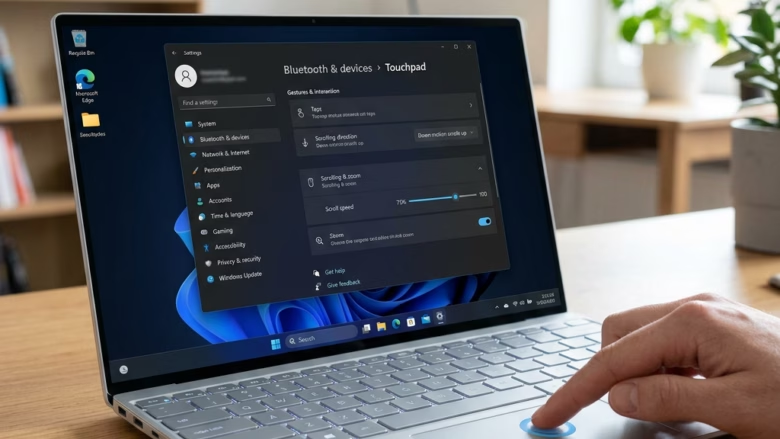
Touchpad scroll speed in Windows 11 controls how fast web pages and documents move when you slide your fingers across your laptop trackpad. Windows relies on built-in drivers (small background programs that help your computer talk to your hardware) to handle these gestures and let you adjust the speed.
You can change this setting by opening Settings Bluetooth & devices Touchpad and moving the scroll speed slider. Faster settings let you jump through long pages quickly, while slower settings give you close control over text.
This guide covers four ways to do it: the Settings app , a driver update, the Registry Editor, and your laptop maker’s own software. Start with Settings. Move on only if the slider is missing or doesn’t give you the result you want.
Adjust your touchpad scroll speed in Windows 11 by going to Settings Bluetooth & devices Touchpad. Expand the “Scroll & zoom” section and move the “Scroll speed” slider to your desired level. This setting controls how quickly the screen moves when you scroll with two fingers.
Change Touchpad Scroll Speed in Settings
The Settings app is the quickest way to make scrolling faster or slower. It works on both Windows 11 Home and Pro, and it needs no restart. It applies to laptops with a Precision Touchpad, which most modern Windows laptops have. If your touchpad is older or uses a basic driver, some options below may not appear.
- Press Win+I to open Settings. The Settings window opens.
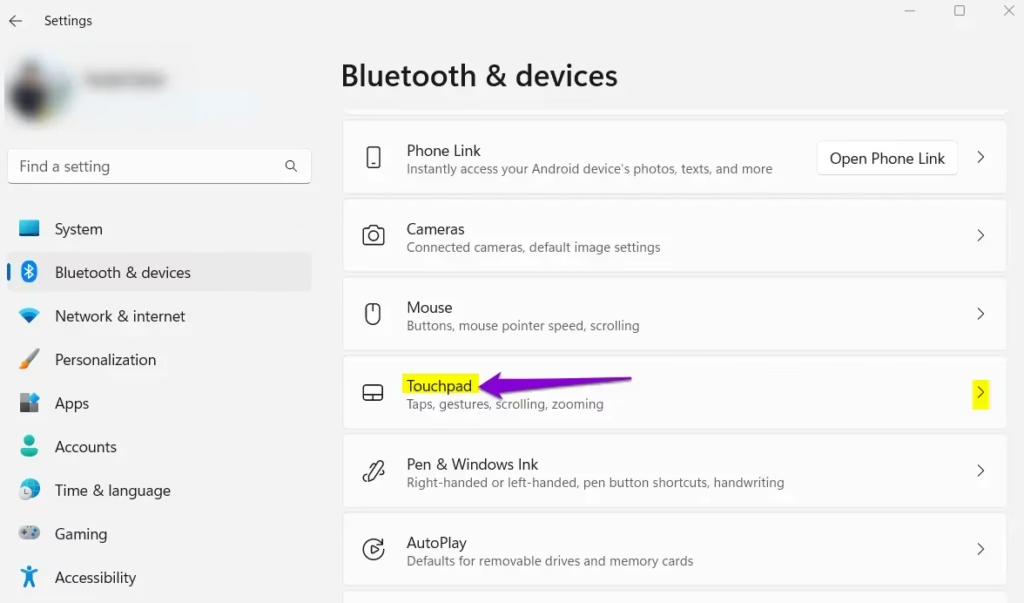
- Select Bluetooth & devices in the left pane, then click Touchpad. You should see the touchpad options, starting with a Touchpad on/off toggle.
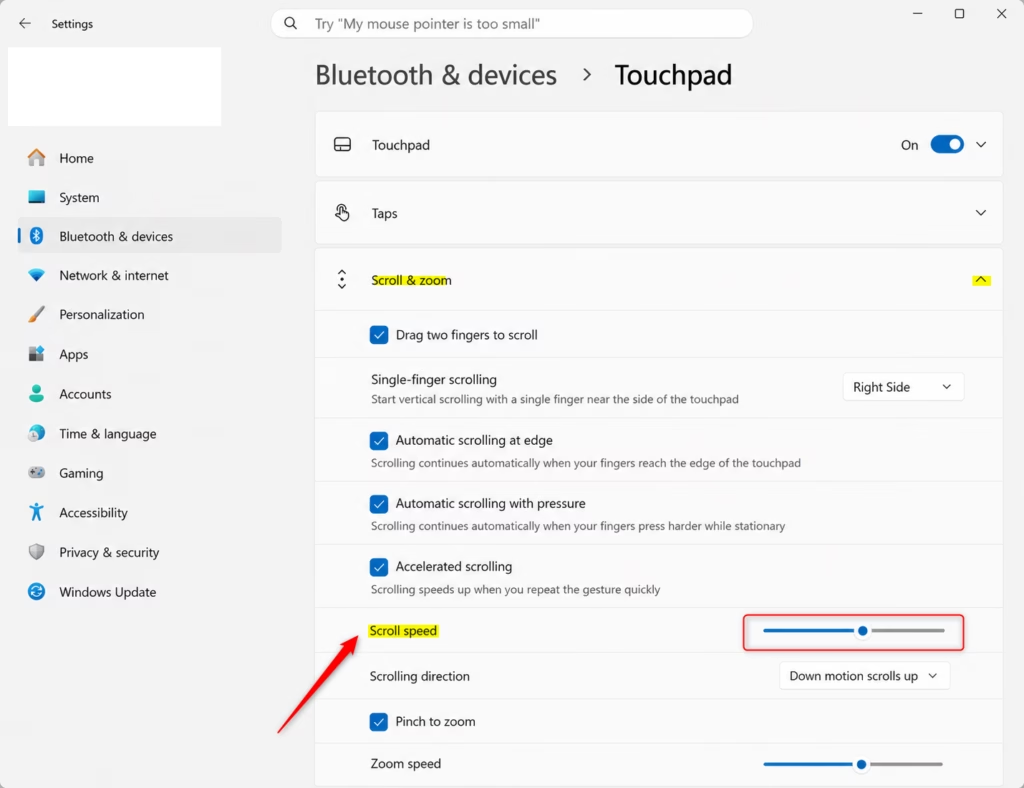
- Click Scroll & zoom to expand the section. If it is already open, leave it as it is. The scrolling options appear underneath.
- Move the Scroll speed slider to the level you want. The default is 5.
The change applies right away. Open a long web page or document and scroll with two fingers to test it. Adjust the slider a notch at a time until it feels right. To undo the change, put the slider back on 5.
If the Touchpad page is missing, or there is no Scroll speed slider, your laptop may not have a Precision Touchpad, or the driver may be out of date. The next section covers the driver. If the touchpad options look greyed out, check that the Touchpad toggle at the top of the page is switched on.
Check for Driver Updates (Admin Required)
Updating your touchpad drivers can fix problems where you cannot change touchpad speed or where scrolling feels jumpy. Drivers act as translators between your hardware and Windows 11. Installing the latest version through Device Manager helps keep the touchpad working properly and gives you back full control over your scroll settings.
- Right-click the Start button and select Device Manager. The Device Manager window opens with a list of hardware categories.
- Expand Mice and other pointing devices by clicking the arrow next to it.
- Right-click your touchpad (for example, HID-compliant mouse or a Synaptics device) and select Update driver. If several entries are listed, the touchpad is usually the one with a brand name such as Synaptics, ELAN or your laptop maker’s name.
- Choose Search automatically for drivers. Windows looks for a newer driver and installs it if it finds one.
If Windows says the best driver is already installed, that only means it found nothing newer in its own catalog. Your laptop maker’s support page may still have a newer touchpad driver for your exact model. Restart the computer after any driver install, even if Windows doesn’t ask you to. Then check Settings Bluetooth & devices Touchpad again.
Change Touchpad Scroll Speed in Registry Editor (Admin Required)
You can go beyond the limits of the Settings app by editing the Windows registry. Registry Editor lets you set your scroll speed to an exact number if the standard slider does not go fast or slow enough. Registry changes can cause problems if you edit the wrong value, so change only the one value described here. Registry Editor works the same way on Home and Pro.
- Press Win+R, type regedit, and press Enter. Click Yes if User Account Control asks for permission. Registry Editor opens.
- Before you change anything, back up the registry. Click File Export, choose a location, and save the file. You can double-click that file later to restore the old settings.
- Navigate to:
HKEY_CURRENT_USER\Software\Microsoft\Windows\CurrentVersion\PrecisionTouchPad - In the right-hand pane, find and double-click the ‘PanSensitivity’ setting. An edit window opens.
- Select Decimal and enter a value between 0 and 100. Click OK.
Close Registry Editor, then sign out and back in, or restart, so Windows reads the new value. If scrolling now feels wrong, open the same value again and enter a different number. To go back completely, import the file you exported in step 2.
Pro Tip: Manufacturer Control Panels
Many laptop makers, such as HP or Lenovo, have their own apps that let you change touchpad settings, often giving you more control than Windows itself. Look in the Start menu for your maker's support or touchpad app, or check the manufacturer's support page for your model. Settings changed in these apps may override what you set in Windows, so if the two seem to disagree, check the maker's app first.
Summary
Changing your touchpad scroll speed makes using Windows 11 easier. You can adjust it through Settings, driver updates, the Registry, or your laptop maker's special software. Try them in that order, and test scrolling after each change so you know which one made the difference.
Have a question about this guide?
Answered by AI from this guide. Good questions may be added to this page — please don't include personal details.
Did this guide fix your problem?

About the Author
Richard
Tech Writer, IT Professional
Richard is a writer at Geek Rewind who turns complex IT tasks into clear, step-by-step guides. He draws on years of hands-on experience in system administration and enterprise IT operations, focusing on Windows, Linux and WordPress: the problems people actually run into, and the fixes that work. His server and WordPress guides come from systems he runs himself. Richard builds and maintains the platform behind Geek Rewind, from its Ubuntu servers and Nginx configuration to its custom WordPress plugins. Many new tutorials start with readers' questions, and he's always glad to answer them in the comments.
No comments yet — be the first to share your thoughts!