Enable Two-Finger Scrolling on Your Touchpad in Windows 11

- 29 steps
- Needs administrator rights
- Includes a restart or sign-out
Two-finger scrolling and pinch to zoom are turned on in Settings Bluetooth & devices Touchpad, under the Scroll & zoom section. Tick Drag two fingers to scroll and Pinch to zoom, and both start working straight away. You do not need administrator rights or a restart.
These gestures let you scroll a page by sliding two fingers over the touchpad. Pinch two fingers together or apart to zoom in and out. The same Touchpad page also lets you reverse the scroll direction and turn the gestures off again.
This page shows you where to find the settings, how to scroll and zoom, and how to reverse the scroll direction. It also covers what to try if the options are missing or do nothing.
To turn on two-finger scroll and pinch zoom on a touchpad in Windows 11, open Settings, select Bluetooth & devices, then Touchpad. Expand Scroll & zoom, tick Drag two fingers to scroll and Pinch to zoom, and both work immediately. No administrator rights or restart are needed.
Before you start: check your touchpad supports it
The Scroll & zoom options appear only on a Precision Touchpad (a touchpad that uses Windows’ built-in driver and gesture support). Most laptops sold with Windows 11 have one. Older laptops, or ones running a manufacturer’s own touchpad driver, may show fewer options or a different settings window.
Open the Touchpad page in the next section. If it lists Scroll & zoom, you have what you need. If the page is missing or the section is absent, go to the troubleshooting section further down.
Turn on two-finger scrolling in Settings
This method takes under a minute and turns on the scroll gesture. It enables the scroll gesture and takes under a minute.
- Press Win+I to open Settings. You see the Settings window with a list of categories on the left.

Windows 11 Start menu with Settings gear icon highlighted. - Select Bluetooth & devices in the left-hand list.

Windows Settings menu highlighting the Bluetooth and devices option for printers - Select Touchpad. You see a page headed Touchpad with an on/off switch at the top. If you can’t find it, open Start, type touchpad settings and select the result.
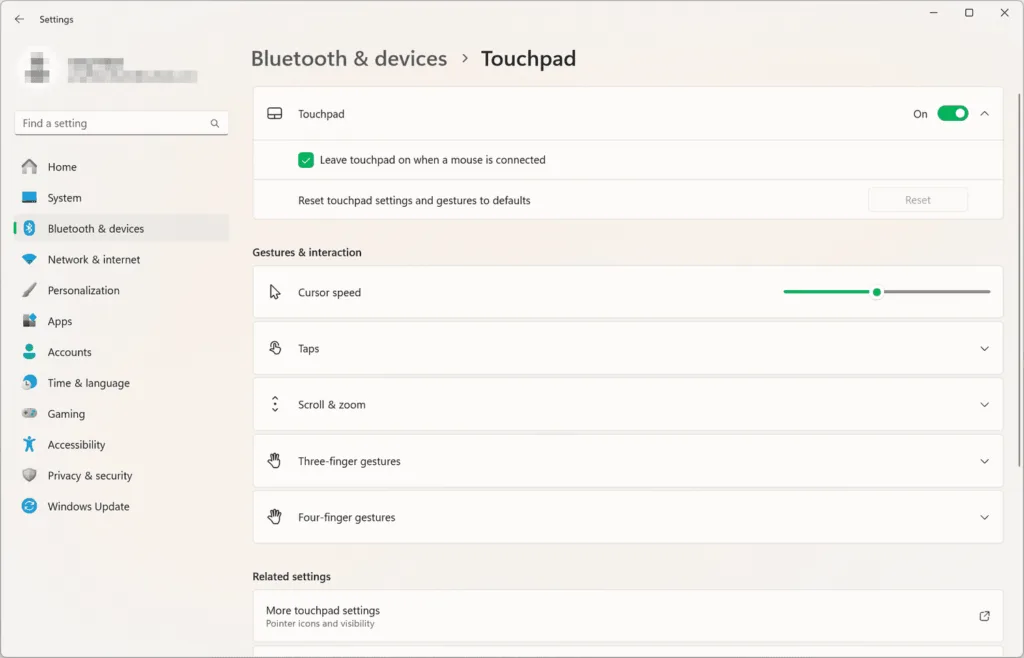
Settings › Bluetooth › Touchpad - Check that the Touchpad toggle is set to On. If it is off, the gestures below do nothing. Turn it on before you continue.
- Select Scroll & zoom to expand the section. Two options and a drop-down list appear.
- Tick the Drag two fingers to scroll check box. The change takes effect at once.
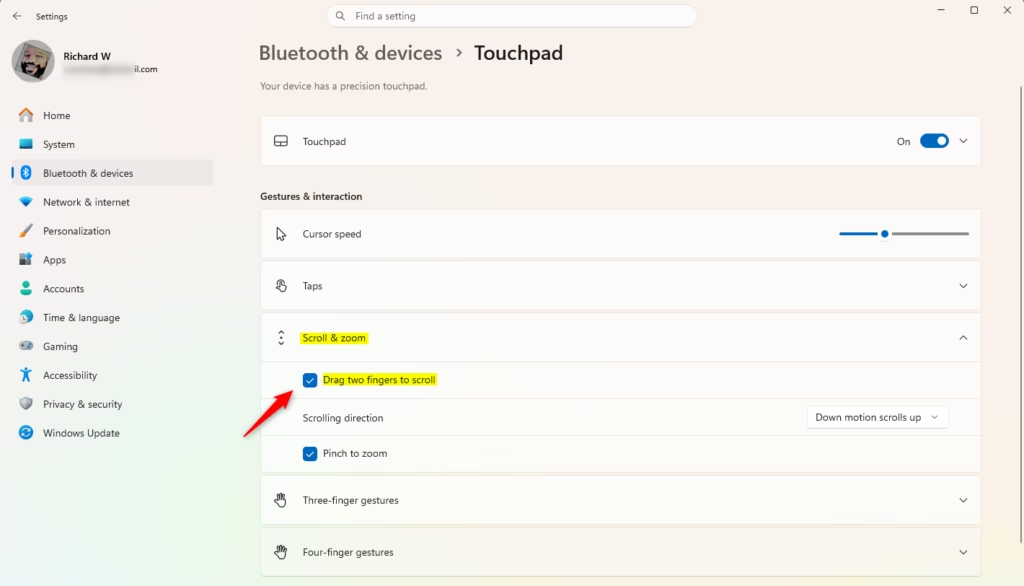
- Tick the Pinch to zoom check box if you also want pinch zoom. The next section explains this option.
- Open a long web page or document and place two fingers on the touchpad. Drag them up or down. The page now scrolls.
Settings saves each change as you make it. There is no Apply or OK button to find, and you can close the window when you finish.
Choose the scroll direction
This setting decides whether the page moves with your fingers or against them. If scrolling feels backwards, change it here.
- Go to Settings Bluetooth & devices Touchpad and expand Scroll & zoom.
- Open the Scrolling direction drop-down list.
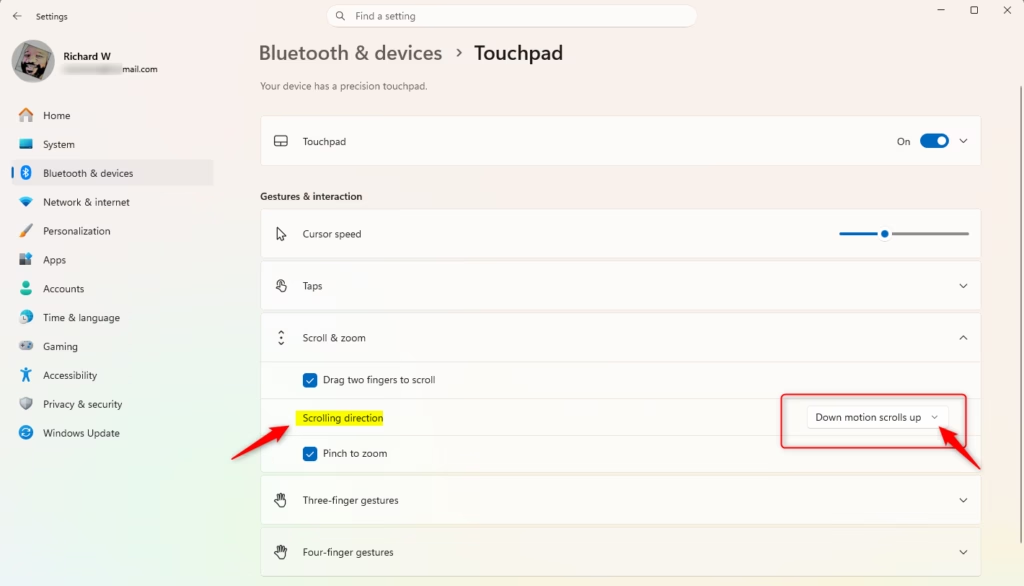
- Choose Down motion scrolls down or Down motion scrolls up.
- Test it with two fingers on a long page. If it still feels wrong, pick the other option.
People who also use a Mac or a phone often prefer Down motion scrolls up, because the page follows their fingers like a sheet of paper. Neither choice is more correct. Pick the one your hands expect.
Turn on pinch to zoom
Pinch to zoom lets you enlarge or shrink content by moving two fingers together or apart. Use the same Scroll & zoom section.
- Go to Settings Bluetooth & devices Touchpad and expand Scroll & zoom.
- Tick the Pinch to zoom check box.
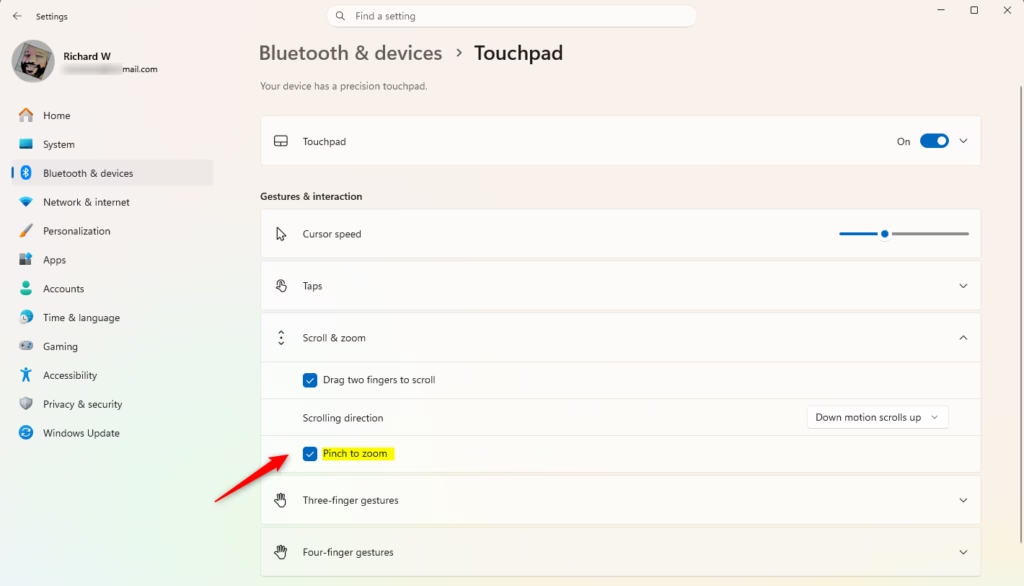
- Open a page in Microsoft Edge, or a picture in the Photos app.
- Place two fingers on the touchpad and move them apart to zoom in. Move them together to zoom out.
Use the gestures properly
Most failures come from technique rather than settings. Windows needs to see exactly two fingers touching the pad at the same time.
- ScrollRest two fingers lightly on the touchpad with a small gap between them. Slide both up or down together. Slide them left or right to scroll sideways in apps that scroll horizontally, such as a wide spreadsheet.
- ZoomPlace two fingers close together and spread them apart to zoom in. Pinch them toward each other to zoom out.
- Keep your palm clearA palm or thumb resting on the pad can register as a third touch. That cancels the two-finger gesture. Lift your hand slightly.
- Keep your fingers dry and cleanMoisture, lotion or a dirty pad makes touch detection unreliable.
If the cursor jumps when you start a scroll, try touching down with both fingers at the same moment. Touching one finger a fraction earlier moves the pointer first.
If Scroll & zoom is missing or does nothing
The sections below cover the usual reasons, starting with the quickest checks.
The touchpad is switched off
If the Touchpad toggle at the top of the page is off, gestures are disabled. Turn it on. Many laptops also have a key or a corner on the pad that switches the touchpad off. The key varies by maker. Look for a key with a touchpad icon in the top row of the keyboard, and press it alone or with Fn.
Also check the Leave touchpad on when a mouse is connected check box on the same page. If you clear it, Windows turns the touchpad off whenever a mouse is plugged in or paired. That makes the gestures look broken when the pad is just disabled. Tick the box if you want to use both.
The Touchpad page is missing or has fewer options
A missing Touchpad page means Windows doesn’t detect a touchpad. This is normal on a desktop PC with no touchpad, and often in a virtual machine (software that runs a second computer inside your own) or a remote desktop session. On a laptop it points to a driver problem. A missing Scroll & zoom section means your touchpad isn’t running as a Precision Touchpad, so Windows doesn’t expose those options.
Your manufacturer’s touchpad software controls the gestures
Some laptops use a driver from the touchpad maker instead of Windows’ own. Its settings live in a separate window. Look for them like this:
- Go to Settings Bluetooth & devices Mouse.
- Scroll to the related settings and select Additional mouse settings. The Mouse Properties window opens.
- Look for a tab such as Device Settings, or one carrying the touchpad maker’s name. Tabs vary by manufacturer.
- Open that tab and find the scrolling and pinch zoom options. Enable two-finger scrolling there.
If the tab isn’t there, check your laptop manufacturer’s support page for a touchpad driver for your exact model. I can’t confirm which software you have, because it differs from brand to brand.
Update or reinstall the touchpad driver (administrator required)
A damaged or outdated driver (the software that lets Windows use the touchpad) is the usual cause when gesture options are missing. This step needs administrator rights. Windows asks for your approval or an admin password.
- Right-click the Start button and select Device Manager. Device Manager is the tool that lists all hardware and its drivers.
- Expand Mice and other pointing devices.
- Right-click your touchpad entry. The name varies by laptop and may appear as a maker name or HID-compliant mouse. Select Update driver.
- Select Search automatically for drivers. If Windows finds a newer driver, it installs it. If it reports that the best driver is already installed, go to the next step.
- Restart your PC and check the Touchpad page again.
- In Device Manager, right-click the same touchpad entry and select Uninstall device.
- Confirm the prompt.
- Restart your PC. Windows detects the touchpad again and reinstalls a driver at startup.
- Open Settings Bluetooth & devices Touchpad and check for Scroll & zoom.
If Windows reinstalls only a basic driver, get the full touchpad driver from your laptop maker’s support page. Choose the download for your exact model. That is often what brings the full gesture options back.
Registry method
You don’t need the registry for this task. Windows stores Precision Touchpad settings for your account under a registry key. [Verification Required: Registry path should be confirmed] The Settings steps above apply the same change without a manual registry edit.
HKEY_CURRENT_USER\Software\Microsoft\Windows\CurrentVersion\PrecisionTouchPadThe value names and data for these options are not confirmed here. [Verification Required: value names and data should be confirmed] [Registry method: to be verified]. Use the Settings steps above. They apply the same change without risking a wrong edit.
Turn two-finger scrolling off again
The change is fully reversible. Go back to Settings Bluetooth & devices Touchpad, expand Scroll & zoom, and clear Drag two fingers to scroll, Pinch to zoom, or both. The change applies immediately. Your other touchpad settings stay as they are.
What to do next
If the gestures stop working after a driver update, reinstall or a large Windows update, recheck the Scroll & zoom options. A new driver can bring its own defaults. Once scrolling works, the same Touchpad page lets you set up the three-finger and four-finger gestures, which switch apps and desktops. It also has the Touchpad sensitivity setting for pads that register accidental touches.
Frequently asked questions
What are the names of all fingers?
Each hand has five fingers: the thumb, index finger, middle finger, ring finger, and little finger (also called the pinky). They are numbered one to five, starting with the thumb. Doctors sometimes call the thumb a digit rather than a finger, but most people count it as one.
What are the different types of fingers?
Anatomists group the digits into two types: the thumb and the four fingers. The thumb has two bones instead of three, and it can swing across the palm to touch the other fingertips. The index finger is used for pointing, the middle finger is the longest, and the little finger is the smallest.
Still have a question?
Answered by AI from this guide. Good questions may be added to this page — please don't include personal details.
Did this guide fix your problem?

About the Author
Richard
Tech Writer, IT Professional
Richard is a writer at Geek Rewind who turns complex IT tasks into clear, step-by-step guides. He draws on years of hands-on experience in system administration and enterprise IT operations, focusing on Windows, Linux and WordPress: the problems people actually run into, and the fixes that work. His server and WordPress guides come from systems he runs himself. Richard builds and maintains the platform behind Geek Rewind, from its Ubuntu servers and Nginx configuration to its custom WordPress plugins. Many new tutorials start with readers' questions, and he's always glad to answer them in the comments.
No comments yet — be the first to share your thoughts!