How to Change Touchpad Scrolling Direction in Windows 11

Touchpad scrolling direction in Windows 11 controls whether swiping down on your laptop pad moves the page up or down. Natural scrolling makes the screen follow your fingers like a physical sheet of paper. Reverse scrolling, the traditional Windows behavior, moves the page in the opposite direction.
Open Settings, go to Bluetooth & devices Touchpad, click Scroll & zoom, then choose Down motion scrolls up or Down motion scrolls down from the Scrolling direction dropdown menu. The change takes effect immediately with no restart needed.
Most Windows 11 laptops arrive with reverse scrolling turned on by default. In Settings, this is the option named Down motion scrolls down. Natural scrolling is the other option, Down motion scrolls up. You can switch between them in less than a minute through the Settings app, and the change takes effect immediately, with no restart.
The steps below apply to current Windows 11 and work the same on Home and Pro.
- Press the Win+I to open Settings.
- Go to Bluetooth & devices Touchpad You should see the touchpad page with a Touchpad on/off switch at the top and several sections below it.
- Click Scroll & zoom to expand that section if it is collapsed. You should see a Scrolling direction drop-down menu next to a Drag two fingers to scroll checkbox.
- Open the Scrolling direction drop-down menu.
- Pick Down motion scrolls up for natural scrolling, where the page follows your fingers. Pick Down motion scrolls down for the traditional Windows direction.
- Open a long web page or document and swipe with two fingers on the touchpad. The page should now move in the direction you chose.
If the direction still feels wrong, go back to the same drop-down menu and switch the option. You can change it as often as you like, so nothing here is permanent.
A few things can get in the way:
- If the Scrolling direction option is missing or greyed out, make sure the Touchpad switch at the top of the page is on and that Drag two fingers to scroll is checked.
- If the Touchpad page does not appear in Settings at all, your PC may have no touchpad, or the touchpad driver may be missing or generic. Check Windows Update or your laptop maker’s support page for the touchpad driver.
- This setting only affects the touchpad. An external USB or Bluetooth mouse wheel keeps its own direction.
- Some laptops also install a touchpad utility from the manufacturer. If it has its own scrolling options, they can override or conflict with the Windows setting.
Change Touchpad Scrolling Direction in Settings
You can change touchpad scrolling direction using the main Windows 11 Settings app without installing extra software. Open Settings by pressing the Win and ‘I’ together, click ‘Bluetooth & devices’ on the left menu, and select ‘Touchpad’. From there, open the scroll and zoom section to switch between standard and reverse scrolling directions so the page moves the way you want.- Open Settings (press Win+I).
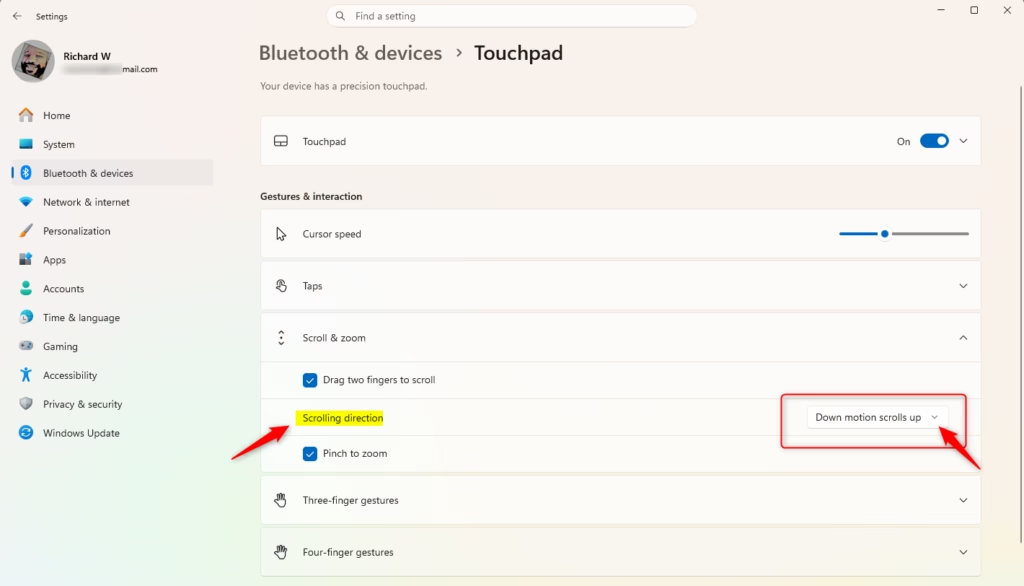
- Click Bluetooth & devices on the left side. Then click Touchpad on the right side. (see screenshot below)
- Click Scroll & zoom to open it. (see screenshot below step 4)
- Choose what you want in the Scrolling direction dropdown menu. Select Down motion scrolls up (the default) or Down motion scrolls down. (see screenshot below)
- You can now close Settings.
Option Two
Change Touchpad Scrolling Direction Using Registry
This advanced method requires opening Registry Editor at 🗝️HKEY_CURRENT_USER\
Change Touchpad Scrolling Direction to “Down motion scrolls up”
This is the default setting.
reg add "HKEY_CURRENT_USER\Software\Microsoft\Windows\CurrentVersion\PrecisionTouchPad" /v ScrollDirection /t REG_DWORD /d 0 /f
Change Touchpad Scrolling Direction to "Down motion scrolls down"
reg add "HKEY_CURRENT_USER\Software\Microsoft\Windows\CurrentVersion\PrecisionTouchPad" /v ScrollDirection /t REG_DWORD /d 0xFFFFFFFF /f
Summary
Switch between reverse and natural scrolling using the Settings app, or dive into the Registry Editor for a more advanced approach. Both routes put control over hardware response firmly in your hands.
Frequently asked questions
How do I change the direction of my Touchpad Scroll?
To change touchpad scroll direction, open Settings and go to Bluetooth & devices Touchpad. Click Scroll & zoom, then open the Scrolling direction drop-down menu. Choose Down motion scrolls up for natural scrolling, or Down motion scrolls down for the traditional direction. The change applies right away, with no restart needed.
How do I reverse the Scroll direction on my trackpad?
Press Windows key + I to open Settings, then go to Bluetooth & devices Touchpad. Expand Scroll & zoom and open the Scrolling direction menu. Select the direction you want. Windows applies the change immediately, so you can test it on the page you are reading.
How to fix Scroll wheel scrolling wrong way?
Windows 11 has no built-in switch in Settings for reversing mouse wheel direction. Check your mouse manufacturer's software, which often includes a reverse or invert scrolling option. If your mouse has no software, the change requires Registry Editor, which can cause problems if edited incorrectly, so back up the registry first.
Why is 2 finger Scroll not working?
If Drag two fingers to scroll does not work, first confirm the Touchpad on/off switch in Settings under Bluetooth & devices Touchpad is turned on. Then expand Scroll & zoom and check that Drag two fingers to scroll is ticked. If it still fails, update the touchpad driver in Device Manager.
Still have a question?
Answered by AI from this guide. Good questions may be added to this page — please don't include personal details.
Did this guide fix your problem?

About the Author
Richard
Tech Writer, IT Professional
Richard is a writer at Geek Rewind who turns complex IT tasks into clear, step-by-step guides. He draws on years of hands-on experience in system administration and enterprise IT operations, focusing on Windows, Linux and WordPress: the problems people actually run into, and the fixes that work. His server and WordPress guides come from systems he runs himself. Richard builds and maintains the platform behind Geek Rewind, from its Ubuntu servers and Nginx configuration to its custom WordPress plugins. Many new tutorials start with readers' questions, and he's always glad to answer them in the comments.
No comments yet — be the first to share your thoughts!