How to Turn On or off Touchpad Accelerated Scrolling in Windows 11

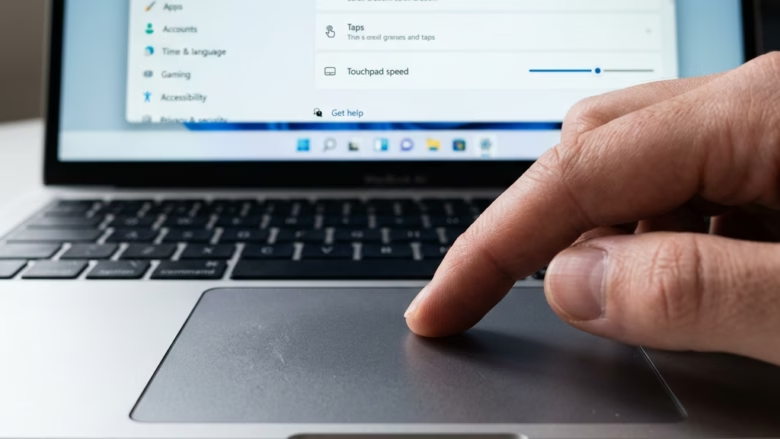
Touchpad accelerated scrolling in Windows 11 controls the momentum effect on your laptop trackpad. With it on, a fast swipe sends the page racing ahead and it keeps gliding after your fingers leave the pad. That is how a smartphone touch screen behaves when you flick and lift your finger.
Turning it on helps you get through long documents and web pages with very little effort. Turning it off stops the page the moment your fingers stop moving, so you land exactly where you intended. If you often overshoot while reading or editing, try it off first. If you spend a lot of time scrolling long pages, leave it on.
Open Settings, go to Bluetooth & devices Touchpad, expand Scroll & zoom under Gestures & interaction, then check or uncheck Accelerated scrolling. The change applies immediately without restart.
How to Turn On or Off Accelerated Scrolling on Touchpad in Settings
The simplest way to change this is in the Settings app. The steps below work on Windows 11 Home and Pro. You need a touchpad, since the Touchpad page only appears on devices where Windows detects one.
- Open Settings. You can press Win+I or right-click Start and pick Settings.
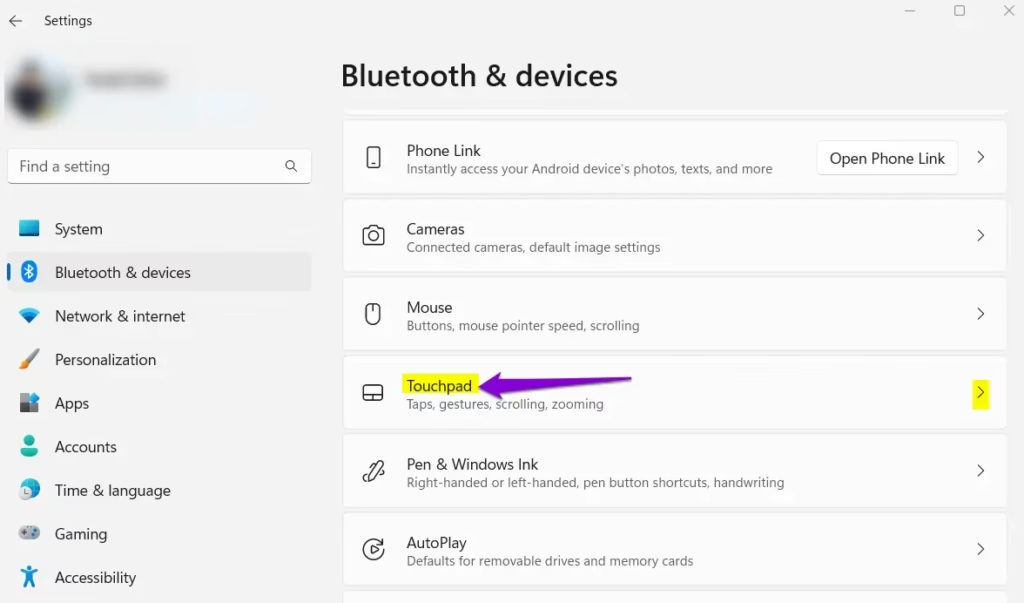
- Select Bluetooth & devices, then click Touchpad.
You should now see the touchpad options for your device.
- Click Bluetooth & devices on the left, then select Touchpad on the right. Open Touchpad settings
If Touchpad is missing, Windows is not detecting a touchpad. This is common on desktop PCs, or when an external mouse has disabled the touchpad through the manufacturer’s software. Check the driver in Device Manager before going further.
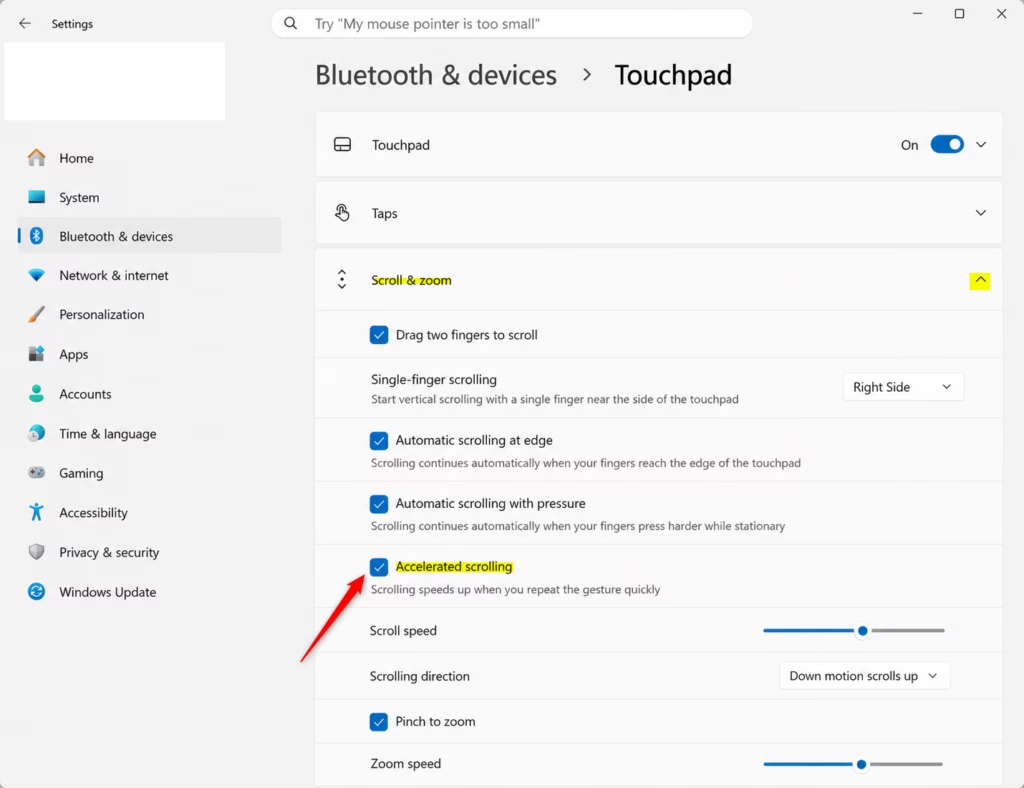
- Click Scroll & zoom under the Gestures & interaction section to expand the menu.
The section opens and shows the scrolling and zoom options for your touchpad.
- Check or uncheck the box labeled Accelerated scrolling to toggle the feature. Check it to turn the momentum effect on. Uncheck it to turn it off.
The change applies straight away and you do not need to restart. If you cannot find Accelerated scrolling, your touchpad driver or Windows build may not expose it here. Use the registry method below instead.
Open a long web page and swipe with two fingers to test it. With the option off, the page should stop as soon as you lift your fingers. To undo the change, go back to the same page and tick or untick the box again.
How to Disable Accelerated Scrolling via Registry Editor
This is useful if the Settings app does not give you the control you need or does not show the option. Registry edits affect the whole system, so work carefully. Before you start, it is worth exporting the key you are about to change. In Registry Editor, right-click it and choose Export. You can double-click the saved file later to restore the old value.
- Press Win+R to open the Run dialog, then type regedit and press Enter. Click Yes if User Account Control asks for permission.
The Registry Editor window opens.
- Navigate to the following path:
HKEY_CURRENT_USER\Software\Microsoft\Windows\CurrentVersion\PrecisionTouchPad
You can paste the path into the address bar at the top of Registry Editor, or expand the folders in the left pane one at a time. The values for that key appear on the right.
- Right-click BoostedPanningEnabled in the right pane and choose Modify.
A small Edit DWORD (32-bit) Value window opens with the current value in the Value data box.
- Set Value data to 0 to disable accelerated scrolling, or to ffffffff to enable it, then click OK.
The change may not take effect until you sign out and back in, or restart the PC. To undo it, enter the other value and repeat the same steps, or double-click the backup file you exported.
Troubleshooting and Related Issues
Precision Touchpad drivers reduce jerky movement and offer more settings than older drivers. Scrolling feels smoother with them, and gestures are more reliable. If you get accidental touches or the touchpad feels too slow or too twitchy, adjust the Touchpad sensitivity slider on the same Touchpad page in Windows 11 Settings. Try a lower sensitivity if your palm keeps triggering scrolls, and a higher one if swipes do not register.
Summary
Accelerated scrolling and momentum features help you move around Windows 11 faster. You can switch them on or off in the Settings app or in the Registry Editor. Setting the BoostedPanningEnabled value to 0, or unchecking the box in the touchpad settings, stops scrolling as soon as you lift your fingers. Use Settings first, because it is quicker and safer, and keep the registry method for when the option is missing.
Have a question about this guide?
Answered by AI from this guide. Good questions may be added to this page — please don't include personal details.
Did this guide fix your problem?

About the Author
Richard
Tech Writer, IT Professional
Richard is a writer at Geek Rewind who turns complex IT tasks into clear, step-by-step guides. He draws on years of hands-on experience in system administration and enterprise IT operations, focusing on Windows, Linux and WordPress: the problems people actually run into, and the fixes that work. His server and WordPress guides come from systems he runs himself. Richard builds and maintains the platform behind Geek Rewind, from its Ubuntu servers and Nginx configuration to its custom WordPress plugins. Many new tutorials start with readers' questions, and he's always glad to answer them in the comments.
No comments yet — be the first to share your thoughts!