How to Adjust Touchpad Sensitivity in Windows 11

- 17 steps
- Includes a restart or sign-out
Touchpad sensitivity in Windows 11 controls how readily the pad reacts to touch. It is what stops the cursor from jumping when your palm or thumb brushes the pad while you type. Windows 11 offers several levels, ranging from Most sensitive to Low sensitivity, so you can match the pad to your typing style.
Open Settings by pressing Win+I, click Bluetooth & devices, select Touchpad, then click Taps and choose your preferred sensitivity level from the drop-down menu: Most sensitive, High sensitivity, Medium sensitivity, or Low sensitivity.
Changing this setting helps if the cursor jumps or clicks by accident while you type. It also helps if you have to press hard before a tap registers as a click. You can fix both in a few clicks from the Settings app, and the change takes effect straight away. You do not need to restart.
The setting lives under Settings Bluetooth & devices > Touchpad. It is the same on Windows 11 Home and Pro, because it is a device setting and not a policy.
Two things are easy to mix up with sensitivity:
- Sensitivity decides how much touch the pad needs before it counts as a tap or a click. It is the one to change if the cursor moves when your hand only brushes the pad.
- Cursor speed is a separate slider on the same page. It decides how far the pointer travels when you move your finger. It is the one to change if the cursor feels too fast or too slow while you move it on purpose.
If the Touchpad page is missing, you are probably on a desktop PC with no touchpad, or the laptop’s touchpad driver is not a Precision Touchpad driver. In that case, installing the latest touchpad driver from your laptop maker usually brings the full settings page back. If you can see the page but the options are greyed out, the touchpad toggle at the top of the page is probably off.
Option One
Change Touchpad Sensitivity in Settings
Adjusting windows 11 touchpad sensitivity takes just a few clicks through the main system settings. Open the Settings app by pressing the Win+I on your keyboard, click Bluetooth & devices, and select Touchpad. From that menu, you can pick your preferred touch response level from the drop-down list to stop accidental clicks.- Open Settings. You can do this by pressing the Win+I on your keyboard.
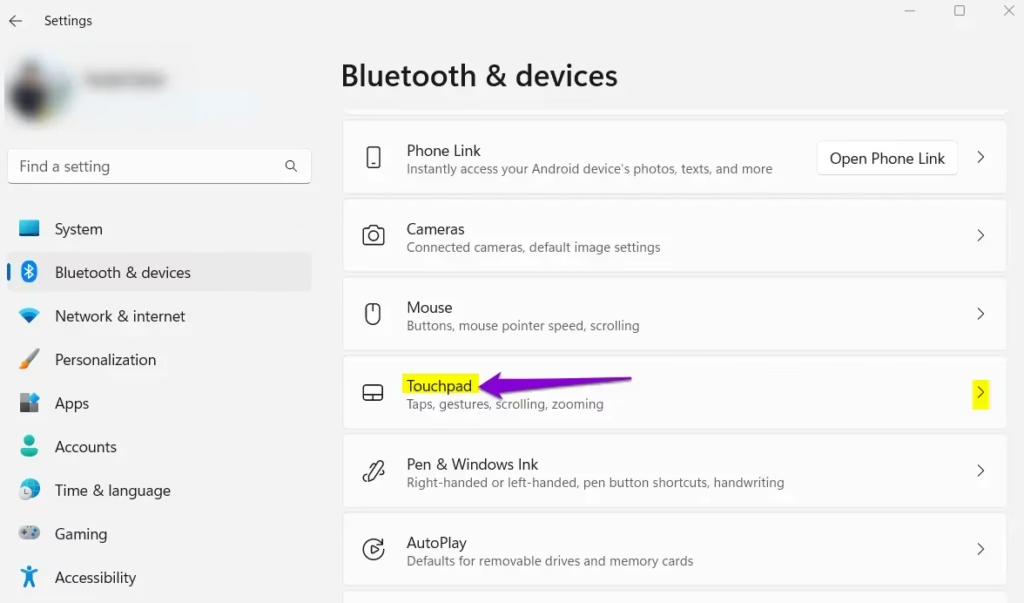
- In the Settings window, click on Bluetooth & devices on the left side. Then, on the right side, click on Touchpad.
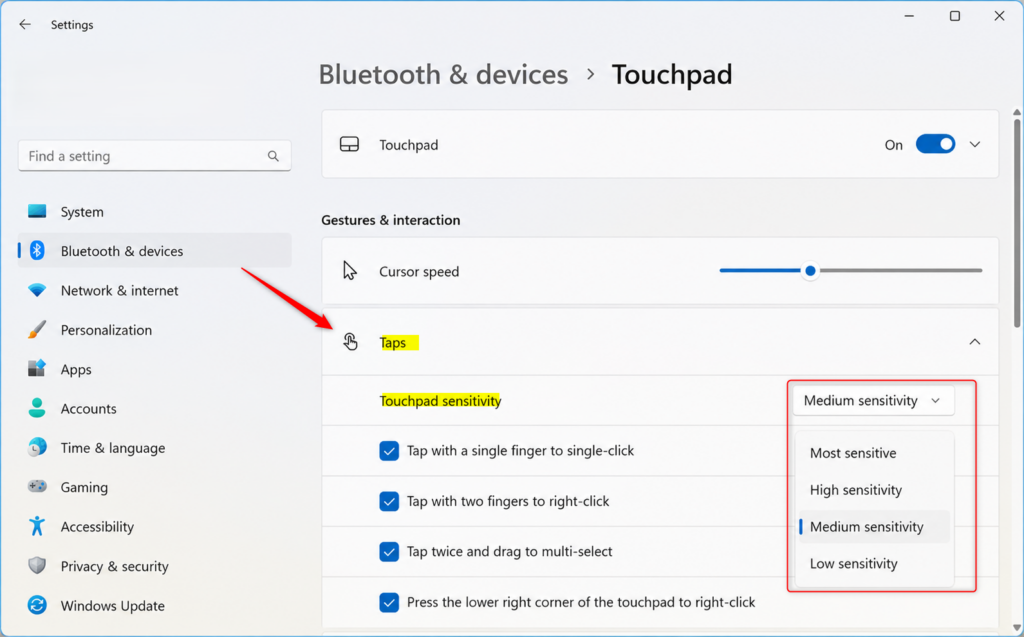
- Click on Taps to open up more options.
- Under the Touchpad sensitivity menu, choose the level you want from the drop-down list: Most sensitive, High sensitivity, Medium sensitivity (this is the default), or Low sensitivity.
- You can now close the Settings window if you are done.
Option Two
Change Touchpad Sensitivity Using the Registry Editor
Open the Registry Editor app, navigate to 🗝️HKEY_CURRENT_USER\
To change the sensitivity, you need to find and modify a specific setting. Here’s how to do it using the Registry Editor:
- Press the Win+R to open the Run box.
- Type
regeditand press Enter or click OK. You might see a User Account Control prompt asking for permission; click Yes. - In the Registry Editor, navigate to the following path:
HKEY_CURRENT_USER\Software\Microsoft\Windows\CurrentVersion\PrecisionTouchPad - Look for a value named
AAPThresholdon the right side. - Double-click on
AAPThreshold. - Enter one of the following values to set the sensitivity:
- To set to “Most sensitive”, enter
0 - To set to “High sensitivity”, enter
1 - To set to “Medium sensitivity” (default), enter
2 - To set to “Low sensitivity”, enter
3
- To set to “Most sensitive”, enter
- Click OK after entering the value.
- Close the Registry Editor. You may need to restart your computer for the changes to take effect.
References:
Summary
Have a question about this guide?
Answered by AI from this guide. Good questions may be added to this page — please don't include personal details.
Did this guide fix your problem?

About the Author
Richard
Tech Writer, IT Professional
Richard is a writer at Geek Rewind who turns complex IT tasks into clear, step-by-step guides. He draws on years of hands-on experience in system administration and enterprise IT operations, focusing on Windows, Linux and WordPress: the problems people actually run into, and the fixes that work. His server and WordPress guides come from systems he runs himself. Richard builds and maintains the platform behind Geek Rewind, from its Ubuntu servers and Nginx configuration to its custom WordPress plugins. Many new tutorials start with readers' questions, and he's always glad to answer them in the comments.
No comments yet — be the first to share your thoughts!