How to Change Touchpad Click Sensitivity on Microsoft Surface Devices

- 2 ways to do it
- Needs administrator rights
- Includes a restart or sign-out
Touchpad click sensitivity on a Microsoft Surface controls how much pressure or contact your trackpad needs before it registers a click. Windows 11 lets you adjust this across up to four levels, from light to firm. A lighter setting makes clicking easier on your fingers. A firmer one stops accidental taps while you type.
There are two ways to change it. The Settings app is the normal route and is enough for most people. The Registry Editor (a database that stores system settings) lets you fine-tune the response beyond the default options. Try the Settings app first, and only use the registry if that menu doesn’t give you enough control.
Open Settings with Win+I, then go to Bluetooth & devices Touchpad and choose a level from the click sensitivity dropdown (it may appear under Taps). Pick Low for light presses, Heavy to stop accidental clicks, or Medium for the default. The change takes effect straight away, and you can switch back at any time.
Option 1Changing Click Sensitivity Through Settings
The Settings app is the quickest and safest way to change this. You open Settings, go to Bluetooth & devices, select Touchpad, and pick a level from the sensitivity dropdown. The choices run from low to high, depending on how firm you want your clicks to feel.
No administrator rights are needed, and the steps are the same on Windows 11 Home and Pro. You can reverse the change at any time by choosing the previous level.
Step 1Open Your Windows Settings
- Press Win+I to open Settings.
The Settings window should open with a list of categories down the left side.
Step 2Go to Touchpad Settings
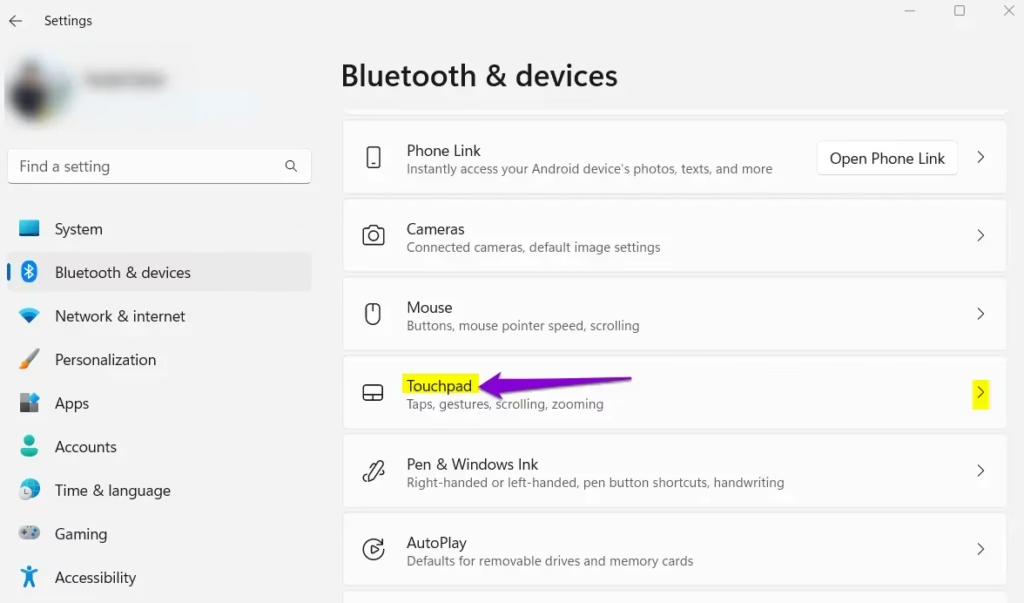
- In the list on the left, click Bluetooth & devices.
- On the right side of the window, scroll down until you see Touchpad, then click it.
You should now see the touchpad options, including the sensitivity dropdown.
If Touchpad is missing from the list, Windows isn’t detecting a touchpad. This can happen if a Surface Type Cover or Keyboard isn’t attached properly, or the device is in tablet use without the keyboard connected. Reattach the keyboard and check again. If it still doesn’t appear, restart the Surface, then run Windows Update to refresh the drivers.
Step 3Pick Your Preferred Click Sensitivity
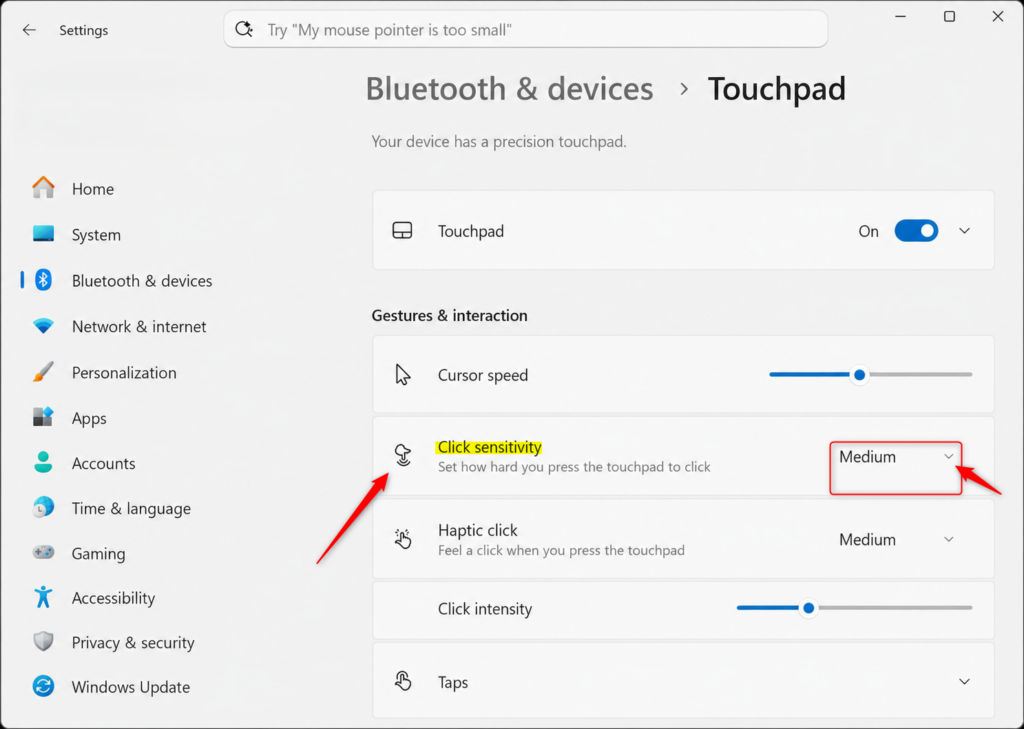
- Find the sensitivity dropdown. Depending on your Windows 11 build and driver, it may be labelled Click sensitivity or Touchpad sensitivity. It is often inside the Taps section, so expand that section if you don’t see it.
- Click the dropdown to see the available options.
You will typically find these choices. Some builds show only three of them, and some add a fourth, more sensitive level.
- LowYou only need to press very lightly for a click to happen. This is good if you tend to tap lightly or if your touchpad feels very responsive.
- Medium (default)This is the standard setting that comes with Windows. It works well for most people.
- HeavyYou need to press down harder on the touchpad for a click. This is useful if you keep clicking things by accident.
If the wording on your screen differs a little from the list above, work out the direction from the names. The option that sounds most sensitive reacts to the lightest touch, and the least sensitive one needs the firmest press.
- Select the option that feels best for how you type and click.
- Try a few clicks and taps on the touchpad right away.
If the first choice isn’t right, come back to the same dropdown and pick another. Nothing is permanent, and you can switch as often as you like.
Step 4Close Settings
- Close the Settings window.
The change usually takes effect immediately, so you can test your new click sensitivity without restarting. If the touchpad still feels the same after a minute, sign out and back in, or restart the Surface.
Option 2Fine-Tuning Click Sensitivity with the Registry Editor
Use the Registry Editor (the built-in database Windows uses for system settings) when the standard menu doesn’t give you enough control. You press the Win+R, type regedit, and go to the Microsoft branch of 🗝️HKEY_LOCAL_MACHINE\
Step 1Open the Registry Editor
- Press Win+R to bring up the Run box.
- Type
regeditinto the box and press Enter or click OK. - If Windows asks for permission to make changes to your device, click Yes. This prompt appears because the Registry Editor needs administrator privileges.
The Registry Editor window should open, with a folder tree on the left and values on the right.
Before you change anything, make a backup. Click File, then Export, choose a location, and save the file. If something goes wrong later, you can double-click that file to restore the saved settings.
Step 2Go to the Correct Registry Key
Navigate to this path in the left sidebar:
HKEY_CURRENT_USER\SOFTWARE\Microsoft\Windows\CurrentVersion\PrecisionTouchPadYou can do this in two ways. Either click through the folders one by one, much like opening folders on your computer, or copy the path and paste it into the address bar at the top of the Registry Editor window, then press Enter. The address bar is faster and avoids wrong turns.
PrecisionTouchPad key, your computer may not have a Precision Touchpad, or the necessary software isn’t installed. In that case the Settings method (Option 1) is likely your only recourse.Step 3Change the ClickForceSensitivity Value
- With the
PrecisionTouchPadkey selected, look at the right side of the window. You will see a list of values. - Find the value named ClickForceSensitivity.
- Double-click it.
A small edit window should open. Note the number currently in the Value data box before you change it. That is your way back if you don’t like the result.
Step 4Enter Your Desired Sensitivity Value
The window that opened is for editing a DWORD (32-bit) Value.
- Under Base, make sure Decimal is selected.
- In Value data, enter a number between 0 and 100.
- Click OK.
The number sets how firmly you need to press:
- 0 is the lightest setting. You press very lightly to click.
- 50 is the normal or medium setting.
- 100 is the firmest setting. You need to press hard.
Choose a number you think will suit you. For a lighter click, try 30 or 40. If you want a firmer click to avoid accidental presses, try 60 or 70.
Practical Tip: You may need to try a few numbers to find your ideal setting. Start with a value that is only a small step from the default, such as 40 or 60, and see how it feels. You can reopen the value and change it again at any time, and you can type the original number back in to undo your edits.
Step 5Close the Registry Editor
- Close the Registry Editor window.
Registry changes are saved as soon as you click OK, so there is no separate save step.
Step 6Sign Out or Restart to Apply Changes
To apply the new click sensitivity, either sign out of your Windows account and sign back in, or restart your computer. Restarting is the more reliable choice, because it makes sure every change is applied properly.
After you sign back in, test the touchpad with a few normal clicks. If it feels wrong, go back to the registry value and adjust it, or restore the backup you exported earlier.
References:
Summary
You can change touchpad click sensitivity on a Microsoft Surface in two ways. The Windows Settings app handles standard adjustments, and the Registry Editor gives you finer control. Both help you stop accidental clicks or stiff presses, so the trackpad responds the way you want while you work.
Start with the Settings app, and only move to the registry if you need more. Spend a day or two with each setting, since a change that feels fine for a minute can feel wrong over a full workday. Once you find a level that feels comfortable, leave it there.
Have a question about this guide?
Answered by AI from this guide. Good questions may be added to this page — please don't include personal details.
Did this guide fix your problem?

About the Author
Richard
Tech Writer, IT Professional
Richard is a writer at Geek Rewind who turns complex IT tasks into clear, step-by-step guides. He draws on years of hands-on experience in system administration and enterprise IT operations, focusing on Windows, Linux and WordPress: the problems people actually run into, and the fixes that work. His server and WordPress guides come from systems he runs himself. Richard builds and maintains the platform behind Geek Rewind, from its Ubuntu servers and Nginx configuration to its custom WordPress plugins. Many new tutorials start with readers' questions, and he's always glad to answer them in the comments.
No comments yet — be the first to share your thoughts!