How to Change Touchpad Double Click Speed On Microsoft Surface Devices

Touchpad double click speed on a Microsoft Surface running Windows 11 sets how much time you get between two taps on the Precision Haptic Touchpad before Windows stops counting them as a double-click. If the touchpad opens things when you only meant to tap once, or ignores taps that feel like double-clicks, this is the setting to change. You can do it in the Surface app, in Control Panel , or in the registry. Each method is below.
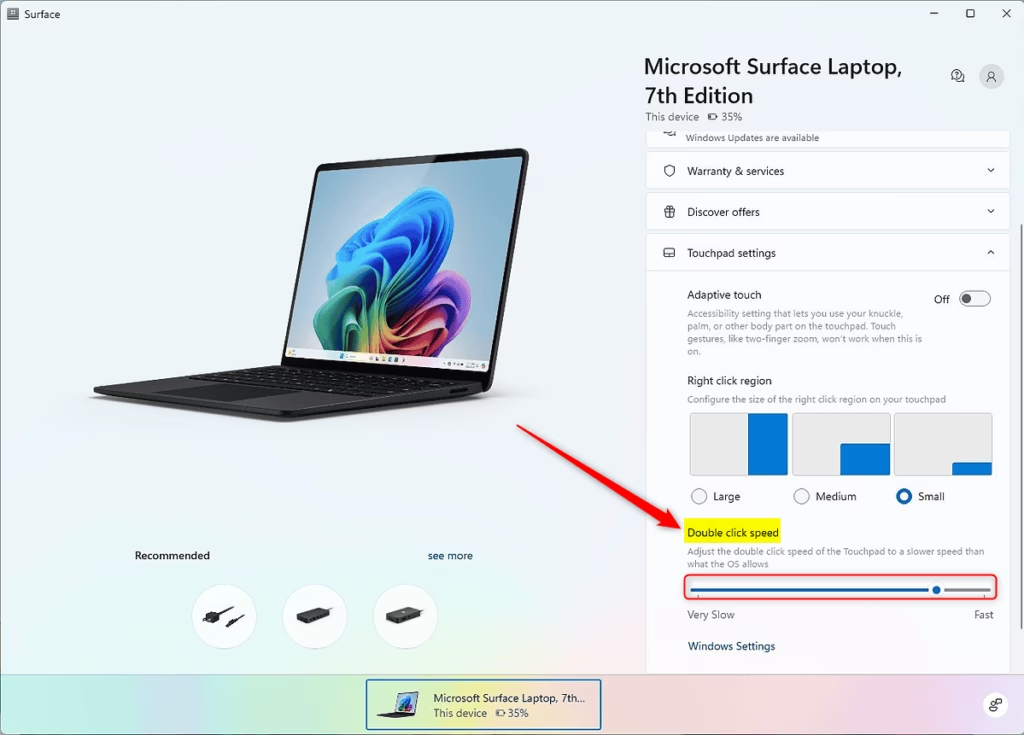
Open the Surface app, click Touchpad settings, and move the Double click speed slider left for slower or right for faster. Test by double-tapping a folder in File Explorer . The change saves immediately without restart.
Option One
Change Touchpad Double Click Speed in Surface App
The Surface app is the easiest route. It comes preinstalled on Surface devices. If it is missing, install it from the Microsoft Store.
- Open the Surface app. You should see the Surface app’s main page with your device’s settings.
- Click or tap Touchpad settings. The touchpad options will open.
- Move the Double click speed slider left (very slow) or right (fast) to find the speed you want. Slow gives you more time between taps. Fast needs quicker taps.
- Test the new speed by double-tapping a folder or file in File Explorer . If it still feels off, go back and nudge the slider one notch at a time.
- Close the Surface app when you are happy. The setting is saved as you change it, so there is no Save button to press.
Option Two
Change Touchpad Double Click Speed in Control Panel
- Open the Control Panel and set View by (top right) to Large icons or Small icons. Click or tap the Mouse icon. The Mouse Properties window will open.
- Click or tap the Buttons tab.
- Under Double-click speed, move the slider left (slow) or right (fast) to the speed you want.
- Double-click the folder icon next to the slider to test it. The folder opens or closes when your double-click is fast enough for the speed you picked.
- Click or tap OK to save the change and close the window. Apply saves it without closing.
- Close the Control Panel if you like.
Control Panel is a good choice if you prefer the classic Windows settings . Its main advantage is the test folder, which lets you try a speed before you commit to it. The change takes effect right away, with no restart. To undo it, come back to the same slider and move it back.
Option Three
Change Touchpad Double Click Speed in Registry Editor
Work carefully here. A wrong edit in Registry Editor can cause problems. Before you start, consider exporting the key (File Export) so you can restore it later.
- [Requires admin privileges] Open Registry Editor by typing
regedit.exein the search box and pressing Enter. Click Yes if User Account Control asks for permission. Registry Editor will open with a folder tree in the left pane. - Navigate to the key below in the left pane of Registry Editor.
Its right pane holds the double-click timing, among other mouse values. The number you set is the longest gap, in milliseconds, that Windows allows between two taps for them to count as a double-click. A lower number means you have to tap faster. A higher number is more forgiving.
- In the right pane of the Mouse key, double click or tap the DoubleClickSpeed string value (REG_SZ) to open it. A small Edit String box will appear.
- Type a number between 200 (faster) and 2000 (slower) in the Value data box, then click or tap OK. The default double click speed is 480. To undo the change later, enter 480 again.
- Close Registry Editor when finished.
- Sign out and sign back in, or restart your computer. The new value is not picked up until you do.
Summary
You can change the touchpad double click speed on your Surface in the Surface app, in Control Panel , or in the registry. The Surface app and Control Panel use simple sliders, and Control Panel adds a test folder. The registry lets you set an exact number, but it needs admin rights and a sign-out or restart. Use whichever suits you, and go back to the same place any time to adjust or reset it.
What movie features Adam Sandler using a remote control?
Adam Sandler stars in the 2006 film "Click," where he plays a workaholic architect who discovers a magical remote control that lets him skip through his life. The remote allows him to fast-forward, rewind, and pause moments, but he learns the consequences of avoiding the present.
What were critics' reviews of the 2006 film Click?
Critics gave "Click" mixed to negative reviews. Many praised Sandler's comedic performance but felt the film shifted awkwardly between humor and heavy drama. The movie holds a 34% on Rotten Tomatoes, with reviewers finding the tonal shift from comedy to life lesson uneven and manipulative.
What happens in the movie "Click"?
In "Click," Adam Sandler's character receives a universal remote that controls his life. He uses it to skip boring moments and fast-forward through responsibilities. Over time, he realizes the remote is skipping crucial moments with his family, and he races to undo the damage before it's too late.
What is the Click package in Python?
Click is a Python package that simplifies building command-line interfaces. It handles argument parsing and option management, letting you create professional CLI tools with minimal code. Click is popular for automation scripts and tools that need to accept user input from the terminal.
Was this guide helpful?

About the Author
Richard
Tech Writer, IT Professional
Richard is a writer at Geek Rewind who turns complex IT tasks into clear, step-by-step guides. He draws on years of hands-on experience in system administration and enterprise IT operations, focusing on Windows, Linux and WordPress: the problems people actually run into, and the fixes that work. His server and WordPress guides come from systems he runs himself. Richard builds and maintains the platform behind Geek Rewind, from its Ubuntu servers and Nginx configuration to its custom WordPress plugins. Many new tutorials start with readers' questions, and he's always glad to answer them in the comments.




No comments yet — be the first to share your thoughts!