How to Disable Mouse Acceleration Windows 11

Mouse acceleration changes how far your cursor travels based on how fast you move your hand. Windows 11 calls it Enhance pointer precision. A quick flick sends the pointer a long way, and a slow drag moves it only a short distance, even when the mouse covers the same distance on the desk.
Turning it off gives you steady 1-to-1 tracking, so the same physical movement always moves the pointer the same distance. That helps in games and in design work such as image editing or CAD. This guide shows two ways to do it: the Settings app and the classic Control Panel. Both work on Windows 11 Home and Pro, and neither needs a restart.
Open Settings with Win+I, go to Bluetooth & devices Mouse, and set Enhance pointer precision to Off. If your build has no switch there, click Additional mouse settings, open the Pointer Options tab, and clear the Enhance pointer precision checkbox. The change applies immediately with no restart.
Method 1Turn Off Mouse Acceleration Using Settings
Use the Settings app if your Windows 11 installation is up to date. It is the quickest route, and on current builds you can switch the feature off with a single toggle.
Open Windows Settings
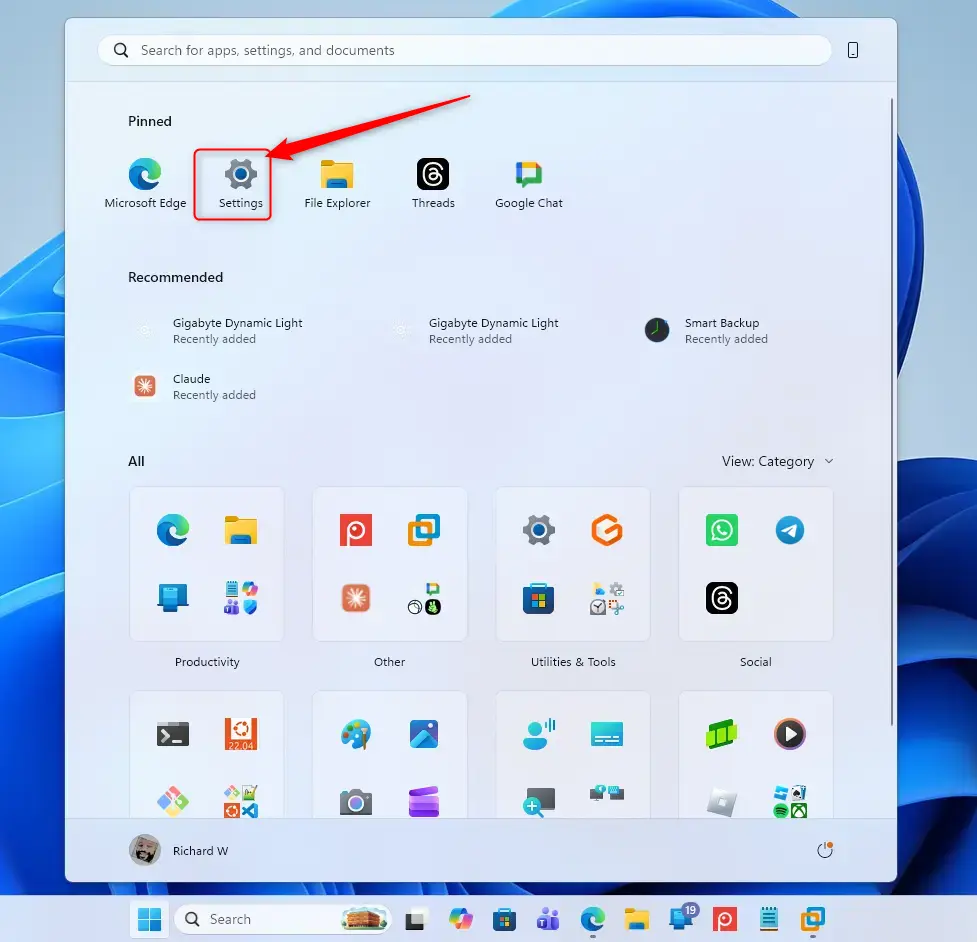
- Press Win+I on your keyboard.
- Check that the Settings app opens. You should see a list of categories on the left and the System page on the right.
Go to Mouse Settings
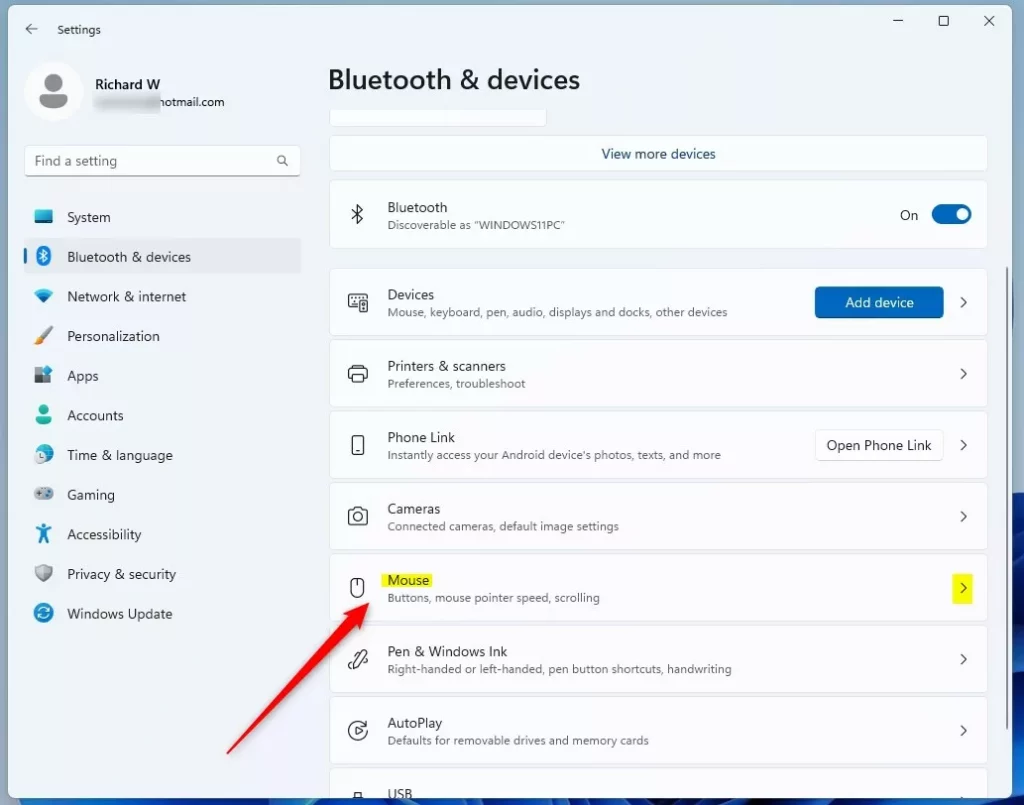
- In the Settings window, click Bluetooth & devices in the left menu.
- On the right side, click Mouse.
- Check that the Mouse page opens. It lists your primary mouse button, the pointer speed slider and the scrolling options.
Use Method 2 instead. It works the same way on every version.
Find “Enhance pointer precision”
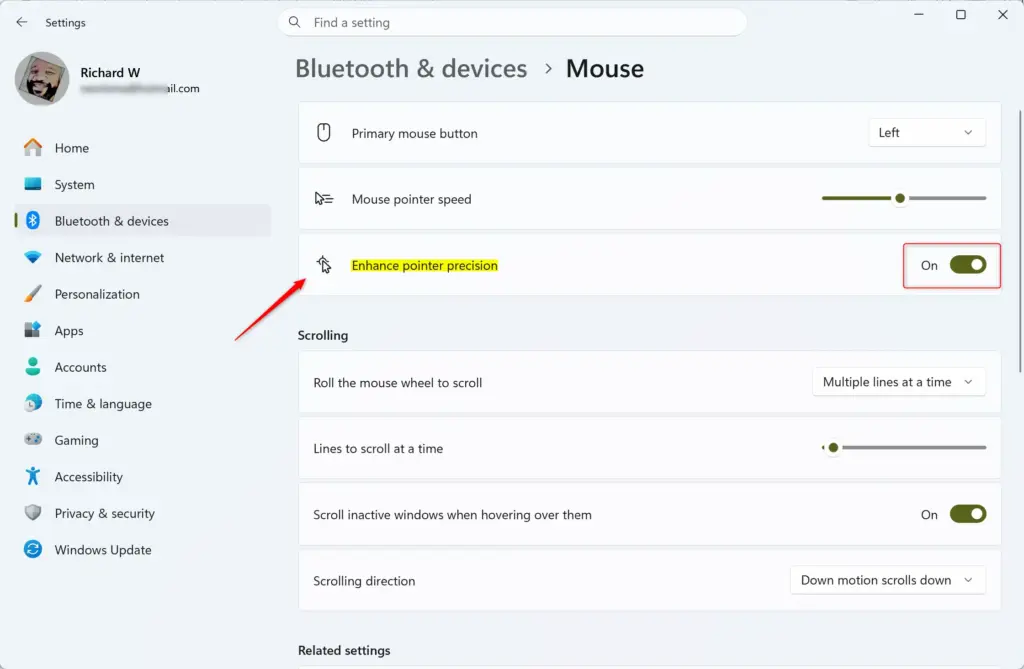
The pointer speed setting controls how sensitive the cursor is to mouse movement. On the Mouse page, look for the Enhance pointer precision option. On builds that include it, it has a switch next to it, and that switch is the acceleration setting. If your build has no such switch, the next step covers the classic window where the same option lives.
The Pointer speed slider is a separate setting. Turning off acceleration does not change it. Windows 11 uses a default of 6 on a scale of 1 to 11, which gives the most direct response once acceleration is off. Change it only if the cursor feels too fast or too slow.
Turn It Off
- On the Mouse page, set the Enhance pointer precision switch to Off, if your build shows it.
- If you don’t see that switch, or you prefer the classic window, click Additional mouse settings under Related settings on the right. The Mouse Properties window opens.
- Click the Pointer Options tab.
- Under Motion, clear the checkbox next to Enhance pointer precision. The box should now be empty.
With this option on, Windows increases the pointer’s speed the faster you move the mouse. That makes small, exact movements harder to control. With it off, Windows stops changing your cursor speed based on how fast you move.
Close Settings
- If you opened Mouse Properties, click Apply, then OK.
- Close the Settings window.
Your change takes effect immediately, and you don’t need to restart. To undo it, come back to the same place and turn Enhance pointer precision on again.
Some mouse utilities, such as the software that comes with gaming mice, have their own acceleration or sensitivity settings. If the cursor still feels uneven after this change, check that software too.
Method 2Turn Off Mouse Acceleration Using Control Panel
The classic Control Panel is a reliable alternative if you prefer traditional menus, or if the Settings app doesn’t show the option on your build.
Open Control Panel
- Click the search box on your taskbar .
- Type Control Panel .
- Click the Control Panel result. The Control Panel window opens.
This makes it easier to find options, because every item is listed in one view.
Find Mouse Settings
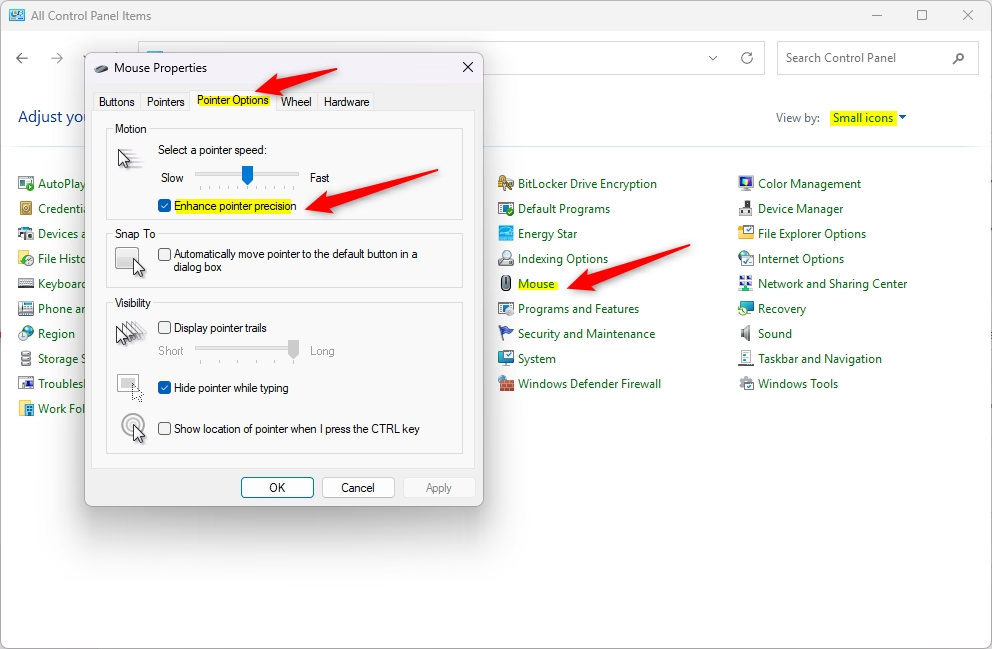
The Mouse icon opens the Mouse Properties window, where you adjust pointer settings.
- Find Mouse in the list of icons.
- Click it.
- Check that a window titled Mouse Properties opens.
Go to the Pointer Options Tab
- In the Mouse Properties window, click the Pointer Options tab at the top.
- Look for the Motion section. It holds the pointer speed slider and the Enhance pointer precision checkbox.
Turn Off “Enhance pointer precision”
This is where you disable mouse acceleration in Windows 11 in the old Mouse Properties window. The feature changes your cursor speed depending on how fast you move your hand. Turning it off gives you a flat, predictable response for every movement.
- Click the Enhance pointer precision checkbox to remove the checkmark.
- Check that the box is now empty.
While the option is on, Windows alters how far your pointer moves based on how fast you move the mouse. While it is off, the pointer moves a set distance on the screen for every bit you move the mouse, however fast you move it.
Apply and Confirm
- Click Apply at the bottom of the Mouse Properties window to save the setting.
- Click OK to close the window.
- Test the change. Move your mouse a short distance on your desk, first slowly and then quickly. The cursor should travel the same distance each time.
Tip: Try it a few times over the same stretch of desk. When “Enhance pointer precision” is off, the pointer covers the same distance on screen for the same physical movement, whatever your speed.
Close Control Panel
You can now close the Control Panel window if it is still open. No restart is needed. To go back to the old behavior, open Mouse Properties again, go to the Pointer Options tab and tick the checkbox.
Understanding Mouse Acceleration
Mouse acceleration makes your cursor speed depend on how fast you move the mouse rather than how far you move it. With it off, the cursor moves a fixed distance on screen for every inch the mouse travels on your desk. That makes gaming and editing much easier.
Enhance pointer precision can cause problems because it makes the mouse feel inconsistent. Gamers often find it hard to aim in fast-paced games, because the pointer does not move a consistent amount for each physical movement. A small twitch can send the pointer flying, and a slow move might not go far enough. That makes muscle memory hard to build.
Turning it off means moving your mouse one inch always moves the pointer the same distance, no matter how fast you move.
Some games bypass the Windows pointer setting and use raw mouse input, so this change may make no difference inside them. The game's own sensitivity options apply there. On the desktop and in most apps, the Windows setting is what counts.
Summary
Turning off "Enhance pointer precision" in Windows 11 makes your mouse movements more consistent and predictable, which effectively disables mouse acceleration. That consistency helps most in gaming and in detailed tasks that need precise control. You can turn it off with the Settings app or the Control Panel. Either way, the change applies at once, and you can reverse it any time by turning the option back on.
Have a question about this guide?
Answered by AI from this guide. Good questions may be added to this page — please don't include personal details.
Did this guide fix your problem?

About the Author
Richard
Tech Writer, IT Professional
Richard is a writer at Geek Rewind who turns complex IT tasks into clear, step-by-step guides. He draws on years of hands-on experience in system administration and enterprise IT operations, focusing on Windows, Linux and WordPress: the problems people actually run into, and the fixes that work. His server and WordPress guides come from systems he runs himself. Richard builds and maintains the platform behind Geek Rewind, from its Ubuntu servers and Nginx configuration to its custom WordPress plugins. Many new tutorials start with readers' questions, and he's always glad to answer them in the comments.
No comments yet — be the first to share your thoughts!