How to Swap Mouse Buttons in Windows 11 Mouse Settings

Swapping mouse buttons in Windows 11 lets you change which button does what — useful if you’re left-handed or prefer a different setup. The change happens in Mouse Settings under Bluetooth & devices, and it takes effect right away without needing a restart.
This setting only affects your user account, so other people who sign in to the same PC won’t see any change. No administrator access is needed.
Open Settings , select Bluetooth & devices, choose Mouse, and change the Primary mouse button dropdown from Left to Right. The swap takes effect immediately without restarting.
What swapping the buttons does
Windows calls the button that selects and clicks things the primary button. By default that is the left button. When you set the right button as primary, the right button selects, clicks, and drags, and the left button opens the context menu (the menu that appears when you right-click an item).
This is the standard fix for left-handed users who hold the mouse in their left hand and want the index finger on the main button. It also helps if a mouse is fitted with its buttons the wrong way round, or if you share a desk setup and prefer the other layout.
Here’s an important distinction: after the swap, the terms “left-click” and “right-click” in Windows and in most guides still refer to the primary and secondary buttons, not the physical side. If you set Right as primary, “left-click” in any tutorial means pressing the physical right button.
Swap mouse buttons in 🪟 Windows 11 Settings
This is the quickest route and the one to use on Windows 11 Home and Pro. Both editions have the same setting in the same place.
- Right-click the Start button and select Settings. You can also press the Win and I together. The Settings app opens.

Windows 11 Start menu with Settings gear icon highlighted. - Select Bluetooth & devices in the left pane. A list of device categories appears, such as Printers & scanners, Mouse, and Touchpad.
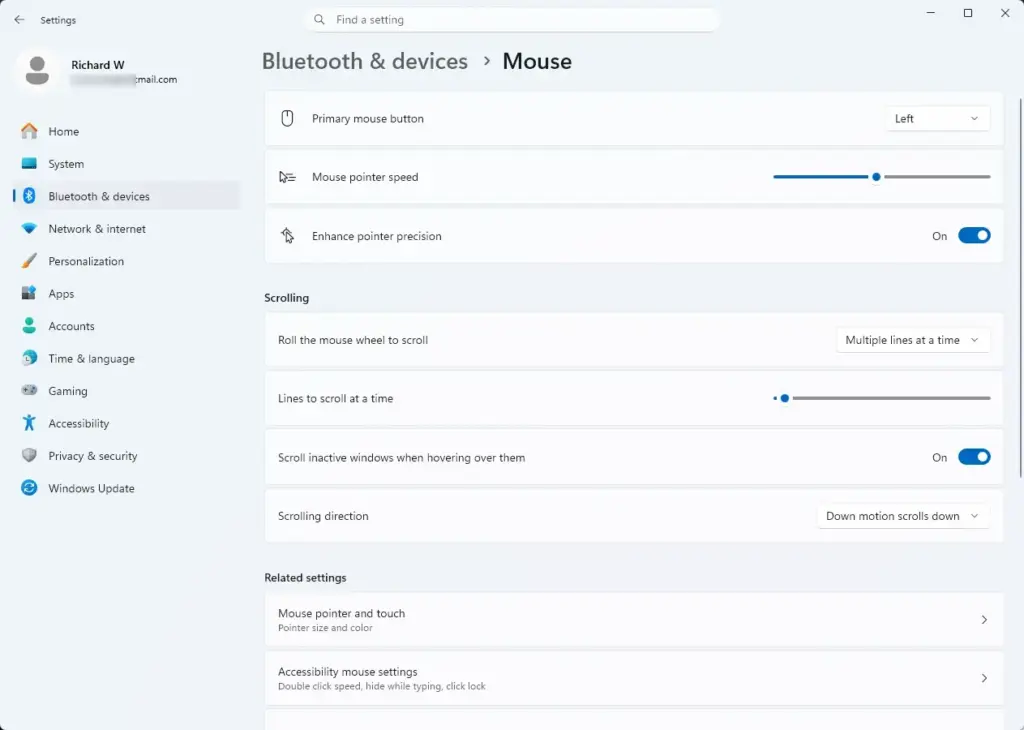
Settings › Bluetooth › Mouse - Select Mouse. The Mouse page opens, with Primary mouse button at the top.
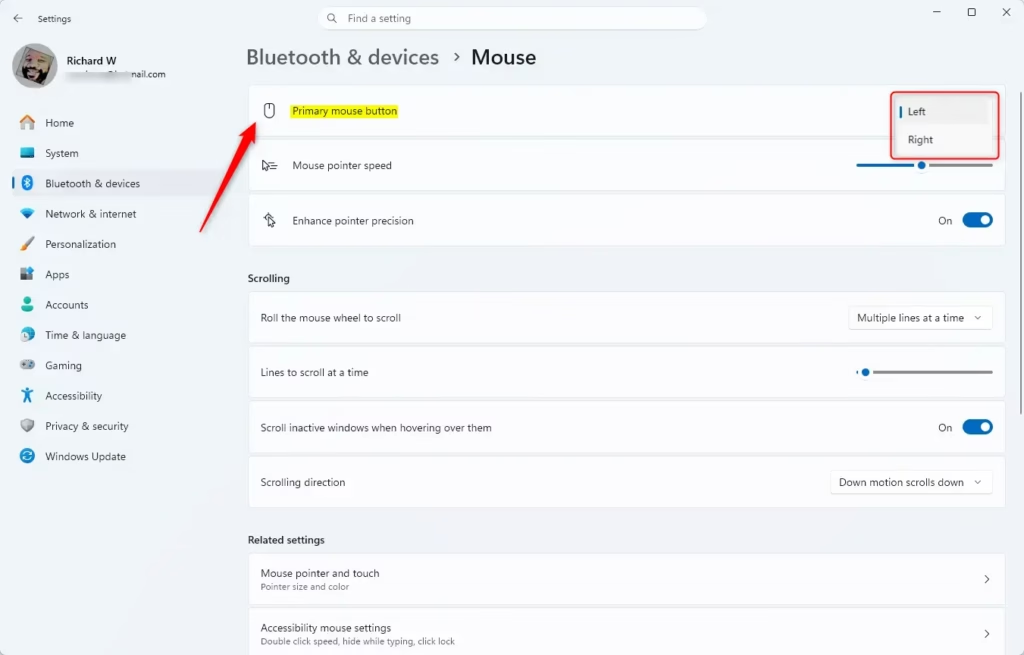
- Open the Primary mouse button dropdown. It shows Left and Right, and the current choice is Left on a default install.
- Select Right. The change takes effect the moment you pick it. The right button now clicks and selects, and the left button now opens context menus.
Test the swap before you close Settings. Point at the desktop and press each button once. The physical right button should select an icon, and the physical left button should open a menu.
If the Mouse page is not in Bluetooth & devices
Use Start search instead. Press the Win, type Mouse settings, and press Enter. This opens the same page without the menu path. If your build of Windows 11 shows the Settings pages in a different order, search is the safer route.
Ask them whether the mouse settings are locked.
Swap mouse buttons from Mouse Properties
The older Mouse Properties window still exists in Windows 11 and has the same setting under a different name. Use it if the Settings page does not open, or if you want the double-click speed and ClickLock options in the same window.
- Press the Win and R together. The Run dialog opens.
- Type
main.cpland press Enter. The Mouse Properties window opens on the Buttons tab.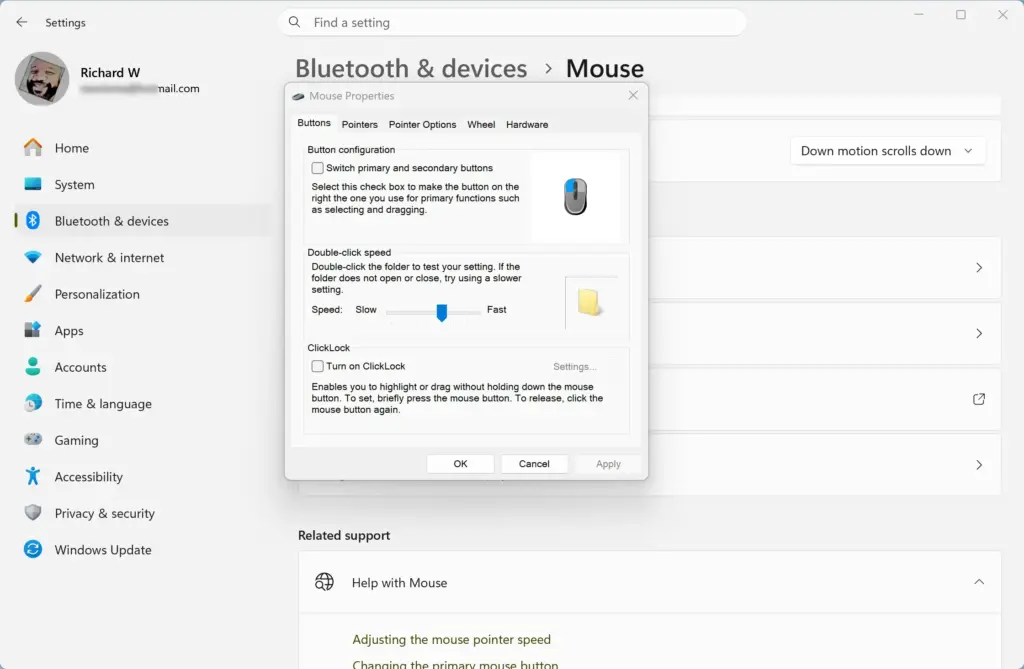
- Select the Buttons tab if it is not already showing.
- Tick Switch primary and secondary buttons under Button configuration. The small preview does not change, but the setting is staged.
- Select Apply. The swap takes effect immediately.
- Select OK to close the window.
You can also reach this window from the Mouse page in Settings. Scroll to the Related settings section and select Additional mouse settings.
The two methods control the same setting. If you tick the box in Mouse Properties and then reopen the Mouse page in Settings, Primary mouse button shows Right.
Other options on the Buttons tab
While the window is open, you can adjust two related options. The Double-click speed slider sets how fast you must press twice for Windows to count a double-click. Move it toward Slow if double-clicks are hard to land after the swap. ClickLock (a feature that lets you drag or highlight without holding the button down) is off by default. Tick Turn on ClickLock only if you want it.
Swap the buttons using only the keyboard
Use this method if the mouse is already swapped the wrong way, or the buttons do not behave as you expect, and you cannot get to the setting comfortably. It also works if you have no working pointer.
- Press the Win. The Start menu opens with the search box active.
- Type Mouse settings and press Enter. The Mouse page opens in Settings.
- Press Tab repeatedly until a focus outline appears around the Primary mouse button dropdown. The outline moves through the left pane first, so it may take several presses.
- Press the Spacebar to open the dropdown. The options Left and Right appear.
- Press the Up or Down arrow key to highlight the option you want, then press Enter. The change applies immediately.
If the dropdown does not open with the Spacebar, press Alt and the Down arrow together.
What the swap affects and what it does not
The setting changes how Windows interprets the buttons, so it applies across File Explorer , the desktop, the taskbar , Microsoft Edge, and most desktop apps. You don’t need to configure each one separately. You do not need to configure each app.
Laptops and touchpads
On many laptops the swap also applies to the physical left and right buttons of the touchpad, because Windows treats them as the same primary and secondary pair. Tap gestures, such as a two-finger tap for a context menu , are configured separately on the Touchpad page under Bluetooth & devices. Check both inputs after the change, since the behaviour depends on the touchpad driver.
Games and apps with their own button mapping
Some games read the mouse buttons directly and either ignore the Windows setting or apply their own controls on top of it. If a game feels reversed after the swap, open the game’s controls menu and rebind the buttons there. Windows itself is not at fault in that case.
Other user accounts
The swap is stored per user. Another person signing in to the same PC sees the default layout unless they change it themselves. A new user account you create later also starts with Left as the primary button.
When the swap does not work
The buttons do not change after you select Right
Logitech Options, Razer Synapse, and similar utilities can override the Windows setting by assigning their own functions to each button. Open the vendor software, look for a button assignment page, and reset the left and right buttons to their default functions. Then set the Windows option again.
The buttons are reversed, and you did not change anything
Open the Mouse page and check Primary mouse button. If it already shows Right, someone changed it, or a profile in the vendor software did. Set it back to Left. If it shows Left but the buttons still behave in reverse, the problem is in the vendor software or the mouse hardware settings.
You cannot click the dropdown because the buttons are swapped
Use the physical button that now acts as primary. If you chose Right, click with the right button. If that is awkward, use the keyboard method above.
The setting is blocked or reverts on a work PC
An administrator can lock down this setting on a managed device. If the setting resets after you sign out, or Settings reports that it is managed by your organization, contact your IT department. I cannot confirm from the Windows interface alone which policy is responsible, so ask them directly.
Undo the swap
Set the buttons back to the default layout at any time. This also removes any confusion about which button is "left".
- Open Settings, select Bluetooth & devices, and select Mouse.
- Open the Primary mouse button dropdown. If the buttons are currently swapped, click with the physical right button.
- Select Left. The left button becomes the primary button again straight away.
If you used Mouse Properties, open main.cpl from the Run dialog, clear Switch primary and secondary buttons on the Buttons tab, and select Apply.
If this didn't work
If the buttons stay reversed or the setting will not stick, check for mouse vendor software first, then try the same change in main.cpl, since the two windows sometimes expose different problems. The pointer speed and scrolling options on the same Mouse page are the next ones to adjust if the new layout still feels off. If you sign in with a different account and see the old layout, repeat the steps there.
Frequently asked questions
What are the best mouse settings for 🪟 Windows 11?
Open Settings, go to Bluetooth & devices, then Mouse. Adjust pointer speed, primary button choice, and scroll direction to match how you work. Enable or disable features like ClickLock (hold down the mouse button without pressing) and Enhance pointer precision based on your preference.
How do I configure my mouse buttons?
Open Settings and select Bluetooth & devices Mouse Under Primary mouse button, choose Left or Right. If your mouse has extra buttons, some apps let you assign them in their own settings. The change takes effect immediately and only affects your user account.
How to change mouse dpi?
Open Settings, go to Bluetooth & devices Mouse, then scroll to Pointer and click. Adjust the Pointer speed slider left to slow down or right to speed up your cursor movement. Some gaming mice also have a DPI button that changes sensitivity directly on the hardware.
Can you change your cursor on 🪟 Windows 11?
Open Settings, go to Accessibility Mouse pointer and touch, then use the Size slider to make the pointer bigger or smaller. Under Mouse pointer style, choose a pointer style (white, black, inverted or custom color). For custom cursor designs, you need third-party apps from the Microsoft Store or download .cur files and apply them manually.
Still have a question?
Answered by AI from this guide. Good questions may be added to this page — please don't include personal details.
Did this guide fix your problem?

About the Author
Richard
Tech Writer, IT Professional
Richard is a writer at Geek Rewind who turns complex IT tasks into clear, step-by-step guides. He draws on years of hands-on experience in system administration and enterprise IT operations, focusing on Windows, Linux and WordPress: the problems people actually run into, and the fixes that work. His server and WordPress guides come from systems he runs himself. Richard builds and maintains the platform behind Geek Rewind, from its Ubuntu servers and Nginx configuration to its custom WordPress plugins. Many new tutorials start with readers' questions, and he's always glad to answer them in the comments.
No comments yet — be the first to share your thoughts!