How to Pin or Unpin an App from Your Windows 11 Start Menu

Pinning an app to your Windows 11 Start menu adds a shortcut there so you can find it faster—it does not install or uninstall anything. Right-click any app in the All apps list and select Pin to Start to add it, or right-click a pinned app and select Unpin from Start to remove it. Changes happen right away with no restart needed.
Your pins are stored in your own user account, so you do not need administrator privileges to add or remove them.
To unpin an app in Windows 11, open the Start menu , right-click the app in the Pinned section, and select Unpin from Start. The shortcut is removed immediately, no restart is needed, and the app stays installed on your PC.
How the 🪟 Windows 11 Start Menu Handles Pins
The Start menu has two areas that matter here. The Pinned section at the top holds the apps you chose. The Recommended section below it shows recent files and recently installed apps that Windows picks for you. Pinning controls only the first area.
The full list of installed apps sits behind the All button (labelled All apps on many builds) at the top right of the Pinned section. Select it to see every app in alphabetical order.
Windows 11 has no resizable tiles and no live tiles, which were the moving tiles in Windows 10. Every pin is a small icon with a label. Microsoft is rolling out a redesigned Start menu on newer builds. If yours looks different from the description above, right-click the app in whichever list shows it. The menu options are the same.
How to Pin an App to the Start Menu
You can pin an app from the app list, from search, or from a shortcut or file. Use whichever is closest to where you found the app. New pins go to the end of your Pinned section, and you can move them afterwards.
Pin an App from the All Apps List
Use this method when you know the app is installed but cannot find it on Start.
- Select the Start button on the taskbar , or press the Win. The Start menu opens with your Pinned apps at the top.

Start Menu - Select All (or All apps) at the top right of the Pinned section. You now see an alphabetical list of installed apps.

- Scroll to the app. To jump faster, select any letter heading in the list. A grid of letters appears, and you can select the one you want.
- Right-click the app. A context menu opens.
- Select Pin to Start . The menu closes. The app is added silently.
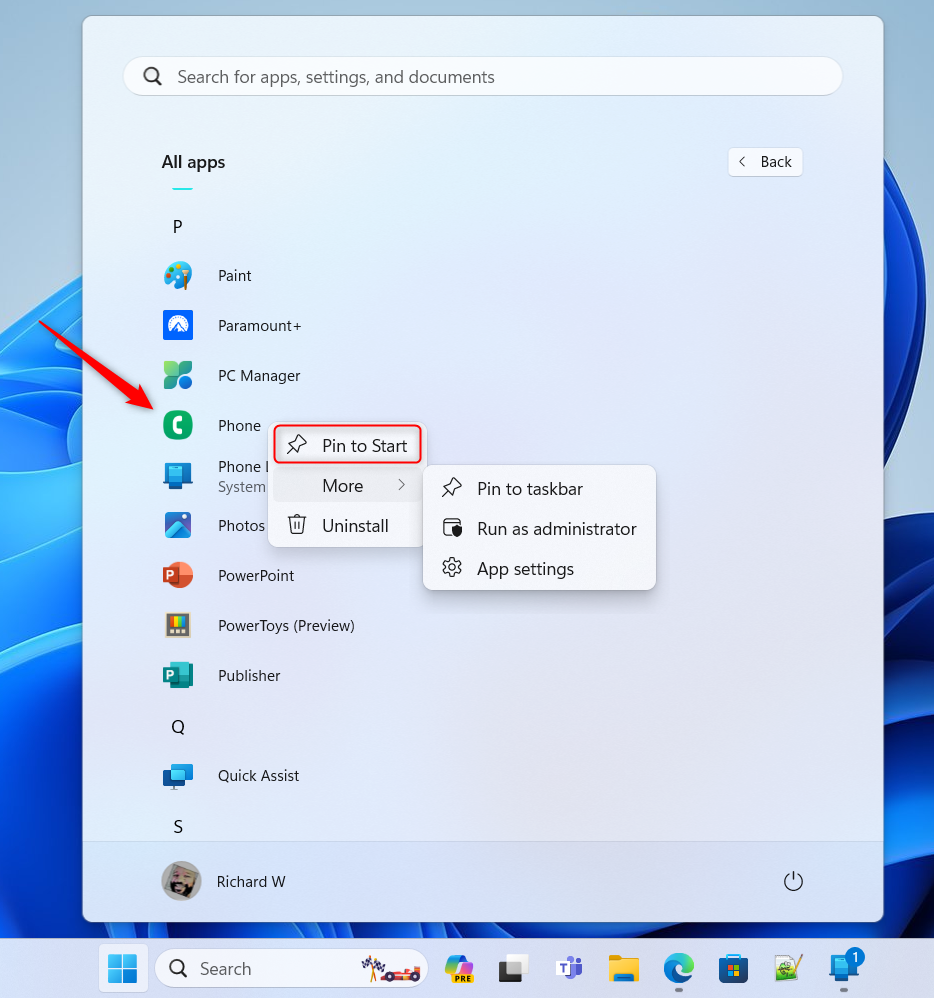
- Select Back to return to the main Start menu . The app now appears at the end of the Pinned section.
If the pinned app does not appear on the first screen, you have more pins than fit on one page. Small dots appear beside the Pinned section. Select a dot or scroll with your mouse wheel to move between pages.
If the context menu has no Pin to Start option, the app is probably already pinned. The menu then shows Unpin from Start instead. Check the Pinned pages before you assume something is wrong.
Pin an App from Search Results
Use this method when you know the app’s name and want to skip the long list.
- Select the Start button and start typing the app’s name. Windows switches to search results as you type.
- Look at the Best match result. Make sure it is an app and not a file or a web result.
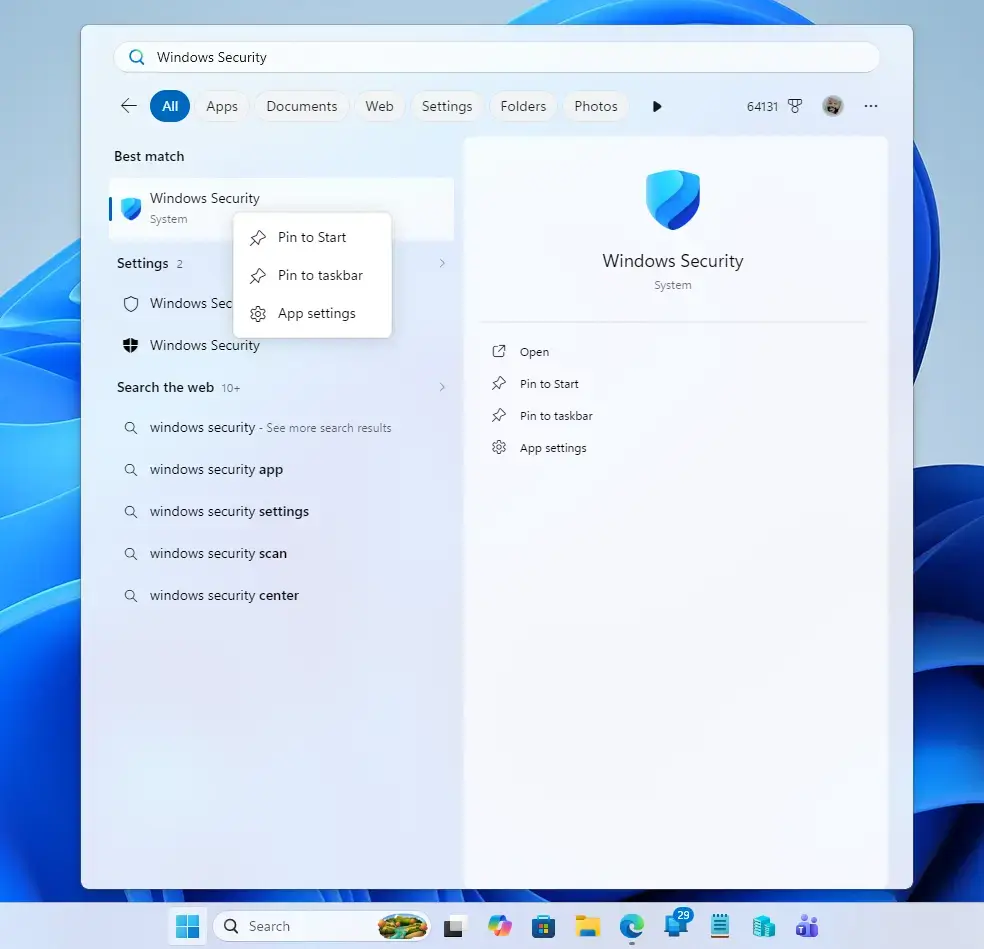
- Right-click the result, or select the arrow beside it to show its options in the right-hand pane.
- Select Pin to Start . The app is added to the end of your Pinned section.
If the app does not appear in search at all, it may not be installed for your account. Some programs install for a single user only. Try signing in with the account that installed it.
Pin an App from a Shortcut, an EXE File or a Folder
Use this method for portable apps (programs that run from a single folder without installation) and for programs that do not show up in the app list. It also works for folders you open often.
- Open File Explorer , or find the shortcut on your desktop.

File Explorer - Right-click the shortcut or the
.exefile of the app. For a folder, right-click the folder. - Select Pin to Start if it appears in the menu. If you do not see it, select Show more options at the bottom of the menu to open the full classic menu, then select Pin to Start there.
- Open the Start menu . The shortcut now appears at the end of the Pinned section.
Pin to Start works only for items Windows treats as launchable, such as apps, shortcuts and folders. A plain document or image file may not have this option. If you want a specific file on Start, create a shortcut to it first.
If you move or delete the .exe file, the pin stops working. Select it and Windows reports it cannot find the file. Unpin it and pin the file again from its new location.
How to Unpin an Application from the Start Menu
Unpinning removes the app’s icon from the Pinned section. The app stays installed and remains in the All apps list. You can find and launch it from there at any time.
- Select the Start button. The Pinned apps appear at the top.
- Find the app you want to remove. If you have several pages of pins, select the dots beside the section or scroll to move between them.
- Right-click the app icon. A context menu opens.
- Select Unpin from Start. The icon disappears, and the pins after it move up to fill the gap.
Windows 11 gives you no select-all option for pins. To clear many pins, you unpin them one at a time with the same right-click steps. This also applies to apps Windows pins on its own, such as promoted or third-party apps after a new install or an update. They use the same Unpin from Start option.
You can also unpin from the All apps list. Right-click a pinned app there and select Unpin from Start. The app’s entry stays in the list.
Unpin vs. Remove from List vs. Uninstall
Three similar-looking options do different things. Pick the one that matches what you want:
- Unpin from Start removes the icon from Pinned. The app stays installed.
- Remove from list appears when you right-click an item in the Recommended section. It hides that recent file or app from the list. It does not touch your pins, and it does not delete the file.
- Uninstall removes the app from your PC. It appears in the same right-click menu on many apps, so read the option before you select it.
If you want the app gone completely, use Uninstall. If you only want a tidier Start menu , use Unpin from Start.
How to Reorder and Group Your Pinned Apps
Once you’ve pinned an app, you’ll probably want to move it from the end of the list. Here are three ways to do it.
- Open the Start menu and find the pinned app.
- Drag the icon to a new position within Pinned. Other icons slide aside to make room. To send an app to another page, drag it toward the edge of the section and hold it there until the page changes.
- For the fastest option, right-click the app and select Move to front. The app jumps to the first position in Pinned.
To group apps, drag one pinned icon on top of another. Windows creates a folder that holds both. Select the folder to open it, and drag more apps in. To take an app out, open the folder and drag the icon outside it. Folder grouping requires a recent build of Windows 11. If dragging an icon swaps positions instead of grouping, update Windows. Install the latest updates in Settings Windows Update.
Show More Pins or More Recommendations
If your pins feel cramped, change how Start divides its space. This setting does not pin or unpin anything, but it controls how many pins you see at once.
- Open Settings and select Personalization.
- Select Start.
- Find the Layout setting and choose Default, More pins or More recommendations. The change is applied the next time you open the Start menu.
The Layout setting is available on recent builds of Windows 11. If you do not see it, update Windows and check again.
If Pin to Start or Unpin from Start Is Missing or Greyed Out
Most of the time the option is missing for a simple reason. Work through these checks in order.
- The app is already pinned. Windows shows only the option that applies. If you see Unpin from Start, the app is pinned. If you see Pin to Start, it is not.
- The item is not an app, shortcut or folder. Documents and some system files do not offer pinning. Create a shortcut to the file and pin the shortcut.
- You are on the compact right-click menu. On Windows 11, File Explorer shows a short menu first. Select Show more options to see the full menu. The option you want may be there.
- Your device is managed by an organisation. A work or school PC can have a locked Start layout set by policy. In that case, Pin to Start and Unpin from Start may be missing or have no effect. Only your IT administrator can change this. Locking the Start layout requires Windows 11 Pro, Enterprise, or Education—Home doesn't include the tools to do it. Home PCs are rarely locked unless they're managed by a device-management service.
- The PC is set up as a kiosk. A device configured with Assigned Access (a mode that restricts the PC to one or a few apps) limits what Start shows, and you cannot pin freely. Ask whoever set up the device.
The pin and unpin options are the same on Windows 11 Home and Pro. The difference is only in who can lock them, as described above.
Pins Come Back After You Unpin Them
If an app you unpinned returns, one of two things is usually happening. A feature update or a new user profile starts with the default Start layout, so Windows adds standard pins again. Or a management tool on a work PC resets the layout every time you sign in. In the first case, unpin the app again and it stays unpinned. In the second case, you need to ask your administrator, because changes you make will keep being undone.
An Unpinned App Does Not Show in All Apps
If you unpin an app and then cannot find it anywhere, the app was probably a shortcut to a file or folder you pinned yourself. For those, unpinning removes the only entry. Pin the file or folder again with the steps in the shortcut section above. Apps that were installed normally always stay in the All apps list.
How to Undo a Pin or Unpin
Both actions reverse easily. To undo an unpin, find the app in All apps, right-click it and select Pin to Start. It returns to the end of your Pinned section, not to its old position, so use Move to front or drag it back into place. To undo a pin, right-click the app and select Unpin from Start. Neither action changes the app or its data.
What to Do Next
Your Pinned section now shows only the apps you chose. Keep in mind that pins belong to each user profile, so a new account on the same PC begins with the default set. If you want an app on the taskbar as well, right-click it in All apps and select Pin to taskbar. If a pin returns after every update on a work PC, contact your administrator about the Start layout policy.
Frequently asked questions
How do I pin an app to the taskbar in 🪟 Windows 11?
Right-click the app on your Start menu or in All apps, then select Pin to taskbar. The taskbar is the horizontal bar at the bottom of your screen. The pin appears immediately without requiring a restart.
How do I add an app to the startup menu in 🪟 Windows 10?
Right-click an app in the All apps list on the Start menu, then select Pin to Start. Windows 10 reached end of support on October 14, 2025, so consider upgrading to Windows 11. The app shortcut appears at the top of your Start menu right away.
How do I disable the startup pin in 🪟 Windows 11?
Open Settings, go to Apps Startup, and turn off any apps you don't want to launch when Windows starts. This controls which apps run automatically when you boot your computer, not Start menu pins.
How to unpin an app from start?
Right-click the app in the Pinned section at the top of your Start menu, then select Unpin from Start. The shortcut disappears immediately. The app itself stays installed on your computer.
Still have a question?
Answered by AI from this guide. Good questions may be added to this page — please don't include personal details.
Did this guide fix your problem?

About the Author
Richard
Tech Writer, IT Professional
Richard is a writer at Geek Rewind who turns complex IT tasks into clear, step-by-step guides. He draws on years of hands-on experience in system administration and enterprise IT operations, focusing on Windows, Linux and WordPress: the problems people actually run into, and the fixes that work. His server and WordPress guides come from systems he runs himself. Richard builds and maintains the platform behind Geek Rewind, from its Ubuntu servers and Nginx configuration to its custom WordPress plugins. Many new tutorials start with readers' questions, and he's always glad to answer them in the comments.
No comments yet — be the first to share your thoughts!