How to Configure Your Mouse for Left-Handed Use in Windows 11

Swapping your mouse buttons in Windows 11 makes the right button act as the main click button, so your left hand’s index finger does the clicking. Open Settings Bluetooth & devices Mouse, then change Primary mouse button to Right. The change takes effect right away, and you don’t need to restart your computer or have administrator rights.
This guide walks you through the Settings method, shows you the older Mouse Properties window if you prefer that, and covers other mouse settings worth adjusting at the same time. It also explains what to do if the option is grayed out or doesn’t work, and how to switch the buttons back if you change your mind—including a way to do it when your mouse isn’t working properly.
To swap mouse buttons for left-handed use in Windows 11, open Settings Bluetooth & devices Mouse and change Primary mouse button from Left to Right. The change applies immediately, with no restart and no administrator rights needed. The physical right button then selects and drags, while the left button opens context menus.
What Swapping the Mouse Buttons Does
Windows treats the two main buttons differently. The primary button selects, clicks and drags. The secondary button opens the context menu —the menu that appears when you right-click an item. Windows assumes the primary button is the physical left button, which suits a right-handed grip.
When you set the primary button to Right, Windows reverses the roles. The physical right button now selects and drags. The physical left button now opens context menus. This setting is saved per user account, so anyone else who signs in to the same PC keeps their own preference.
Windows only swaps those two buttons. The side buttons (back and forward) and scroll wheel click stay unchanged. Extra buttons need remapping in the mouse maker’s software, which we cover later.
Swap the Mouse Buttons in Settings
This is the quickest route and works the same on Windows 11 Home and Pro. It needs no administrator rights.
Once you switch to Right, the page expects clicks from the physical right button. If you keep clicking with the left button, it will open context menus instead of selecting things. Use the physical right button for the remaining clicks, or follow the keyboard route in the undo section.
- Press Win+I to open Settings.

Windows 11 Start menu with Settings gear icon highlighted. - Select Bluetooth & devices in the left pane.

Windows Settings menu highlighting the Bluetooth and devices option for printers - Select Mouse. The page shows Primary mouse button, Mouse pointer speed, and scrolling options.
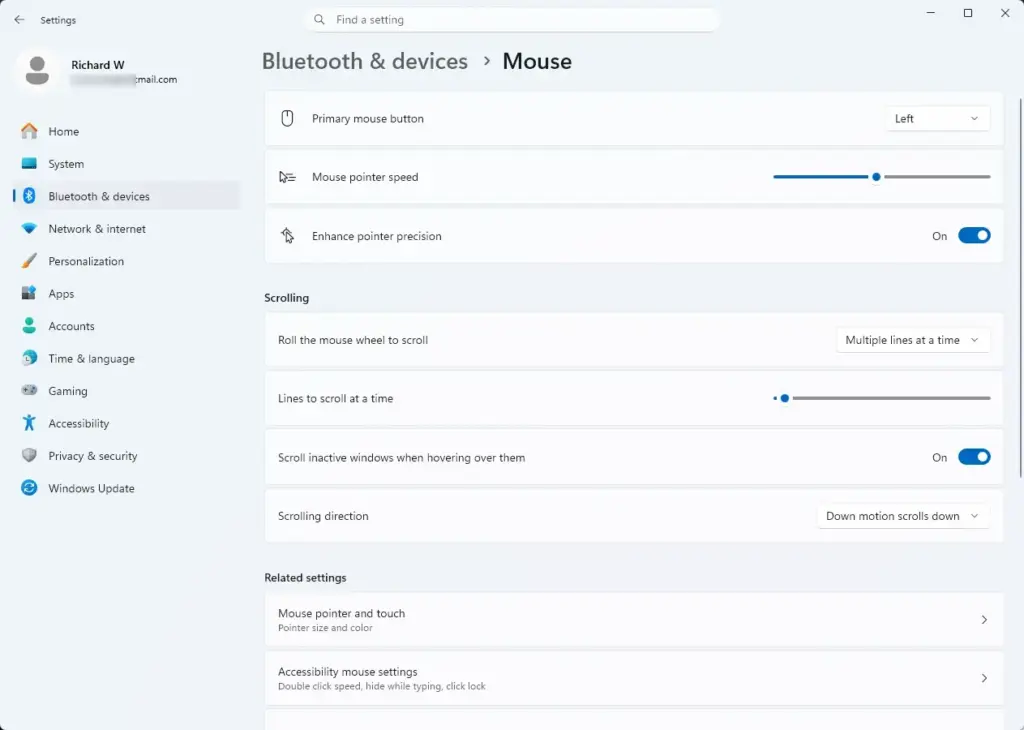
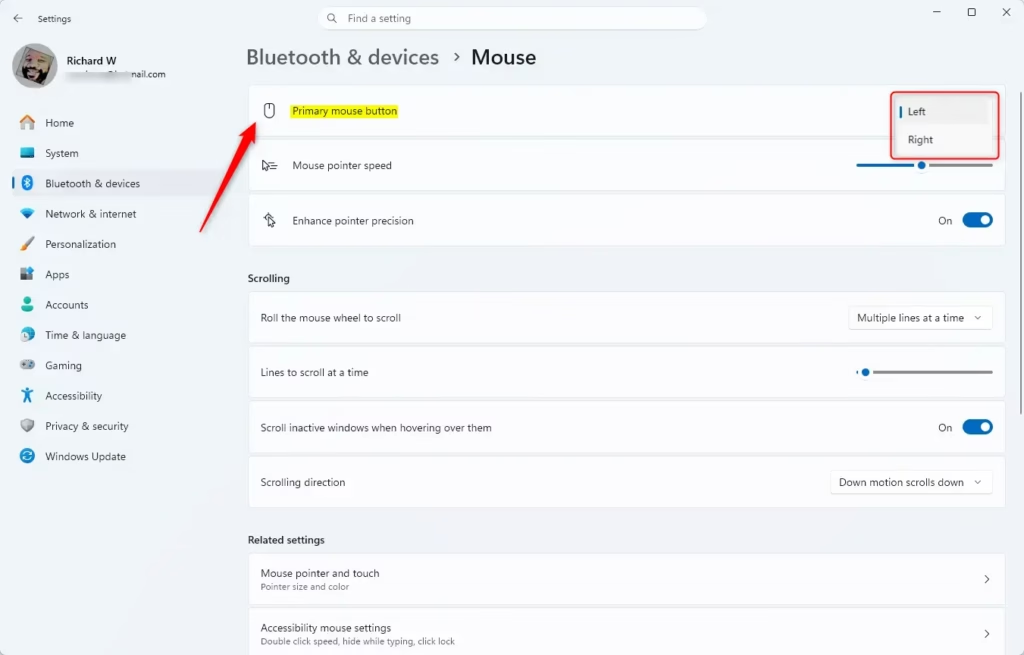
Settings › Bluetooth › Mouse - Open the Primary mouse button drop-down list. It currently reads Left.
- Select Right. The change takes effect at once.
- Click the desktop with your right-hand button, then click an item such as the Start button. The Start menu opens with the physical right button.
- Click the same item with the physical left button. A context menu appears. This confirms the buttons are swapped.
If the Mouse page does not appear under Bluetooth & devices, no mouse is detected. Check that the mouse is connected, then reopen the page. For a Bluetooth mouse, confirm it shows as connected under Bluetooth & devices Devices.
Swap the Buttons in Mouse Properties
The older Mouse Properties window does the same job and also holds a few settings that are not on the Settings page. Use it if you prefer the classic layout or if the Settings page misbehaves.
- Press Win+I to open Settings.
- Select Bluetooth & devices, then select Mouse.
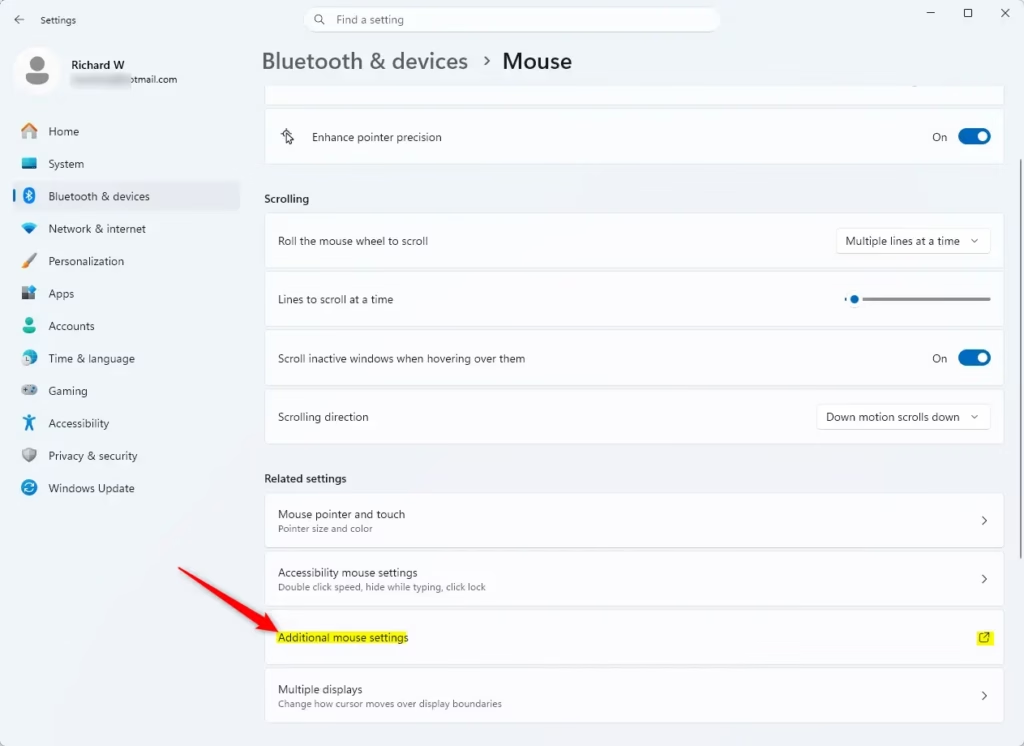
- Scroll to Related settings and select Additional mouse settings. The Mouse Properties window opens.
- Select the Buttons tab.
- Tick the Switch primary and secondary buttons check box.
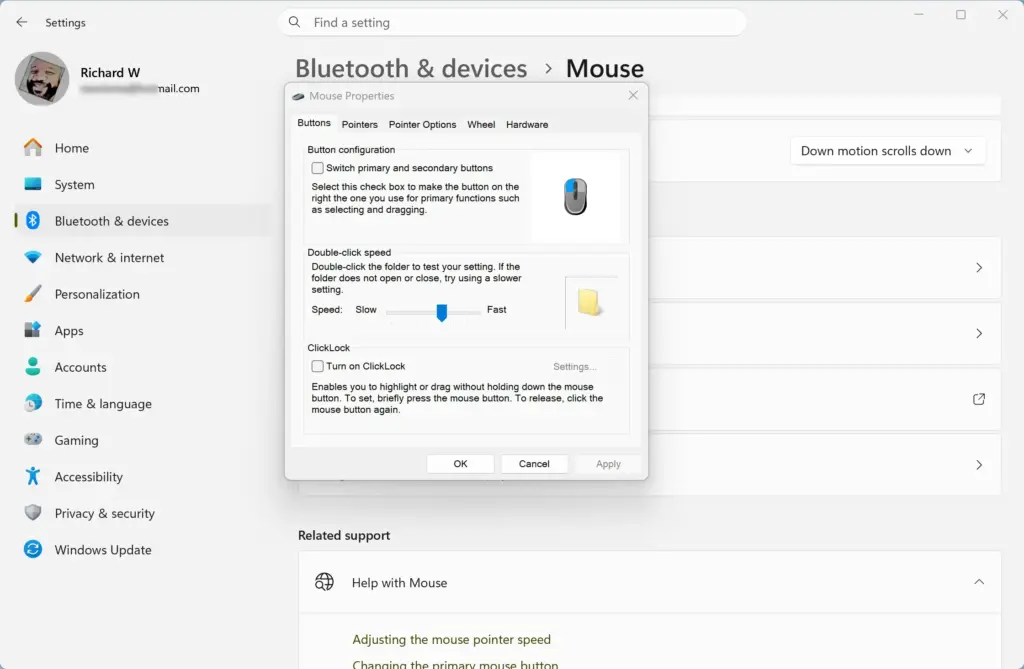
- Select Apply. The buttons swap as soon as you click it.
- Select OK with the physical right button to close the window.
After step 6, the right button is the one that clicks. If you are still using the left button, the OK button may not respond as you expect. Switch hands or use the right button to finish.
You can also open Mouse Properties from Control Panel . Search for Control Panel in the Start menu , open it, and choose Mouse. If you do not see it, switch the View by option to Large icons or Small icons.
Adjust Double-Click Speed After Swapping
Your double-click timing may feel off with the opposite finger. A slower double-click setting gives your hand time to adjust. This setting lives only in Mouse Properties.
- Open Mouse Properties using the steps above.
- On the Buttons tab, find Double-click speed.
- Drag the slider toward Slow to allow more time between clicks.
- Double-click the folder icon in the test area. The folder opens or closes when your timing matches the setting.
- Select Apply, then select OK.
The same tab has ClickLock, a feature that lets you drag items without holding the button down. You tap once to start the drag and once to drop. It helps if holding the button is tiring, but it is off by default and you do not need it for left-handed use.
Change Pointer Speed and Scrolling
Pointer speed and scroll behavior aren’t specific to left-handed use, but a new grip often changes how your mouse feels, so a quick check is worth it.
Set the pointer speed
The pointer speed controls how far the pointer moves for each movement of the mouse. Lower it if you overshoot targets with your non-dominant hand.
- Open Settings Bluetooth & devices Mouse.
- Drag the Mouse pointer speed slider left to slow the pointer or right to speed it up.
Settings › Bluetooth › Mouse - Move the mouse across the screen to test it. The change applies immediately.
In Mouse Properties, the Pointer Options tab also has Enhance pointer precision. This is mouse acceleration, which makes the pointer travel farther when you move the mouse quickly. Turn it off if the pointer feels unpredictable. Tick Show location of pointer when I press the CTRL key if you lose track of the pointer on a large screen.
Set the scroll behavior
The scroll wheel is not swapped, but the scrolling options sit on the same page. Under the scrolling section of Settings Bluetooth & devices Mouse, you can change how many lines the wheel scrolls at a time. You can also choose whether the wheel scrolls a window you are only hovering over.
Make the pointer easier to see
Open Settings Accessibility Mouse pointer and touch. Here you can change the Mouse pointer style and drag the size slider to enlarge it. A bigger or higher-contrast pointer is easier to follow, and a bigger or higher-contrast pointer is easier to follow.
Use a Left-Handed Mouse on a Laptop Touchpad
After you change it, press each touchpad button and tap gesture and check what happens. Tap gestures vary by touchpad. If a gesture does not behave as you expect, open Settings Bluetooth & devices Touchpad and review the options there.
If you plug in an external mouse, the swap applies to it as well. If you want a different arrangement on the touchpad and the mouse, Windows does not offer separate settings in Settings, so you will need to pick one.
If the Option Is Missing, Greyed Out or Has No Effect
The setting should work on any Windows 11 PC. When it does not, one of these is usually the cause.
- The Mouse page shows nothing useful or is empty. Windows has not detected a mouse. Reconnect the USB receiver or pair the Bluetooth mouse again. Then reopen Settings.
- You are connected through Remote Desktop or a virtual machine. The mouse in these sessions can be controlled by the host device or the remote software. Change the setting on the local PC that the physical mouse is plugged into.
- Your device is managed by a work or school account. Your organization can restrict settings. If you see a message that some settings are managed by your organization, ask your IT administrator. I cannot confirm from here which policy controls this, so do not try to change it yourself.
- The mouse maker's software is overriding Windows. Apps such as Logitech Options+ or Razer Synapse can assign their own button actions. If you swap buttons in both places, the two changes cancel out and the buttons seem unchanged. Choose one place to do the swap. Open the maker's app and check how the left and right buttons are assigned.
- A game ignores the setting. Some games read the physical buttons directly and have their own control bindings. Check the game's controls menu and rebind the buttons there.
- The change does not seem to apply at all. Close and reopen the app you are testing in. If the buttons still have not swapped, sign out and back in. If that fails, restart the PC.
Remap the Side Buttons and Pick the Right Hardware
Windows 11 does not have a built-in way to remap the back and forward thumb buttons. On a right-handed mouse used with the left hand, the thumb buttons are on the wrong side and your ring finger or pinky ends up near them. If your mouse has companion software, use it to reassign those buttons.
The swap in Windows is enough for casual use. If you use the mouse for long periods, consider buying a left handed mouse. These are shaped for the left hand, with the buttons and thumb rest mirrored. Ambidextrous mice, which have a symmetrical shape, are another option. Vertical mice come in left-hand versions too. A mouse shaped for the wrong hand can force an awkward wrist angle, so the physical fit matters as much as the software setting. If you buy one, keep the Windows setting on Left, because the mouse's buttons are already mirrored.
Switch Back to the Standard Button Layout
Reversing this change is safe—it won't affect anything else on your PC. Use the physical right button if you are in the swapped state.
- Press Windows key + I to open Settings.
- Select Bluetooth & devices, then select Mouse.
- Open the Primary mouse button drop-down list.
- Select Left. The physical left button becomes the main button again.
Switch back with the keyboard only
Use this if you swapped the buttons and cannot work out which one to click, or your mouse is not working.
- Press the Windows key, type Mouse settings, and press Enter. The Mouse page opens in Settings.
- Press Tab until the Primary mouse button list is highlighted.
- Press Space to open the list.
- Press the Up Arrow or Down Arrow key to highlight Left.
- Press Enter to confirm.
If you used Mouse Properties instead, open it again and clear the Switch primary and secondary buttons check box on the Buttons tab. Then select Apply.
What to Do Next
If your buttons are right but the mouse still feels awkward, return to Settings Bluetooth & devices Mouse and lower the pointer speed a little at a time over a few days. Also check that any mouse software from the maker matches your choice, since an update to that software can reapply its own button layout. Each user account has its own button setting, so repeat the steps for each account that needs it.
Frequently asked questions
How do you switch your mouse to left-handed?
Open Settings Bluetooth & devices Mouse Under Primary mouse button, select Right. Windows will swap the buttons so your left index finger does the main clicking. The change takes effect immediately without restarting.
How do I change the cursor settings in 🪟 Windows 11?
Open Settings Bluetooth & devices Mouse to adjust pointer speed, scroll direction, and button assignment. For more options like pointer size and visibility, go to Settings Accessibility Mouse pointer and touch.
How to change left-handed mode?
Go to Settings Bluetooth & devices Mouse and change Primary mouse button from Left to Right. This swaps which button Windows uses for selecting and dragging, making the mouse left-hand friendly.
Why isn't my mouse able to left or right click?
Check if your mouse cable or connection is loose. Restart your computer. If clicking still fails, try a different USB port. Visit Device Manager and look for any error icons next to your mouse. Update or reinstall the mouse driver if needed.
Still have a question?
Answered by AI from this guide. Good questions may be added to this page — please don't include personal details.
Did this guide fix your problem?

About the Author
Richard
Tech Writer, IT Professional
Richard is a writer at Geek Rewind who turns complex IT tasks into clear, step-by-step guides. He draws on years of hands-on experience in system administration and enterprise IT operations, focusing on Windows, Linux and WordPress: the problems people actually run into, and the fixes that work. His server and WordPress guides come from systems he runs himself. Richard builds and maintains the platform behind Geek Rewind, from its Ubuntu servers and Nginx configuration to its custom WordPress plugins. Many new tutorials start with readers' questions, and he's always glad to answer them in the comments.
No comments yet — be the first to share your thoughts!