How to Change Your First Day of the Week Setting In Windows 11 Time & Language

Windows 11 lets you set which day starts your calendar week in Settings Time & language Language & region This is useful if you work in a country that starts the week on Monday, Sunday, or a different day than your Windows default.
The first day of week setting controls how the calendar displays in Windows and in many apps — it doesn’t change your actual schedule, just how you see it organized. The change takes effect right away and applies only to your user account, so it won’t affect other people on your PC.
You don’t need administrator rights to make this change. This article covers the Settings method (the easiest way), an older Control Panel route that reaches the same setting, and what to do if the option is missing, appears greyed out, or keeps switching back on its own.
Open Settings , select Time & language, then Language & region, and expand Regional format. Choose a day from the First day of week drop-down list, such as Monday. Windows saves the change immediately with no restart or administrator rights needed, and it applies only to your own user account.
What the First Day of Week Setting Changes
The first day of week setting controls which weekday appears in the leftmost column of calendars that follow your Windows regional settings. The easiest example to see is the calendar that opens when you click the date and time in the taskbar at the bottom right of your screen. If you set it to Monday, that calendar starts each row on Monday instead of Sunday.
The setting belongs to your user account, not the whole computer. Other people who sign in to the same PC keep their own choice.
If a calendar in an app still starts on the wrong day after you change Windows, look in that app’s calendar options.
Change the First Day of Week in Settings
This is the main method. It uses the Regional format settings (the settings that control how Windows shows dates, times and numbers for your region). No administrator rights are needed.
- Press Win+I to open Settings. Settings opens with a list of categories on the left.

Windows 11 Start menu with Settings gear icon highlighted. - Select Time & language in the left pane. The right side now shows Date & time, Language & region, Typing and other pages.

Settings › Time & language - Select Language & region. The page lists your Language settings at the top and your Region settings below them.
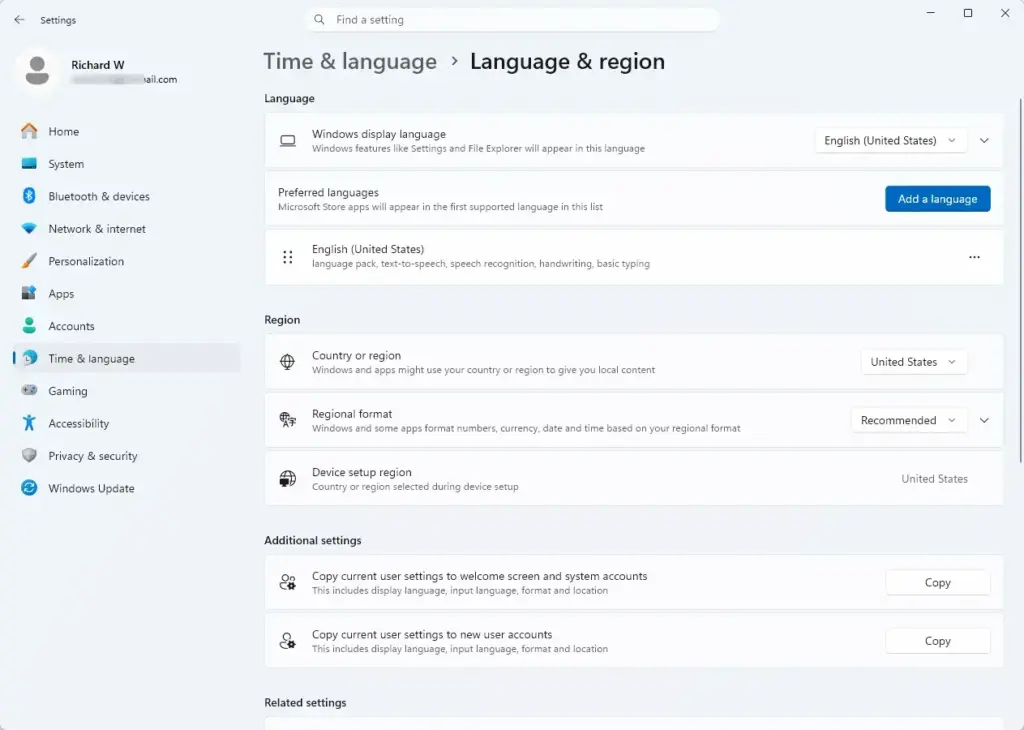
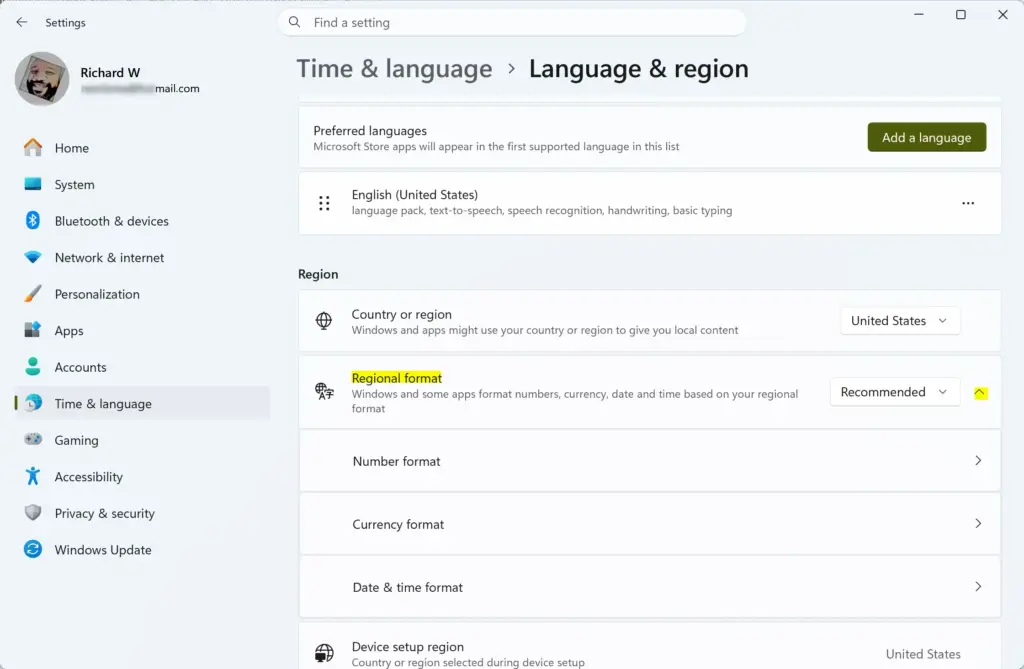
Settings › Time & language › Language & region - Scroll down to Regional format. It shows the current format, such as English (United States), and usually carries a Recommended label.
- Select the Regional format row to expand it. A list of options opens beneath it, including Calendar, First day of week, and the date and time format options.
- Open the First day of week drop-down list. You should see the seven days of the week.
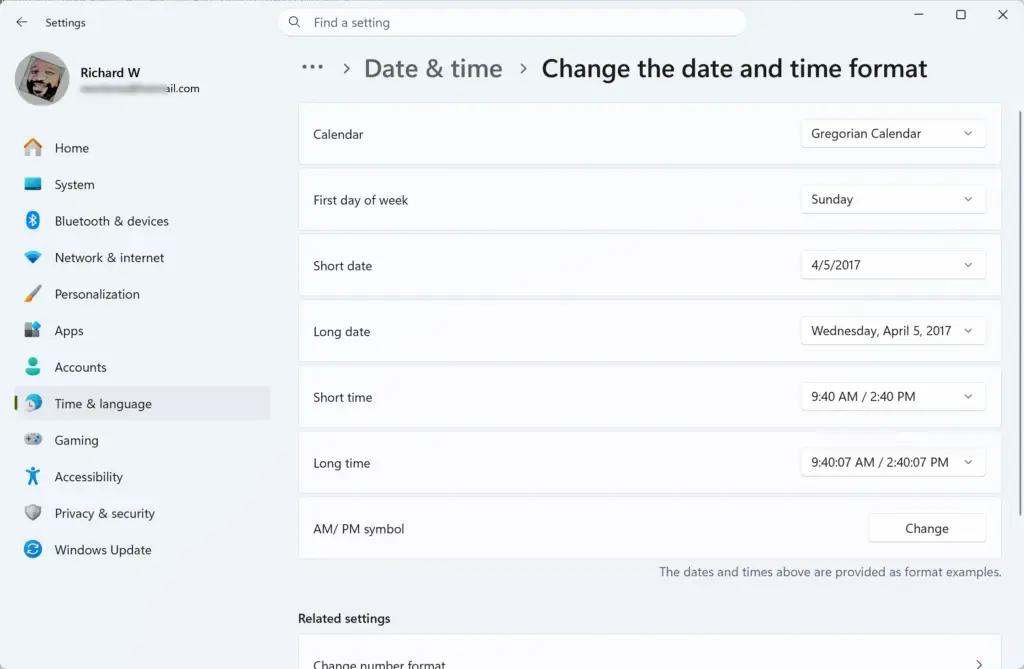
- Select the day you want, for example Monday. The list closes and the new day shows in the box.
Windows saves the change when you pick the day. There is no Apply or Save button on this page.
If the section does not expand: on some Windows 11 builds, the Regional format row has a Change formats button. Select it to open the same options. The wording and layout vary slightly between Windows 11 versions, but the First day of week label stays the same.
Open the Regional Format Page Directly
If you reach this page often, you can skip the first few clicks with a command. This opens the Region page in Settings without browsing through the categories.
- Press Win+R to open the Run dialog.
- Type
ms-settings:regionformattingand press Enter. - Look for Regional format on the page that opens and continue from step 5 above.
If nothing opens, or Settings opens on a different page, use the normal route from Time & language in the section above. The page name for this command can change between Windows builds.
Change the First Day of Week in Control Panel
Control Panel still contains the older Region dialog, which has its own First day of week box. Use this route if the Settings page looks different from the one described above, or if you prefer the classic dialog. It changes the same per-user setting.
- Press Win+R to open the Run dialog.
- Type
intl.cpland press Enter. The Region dialog opens on the Formats tab.
Control Panel › Clock and Region - Select Additional settings near the bottom of the dialog. The Customize Format window opens with tabs for Numbers, Currency, Time and Date.
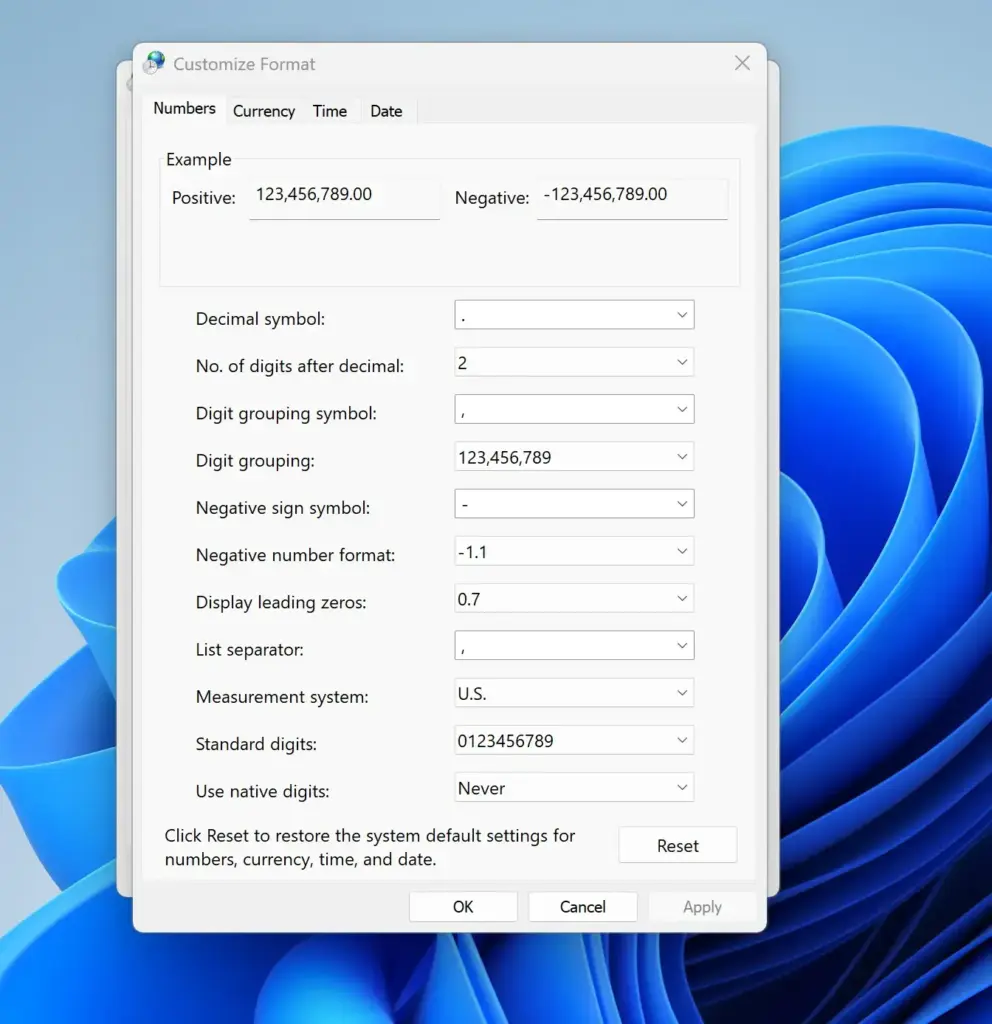
- Select the Date tab.
- Open the First day of week drop-down list and select the day you want.
- Select Apply, then select OK to close the Customize Format window.
- Select OK again to close the Region dialog.
You can also reach the same dialog from the classic Control Panel through Clock and Region Region. The intl.cpl command is faster.
Check That the Change Worked
Confirm the change by looking at the taskbar calendar. It is the quickest way to see whether Windows has applied the new day.
- Click the date and time at the right end of the taskbar . The calendar flyout opens above it.
- Read the row of weekday abbreviations at the top of the calendar. The first abbreviation on the left should now be the day you chose.
You do not need to restart the computer. In most cases the taskbar calendar picks up the new setting immediately. If the flyout still shows the old order, close it and open it again. If that does not help, sign out of Windows and sign back in. Signing out reloads your user settings and fixes most cases where a change has not shown up yet.
Apps that were open when you made the change may keep the old setting until you close and reopen them.
Why the First Day of Week Option Is Missing or Greyed Out
This setting appears on every Windows 11 edition. If you cannot find it or change it, work through these causes in order.
The Regional Format Section Is Collapsed
The most common reason people think the option is missing is that the Regional format section is collapsed. The First day of week list sits inside that section. Select the Regional format row so it expands, as in step 5 of the Settings method. If your build shows a Change formats button, select that instead.
Your Device Is Managed by an Organization
On a work or school PC, an administrator can lock regional settings. In that case, the options may be greyed out, and a message such as Some settings are managed by your organization may appear at the top of the page. You cannot override this from a standard account. Ask your IT department to change the setting for you, or to tell you whether the restriction is deliberate. This article gives no policy or registry steps for that case, because they are not covered in the verified material for this site.
The Settings Page Is Not Responding or Is Blank
If the Language & region page opens blank or the list does not respond, close Settings and open it again. If it still fails, use the Control Panel method above. The Region dialog does not depend on the Settings app, so it often works when the Settings page does not.
You Are Looking for the Wrong Setting
The Date & time page, which sits next to Language & region under Time & language, controls the time zone, automatic clock settings and similar options. It does not contain the first day of week. Go to Language & region instead.
Why the Setting Changes Back
If your choice does not stay, one of these actions is usually the cause.
- Changing the regional format afterward resets the first day of week. Switching to a different regional format, for example from English (United States) to English (United Kingdom), can reset the related options, including the first day of week, to the defaults for that region. Choose the regional format first, then set First day of week.
- You pressed Reset in the Customize Format window. The Reset button in the classic Customize Format window restores the region's defaults for every option on every tab.
- A different user account is signed in. The setting applies per user. A change made in one account does not carry over to another account on the same PC.
- An organization policy applies the setting at sign-in. On managed devices, an administrator can push regional settings, which overwrite your choice. Ask your IT department if this happens on a work or school PC.
I cannot confirm from the source material whether a Windows feature update resets this particular setting. If it changes after a major update, set it again using the steps above.
How to Undo the Change
Reversing the change takes the same steps in the other direction. Open Settings Time & language Language & region, expand Regional format, and choose your previous day in the First day of week list. The change takes effect straight away.
Open intl.cpl, select Additional settings, and select Reset in the Customize Format window. This resets all the format options in that window, not only the first day of week. Any custom number, currency, time and date formats you set are also lost. Check them first if you changed them on purpose.
What to Do Next
If the taskbar calendar now starts on the right day but dates or times still look wrong, the same Regional format section holds the Short date, Long date, Short time and Long time options. Change them there to match how you write dates. If an app such as Outlook still shows the wrong first day, open that app's calendar options and set the day there.
Frequently asked questions
How do I change the first day of the week in 🪟 Windows 11?
Open Settings and go to Time & language Language & region. Scroll down to find "First day of week" and select your preferred day from the dropdown menu. The change applies immediately to your user account.
How to change week start day in Windows?
Go to Settings Time & language Language & region. Find the "First day of week" dropdown menu and choose which day you want your calendar week to start on. This setting controls how calendars display in Windows and apps.
How to display day of the week in taskbar?
Click the date and time in the taskbar's bottom right corner to open a calendar popup. The Windows 11 taskbar shows only the date and time. To show the day name, change the Short date format under Regional format to one that includes the weekday, such as dddd, or use a third-party tool. Windows 11 does not add the weekday automatically; it appears only if the Short date format includes it.
How to set Monday as the first day of the week?
Open Settings and navigate to Time & language Language & region. Locate the "First day of week" dropdown menu and select Monday. The calendar displays will reorganize immediately, with Monday appearing in the leftmost column.
Still have a question?
Answered by AI from this guide. Good questions may be added to this page — please don't include personal details.
Did this guide fix your problem?

About the Author
Richard
Tech Writer, IT Professional
Richard is a writer at Geek Rewind who turns complex IT tasks into clear, step-by-step guides. He draws on years of hands-on experience in system administration and enterprise IT operations, focusing on Windows, Linux and WordPress: the problems people actually run into, and the fixes that work. His server and WordPress guides come from systems he runs himself. Richard builds and maintains the platform behind Geek Rewind, from its Ubuntu servers and Nginx configuration to its custom WordPress plugins. Many new tutorials start with readers' questions, and he's always glad to answer them in the comments.
No comments yet — be the first to share your thoughts!