How to Change Date and Time Formats in Windows 11 Clock and Region Settings

Windows 11 can show the clock as 12-hour with AM/PM or as 24-hour, and you can also change how dates are written. Both are controlled by your regional format settings. This tutorial covers the Settings app, the classic Control Panel and custom format strings, and ends with what to check when the change does not show up.
To change the time format in Windows 11, open Settings , go to Time & language Language & region, expand Regional format and click Change formats. Pick a 12-hour or 24-hour entry from the Short time dropdown. If the taskbar clock doesn’t update, restart Windows Explorer from Task Manager .
Accessing Date and Time Settings
The main clock screen is the quickest starting point. It is where you set the time zone and automatic time, and it links onward to the regional options. You can reach it from the keyboard or from the taskbar clock.
- Press the Win and the I key together to open Settings.

Windows 11 Start menu with Settings gear icon highlighted. - Click Time & language in the left-hand sidebar.

Settings › Time & language - Click Date & time in the main panel. You should now see the primary clock configuration screen, with the time zone and automatic time options.
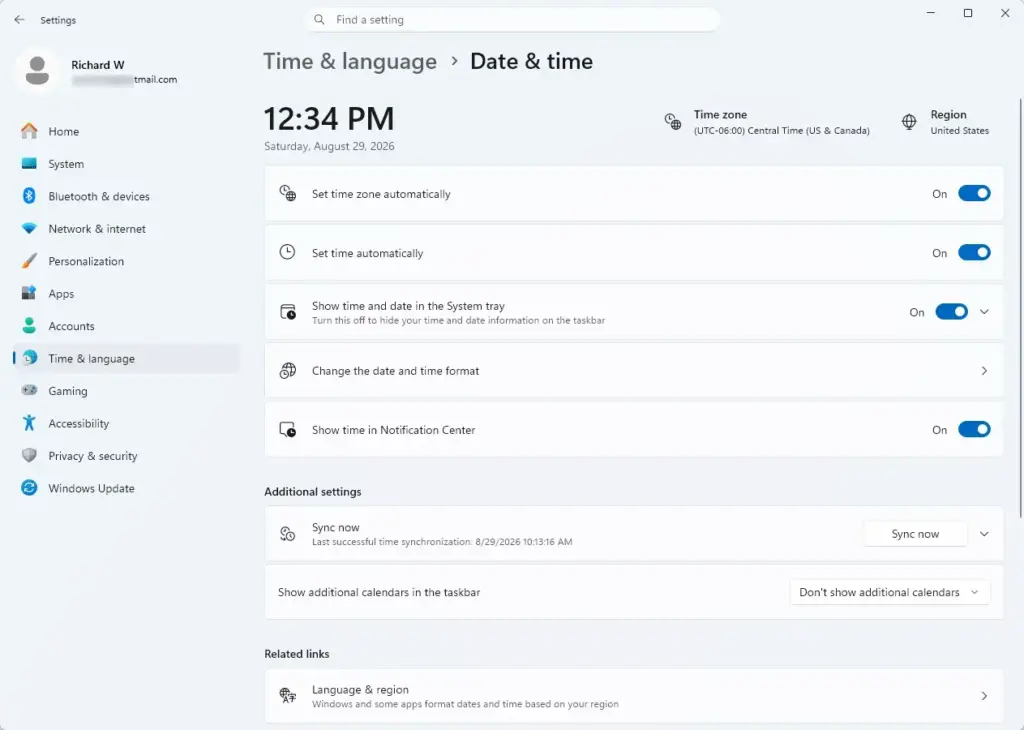
Settings › Time & language › Date & time
This opens the same Date & time page without the first two steps.
Navigating to Region Settings
The format controls for time and date are one level below the main clock screen, on the Language & region page. You can get there from the Related links on the Date & time page, or go straight to it through the sidebar.
- Scroll down the Date & time page to the Related links section, or go directly to Time & language Language & region
- Click Language & region to open the regional options.
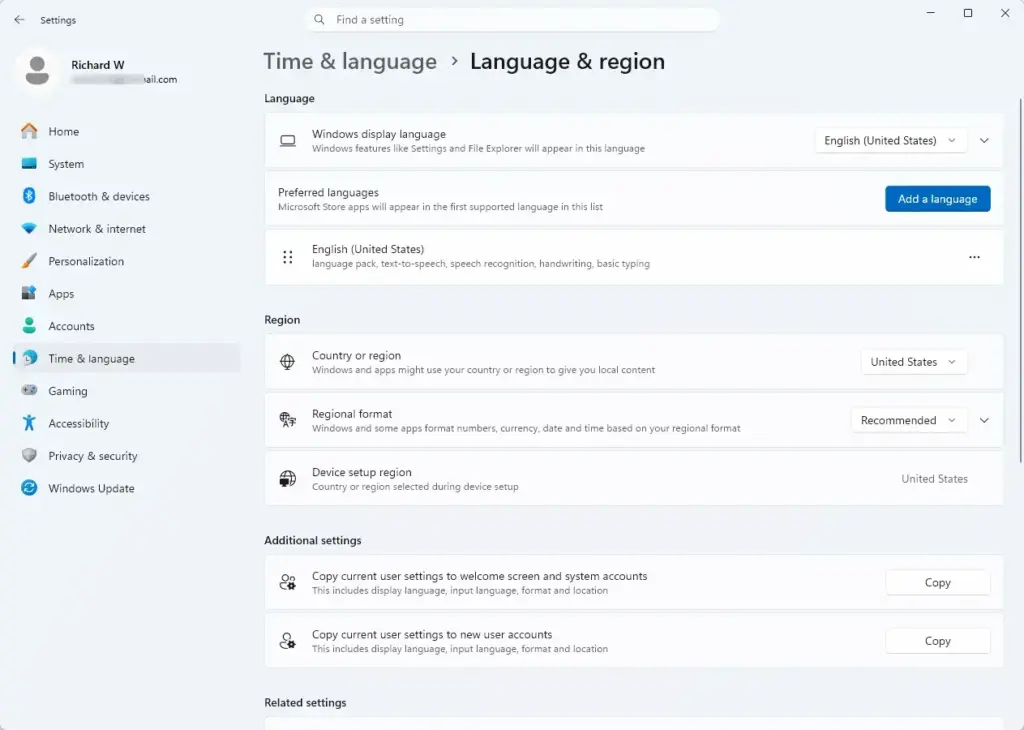
Settings › Time & language › Language & region - Scroll down to the Region section on the new page.
- Click Regional format to expand it. You should see the format choices and a Change formats row.
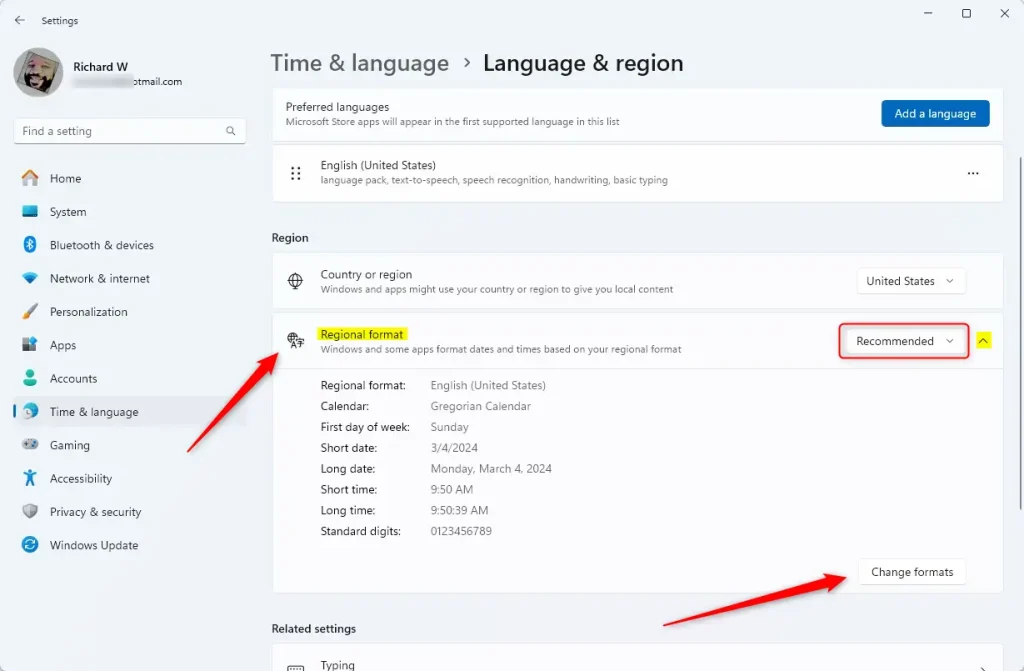
This takes you straight to the regional format settings.
The Regional format dropdown at the top sets the overall defaults for your region. Choosing a different region there changes the date and time defaults in one go. The Change formats row lets you override individual items without changing region.
Changing the Time Format
This is where you choose how the time and date appear on the taskbar , the lock screen and in apps that follow your system settings. You pick from dropdown menus, so there is nothing to type.
Before you start, note that the taskbar clock does not always refresh the moment you change a format. If it still shows the old format after you apply the change, sign out and back in, or restart Windows Explorer . To restart Explorer, press Ctrl+Shift+Esc to open Task Manager , find Windows Explorer in the Processes list, right-click it and choose Restart. The taskbar will disappear for a second or two and then come back with the new format.
The taskbar clock can also show seconds. Go to Settings Personalization Taskbar, expand Taskbar behaviors and tick the option to show seconds in the system tray clock. This option is only in recent Windows 11 builds, so if you do not see it, check Windows Update . Showing seconds uses a little more power, which only matters on a laptop running on battery.
- On the Regional format section, click Change formats. A page opens with a dropdown for each date and time item.
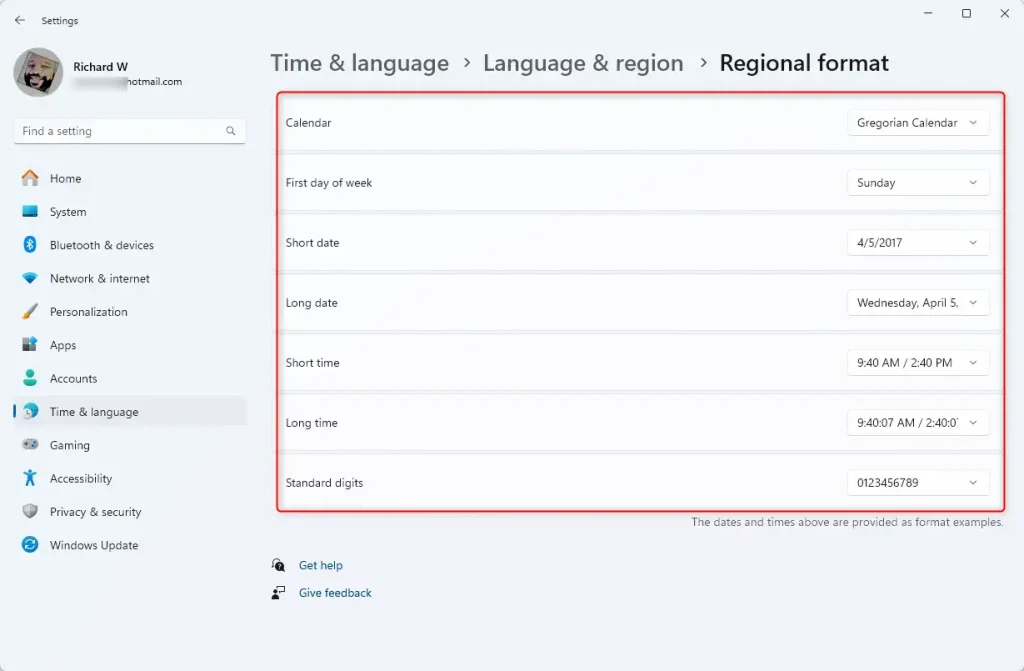
- Find the Short time dropdown. It controls the clock at the bottom right of the taskbar .
- Select your preferred format. Entries with AM or PM are 12-hour. Entries without them, such as 13:45, are 24-hour.
- Find the Long time dropdown. It controls how the time appears in more detailed views.
- Choose your preferred long time format from the list.
- Find the Short date dropdown and pick how dates appear in compact form, for example in the taskbar clock flyout and in File Explorer columns. The list shows each option with today’s date as an example, so you can see the result before you choose.
- Find the Long date dropdown and choose the longer form, which spells out the day and month name.
- Find the First day of week dropdown and choose the day you want calendars to start on, such as Monday or Sunday.
The settings save as soon as you pick them, with no Apply button. A full restart is not normally required, but some already-open apps only read the format when they start, so close and reopen them. If the taskbar clock still looks wrong, use the sign-out or Explorer restart described above. To undo your changes, set the Regional format dropdown back to Recommended or to your region’s default, or pick the old formats again.
Modifying Time Formats Through Control Panel
Control Panel still has the classic Region dialog, which many administrators prefer. It exposes the same date and time formats as Settings, plus the Additional settings button used for custom strings in the next section.
- Open the Start menu search bar , type Control Panel and press Enter.
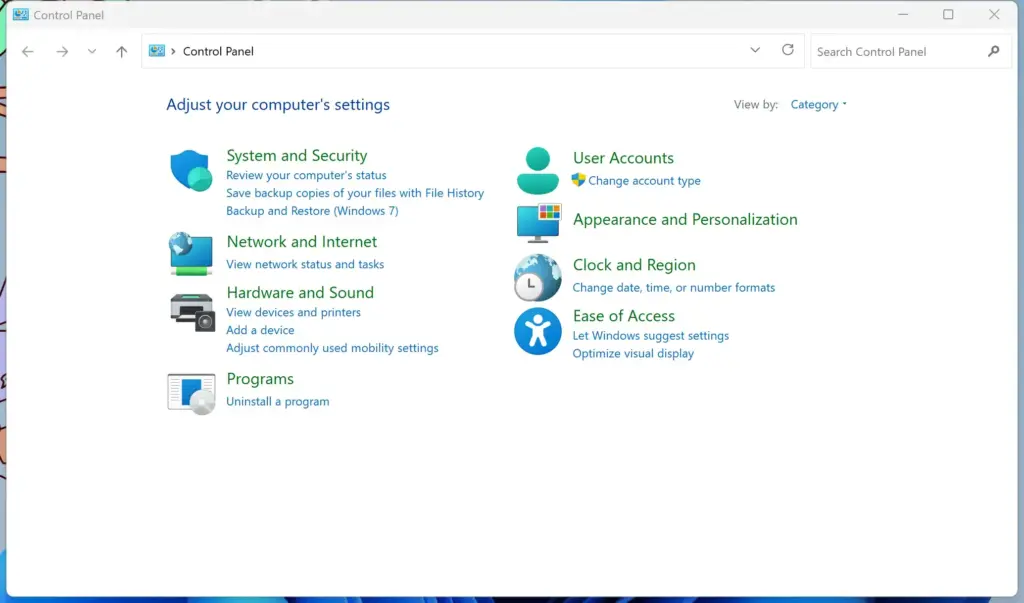
Control Panel - Click Clock and Region in the category view. If your Control Panel shows icons instead of categories, switch View by to Category in the top right.
- Click Region. The Region dialog opens.

Control Panel › Clock and Region - Select the Formats tab at the top of the window.
- Open the dropdown next to Short time and pick the 12-hour or 24-hour format.
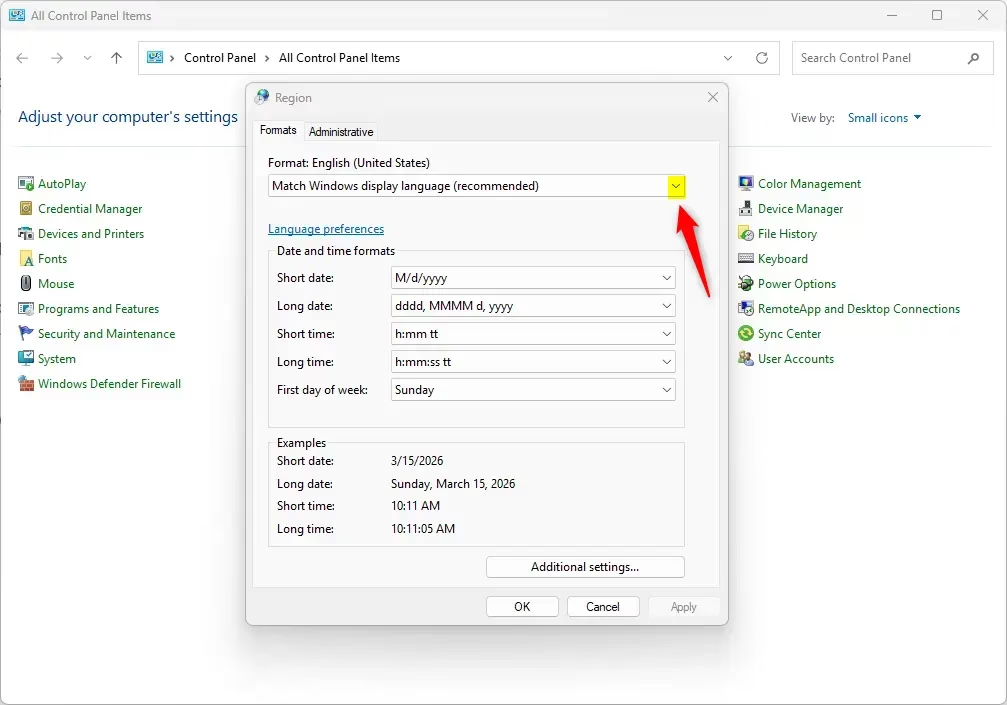
- Open the dropdown next to Long time and select your desired format.
- If you also want to change dates, use the Short date and Long date dropdowns and the First day of week dropdown on the same tab. The Examples area at the bottom of the tab shows how your choices will look.
- Click Apply at the bottom right of the window to save your changes.
- Click OK to close the Region window.
The Control Panel and Settings changes are the same underlying setting, so a change made in one appears in the other. This works on both Home and Pro editions.
Customizing Custom Time Strings
If none of the presets give you the layout you want, you can type your own format string. This is useful for things like a 24-hour clock with a leading zero, or an AM/PM marker in a particular place. Format codes are case-sensitive, so check capitalization carefully.
- Open the Region dialog from Control Panel, using the steps in the previous section.
- On the Formats tab, click the Additional settings button at the bottom. The Customize Format window opens.
- Select the Time tab.
- Click inside the Short time box and type your format string. Use "hh" for hours, "mm" for minutes and "tt" for the AM/PM designator. For hours, a lowercase "h" gives a 12-hour clock and an uppercase "H" gives a 24-hour clock. For example, "HH:mm" gives 24-hour time such as 09:05, and "hh:mm tt" gives 12-hour time such as 09:05 AM.
- Click Apply and check that the preview matches what you expect. If the string is not valid, Windows shows an error or reverts it. Fix the string and try again.
- Click OK to save the custom format and close the window.
To undo a custom string, click Reset in the Customize Format window, or pick a preset again from the Formats tab.
If this didn't work
If the taskbar clock still shows the wrong format or switches back after you change it, work through these checks in order.
- Make sure the change actually saved. Open Time & language Language & region Regional format Change formats and confirm that Short time shows the format you chose.
- Refresh the taskbar. Sign out and back in, or restart Windows Explorer from Task Manager as described earlier. This fixes most cases where the setting is right but the clock has not redrawn.
- Check the Regional format dropdown. If it does not match your region, the defaults it applies may not be the ones you expect. Set it to your region, or to Recommended, and then re-apply your own formats.
- Check the time zone on the Date & time page. A wrong time zone shows the wrong time, which can look like a format problem. Turn on Set time automatically and Set time zone automatically if you want Windows to handle both.
- If you want the same format on the sign-in screen and for new user accounts, open the Region dialog in Control Panel, go to the Administrative tab and click Copy settings. This needs administrator rights.
- On a work or school PC, check with your IT department. Group Policy or other management tools can reset regional settings, so your change may be overwritten at the next sign-in.
If the format still reverts after all of this, restart the PC once and test again before looking for deeper causes.
Have a question about this guide?
Answered by AI from this guide. Good questions may be added to this page — please don't include personal details.
Did this guide fix your problem?

About the Author
Richard
Tech Writer, IT Professional
Richard is a writer at Geek Rewind who turns complex IT tasks into clear, step-by-step guides. He draws on years of hands-on experience in system administration and enterprise IT operations, focusing on Windows, Linux and WordPress: the problems people actually run into, and the fixes that work. His server and WordPress guides come from systems he runs himself. Richard builds and maintains the platform behind Geek Rewind, from its Ubuntu servers and Nginx configuration to its custom WordPress plugins. Many new tutorials start with readers' questions, and he's always glad to answer them in the comments.
No comments yet — be the first to share your thoughts!