Add a Clock for Another Time Zone in Windows 11

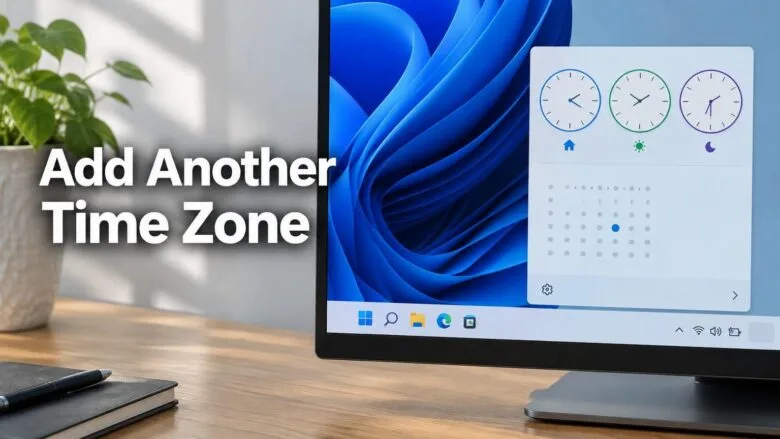
Want to see the time in another city on your taskbar ? Windows 11 can show up to two extra clocks next to your local time. To add one, open Settings Time & language Date & time, click Additional clocks, select Show this clock, and pick the time zone.
Windows 11 supports up to two additional clocks beyond your local clock. Both appear when you hover over or click the taskbar clock. This works the same on Windows 11 Home and Pro, and none of these steps needs administrator privileges.
To add an additional time zone clock in Windows 11, open Settings Time & language Date & time, expand Show time and date in System tray , and select Show this clock. Choose a time zone from the Select time zone drop-down list and type a display name. Click Apply, then OK. Windows 11 supports up to two extra clocks, which appear when you hover over the taskbar clock.
What an Additional Time Zone Clock Does in 🪟 Windows 11
An additional clock displays the current time for a time zone you choose, with a label you write. The extra clock follows that zone’s daylight saving rules by itself, so you never change it twice a year. It does not change your PC’s real time zone, and it does not affect file timestamps, calendar events or app behavior.
This feature suits remote teams, family abroad, and anyone who schedules calls across regions. The extra clocks sit inside the same clock flyout (the small panel that opens from the taskbar ), so they take no screen space until you need them.
Before You Start
If your local time is wrong, every extra clock is wrong by the same amount. Check the main clock first.
Open Settings Time & language Date & time. Confirm that Set time automatically and Set time zone automatically are on, or that the zone you set manually is correct. If the time drifts, see how to sync your clock with an internet time server in Windows 11 before continuing. An internet time server is a service that sends your PC the correct time.
Add an Additional Time Zone Clock Through Settings
Use these steps to put a second city next to your local time on the taskbar clock. Follow the numbered steps below to add the clock. The second clock is optional, and you can add it after the first.
- Open Settings . Press Win+I, or right-click Start and choose Settings.

- Click Time & language in the left pane. The right side shows the date and time options.

Settings › Time & language - Click Date & time. The path is Settings Time & language Date & time You see your current time zone and the automatic time switches.
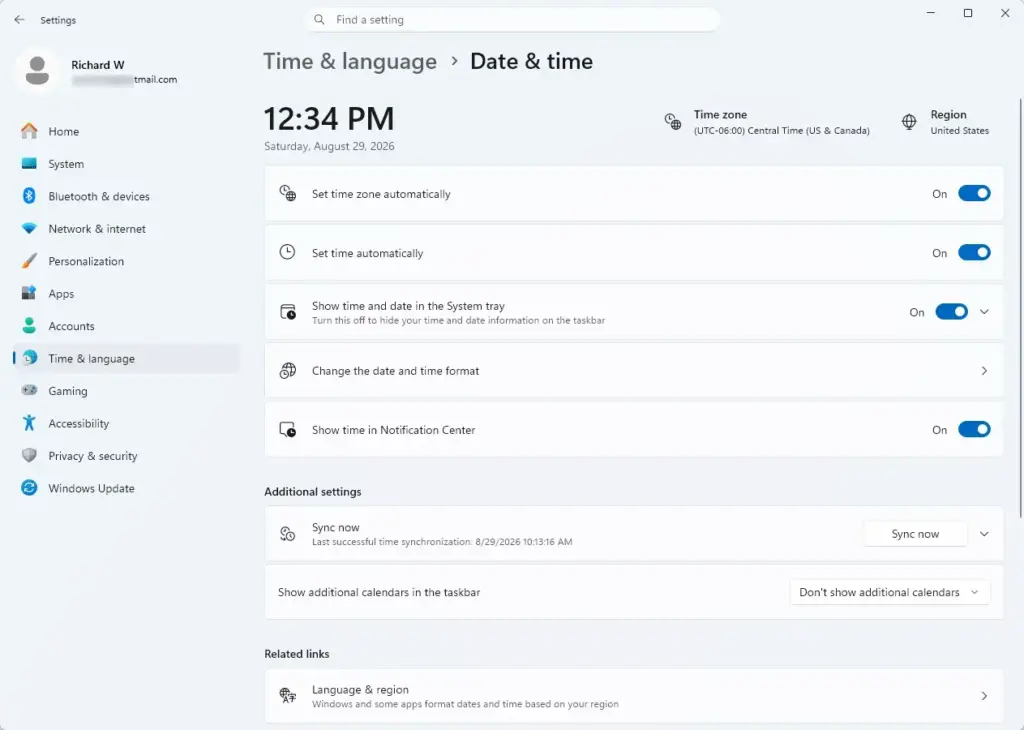
Settings › Time & language › Date & time - Scroll and expand Show time and date in System tray . A small window titled Date and Time opens on the Additional Clocks tab. If the link is missing, use the method in the next section.
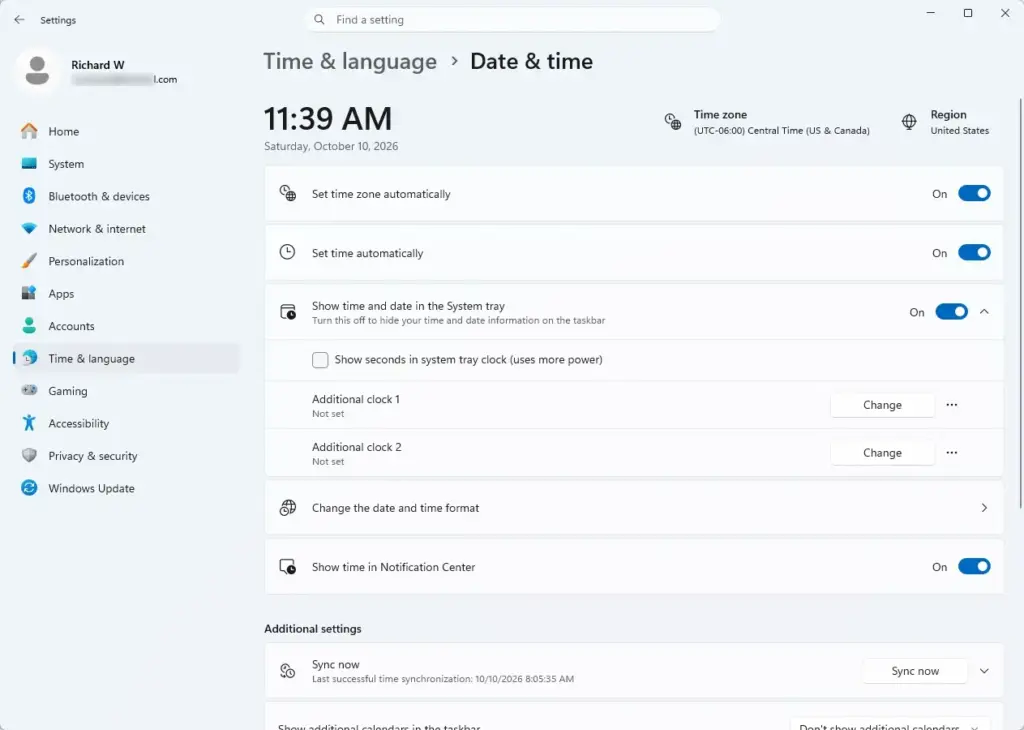
- Select the Show this clock check box for the first clock. The other options on that half of the tab, which were greyed out, become active.
- Open the Select time zone drop-down list and choose a zone. Zones are listed by offset from UTC (Coordinated Universal Time, the world reference time), for example (UTC-05:00) Eastern Time (US & Canada).
- Type a label in the Enter display name box. Use something you recognize at a glance, such as “London office” or “Mom”.
- Repeat steps 5 to 7 in the second clock area to add another zone. Skip this step if you need only one.
- Click Apply, then click OK. The window closes and the clocks are saved. No restart or sign-out is needed.
- Hover over the clock in the taskbar corner. A tooltip lists your local time followed by each additional clock with its label.
Clicking Cancel or closing the window with the X discards your changes.
Open the Additional Clocks Window Without Settings
The older Date and Time window opens directly if the Settings link is missing or you prefer the keyboard. This window is the same one the Settings link opens.
- Press Win+R. The Run dialog opens.

Run dialog - Type
timedate.cpland press Enter. The Date and Time window opens, usually on the Date and Time tab. - Click the Additional Clocks tab at the top.
- Go to step 5 of the Settings steps above and carry on from there.
You can also reach the same window through Control Panel Clock and Region Date and Time. Control Panel is the older settings area that Windows 11 still includes.
See Your Additional Clocks on the Taskbar
Windows 11 does not show extra clocks on the taskbar itself. The taskbar shows only your local time, so the extra clocks need one more action to appear.
Hover over the clock to see a tooltip with all the zones. Click the clock to open the flyout with the calendar. The additional clocks appear in that panel, each with the name you typed.
Displayed time formats follow your region settings. If you want 24-hour time on the extra clocks, change the format for the whole PC. Change date and time formats in Windows 11 Clock and Region settings explains where. For the lock screen specifically, see how to set a 24-hour clock on the Windows 11 lock screen.
The extra clocks have no setting for seconds, and they do not show a date. If you need to see whether the other city is a day ahead, check the date in the calendar flyout against what you know of the zone.
Change, Rename or Remove an Additional Clock
You can edit or remove an additional clock at any time, and removing it leaves your local time untouched. This is also how you undo everything above.
- Open the Additional Clocks window with Settings Time & language Date & time Additional clocks, or run
timedate.cpl. - Select the Additional Clocks tab if it is not already showing.
- Change the zone in Select time zone or the label in Enter display name to edit a clock.
- Clear the Show this clock check box to remove a clock. The zone and name fields grey out again.
- Click Apply, then OK. The tooltip updates at once.
Clearing the check box is enough. You do not need to delete the display name first.
Fix Problems With Additional Clocks
The Additional clocks link is missing in Settings
Windows sometimes moves links on the Date & time page between builds, and a Settings page that has not fully loaded can hide the Related links section. Scroll to the bottom of the page and wait a few seconds. If the link is still absent, close Settings, reopen it and try again. The timedate.cpl method above skips Settings and gives the same result.
The time zone options are greyed out
The Select time zone list and the Enter display name box stay greyed out until you select Show this clock. This is normal. Select the check box and the fields become active.
An additional clock shows the wrong time
Start with your local clock. An extra clock cannot be more accurate than the PC it runs on. If the local time is off by a few minutes or hours, fix that first. Why Windows 11 automatically syncs your clock incorrectly covers the usual causes, such as a wrong time zone setting or a failing CMOS battery. That battery is the small one on the motherboard that keeps time while the PC is off.
If the local time is right, check that you picked the correct city’s zone. Several zones have similar names, such as the different Central time zones in North America. Look at the time difference from UTC (Coordinated Universal Time, the standard world reference time) shown in brackets to confirm.
The clock is an hour off around a daylight saving change
Countries start and end daylight saving time on different dates. For a few weeks each year, the gap between your zone and another can differ from what you remember. The additional clock is usually right in that period. Check a trusted source for that city before assuming Windows made a mistake.
Only two additional clocks are allowed
The Additional Clocks tab has space for two. There is no setting that adds a third. For more zones, use the Clock app described next.
Use the Clock App for More Than Two Time Zones
The Clock app (a separate Windows 11 app that includes timers, alarms and world clocks) can track many cities at once. It does not put the times in the taskbar flyout, but it keeps them in one window. Menu labels can vary slightly between app versions.
- Click Start, type Clock, and open the Clock app.
- Select World clock in the left pane. Any saved cities appear as tiles.
- Click the Add new location button, which looks like a plus sign.
- Type a city name and pick it from the results.
- Click Add. A new tile with the local time for that city appears.
The World clock list is separate from the taskbar additional clocks. Adding a city in one place does not add it to the other. If you want a side-by-side comparison with your own time, see the dual clock setup for different time zones in Windows 11. It shows the same feature from a different angle and may suit that purpose.
What to do next
If a clock still looks wrong after you fix your local time, check its time difference from UTC again. To remove a clock later, clear Show this clock in the same window. If you need a third city, the Clock app is the next step.
Frequently asked questions
How to add multiple monitors to your 🪟 Windows 11 PC site:Microsoft.com?
To use multiple monitors on a Windows 11 PC, connect the second screen with an HDMI, DisplayPort, or USB-C cable. Then open Settings System Display If the second screen does not appear, select Detect. Under Multiple displays, choose Extend these displays so each screen shows different content.
How to add multiple monitors to your 🪟 Windows 11 laptop?
On a Windows 11 laptop, plug the external monitor into the laptop's video port and press Windows key + P. Choose Extend to use the screen as a second desktop, or Duplicate to show the same image on both. For more options, go to Settings System Display and adjust the arrangement there.
How to add music to the music folder 🪟 Windows 11?
To add music to the Music folder in Windows 11, open File Explorer and select Music in the left pane. Then copy or drag your audio files into that folder. The folder is usually at C:\Users\YourName\Music, where YourName is your user name. Files you copy there show up in the Media Player app.
What time zone am I in?
Your time zone is the one listed under Time zone in Settings Time & language Date & time To check it fast, right-click the clock on the taskbar and choose Adjust date/time. If the wrong zone appears, turn off Set time zone automatically and pick your city from the list.
What is my time zone?
Your time zone is the region whose clock your PC uses, such as Pacific Time or Central European Time. To see yours, open Settings Time & language Date & time and read the Time zone box. Your time zone sets how many hours your clock is ahead of or behind UTC.
Still have a question?
Answered by AI from this guide. Good questions may be added to this page — please don't include personal details.
Did this guide fix your problem?

About the Author
Richard
Tech Writer, IT Professional
Richard is a writer at Geek Rewind who turns complex IT tasks into clear, step-by-step guides. He draws on years of hands-on experience in system administration and enterprise IT operations, focusing on Windows, Linux and WordPress: the problems people actually run into, and the fixes that work. His server and WordPress guides come from systems he runs himself. Richard builds and maintains the platform behind Geek Rewind, from its Ubuntu servers and Nginx configuration to its custom WordPress plugins. Many new tutorials start with readers' questions, and he's always glad to answer them in the comments.
No comments yet — be the first to share your thoughts!