How to Enable Shortened Time on Windows 11 Taskbar


Shortened time on the Windows 11 taskbar shrinks your clock to save screen space by hiding the seconds and date. This compact display appears in Windows 11 Beta Channel build 22635.3790 and newer versions. To check your build, press the Win plus R, type winver and press Enter. If your build is older than 22635.3790, the option will not show up.
The display option is hidden by default, so you need a free command-line utility called ViveTool to turn it on. There is also a registry method further down, which works on every edition, Home included.
Open Settings Personalization Taskbar Taskbar behaviors, then turn on Show abbreviated time and date. This needs Windows 11 build 22635.3790 or newer and a one-time ViveTool command (vivetool /enable /id:48525682) followed by a restart. On Windows 11 Home, the registry method works instead.
Enable or Disable Shortened Time and Date on the Taskbar in Windows
Turning on the shortened time feature condenses the clock and calendar in your system tray to save space. ViveTool lets you switch this compact display on or off whenever you want. Download and set up ViveTool on your PC before you begin the steps below.
First, read the post below to get ViveTool set up on Windows 11. It covers the download, where to extract it and how to open a command window in the right folder.
https://geekrewind.com/how-to-enable-or-disable-hidden-features-with-vivetool-in-windows-11
Once ViveTool is downloaded, run the following command in your elevated Command Prompt or Terminal window to enable the hidden feature that displays a shortened version of the date and time:
vivetool /enable /id:48525682
ViveTool should reply that it successfully set the feature configuration. Restart your PC before you go on, because the feature flag is only picked up when Windows starts again. If you ever want to undo this, run ViveTool again with the same ID but use /disable in place of /enable, then restart.
- Open Settings and go to Settings Personalization Taskbar
You should see the Taskbar settings pane, with tiles such as Taskbar items, System tray icons and Taskbar behaviors.

- Scroll down and select the Taskbar behaviors tile to expand it.
The tile opens and lists options such as taskbar alignment and auto-hide.
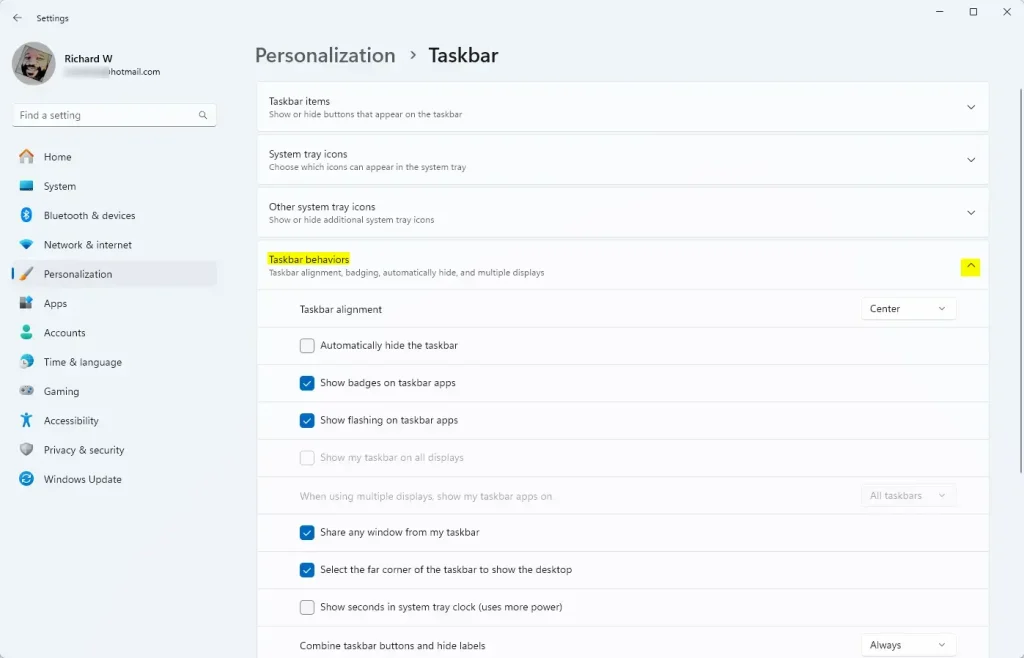
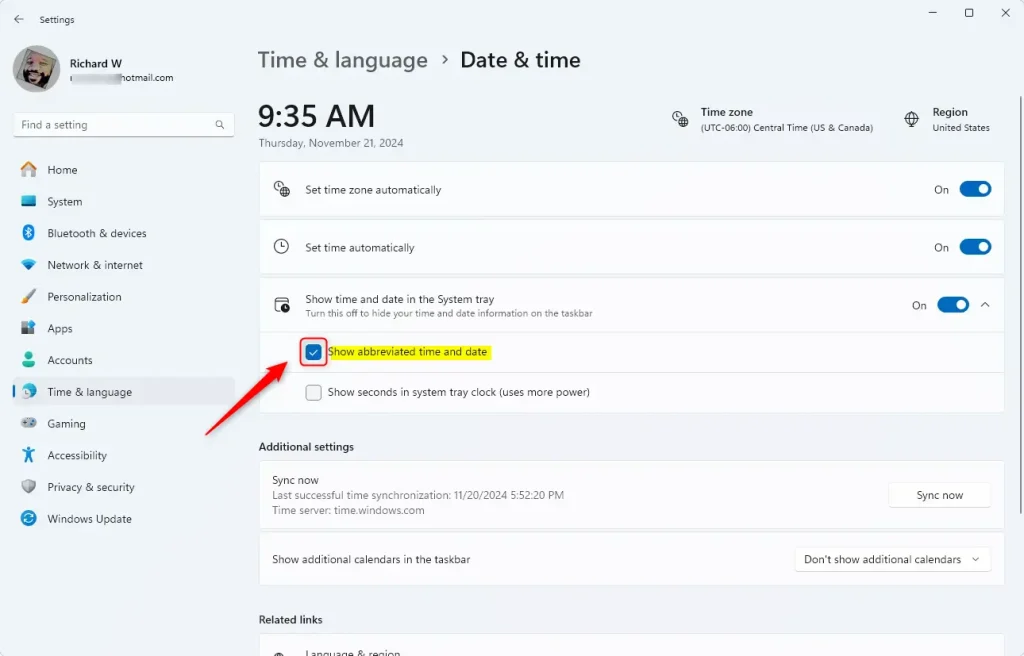
- Expand the Show time and date in the System tray tile.
- Check the box next to Show abbreviated time and date to turn the feature on. Uncheck it to turn the feature off.
The clock in the bottom-right corner should switch to the compact format right away. If the Show abbreviated time and date option is missing, the command has not taken effect yet. Restart the PC and confirm you are on build 22635.3790 or newer.
- Close the Settings app when you are finished.
Show Shortened Time and Date on Taskbar Using Windows Registry
It also works on Windows 11 Home. This method creates or changes one value in the system database to shrink the clock display. Be careful while you work in the registry, because wrong changes can cause system problems.
Before you start, you can make a backup. In Registry Editor, choose File Export, pick All as the export range, name the file and click Save. If something goes wrong, double-click that file to restore it.
- Open the Windows Registry Editor with administrator privileges. For example, click Start, type regedit, then right-click the result and select Run as administrator.
- Click Yes if User Account Control asks for permission.
The Registry Editor window opens, with the key tree on the left and values on the right.
[Requires Admin Privileges]- Navigate to the following registry key. You can paste the path into the address bar at the top of the Registry Editor window and press Enter.
Computer\HKEY_CURRENT_USER\Software\Microsoft\Windows\CurrentVersion\Explorer\Advanced
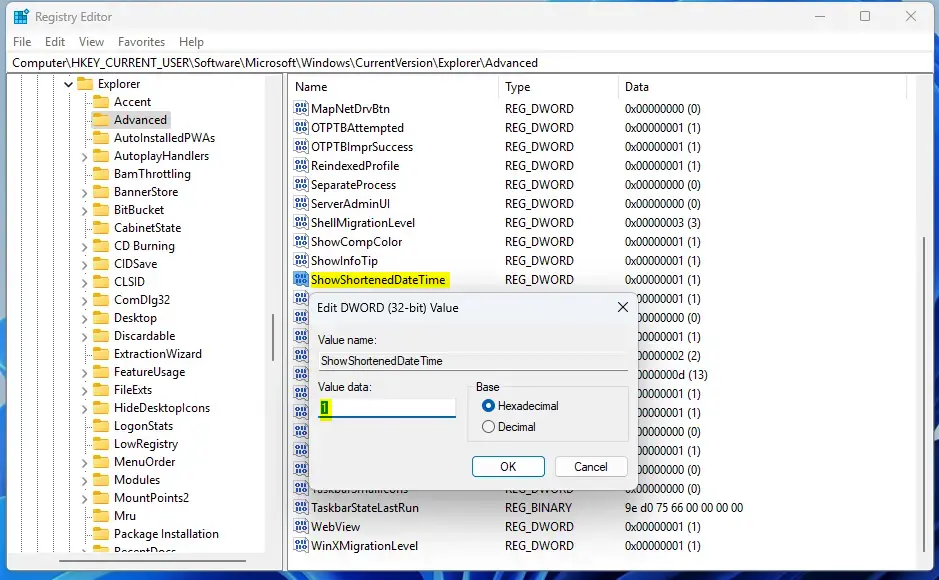
- Look in the right pane for a DWORD (a 32-bit numerical value) named ShowShortenedDateTime, and double-click it.
An Edit DWORD (32-bit) Value window opens. If you cannot find the value, create it as described a little further down.
- In the Value data box, type 1 to show the shortened time and date on your taskbar . Type 0 to go back to the standard time and date format.
- Click OK.
If the value does not exist, you can create it. Use these steps instead of step 4.
- Right-click an empty space in the right pane.
- Select New DWORD (32-bit) Value.
- Name the new value ShowShortenedDateTime and press Enter.
- Double-click the new value and set Value data to 1 to turn on the shortened date and time display, or 0 to turn it off.
- Click OK.
Even on a 64-bit system, you create a DWORD (32-bit) Value. That is the correct type here.
Close the Registry Editor. Restarting the computer might be necessary for the changes to take effect. If the clock still looks the same, sign out and back in, or restart the PC. To undo the change, set the value back to 0.
That completes the process.
Summary
Setting up the Windows 11 shortened time taskbar gives you a cleaner system tray by shrinking the clock and date display. You can turn this feature on using the ViveTool command vivetool /enable /id:48525682 or by changing values in the Windows Registry Editor. Both options let you switch back to the normal clock format whenever you want.
Activating this hidden feature takes only a quick command in ViveTool or a manual tweak in the Windows Registry Editor using vivetool /enable /id:48525682. Remember that the feature only exists in Windows 11 Beta Channel build 22635.3790 and newer.
The Windows Registry Editor also handles changing the shortened time and date display on the taskbar. Change the ShowShortenedDateTime value in the registry path HKEY_CURRENT_USER\Software\Microsoft\Windows\CurrentVersion\Explorer\Advanced. Set it to 1 to turn the display on and to 0 to turn it off.
Whether you use ViveTool or the Windows Registry, this guide gives you the steps to customize the time and date display on your Windows 11 taskbar.
Have a question about this guide?
Answered by AI from this guide. Good questions may be added to this page — please don't include personal details.
Did this guide fix your problem?

About the Author
Richard
Tech Writer, IT Professional
Richard is a writer at Geek Rewind who turns complex IT tasks into clear, step-by-step guides. He draws on years of hands-on experience in system administration and enterprise IT operations, focusing on Windows, Linux and WordPress: the problems people actually run into, and the fixes that work. His server and WordPress guides come from systems he runs himself. Richard builds and maintains the platform behind Geek Rewind, from its Ubuntu servers and Nginx configuration to its custom WordPress plugins. Many new tutorials start with readers' questions, and he's always glad to answer them in the comments.
No comments yet — be the first to share your thoughts!