How to Show Shortened Time and Date on Your Windows 11 Taskbar


A shortened time and date on the Windows 11 taskbar makes the clock area smaller. It shows only the hour and minute and a short numeric date such as 6/22, instead of the longer text formats. That frees room on the taskbar for open windows and system tray icons.
One way to turn it on is the Registry Editor, which is the tool for Windows’ central database of system settings. Changing a single value in one registry key can shrink the clock. It often takes effect right away. If the clock does not change, restart your PC.
Open Command Prompt as administrator, navigate to your ViVeTool folder, and run vivetool /enable /id:48525682, then restart your PC. The taskbar clock switches to show only the hour, minute, and short date like 6/22 instead of full text.
What is Shortened Time and Date?
A shorter time and date means your PC shows a simpler, more compact clock and calendar on the taskbar . It saves screen space and gives the taskbar a tidier look.
Who Can Use This?
It also needs ViVeTool, a free open-source utility that switches on features Microsoft has built into Windows but left hidden. You can get it here: ViVeTool.
To check your build, open Settings System About and read the OS build line under Windows specifications. If your build is older than 22635.3790, the option is not there to turn on. Update Windows first, then come back to this guide.
How to Enable Shortened Time and Date Step-by-Step
Step 1Download and Install ViVeTool
Download and extract ViVeTool before you go on. It is a command-line utility that flips hidden feature switches in Windows. The guide below covers the full setup:
How to install and use ViVeTool on Windows 11
Remember the folder you extract it to. You will need to run commands from that location in the next section.
Step 2Turn On the Shortened Time Feature
To change the taskbar time format, open Command Prompt as an administrator and run the ViVeTool command that enables the hidden compact clock. You will then see the shorter time and date in the bottom right corner of the screen.
- Click Start and type
cmd. - Right-click Command Prompt in the results and select Run as administrator.
- Click Yes if User Account Control asks for permission. A Command Prompt window with “Administrator” in the title bar opens.
- Go to the folder where you extracted ViVeTool, if the command does not run from your current location.
- Type the following command and press Enter:
vivetool /enable /id:48525682
This tells Windows to switch the taskbar to the abbreviated date format. ViVeTool should print a short message saying the feature configuration was set. If you see an error instead, the window is probably not running as administrator.
Restart your PC so the change is picked up. ViVeTool changes usually do not show until after a restart.
Step 3Change Taskbar Settings
After the feature is enabled, you can check the setting in the Settings app . Open Personalization Taskbar and look in the Taskbar behaviors section. The toggle for the shortened clock is there.
- Click Start > Settings, or press Win+I.
- Select Personalization in the left-hand menu.
- Click Taskbar on the right side. The taskbar settings page opens.

Next:
- Find Taskbar behaviors and click it to expand the section.
- Look for the option labeled Show time and date in the System tray .
- Turn Show abbreviated time and date on or off to switch the shorter format on or off.
If you cannot find these options, the hidden feature is probably not active yet. Check that your build is new enough, that the ViVeTool command ran without errors, and that you restarted the PC.
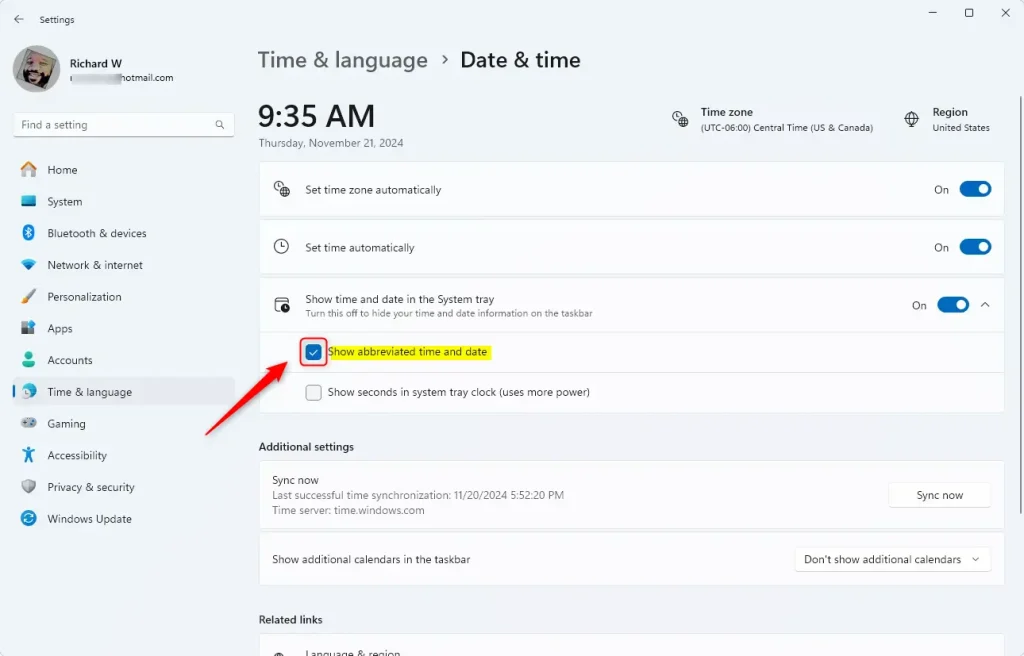
Close the Settings window when you are done. The clock should now show the compact format.
Alternative Way: Use Windows Registry (For Advanced Users)
You can also set this in the Registry Editor. Open it with administrator rights and go to Computer\🗝️HKEY_CURRENT_USER\
In Registry Editor, click File Export, choose All as the export range, and save the file somewhere safe. If something goes wrong, you can restore it with File Import
- Press Win+R, type
regedit, and press Enter. - Click Yes when the User Account Control prompt appears. Registry Editor opens.
- Go to the following path. You can paste it into the address bar at the top of the window:
Computer\HKEY_CURRENT_USER\Software\Microsoft\Windows\CurrentVersion\Explorer\Advanced
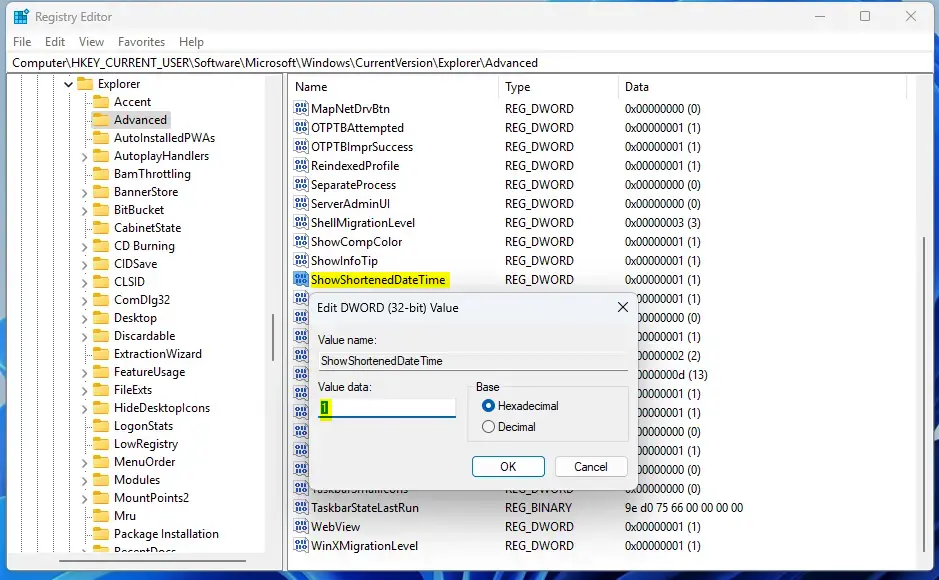
The ShowShortenedDateTime value controls whether Windows draws the compressed taskbar clock.
- Look in the right pane for ShowShortenedDateTime.
- If it is missing, right-click empty space in the right pane and select New DWORD (32-bit) Value.
- Name the new value ShowShortenedDateTime.
- Double-click the value and set its data as shown below.
The list below gives the data to use.
- 1 = Show shortened time and date
- 0 = Show normal time and date
Click OK and close the Registry Editor. Then restart the PC to apply the change. To undo it later, set the value back to its off setting from the list above, or delete the value.
Summary
In short, Windows 11 has a dormant feature that shows a condensed time and date on the taskbar. ViVeTool or a registry value turns it on.
Have a question about this guide?
Answered by AI from this guide. Good questions may be added to this page — please don't include personal details.
Did this guide fix your problem?

About the Author
Richard
Tech Writer, IT Professional
Richard is a writer at Geek Rewind who turns complex IT tasks into clear, step-by-step guides. He draws on years of hands-on experience in system administration and enterprise IT operations, focusing on Windows, Linux and WordPress: the problems people actually run into, and the fixes that work. His server and WordPress guides come from systems he runs himself. Richard builds and maintains the platform behind Geek Rewind, from its Ubuntu servers and Nginx configuration to its custom WordPress plugins. Many new tutorials start with readers' questions, and he's always glad to answer them in the comments.
No comments yet — be the first to share your thoughts!