How to Hide Time and Date in Windows 11 System Tray


Hiding the time and date in the Windows 11 system tray removes the clock from the bottom-right corner of your taskbar and frees up a little screen space. The built-in switch for turning the clock off only exists on Windows 11 build 23440 and later. Older releases don’t have it, so update Windows first if you can’t find the option.
You can do this from the Taskbar and Date & time settings without any extra software. The Registry method below is a fallback if the toggle is missing. Turning the clock off clears visual clutter so you can focus on your open windows. The change is cosmetic, and you can reverse it at any time.
Open Settings , go to Time & Language Date & Time, scroll down and toggle “Hide time and date” to On, or turn off “Show time and date in the system tray ” depending on your build. The clock disappears from the taskbar immediately without restarting.
Hide or show the time and date via Settings
The Settings app is the safest way to hide the clock. It works on both Home and Pro editions and needs no administrator rights. In short, you open Settings , go to the Date & time page, and switch off the clock in the system tray . The steps are below.
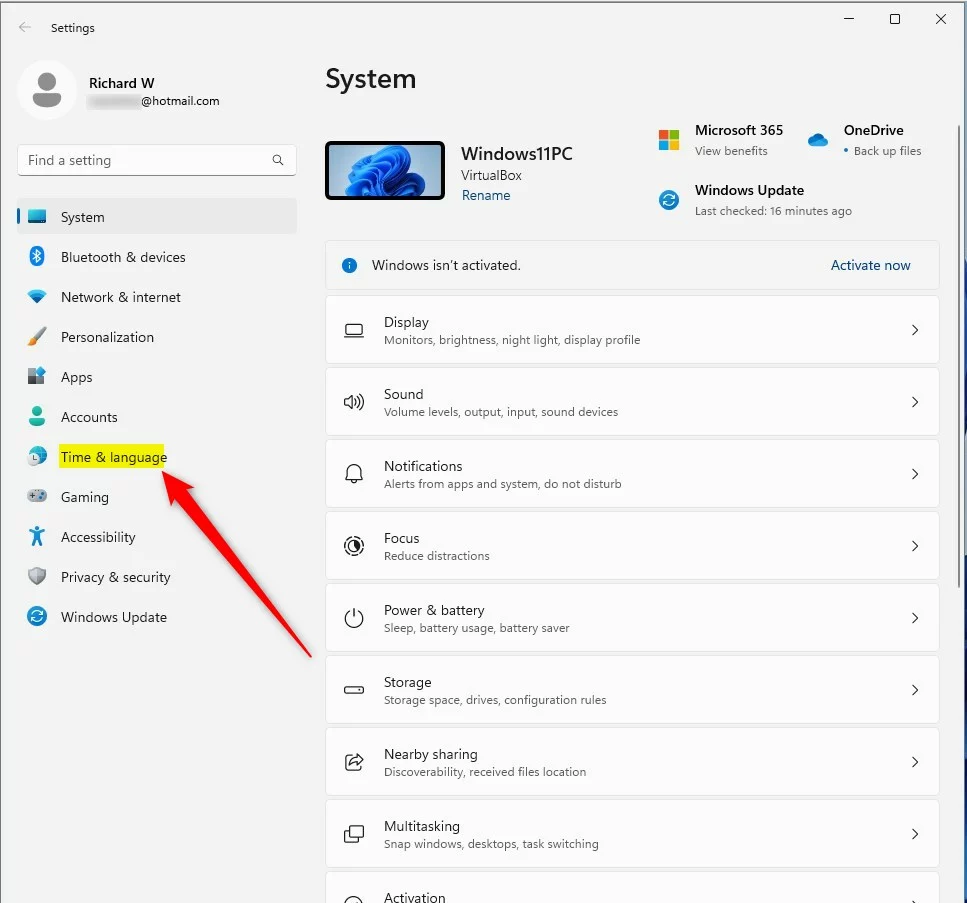
- Open the Start menu and select Settings. You can also press the Win and I together. The Settings window opens with a list of categories on the left.
- Select Time & Language from the menu on the left. The right side now shows the date, time and language options.
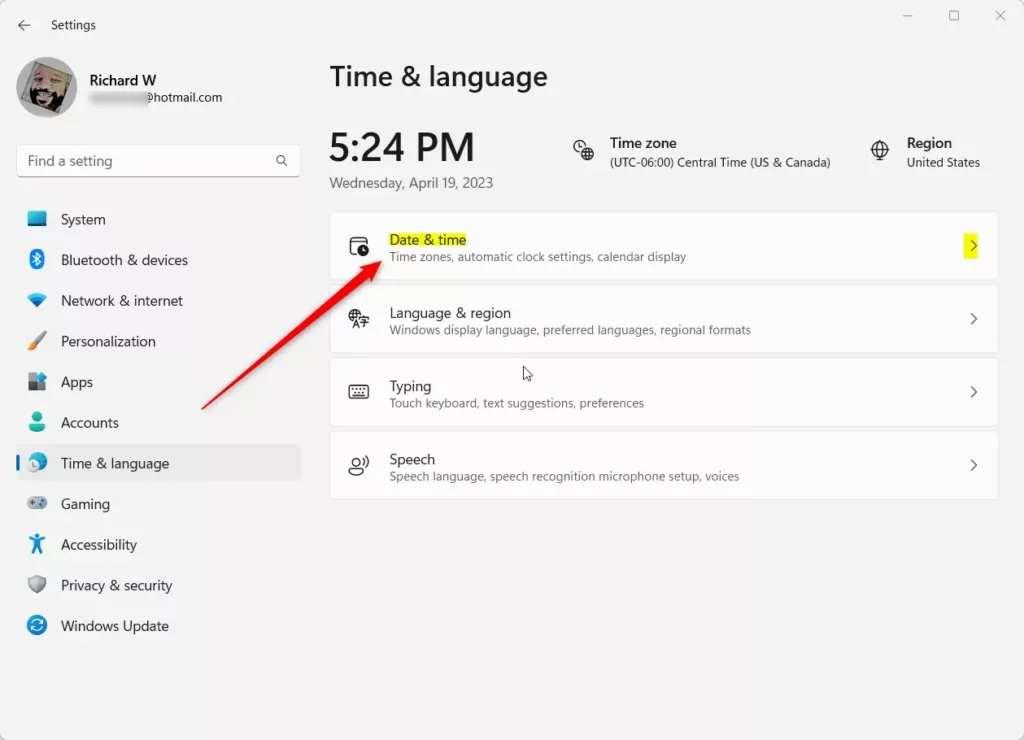
- Click the Date & Time box on the right. The page that opens lists time zone, automatic time and the clock display options.
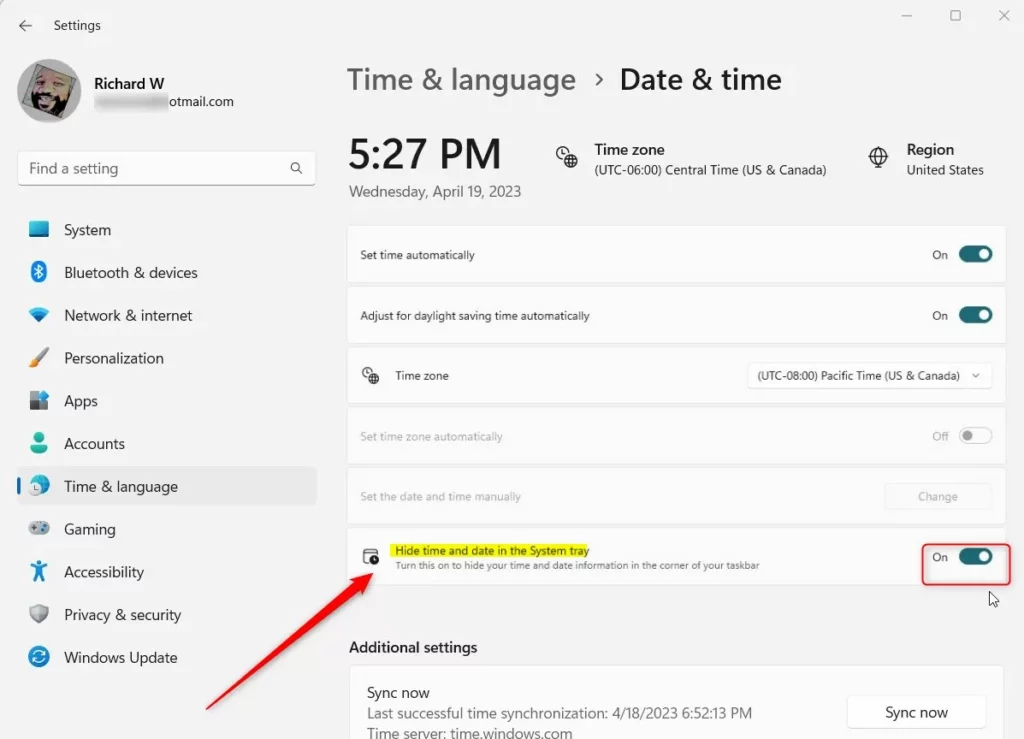
Scroll down this page and find the clock option for the system tray . The wording varies a little between builds. Some show a “Hide time and date” option, and others show a “Show time and date in the system tray” switch. They do the same job, just in opposite directions.
- With “Hide time and date”, toggle the switch to the “On” position to hide the clock, or “Off” to show it again.
- With “Show time and date in the system tray ”, turn the switch off to hide the clock.
The clock should disappear from the taskbar straight away. No restart is needed. If you can’t find either option, check your build number in Settings System About. Anything older than 23440 doesn’t have the switch, so use the Registry method below instead.
Advanced Customization: Registry Editor
The Registry is a database that stores low-level Windows settings , so a wrong edit can cause problems. Change only the value described here. If you want a backup first, use File Export in Registry Editor to save the key you are working in.
In short, you open the tool, go to HKEY_CURRENT_USER\Software\Microsoft\Windows\CurrentVersion\Explorer\Advanced, and change or add the correct DWORD value for the clock. This guide can't confirm that Windows 11 honors this value on every build. If nothing changes after the steps below, use the Settings method instead.
- Press the Windows key and R together, type regedit, and press Enter. If a User Account Control prompt appears, click Yes. Registry Editor opens with a folder tree on the left.
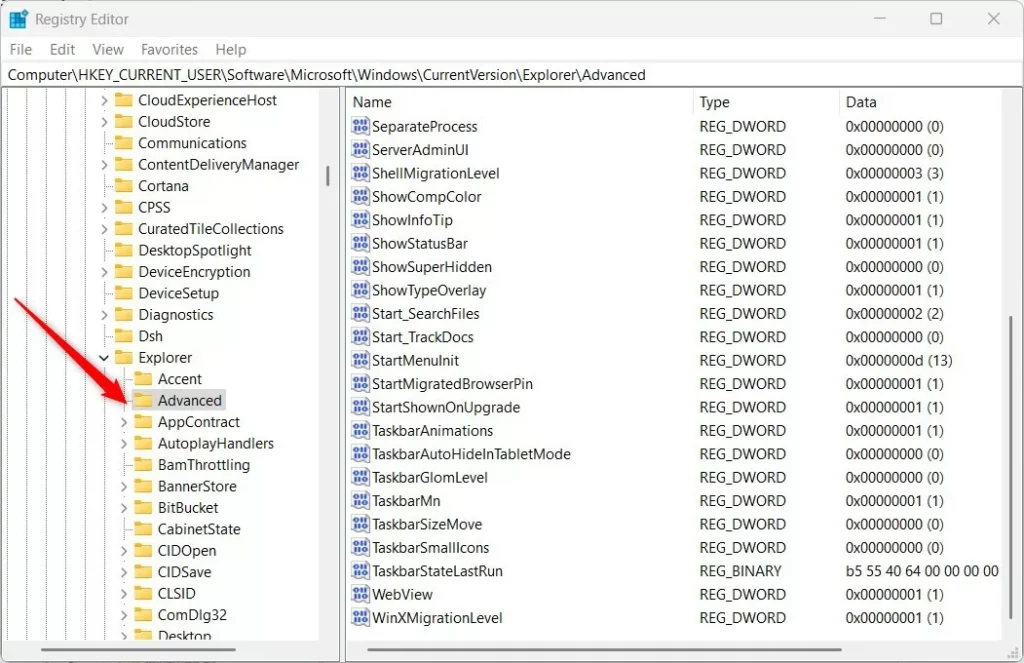
- Navigate to:
HKEY_CURRENT_USER\Software\Microsoft\Windows\CurrentVersion\Explorer\Advanced. You can paste the path into the address bar at the top of Registry Editor, or expand the folders one by one. The right pane then lists the values stored in that key.
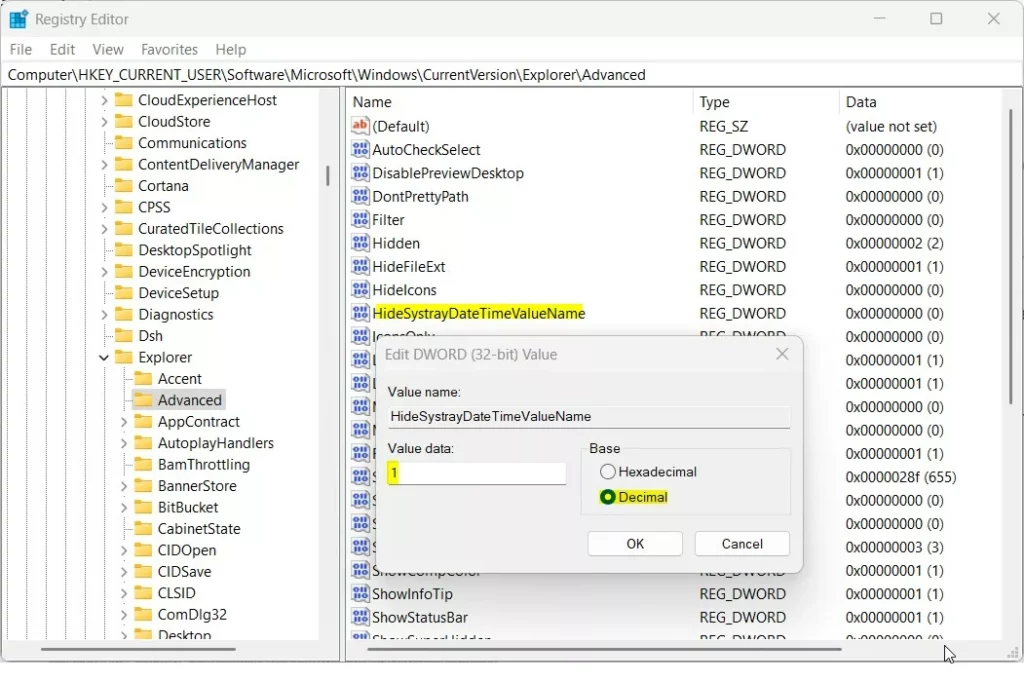
- In the right pane, right-click an empty space and select New, then DWORD (32-bit) Value. A new entry appears with its name highlighted for editing.
- Name the new value HideSystrayDateTime and press Enter, so Windows can recognize the setting. Type the name exactly, because the Registry is case-sensitive in practice and a typo creates a useless value.
- Double-click the value you just created. Some guides call this value 'HideClock', but it is the same entry that controls the clock's visibility. The Edit DWORD (32-bit) Value box opens.
- Set Value data to 1 and click OK. A value of 1 hides the clock from the system tray. Setting it back to 0 shows it again.
- To apply the change, restart Windows Explorer. Press Ctrl + Shift + Esc to open Task Manager, and find Windows Explorer in the Processes list. Right-click it and select Restart. The taskbar and desktop go blank for a second or two and then reload. Signing out and back in, or restarting the PC, does the same job.
Using Group Policy Editor
Windows 11 Pro, Enterprise and Education users can use the Group Policy Editor (gpedit.msc) to manage taskbar settings. It is a safer alternative to the registry for system-wide UI tweaks, because you pick a named policy instead of editing raw values. To open it, press the Windows key and R together, type gpedit.msc, and press Enter. Windows 11 Home doesn't include this tool, so Home users should stick to Settings or the Registry. Policies set this way apply to everyone on the PC and may stop users from changing the setting themselves. To undo a policy, set it back to Not Configured.
Troubleshooting and Risks
Hiding the clock does not affect system performance. It only changes what the taskbar shows. If the clock disappears and you cannot restore it, return to the Settings app or the registry key and set the value back to 0. When using the registry, restart explorer.exe to refresh the taskbar. If the clock still doesn't come back, sign out and back in, or restart the PC.
Summary
You can hide the time and date in Windows 11 with either the standard Settings app or the Registry Editor, depending on your preference. The Settings method is safest for everyday users and works on Home and Pro. The registry path is an alternative if the toggle is missing. Always restart explorer.exe if your taskbar does not update right away after making changes.
- Settings: Use the Time & Language menu for the easiest, safest way to hide the clock. It needs build 23440 or later.
- Registry: Use
HKEY_CURRENT_USER\Software\Microsoft\Windows\CurrentVersion\Explorer\Advancedto force the change. Set the value to 1 to hide the clock and 0 to show it again. - Admin: Registry and Group Policy changes require administrative privileges.
- Restart: Always restart
explorer.exeif changes do not appear immediately.
Was this guide helpful?

About the Author
Richard
Tech Writer, IT Professional
Richard is a writer at Geek Rewind who turns complex IT tasks into clear, step-by-step guides. He draws on years of hands-on experience in system administration and enterprise IT operations, focusing on Windows, Linux and WordPress: the problems people actually run into, and the fixes that work. His server and WordPress guides come from systems he runs himself. Richard builds and maintains the platform behind Geek Rewind, from its Ubuntu servers and Nginx configuration to its custom WordPress plugins. Many new tutorials start with readers' questions, and he's always glad to answer them in the comments.



No comments yet — be the first to share your thoughts!